Security
Security
Protect your account with 2FA and session control, require SAML SSO for the workspace, and control your workspace data.
Security in Asks lives at two levels: your personal account (sign-in methods, 2FA, sessions) and the workspace (single sign-on, verified domains, export, and deletion). Account settings apply to you in every workspace; workspace settings apply to everyone in that workspace.
Your account
Sign-in methods. You can sign in with email and password or with Google. Opening Asks from your Shopify admin signs you in with your Shopify account, and workspaces with SAML SSO sign you in through your company's identity provider. New email sign-ups confirm their address with a code before the account is created; Settings → Account → Email Verification shows your status.
Password. Change it under Settings → Account → Security — passwords need at least 8 characters, and changing yours signs out your other sessions. If you signed up with Google or Shopify you have no password yet: use Forgot password? on the sign-in page to set one (the reset link expires after 1 hour). On the same page, Connected accounts links Google so you can use either method.
Two-factor authentication. Asks supports TOTP with any authenticator app. Select Enable 2FA, scan the QR code (or enter the key manually), and confirm a 6-digit code. You then get 8 one-time recovery codes — download them and keep them somewhere safe; at sign-in you can enter one instead of an authenticator code. Generate new recovery codes replaces the set (your password is required, and the old codes stop working). Disable 2FA also requires your password, and signs you out everywhere, including the device you're on. If you have no password yet, set one with Forgot password? on the sign-in page first — the same goes for Generate new recovery codes.
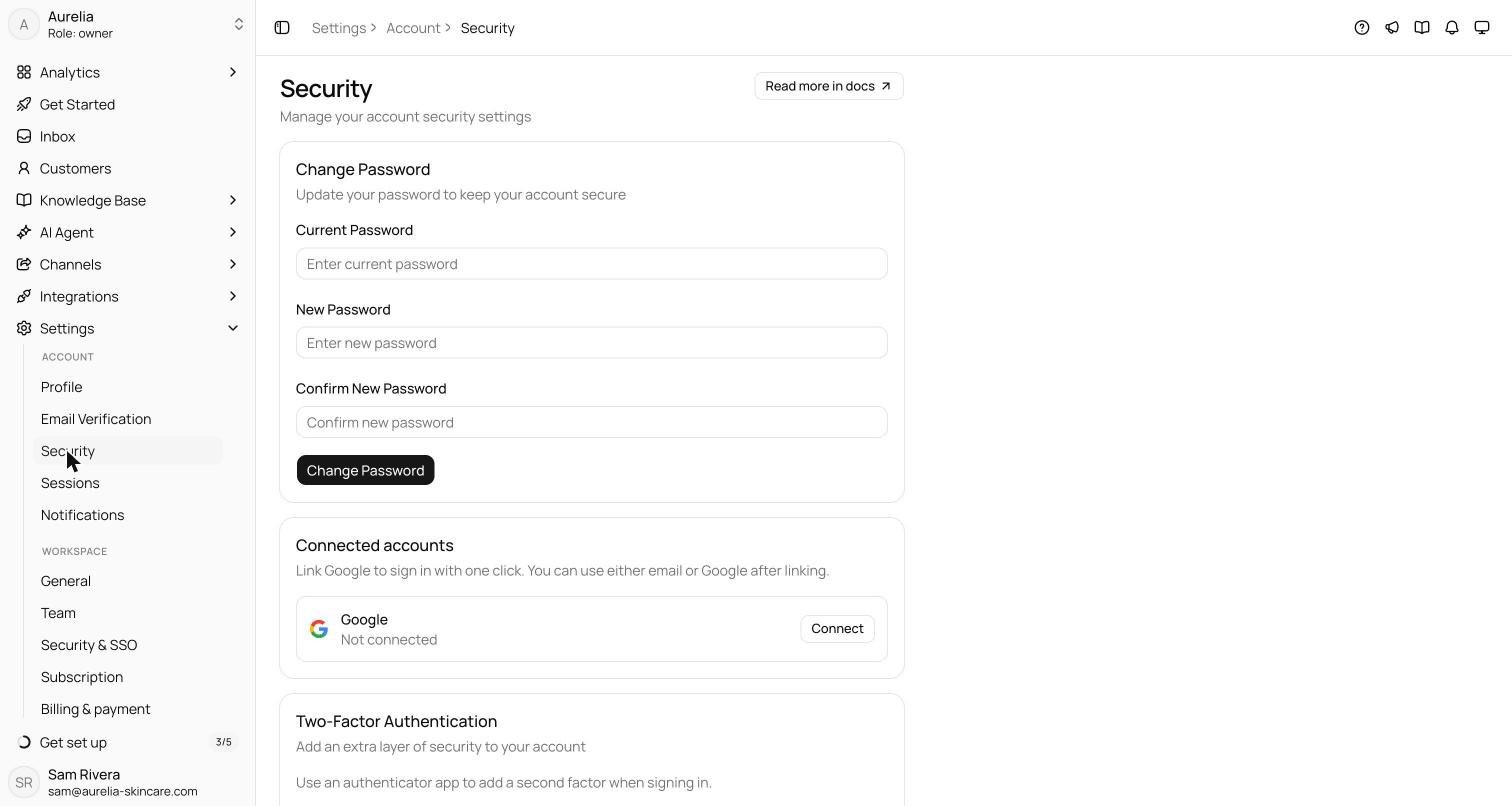
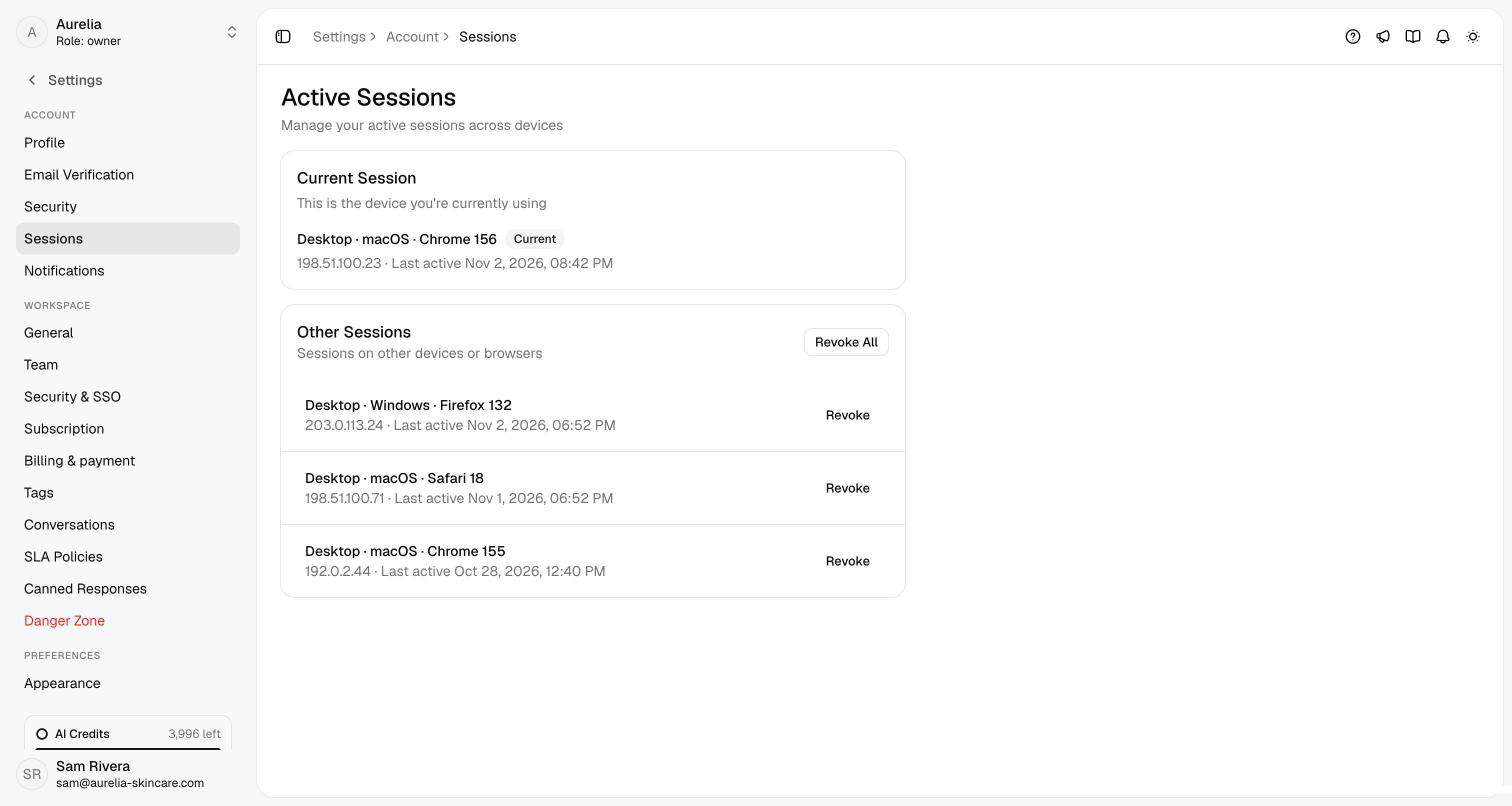
Sessions. Settings → Account → Sessions lists the device you're on under Current Session and every other signed-in device under Other Sessions, with its IP address and last activity. Revoke signs one device out immediately; Revoke All signs out every device except this one.
Security alerts. Asks emails your account when something security-relevant happens: a sign-in from a new device, a password change, 2FA turned on or off, new recovery codes, and repeated failed password attempts (5 within 15 minutes). Owners and admins are also told when an API key is created or revoked and when SSO settings change.
SAML SSO
SAML SSO Enterprise lets a workspace sign people in through your identity provider. Asks supports SP-initiated SAML 2.0 with any compliant IdP — Okta, Microsoft Entra ID, Google Workspace, and others. Owners and admins configure it at Settings → Workspace → Security & SSO. On other plans the page shows a preview with View plans; Enterprise is arranged with sales — see Plans & billing.
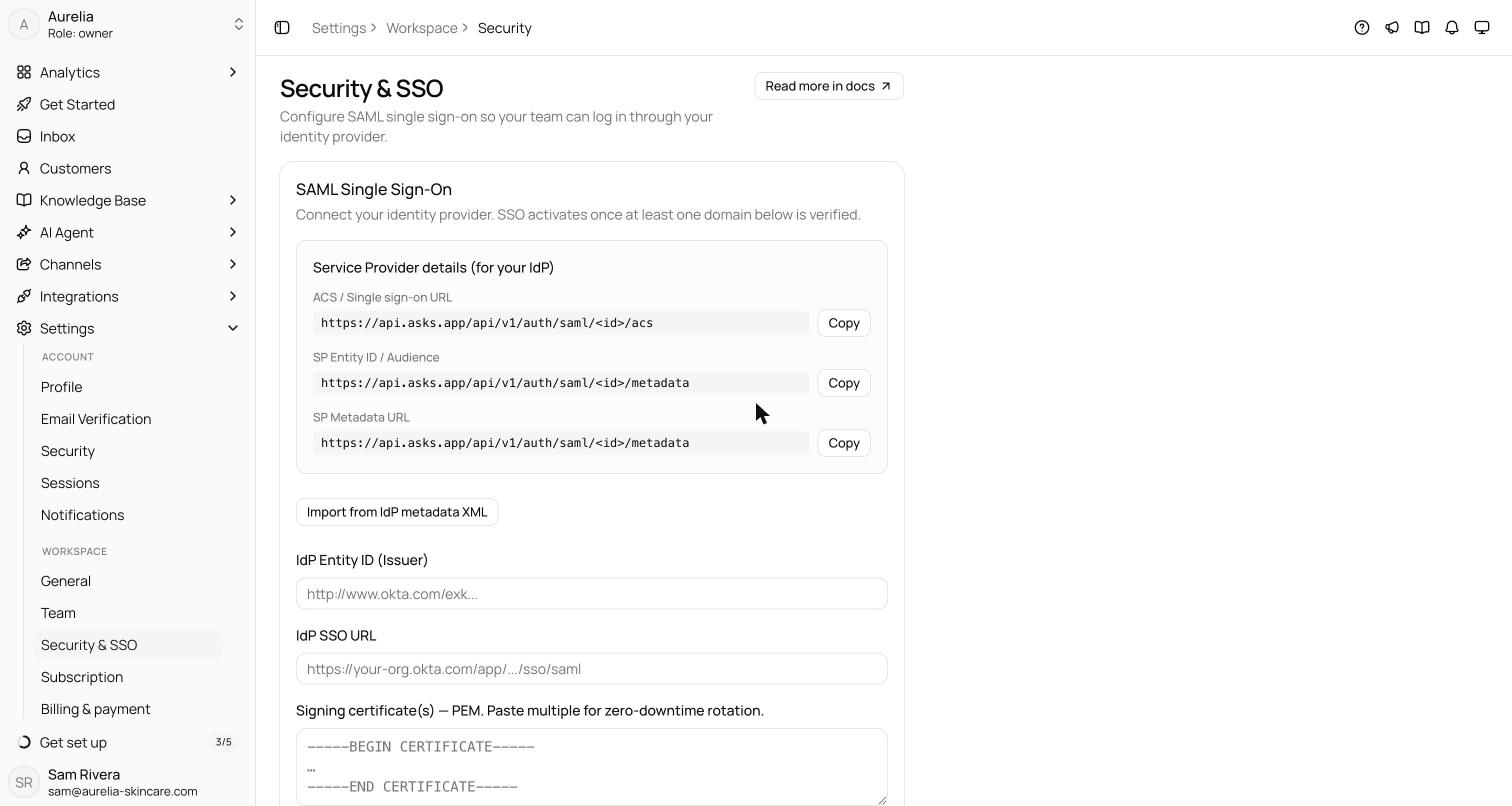
Add Asks as a SAML application in your identity provider. The Service Provider details box lists the ACS / Single sign-on URL, the SP Entity ID / Audience, and the SP Metadata URL, each with a Copy button.
Fill in IdP Entity ID (Issuer), IdP SSO URL, and the signing certificate in PEM format — or use Import from IdP metadata XML to fill them for you. You can paste several certificates to rotate one without downtime; Asks warns you 30 days before a certificate expires. Choose the Default role for new SSO users (Member or Admin). Advanced attribute mapping covers IdPs that use non-standard email or name attributes or another NameID format. Select Save SSO configuration.
In Verified domains, add your company domain, publish the DNS TXT record shown, and select Verify. SSO turns Active once at least one domain is verified. Only people whose email is on a verified domain are provisioned through SSO, which keeps outsiders from joining through your IdP.
Check Require SSO for this workspace and save. Members must then sign in through your IdP — sessions from any other sign-in method are refused for this workspace, while their other workspaces are unaffected. Asks emails everyone in the workspace when this turns on.
To sign in, people choose Single sign-on (SSO) on the Asks sign-in page and enter their work email — or, under Use your organization ID instead, the workspace slug shown in Settings → Workspace → General. The first SSO sign-in creates their Asks account if needed and adds them to the workspace with the default role — member or admin, never owner.
Two safety valves apply while SSO is required: owners and admins with 2FA keep a break-glass password sign-in, and the sole owner is never locked out. Every break-glass sign-in and every SSO configuration change is recorded in an audit log and emailed to the workspace's owner and admins; contact support for a copy of the log.
Data controls
The Danger Zone page holds the workspace-level data actions.
Export Data. The owner can download the workspace's data — conversations, knowledge base articles, and customer information — as a JSON file. Take one before any destructive change.
Leave Workspace. Admins and members can leave a workspace here. The owner can't leave — transfer ownership first.
Delete Workspace. The owner can delete the workspace by typing its name to confirm. This permanently removes all conversations and messages, knowledge base content, customer data and notes, team access, and widgets, and every member is emailed a notice. It also cancels the workspace's subscription and add-ons immediately — card or Shopify billing — so you aren't charged again; the rest of the current billing period isn't refunded. If the subscription can't be canceled (for example, the payment provider is briefly unavailable), nothing is deleted and an error asks you to try again in a few minutes.
Email preferences. Every non-essential email Asks sends carries an unsubscribe link, and you manage notification categories under Settings → Account → Notifications — including Waiting on a human reply, the reminder emails for customers still waiting on a person. In workspaces with Commerce, Commerce alerts sets which order and stock alerts reach you by email and in the app. Security alerts always send.
Related
- Team & roles — who can change SSO, billing, and workspace settings.
- Plans & billing — the Enterprise plan and cancellation.
- API authentication — API keys and their scopes.