Overview
Inbox overview
One shared inbox for every conversation your AI agent and team handle, across all channels.
The inbox at https://app.asks.app/inbox is where every conversation lands — the Chat widget, Spotlight, the Chat Page, WhatsApp, Instagram, Messenger, Telegram, Slack, email, and the Agent chat API. It has three panes: the conversation list, the transcript, and the customer panel.
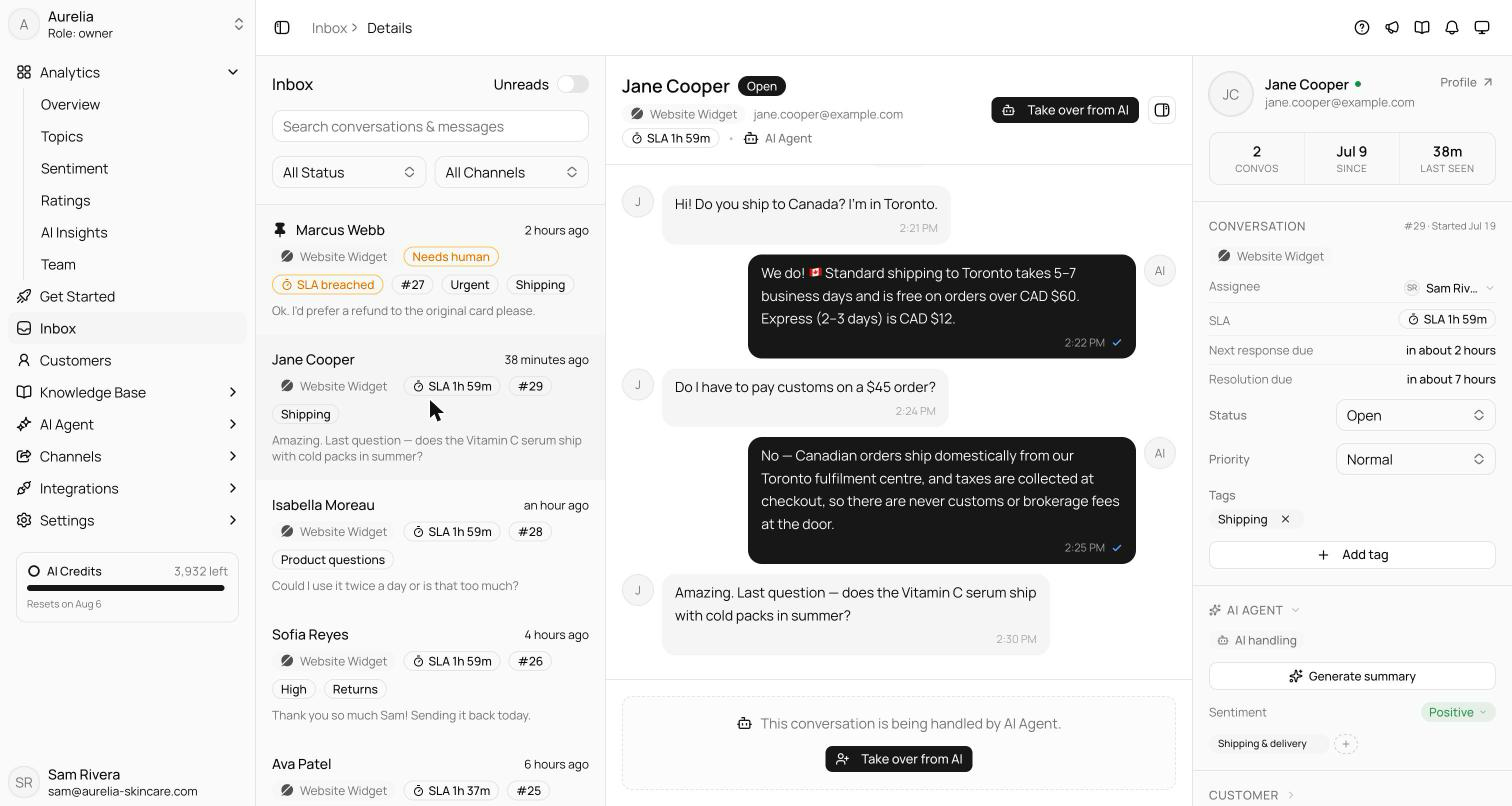
Everything updates in realtime: new messages appear as they arrive, conversations move to the top of the list, and a "Reconnecting — live updates paused" banner appears if your connection drops.
Finding conversations
- Search — press
⌘ K(Ctrl K) to jump to the search box. It matches customer names and emails, typos included, and the text of every message, internal notes included. Results show a highlighted snippet and open at the matching message.Escclears it. - Status — All Status, Open, Needs human, Closed, plus SLA at risk and SLA breached Business and up where SLA tracking is available.
- Channel — All Channels, Widget, and each other channel your workspace has set up: WhatsApp, Instagram, Facebook, Telegram, Slack, Email.
- Assignee — Anyone, Me, AI Agent, Unassigned (which includes the Needs human queue), or a teammate.
- Unreads — narrows the list to conversations with unread customer messages. AI and team replies don't count.
Needs human is an assignment state, not a status: the AI agent handed the conversation to your team's queue and leaves the replies to you. Configure when that happens in Escalation.
The conversation list
Each row shows the customer's name, the time of the last message, a channel badge, and a preview. The badge names the account the conversation came in on — which WhatsApp number, Instagram account, Telegram bot, or support address. Conversations from the Agent chat API or the MCP server's asks_chat tool carry an API badge. Rows can also show a Closed badge, an amber Needs human badge, an SLA countdown chip Business and up, the ticket number (#123), a priority other than Normal, and the first tag.
Right-click a row and choose Pin conversation to mark it with a pin and a tinted background. Right-click again to unpin.
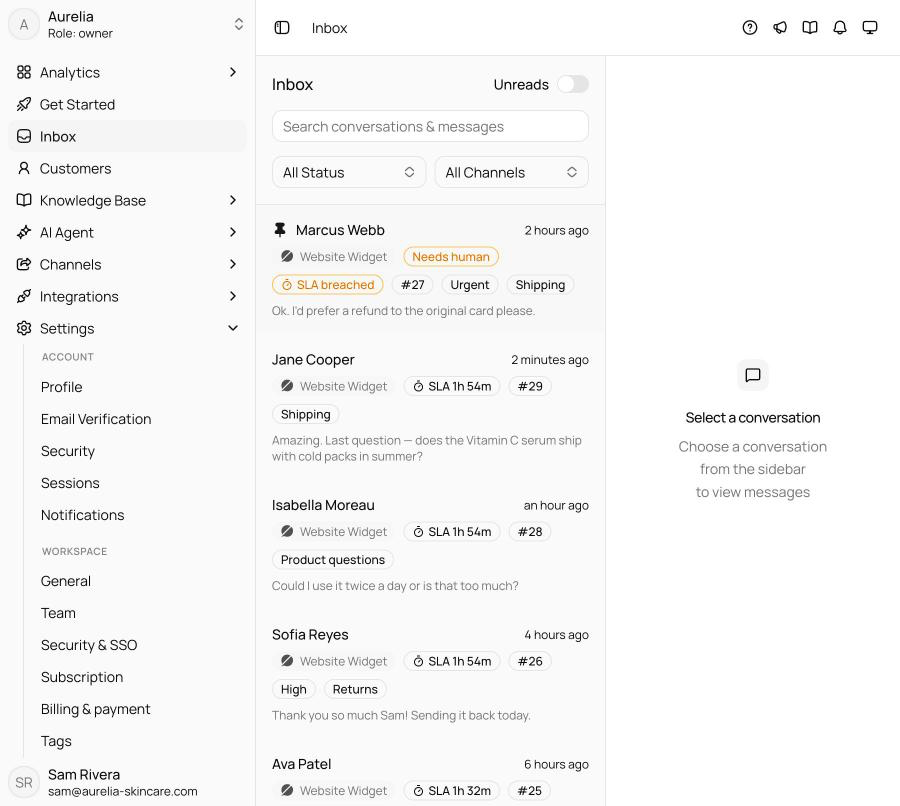
Closing conversations in bulk
Click the select icon in the list header (Select conversations), or right-click an open conversation and choose Select.
Tick the conversations you want — only open ones can be selected. All picks every open conversation loaded in the current view; None clears the selection.
Click Close and confirm with Close conversations. A new customer message reopens a conversation. If any couldn't be closed, a message says how many.
The customer panel
The right pane shows who you're talking to and what Asks knows about them. It appears on wide screens; a header button hides it when you want the transcript full-width.
| Section | What's in it |
|---|---|
| Header | Name, avatar, a Profile button, and a stats strip: Convos, Since, Last seen. |
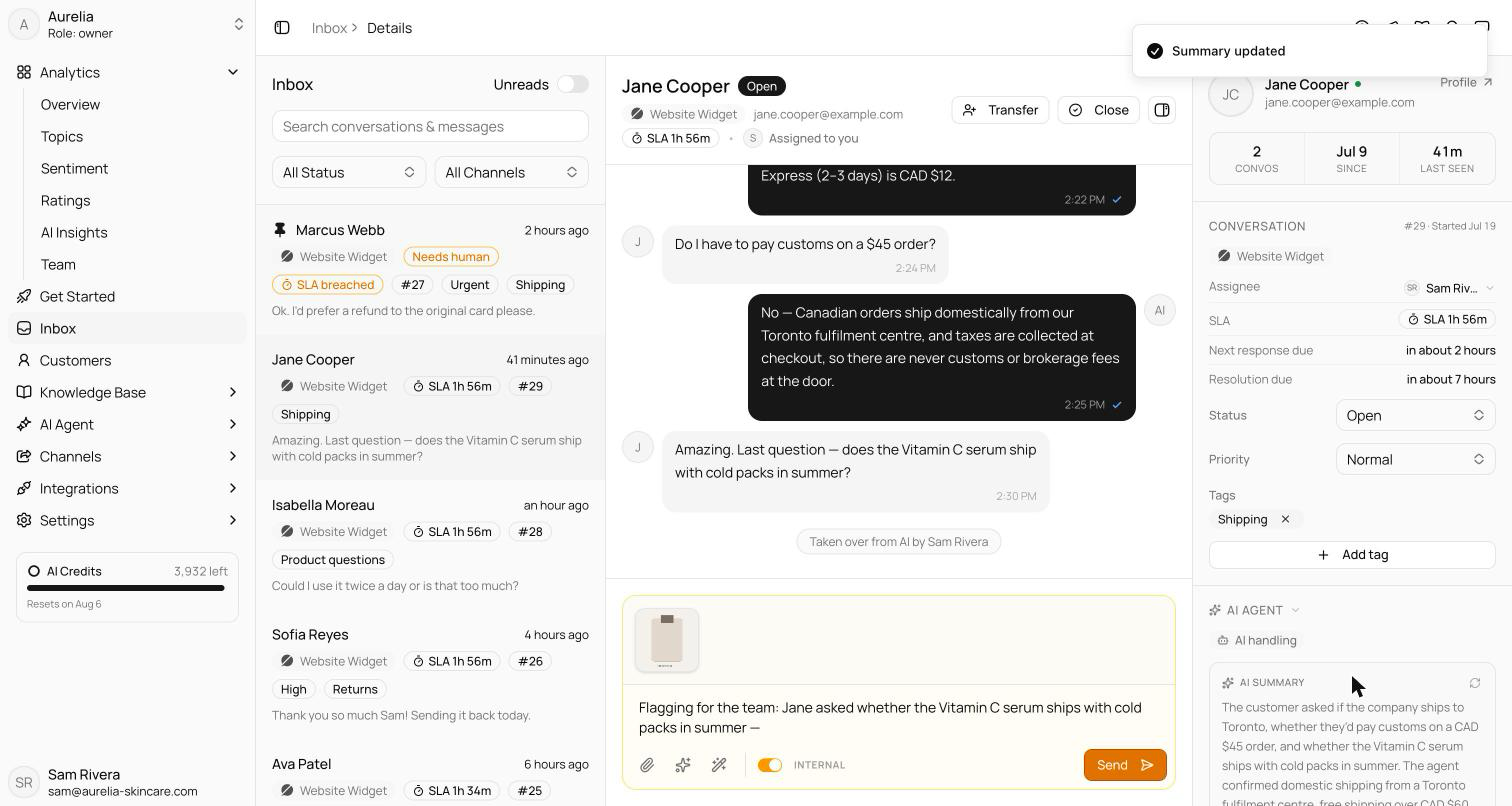
| Conversation | Ticket number and start date, channel, Assignee, SLA status and due times, a link to the Slack thread when there is one, CSAT stars and feedback, and the ticket's status, priority, and tags. |
| AI Agent | Resolution state, when it escalated (and whether outside business hours), sentiment (Positive / Neutral / Negative / Angry — correctable), an AI summary you can generate or regenerate, language, editable topics, AI insights, and Data captured through data collection. |
| Customer | Email, phone, and channel identity — Instagram handle, followers, and Follows you; Telegram username and Started from link (the start tag of the bot link they opened); Facebook name; Slack user — plus widget visitor context (location, device, last page) and customer tags. |
| Store | Shopify orders (track or view in Shopify) and recent storefront browsing. With Commerce, this section is Orders: what the customer has paid in total and how many paid orders they have, their orders with payment and order status, and Create order. |
| Past conversations | Previous conversations — click one to open it, or View all for the profile. |
| Notes | Team notes on the customer, editable in place. |
| Activity | Contacts, profile updates, collected data, notes, escalations, resolutions, reopens, and ratings. |
Click the Assignee to reassign right from the panel: the AI Agent, a teammate, or Unassigned. The transcript header has the fuller takeover and transfer controls — see Takeover & collaboration.
With Commerce, a location the customer shares on WhatsApp has Use as shipping address under it in the transcript, which opens Create order with that address filled in (details).
Click a section's title to collapse it. Customize panel, at the bottom, hides or reorders every section except Conversation; Reset layout restores the default. The layout is saved in your browser.
Keyboard shortcuts
| Shortcut | Where | What it does |
|---|---|---|
⌘ K / Ctrl K | Inbox | Jump to the search box |
Esc | Search box | Clear the search |
Enter / Shift Enter | Composer | Send / add a new line |
/ | Composer, at the start of a message or after a space | Open canned responses |
⌘ J / Ctrl J | Composer | Copilot: suggest a reply, or polish your draft |
Related
- Takeover & collaboration — replying, taking over from the AI, internal notes.
- Tickets, tags & SLAs — statuses, priorities, and response-time targets.
- Customers — the full directory behind the customer panel.