Chat Page
Chat Page
A hosted, chat-only page at app.asks.app/c/your-slug — share the link and customers talk to your AI agent with nothing to install.
The Chat Page is a dedicated page where customers chat with your AI agent and your team. It lives at https://app.asks.app/c/your-slug, so there is nothing to embed and no website required — put the link in your site's navigation, a bio, a QR code, or an email signature.
It is a channel of its own, next to the Chat widget and Spotlight. You manage it at Channels → Chat Page, and its on/off switch is independent: the page stays available while the widget on your site is off, and the other way round. The Chat Page is available to every workspace and starts switched off.
A conversation, not a library — the Chat Page has no articles, collections, or search. To point visitors at your FAQ, policies, or help articles, add them as link cards or sidebar buttons.
Turn it on
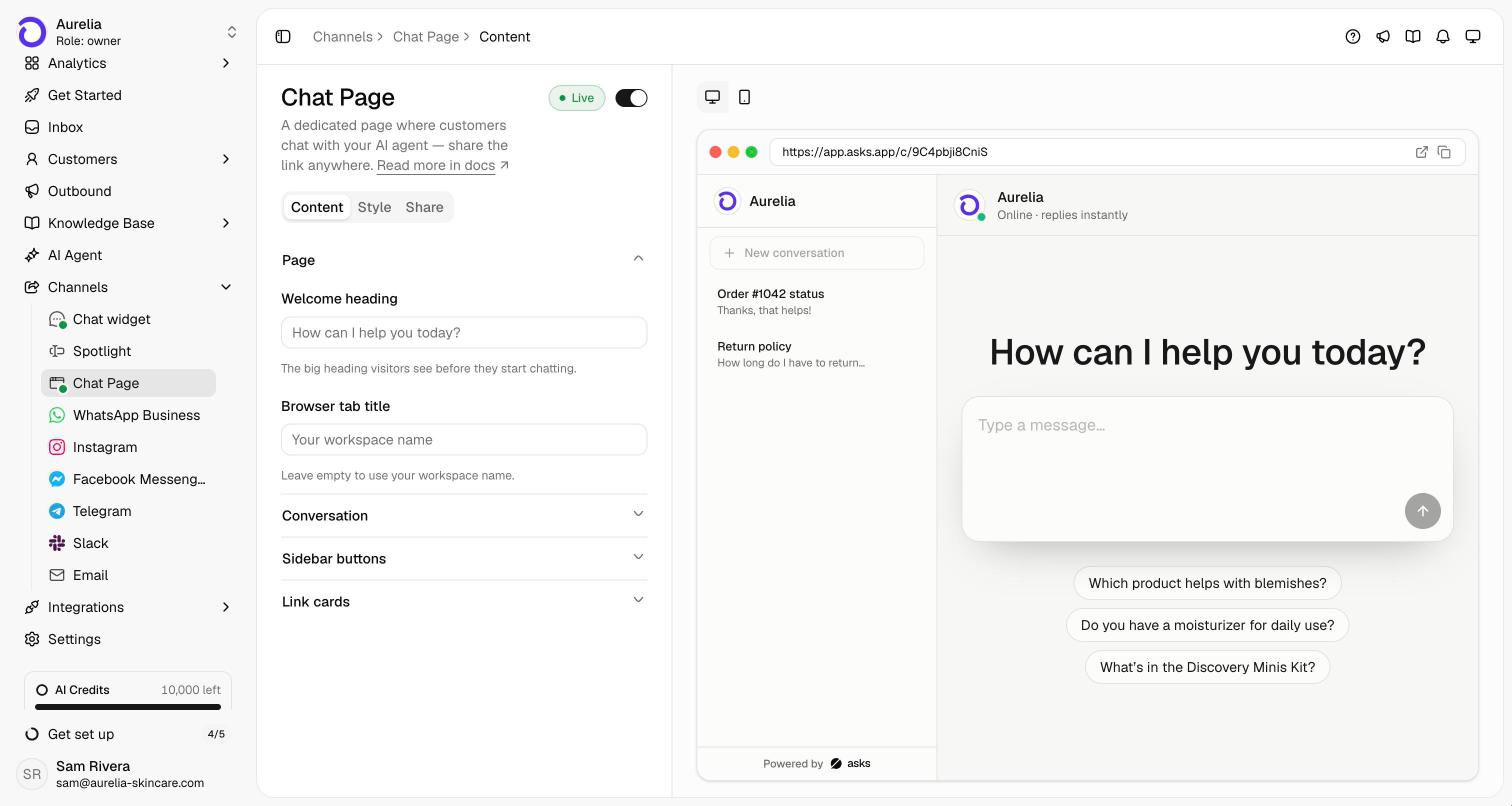
Go to Channels → Chat Page. The page has three tabs — Content, Style, and Share — and a preview on the right that shows what visitors land on.
On the Content tab, set what visitors see before they start chatting:
- Page — the Welcome heading above the message box (empty uses "How can I help you today?" in the visitor's language) and the Browser tab title (empty uses your workspace name).
- Conversation — the Message Input Placeholder, up to five Conversation starters under the message box, and the Privacy policy URL (shared with the Chat widget and Spotlight): when set, "By chatting, you agree to our Privacy Policy" below the conversation's message box links your policy; when empty, there's no line.
- Sidebar buttons — up to three links in the left sidebar, such as your store or contact page, each Primary (your brand color) or Secondary (outlined).
- Link cards — up to four cards under the message box, each with a title, a short description, and a link.
Links must be web addresses. A bare domain like yourstore.com/returns is saved as https://yourstore.com/returns.
Switch the toggle in the page header to Live. The Share tab shows your Chat Page link with Copy and Open buttons. Until the page is live, visitors who open the link see "This chat isn't available."
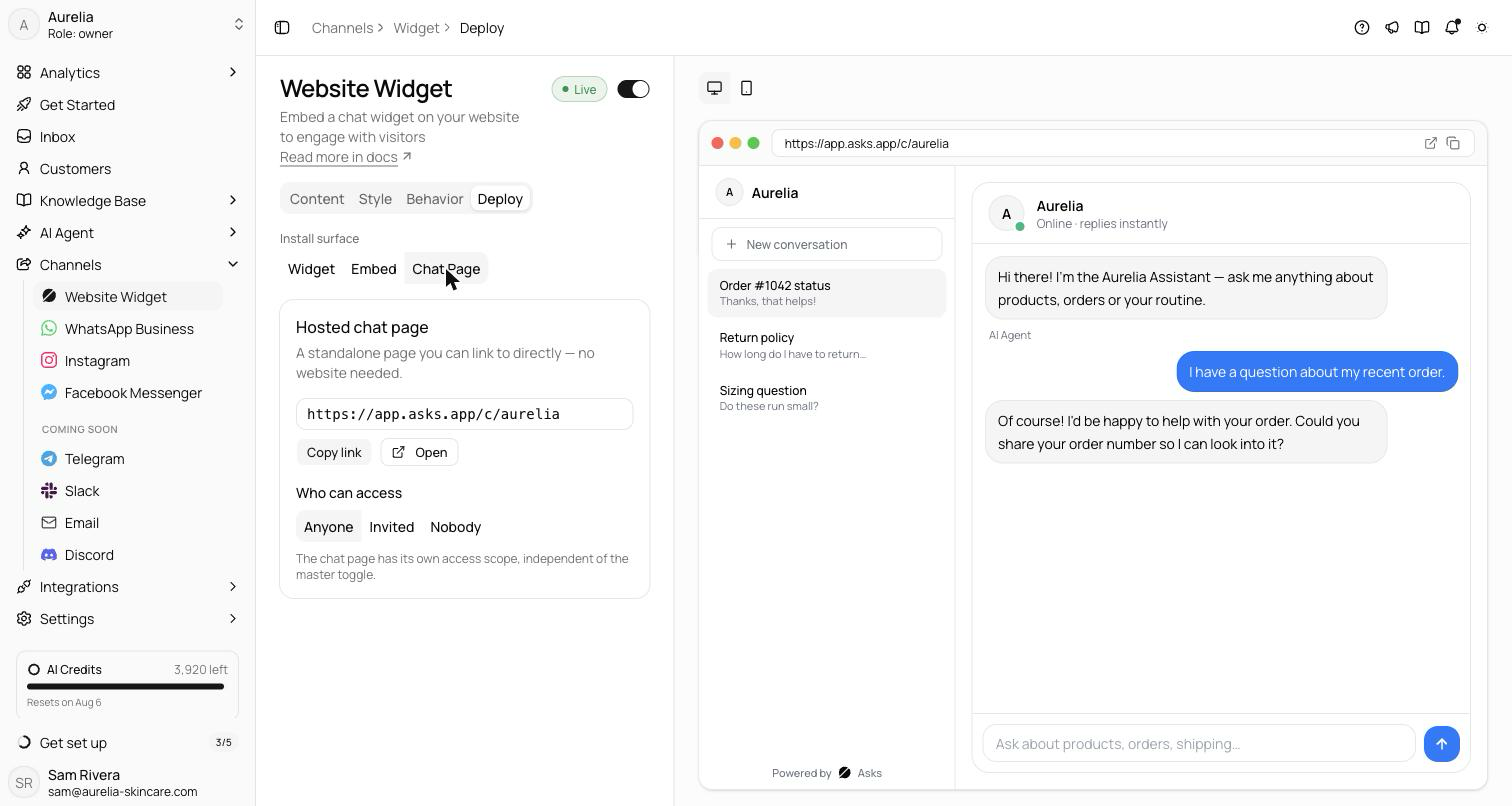
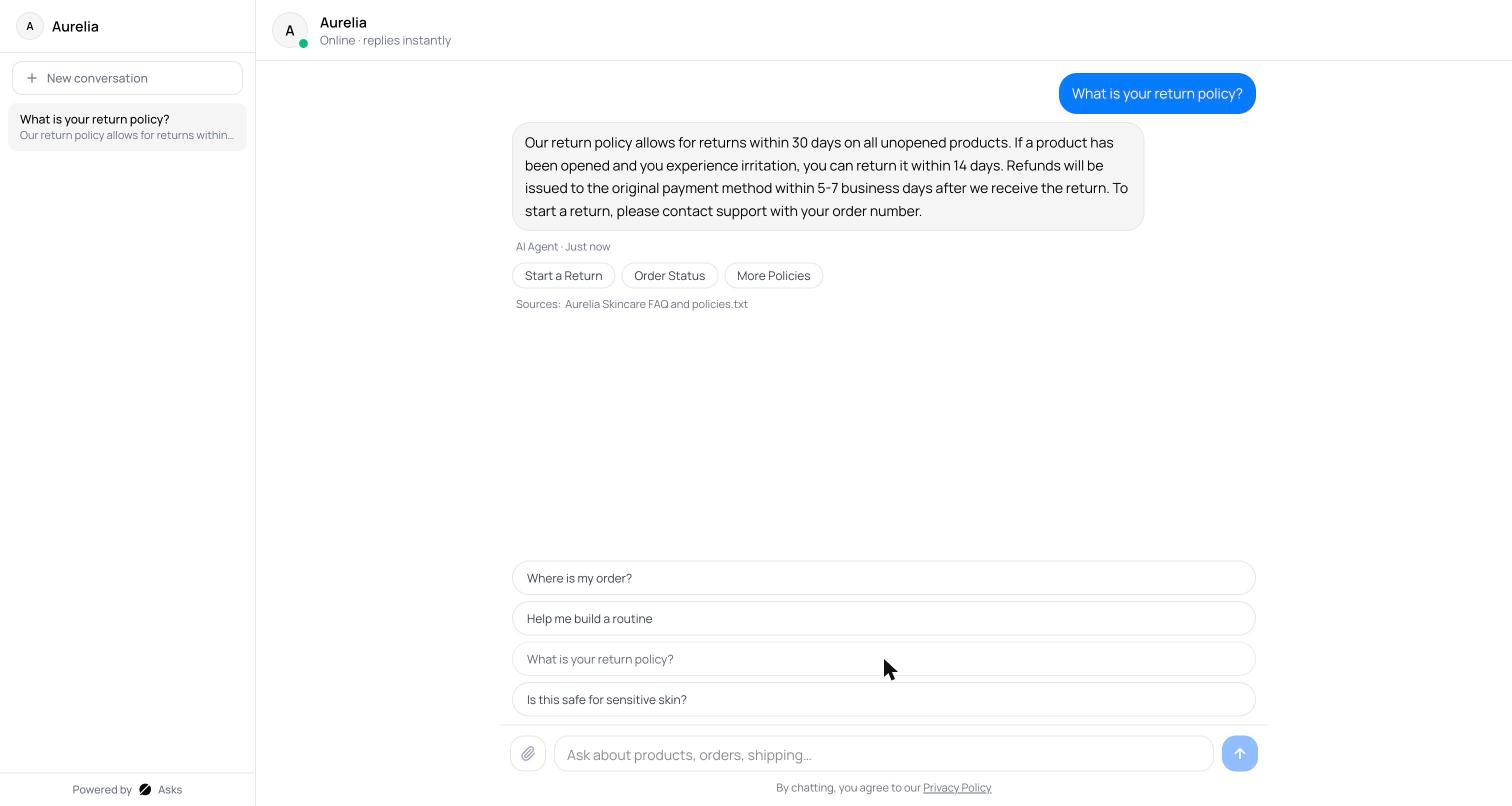
Verify it works — open the link in a private browser window and send a message. It arrives in your Inbox labeled Chat widget, and the reply streams back onto the page.
What visitors see
A visitor first sees your welcome heading, a large message box, your starters, and your link cards. Their first message — typed or a starter — opens the conversation in place. The left sidebar shows your logo and name, New conversation, your sidebar buttons, and the visitor's past conversations; on a phone it opens from the menu button in the header.
The header shows "Online · replies instantly" when the AI agent is on for the Chat widget under AI agent → Deploy, or "We'll reply as soon as we can" when it isn't. When conversation ratings are on for your workspace, the page invites the visitor to rate the conversation at the end.
Shared settings
The Chat Page has its own content, but its look is your brand. Its Style tab edits the theme, primary color, logo, branding, roundness, and text size shared by all your website channels, so a change there also applies to the Chat widget and Spotlight. File uploads, the typing indicator, and languages follow the Chat widget's Behavior tab. See Widget customization.
Your own domain
The Chat Page is served from its Asks link. Hosting it on your own domain, such as yourstore.com/help, is coming soon.
Conversation history
Visitors don't sign in. The page keeps an anonymous visitor identity in the browser, so a returning visitor on the same browser and device picks up their conversations where they left off. Clearing site data or opening the link in a private window starts a fresh visitor with no history.
Troubleshooting
The link shows "This chat isn't available"
The Chat Page is off. Switch it to Live at Channels → Chat Page — the change applies immediately.
The Share tab has no link yet
The link is created the first time the widget's settings are saved. Save any change on the Content tab and the link appears.
The link shows "Chat page not found"
The URL is wrong. Copy the link again from the Share tab.
A customer says their history is gone
History lives in the visitor's browser. A different device, a different browser, private mode, or cleared site data all start a new anonymous visitor.