Connect a WhatsApp Business number through Meta's Embedded Signup and answer customers on WhatsApp.
The WhatsApp channel connects a WhatsApp Business number to your workspace through Meta's official Embedded Signup. One button handles every number: a new number goes onto the Cloud API, and a number you already use in the WhatsApp Business app connects in coexistence mode, so you keep using the app on your phone. You stay on the Asks page the whole time. Customer messages arrive as conversations in the inbox, and you manage your business profile, message templates, and number health from the channel page. You can connect more than one number; each becomes its own channel.
Prerequisites
- A Meta (Facebook) Business account.
- The Owner or Admin role in your Asks workspace.
- A phone number you control. A new number must not be registered with the consumer WhatsApp app — Meta sends a verification code to it during signup. A number already on the WhatsApp Business app is fine: Meta recognizes it and connects it in coexistence mode, with a QR code instead of a verification code.
Connect WhatsApp
Go to app.asks.app/channels/whatsapp and click Connect WhatsApp. A Facebook login popup opens.
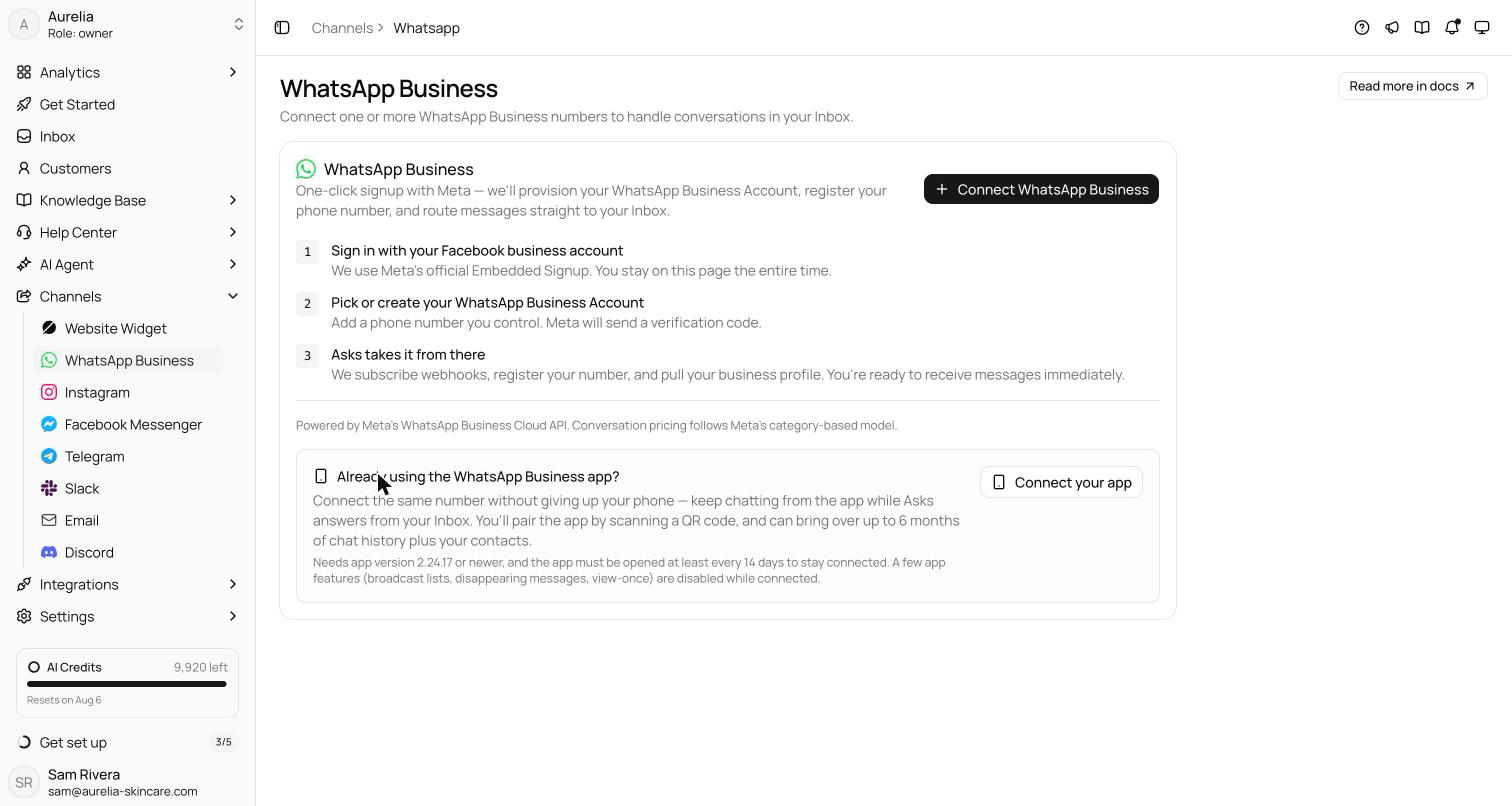
Sign in with your Facebook business account and enter the number you want to connect. A new number gets a verification code from Meta; you then choose or create a WhatsApp Business Account for it. A number that's already on the WhatsApp Business app switches into coexistence mode automatically — see below.
Asks subscribes webhooks, finishes setting up your number, and pulls your business profile. Messages start arriving in your inbox right away.
Connecting a number doesn't switch the AI agent on for WhatsApp. Until you do, the channel page shows "Your AI agent isn't answering on WhatsApp yet" and messages wait for your team. Click Turn on AI for WhatsApp there, or switch on WhatsApp Business under AI Agent → Deploy.
Verify it works — message your business number from a personal WhatsApp account. The conversation should appear in your inbox, and the AI agent's reply should arrive back in WhatsApp.
Already using the WhatsApp Business app?
Keep it. Click the same Connect WhatsApp button and enter that number — Meta connects it alongside the app instead of moving it. You confirm it by scanning a QR code in the WhatsApp Business app. You keep chatting from the app while Asks answers from the inbox, and replies you send from your phone are mirrored into the same Asks conversation, labeled Sent from the WhatsApp Business app.
During signup you can choose to bring over your contacts and up to 6 months of chat history. It's a one-time import; media is included only for messages from the last 14 days, and group chats never sync. Sync status shows on the channel's Overview tab.
Coexistence needs app version 2.24.17 or newer, and the app must be opened at least every 13 days or Meta drops the connection. While connected, broadcast lists, disappearing messages, view-once, and live location are turned off, and linked devices are signed out — you can re-link them, except WhatsApp for Windows and Wear OS. A number that was ever connected to the WhatsApp Business Platform (Cloud API) can't use coexistence, and a very new WhatsApp Business app account may need to be used for a while before Meta lets it connect.
After you connect
The channel page has four tabs:
- Overview — connection status, quality and conversation stats, and the Refresh, Disconnect, and Reconnect actions. For coexistence numbers it also shows the Business app connected badge and the contact and chat-history sync status.
- Business Profile — edit what customers see on your WhatsApp profile: about (139 characters), description, contact email, address, two websites, and business vertical. The profile photo must be JPEG or PNG, up to 5 MB. The display name itself is managed in WhatsApp Manager.
- Templates — create message templates in the Marketing, Utility, or Authentication category. Templates support a body with numbered variables (
{{1}},{{2}}, …), an optional header (text or media), footer, and buttons. Every template is submitted to Meta for review and can only be used once Approved. Meta doesn't allow changing an approved template, not even its category — delete it and create a new one. - Quality & Health — Meta's signals about your number: quality rating (High/Medium/Low), messaging limit tier, and throughput, plus a feed of recent account events. Refreshed daily and on every quality update from Meta.
How messaging works
WhatsApp uses a 24-hour customer service window. You and the AI agent can send free-form replies for 24 hours after the customer's last message; a banner above the composer shows the time remaining. Outside the window, free-form messages are rejected by Meta and the AI agent doesn't reply — you send an approved template instead. The banner offers Send template once the window has expired, and Send as template works inside the window too. To send a template to many customers at once, use WhatsApp campaigns.
Media is supported both ways: images, video, audio (voice notes are transcribed for the AI agent), documents, and stickers. Files go up to 100 MB; Meta caps images at 5 MB and video and audio at 16 MB. Emoji reactions work in both directions, and delivery and read receipts show on your outbound messages. The AI agent's replies use WhatsApp's own formats: link buttons, product cards with a photo and a View product button, and quick-reply choices as native reply buttons (up to three) or a list.
Meta charges for each template message it delivers; rates depend on the customer's country and the template category.
What shows in the inbox
Messages arrive with their real content: shared locations and contacts as cards, catalog orders with their items and total, answers to WhatsApp forms, and product questions with the product attached. A conversation that starts from a click-to-WhatsApp ad shows the ad it came from. Replies, forwards, edits, and deleted messages are marked as they are in WhatsApp, and a marker notes when a customer changes their number. Message types WhatsApp doesn't share with apps, such as polls and group invites, show a note to open WhatsApp instead.
Troubleshooting
The AI agent doesn't reply
Check that WhatsApp is on under AI Agent → Deploy and that the customer wrote within the last 24 hours. The AI agent never sends templates on its own.
My templates keep getting rejected
Meta reviews every template against its category rules. Check the rejection reason shown under the template's status, and keep Let Meta change the category if their classifier disagrees ticked when you create a template, so Meta can reclassify it instead of rejecting it.
I can't type a reply in an old conversation
The 24-hour window has closed. Send an approved template to reopen the conversation; once the customer responds, free-form replies work again.
My quality rating dropped
Meta lowers quality when customers block or report your number. Watch the Quality & Health tab, and keep outbound templates relevant.
What happens when I disconnect?
Asks unsubscribes from your WhatsApp Business Account and revokes its access. Conversations stay in your inbox, and Reconnect runs Embedded Signup again.