Chat widget
Chat widget
Turn on the Asks chat widget and install it on your site with a script tag, an npm package, or the Shopify theme editor.
The Chat widget is a chat launcher in the corner of your site. Visitors talk to your AI agent, and your team can step in from the Inbox. Every workspace gets one during setup, already switched on. How it looks and behaves is in Widget customization.
You manage it at Channels → Chat widget, in four tabs: Content, Style, Behavior, and Deploy. The switch in the page header shows Live or Off. While it's off the widget doesn't load on your site, and the Deploy tab's snippets dim.
Install the widget
Switch the toggle in the page header to Live. If Spotlight is live, confirm Turn on Chat widget to replace it.
Under Configure your code snippet, choose For users with logins if customers sign in to your site — they keep their history across devices (see Identity verification). Otherwise choose For website visitors without logins; conversations are kept in the visitor's browser with a first-party cookie.
For Code snippet, pick HTML and paste it right before the closing </body> tag on every page, or Single-page app to load it once in your app shell. For React, Angular, or Vue, install the @asksdotapp/widget-js package and boot the widget where your app renders. For WordPress, use the free WPCode plugin or your theme's footer.php.
The visitor snippet looks like this — copy yours from the Deploy tab, which already contains your widget key:
<script
  src="https://cdn.asks.app/embed.js"
  data-widget-key="YOUR_WIDGET_KEY"
  async
></script>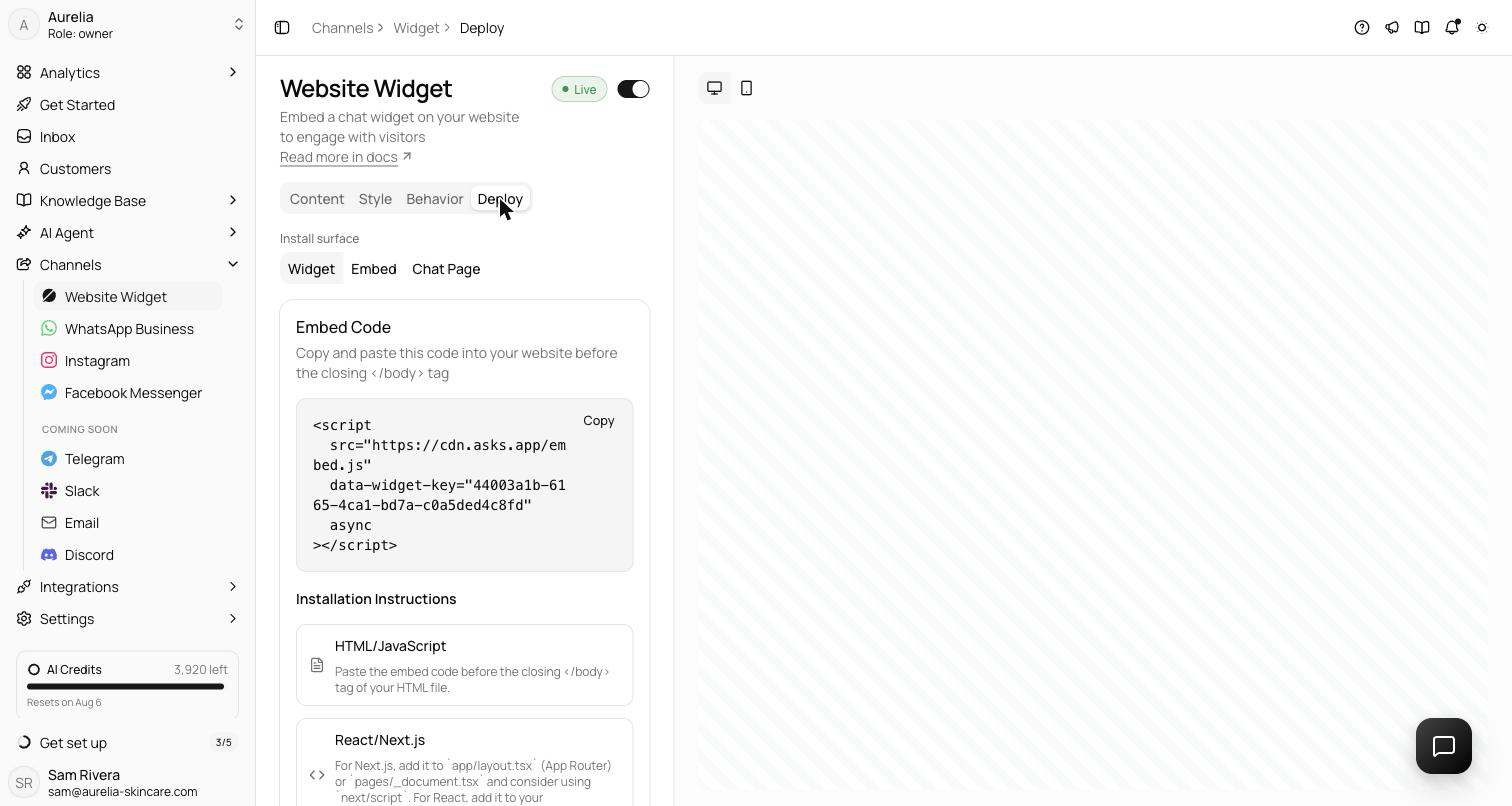
Verify it works — open your site in a new tab. The Deploy tab's Installation status card turns green ("Widget detected on yourdomain.com") on the first page load with the snippet. Send a test message: it appears in your Inbox, with an instant reply if the agent is on for the Chat widget under AI agent → Deploy. Email instructions to a developer sends the snippet to whoever installs it.
Identity verification
With For users with logins, your server signs each user's id with your identity secret, and the snippet passes it as data-user-id and data-user-hash (in a single-page app, call window.AsksWidget.identify() after login and identify(null) on logout). The Deploy tab shows the server code for Node.js, Ruby, Python, PHP, Go, and Java.
The Identity verification card has Reveal identity secret, Check a userHash (checked in your browser), and Rotate secret, which invalidates every earlier hash at once. A missing or wrong hash is always rejected. An email or name passed without a hash personalizes the chat but never proves identity. The full setup is in the developer guide under Logged-in users.
What visitors see
- Chat first — the launcher opens straight into the conversation, in a window above the launcher; the launcher stays in place to close it.
- Header — your logo, the header text or workspace name, and "Online · replies instantly" when the agent is on, or "We'll reply as soon as we can".
- Messages — the back arrow lists the visitor's conversations, with Ask a question to start a new one. Home is in the bottom navigation when enabled.
- Returning visitors — closing and reopening keeps their place; a reload restores their saved conversation.
- Expand and mobile — Expand window widens the chat on desktop. On screens 640px wide or narrower, the open widget fills the screen.
Privacy policy line — set a Privacy policy URL on the Content tab (Conversation section) and the widget shows "By chatting, you agree to our Privacy Policy" below the message box, linking your policy. Leave it empty and no line appears. One URL covers the Chat widget, Spotlight, and the Chat Page.
Open it from your own buttons
Add the data-asks-open attribute to any button or link and clicking it opens the widget — no code needed. From your own code, window.AsksWidget.open() and window.AsksWidget.close() do the same, and window.AsksWidget.version shows which build is running on the page. The widget renders inside a shadow DOM at the highest z-index, so your site's CSS can't restyle or bury it.
Inline embed
You can also render the chat inside a section of a page, such as a contact page. This mode isn't offered on the Deploy tab; add it in code with the data-container-id attribute:
<div id="asks-widget-embedded" style="width:100%;height:600px;"></div>
<script src="https://cdn.asks.app/embed.js" data-widget-key="YOUR_WIDGET_KEY" data-container-id="asks-widget-embedded" async></script>
The chat fills the container. See the widget developer guide for every attribute, manual initialization, and Content-Security-Policy rules.
Troubleshooting
The launcher doesn't appear
Check that the Chat widget shows Live and that Spotlight isn't live instead. If the Deploy tab's Installation status card is still watching, the snippet isn't loading on your page — a strict Content-Security-Policy can block it; see the developer guide.
The widget shows, but nobody replies
Turn on AI Agent Status and the Chat widget toggle at AI agent → Deploy. With the agent off, messages still reach your Inbox for your team to answer.
The Deploy tab only shows a Shopify card
Your workspace has a connected Shopify store, so the storefront is the install target. See Shopify.
Next steps
- Widget customization — content, colors, theme, launcher, behavior, and languages.
- Spotlight — a floating "Ask anything" bar instead of the launcher.
- Chat Page — a hosted, chat-only page you share as a link.