Websites
Websites
Crawl your site into the knowledge base — review pages before crawling, pick up new pages automatically, sync on a schedule, and manage every page.
Website sources let the agent answer from your site. Add a URL, pick which pages to include, and Asks crawls them into the knowledge base. Manage them at app.asks.app/knowledge-base/websites.
https — plain http URLs (and URLs with embedded credentials) are rejected. The site must be publicly reachable; pages behind a login can't be crawled. The one exception is a password-protected Shopify storefront — see Password-protected Shopify stores.Add a website
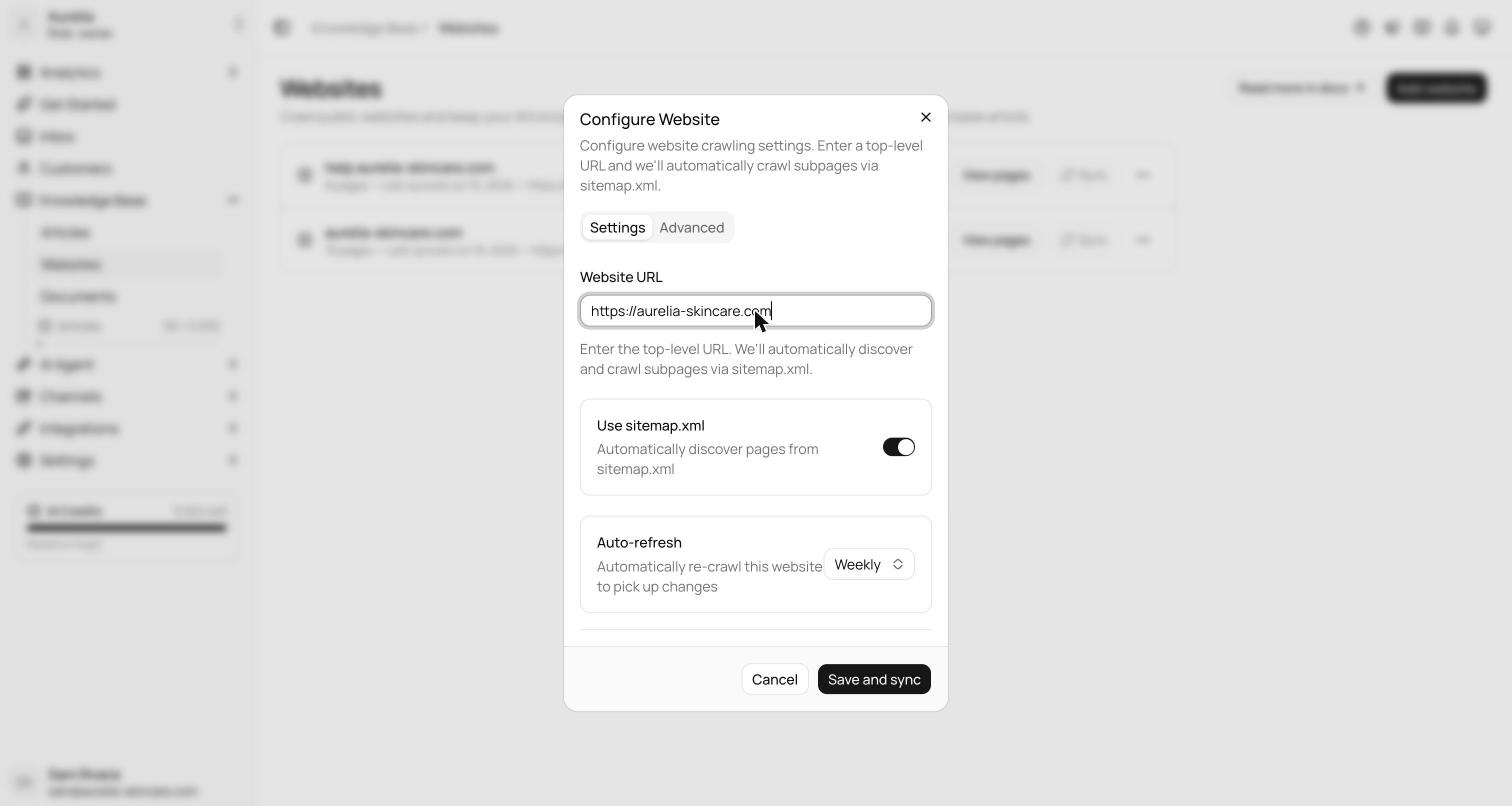
Click Add website and enter the top-level URL (for example https://example.com). The Configure Website dialog has a Settings and an Advanced tab:
| Setting | Tab | What it does | Default |
|---|---|---|---|
| Use sitemap.xml | Settings | Discover pages from the site's sitemap automatically | On |
| Auto-refresh | Settings | Re-sync cadence: Never, Daily (Business and Premium), Weekly, or Monthly | Weekly |
| Include new pages automatically | Settings | When you've chosen specific pages, add pages that appear on your site later — see New pages on your site | On |
| Crawl Depth | Advanced | Maximum link depth from the root URL (1–10) | 3 |
| Allowed Domains | Advanced | Comma-separated domains to stay within; empty allows all subdomains of the root | Empty |
| Storefront password | Advanced | Password of a password-protected Shopify store, so Asks can read the site | Empty |
Click Add website. Nothing is crawled yet — you choose the pages first.
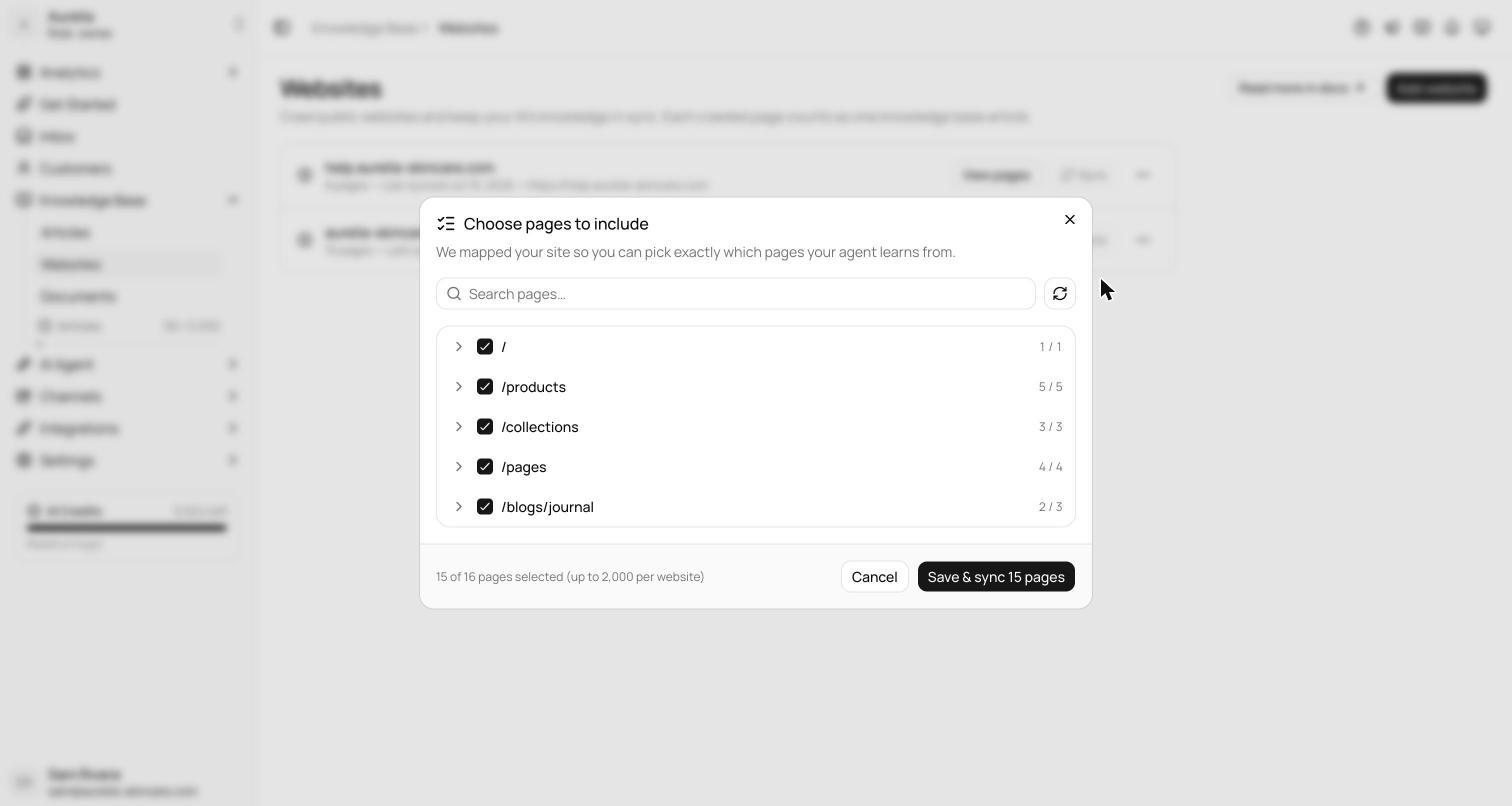
The Choose pages to include picker opens next. Asks maps the site's links first — without crawling anything — so you decide which pages go in. The map combines your site's live sitemap.xml with a link index, so a page you just published appears as soon as your sitemap lists it. Pages are grouped by path; on a new website every selectable page starts checked, up to the per-crawl cap. The map covers up to 5,000 URLs per site; the button next to the search box re-maps it.
On Shopify stores, product, collection, cart, checkout, and account pages are greyed out as Answered live via Shopify: they're answered in real time through your Shopify connection and never count toward your limit. Policy pages are excluded the same way by default. Machine-facing files (sitemaps, AI-crawler manifests) are Auto-excluded.
If you change your mind while adding a new site, Discard website removes the source without crawling anything.
Click Save & sync (it shows the number of selected pages) and the first sync starts immediately. With nothing selected the button reads Save (automatic crawl), and Asks crawls the whole site within your crawl settings. You can leave the page while it crawls.
Password-protected Shopify stores
Development and pre-launch Shopify stores sit behind a storefront password. Asks can still crawl them: enter the password on the dialog's Advanced tab — it's in Shopify under Online Store → Preferences — and Asks reads past the password page.
If a crawl runs into a password page it can't get past, the website row shows Password-protected store (or Store password not accepted if the saved password stopped working) with an Enter password button. The review picker shows the same notice and lists the store's real pages once the password is saved.
Syncing and re-crawls
Press Sync on a website row (or Sync now on its page list) to re-crawl it, or let auto-refresh handle it. Re-syncs are incremental: unchanged pages are skipped, changed pages refresh in place, and only new pages use new knowledge items. Every sync also refreshes the link map, so new pages on your site become selectable in the picker.
Syncs remove pages as well as add them: a healthy full crawl deletes pages that have disappeared from the site, and a selected-pages sync deletes pages you deselected. Removed pages free their slots immediately.
Your plan sets how often each website can re-sync — weekly on Free and Starter, daily on Business and Premium — for both auto-refresh and the Sync button, whose tooltip shows when the next sync is available. A new website is exempt for its first 24 hours, so you can re-sync freely while setting it up. Two workspace-wide caps also apply on every plan: 30 website syncs per hour ("Too many website syncs in a short window") and 10,000 crawled pages per rolling 24 hours.
Sync history (in the website's ⋯ menu) opens a page listing the last 50 sync attempts with status, start time, duration, pages crawled, and any error message, plus the source's success rate and last successful sync.
When a sync goes wrong, the website row adds Last sync incomplete, and the website's page list shows a banner with the reason: Last sync stopped early (with an Add knowledge items button that opens your subscription) when the knowledge item limit was reached, Last sync failed, or Last sync finished with warnings. If scheduled re-syncs fail three times in a row, Asks emails the workspace owner and admins.
New pages on your site
With no pages chosen (automatic crawl), every sync crawls the whole site, so new pages are always picked up. Once you've chosen specific pages, Include new pages automatically — on by default, in the website's Settings — keeps the selection growing with your site: when a sync or a re-map finds a page that wasn't on the site before, Asks adds it to your chosen pages and crawls it in that same sync.
A new page is added unless you've unchecked any page in its section — the first part of its path, such as /blog — so a section you curated stays the way you left it. Pages you unchecked are never added back, even if they drop off the site and return. New pages still count toward the 2,000-page cap and use knowledge items like any other page.
Turn the option off to review new pages yourself: they then appear unchecked in Choose pages after the next sync or re-map.
Managing pages
Click View pages (or the row) to open a website's page list. From there you can:
- Search pages by URL or title.
- Re-crawl or delete pages individually or in bulk (up to 50 per action).
- Open a page to see exactly what was extracted — a read-only view with its URL, extracted size, Open original page, Re-crawl this page, and Delete page. Page content is synced from the website, so it can't be edited.
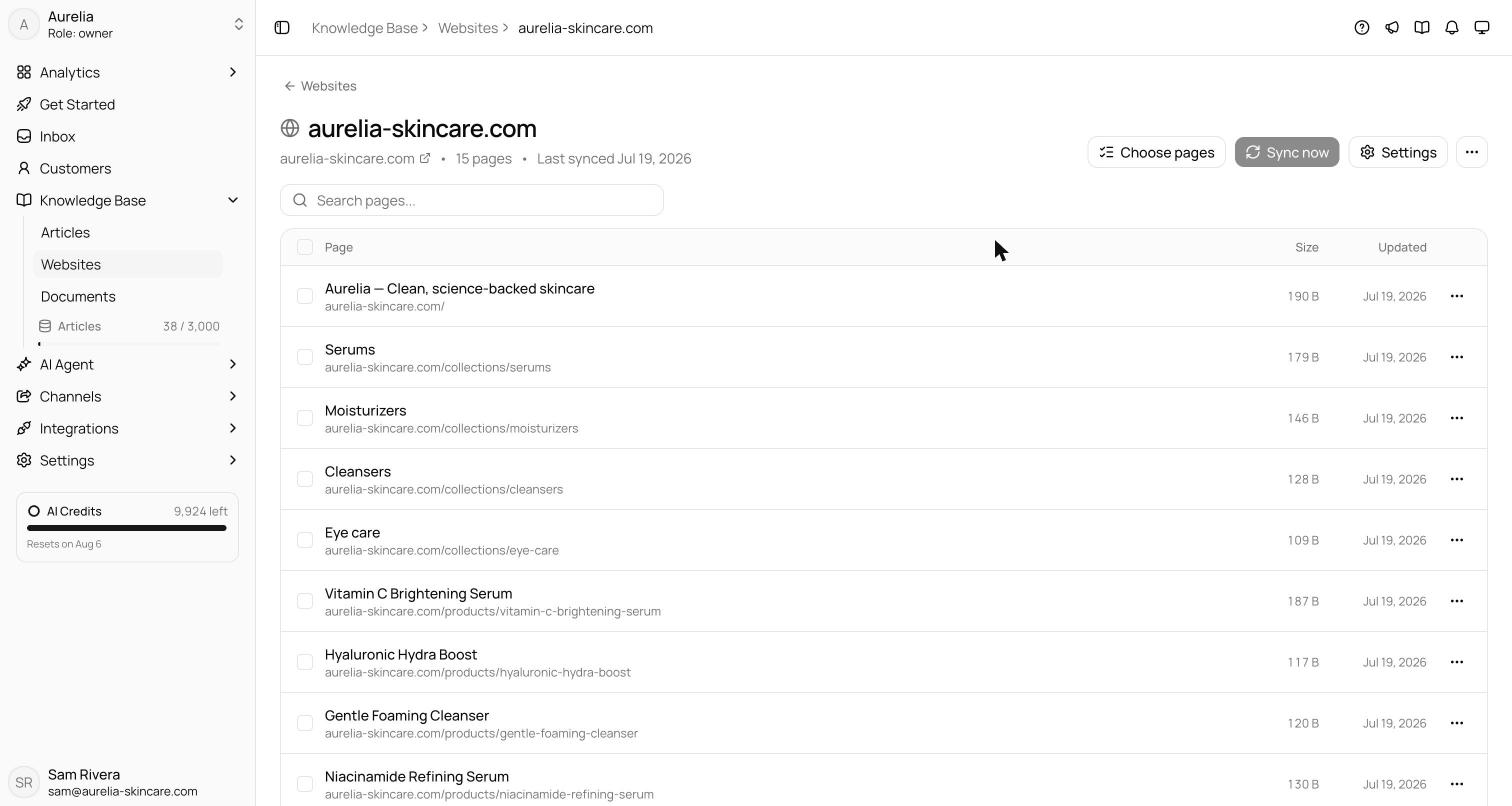
Deleting a page stops the agent answering from it, but a future full sync may re-add it if it's still on the website — deselect it in Choose pages to keep it out for good. Choose pages (in the ⋯ menu or the page list header) opens the same picker as at setup, seeded with your current selection; clearing the selection returns the source to automatic crawling.
Deleting a website
Delete in the ⋯ menu removes the source, all its crawled pages, and its sync history, and frees the knowledge items they used. This can't be undone; the site can always be re-added and re-crawled later.