Takeover & collaboration
Takeover & collaboration
Take over from the AI, work conversations with your team, and reply on any channel.
The AI agent handles conversations until you step in. This page covers taking over, handing conversations around your team, and what the composer and transcript show on each channel.
Taking over
While the AI handles a conversation, the composer is locked: "This conversation is being handled by AI Agent." Escalated, unassigned, and teammate-held conversations say who owns them instead.
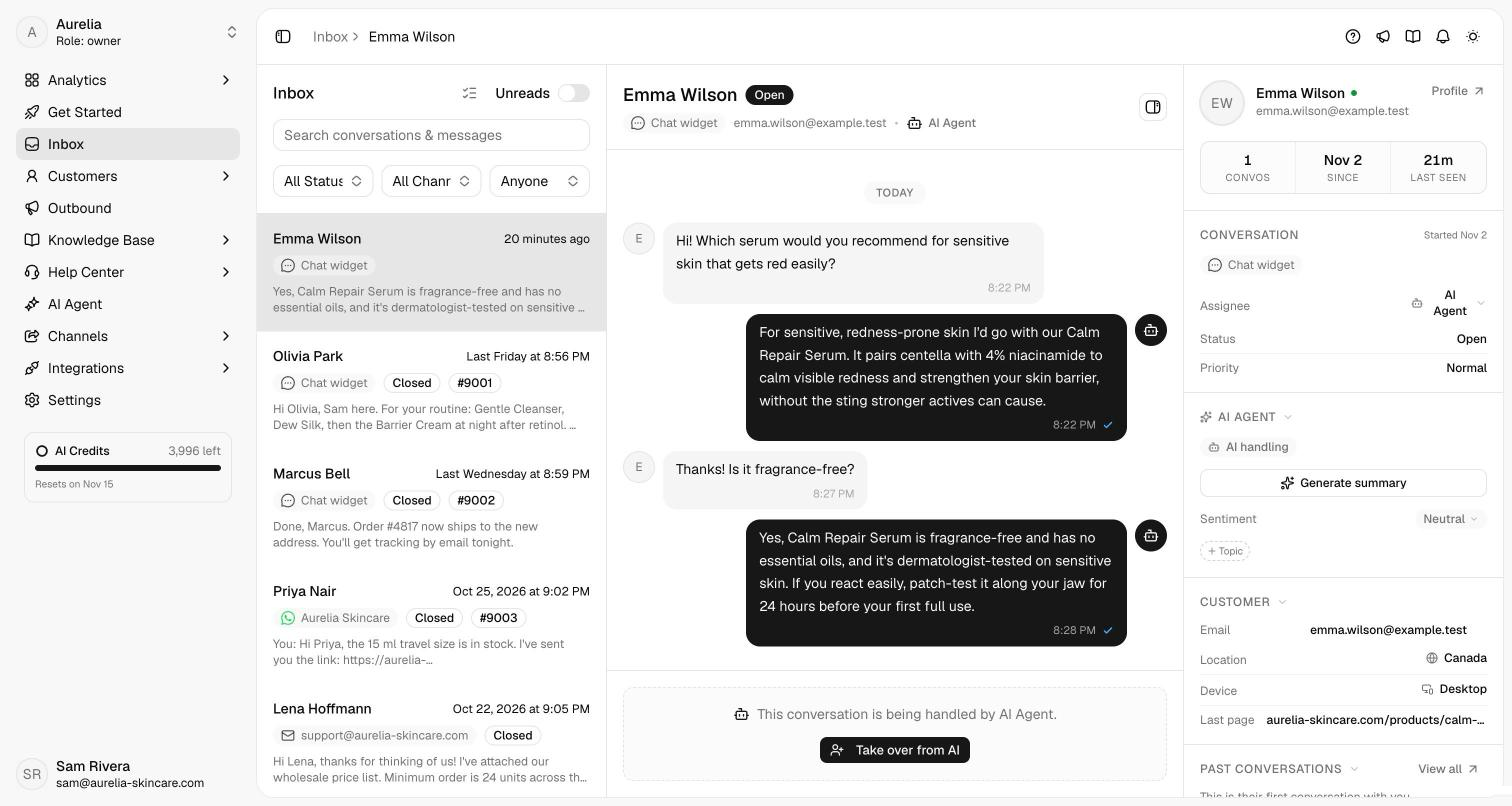
Click Take over from AI in the header or above the composer — for escalated, unassigned, or teammate-held conversations it reads Takeover. The AI stops replying and the composer unlocks.
The header's Transfer menu offers Transfer to Agent, Hand back to AI, and Unassign.
Hand back to AI returns the conversation to the agent, which replies to the customer's next message. It's refused, with the reason, when the AI isn't switched on for that channel under AI agent → Deploy.
Drafts survive takeovers. If a teammate takes the conversation while you're mid-reply, Asks keeps your draft and restores it if the conversation comes back to you.
AI summary on handoff Business and up — switch it on under AI agent → Escalation and Asks posts an internal note headed "AI summary for handoff" when the AI escalates or someone takes over from the AI.
Close ends a conversation after a confirmation; Reopen brings it back and assigns it to you. A closed conversation's composer shows Handle conversation, which does the same. Owners and admins can close any open conversation without taking it over. To close several at once, see bulk close.
Waiting on a human reply
When a customer is waiting on a person — not the AI — and nobody answers, Asks emails a reminder after they've waited 4 hours, 1 day, 3 days, and 6 days; the 6-day email is the last. Reminders go to owners, admins, and the assignee, at most one email per workspace every 12 hours, and only for workspaces with an active plan. Each person can turn off Waiting on a human reply under Settings → Account → Notifications; it's on by default and separate from Conversation Updates.
Conversations nobody touches don't stay open forever — see When a conversation goes quiet.
The reply composer
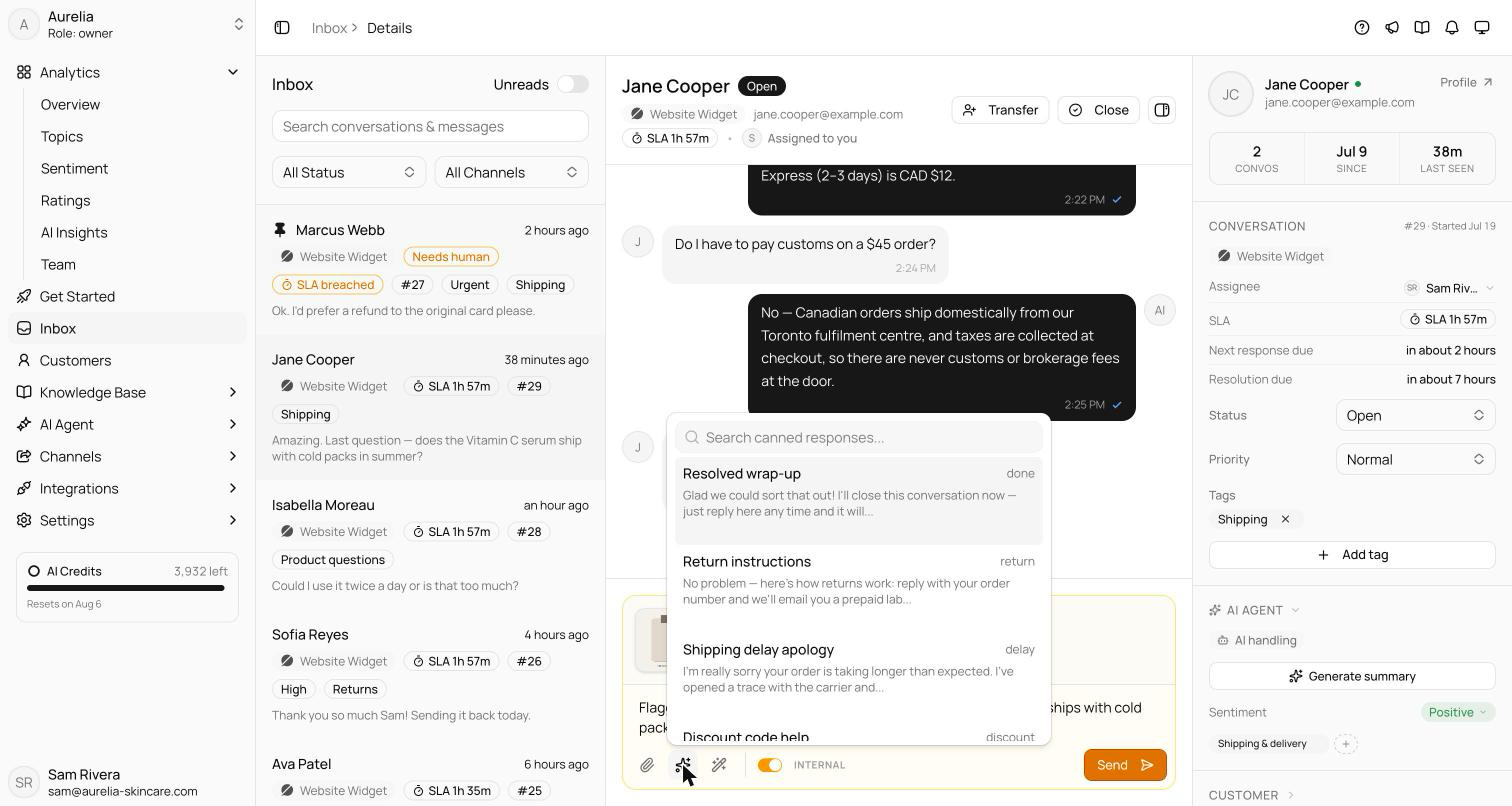
- Internal notes — flip the Internal switch to write a note only your team sees. The composer turns amber, and notes stay in the transcript labeled Internal note with a lock icon.
- Canned responses — type
/at the start of a message or after a space, or click the canned-responses button, to search saved replies by name or shortcut. A/anywhere else (a link, a date, "and/or") types normally. The response goes in where your cursor is, replacing the/; pressEscto close the picker and keep the/. Variables such as{{customer.name}}fill in on insert, and the response's ticket actions apply once you send. See canned responses. - Emoji and attachments — the emoji button inserts at the cursor. Attach up to 10 files per message, 10 MB each: images, video, audio, PDFs, and common documents. Drag files onto the transcript or paste them; media opens a preview where you can add a caption.
- Sending —
Entersends;Shift Enteradds a newline.
Copilot
Copilot is the AI assist menu in the composer — the wand button, or ⌘ J (Ctrl J). It drafts; you decide. Nothing it writes is sent on its own.
- Suggest reply — drafts a response grounded in your knowledge base, store data, and the conversation so far.
- Rewrite — Improve writing, Make friendlier, More formal, or Make shorter rework what you've typed.
- Summarize conversation — a copyable summary of the thread, useful before a transfer.
⌘ J suggests a reply when the composer is empty and polishes your draft when it isn't. Copilot doesn't use AI credits, but it pauses once the workspace has run out of them.
The transcript
- Final replies only — each AI reply appears once it's complete; the inbox has no typing indicator.
- What the customer saw — AI replies show their buttons, product cards, images, quick-reply chips, and the knowledge sources used. Lead forms show as shown, submitted (with the values), or dismissed.
- Lifecycle events — assignments, takeovers, hand-backs, escalations with their reason, resolutions, and status changes each appear once, as a centered gray line only your team sees.
- Pins and media — right-click a message and choose Pin message to keep it in a strip above the transcript. Images and videos open in a lightbox, PDFs preview in-app, and audio plays inline.
Email conversations
When the conversation came in over email, the composer adds a Subject line, pre-filled as Re: plus the thread's subject — changing it starts a new thread in the customer's mail client — and a Cc/Bcc toggle. Inbound emails hide remote images until you click Show images; Show quoted text expands the thread, View original email shows it as received, and flags mark Spam, Blocked sender, No-reply sender, or Auto-reply mail.
WhatsApp and Meta conversations
- WhatsApp — a banner counts down the 24-hour customer service window. Once it expires, Send template reopens the conversation with an approved template; a template button also sits in the toolbar. Outbound messages carry a Campaign label. See WhatsApp.
- Instagram and Messenger — the banner shows the 24-hour window, then a human-agent allowance of up to 7 days in which your team (not the AI) can still reply; after that, the customer has to write first. A banner warns when another app controls the thread.
- Rich messages — story replies and mentions, shared posts, reels and links, products matched to your Shopify catalog, ad referrals, reactions, quoted replies, locations, contacts, and orders render as cards. Media still downloading retries automatically; WhatsApp media expires after 7 days.
Telegram and Slack
On Telegram, a banner warns when the customer has blocked the bot — replies won't arrive until they unblock it. On Slack, replies your team sends from a linked Slack thread carry a via Slack label.
Delivery status shows per message on WhatsApp, Instagram, Messenger, email, Telegram, and Slack — email adds Bounced, Marked as spam, and Suppressed. Failed sends show the error, with a retry button on the messaging channels.
Related
- Escalation — when the AI hands conversations to your team.
- Tickets, tags & SLAs — statuses, canned responses, and response-time targets.
- Inbox overview — filters, the customer panel, and keyboard shortcuts.