Topics, sentiment & AI insights
Topics, sentiment & AI insights
Automatic analysis of every conversation — what customers talk about, how they feel, which conversations need your attention, and what your knowledge base is missing.
Asks analyzes every conversation automatically. When a conversation closes, is escalated, or is taken over from the AI, the AI reads it and extracts a summary, topics, sentiment, language, and anything noteworthy; conversations that never close are picked up once they've been idle for a day. Nothing here requires manual tagging — the pages fill up as conversations happen.
The Topics, Sentiment, and AI Insights pages Business and up are available on the Business plan and above. On other plans they show a sample preview with an upgrade prompt.
Topics
Topics answer "what do customers keep talking about?" at https://app.asks.app/analytics/topics. The Topic volume chart shows daily conversations for the six biggest topics, and the All topics table lists every topic with its conversations and change versus the previous period.
There are two kinds:
- Custom topics — up to 12 active topics you define, each with a name and a plain-language description. The AI classifies every new conversation against them. New topics apply to new conversations, not retroactively.
- AI-detected topics — themes the AI spots on its own, ranked by volume. Useful for finding topics you haven't defined yet.
On the Topics page, click Manage topics. The dialog shows how many of your 12 slots are left.
Give it a Name ("Shipping delays") and a Description written the way you'd brief a teammate ("Customers asking where their order is or complaining about late delivery").
Click Create topic. New conversations are classified against it from now on.
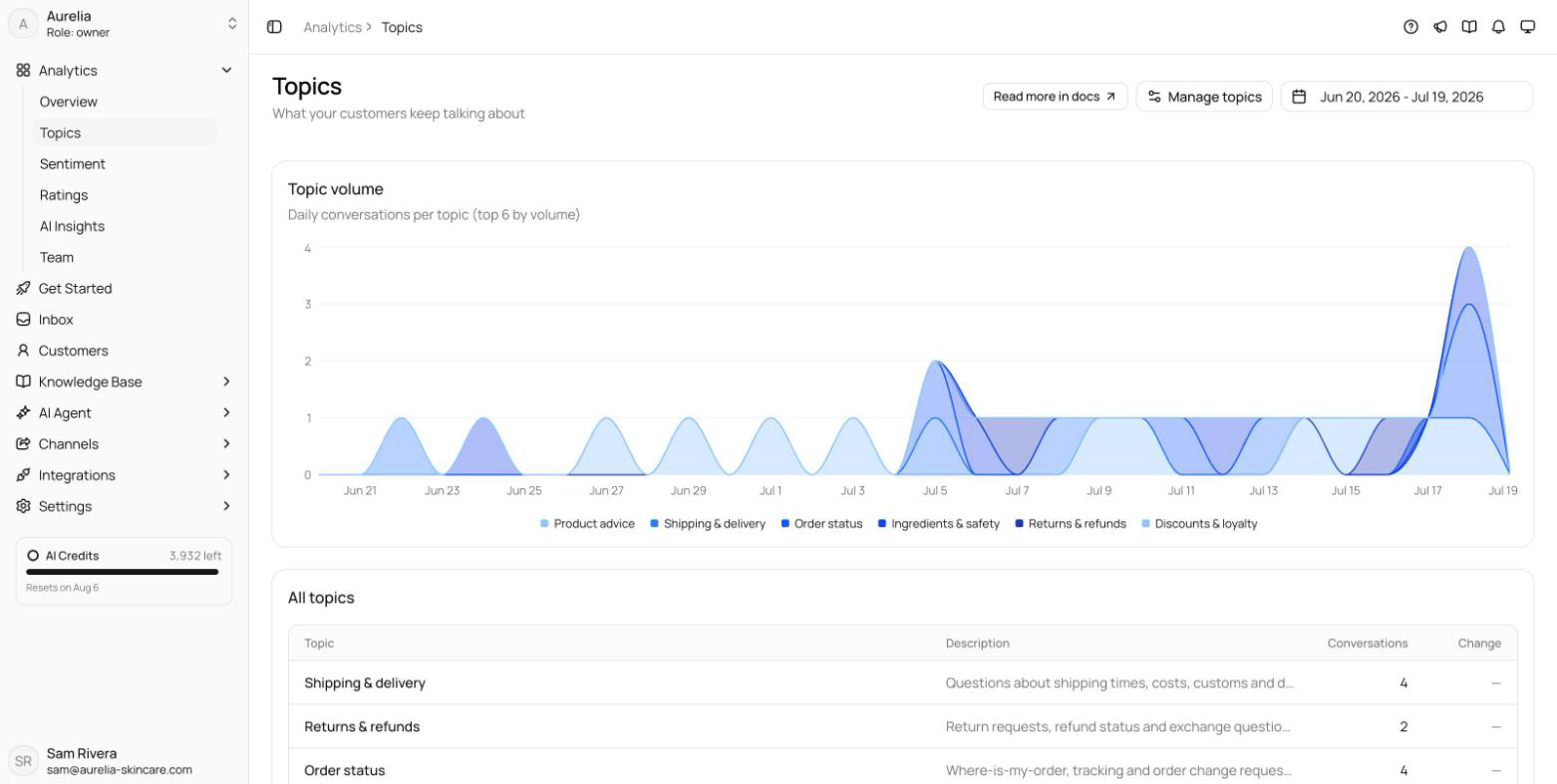
Topics also show in the inbox customer panel's AI Agent section, where you can correct them per conversation.
Sentiment
Sentiment answers "how do customers feel?" at https://app.asks.app/analytics/sentiment. Each conversation is classified Positive, Neutral, Negative, or Angry. The page shows a count per class, a note of conversations not yet classified, Sentiment over time, and Recent negative conversations you can open in the inbox.
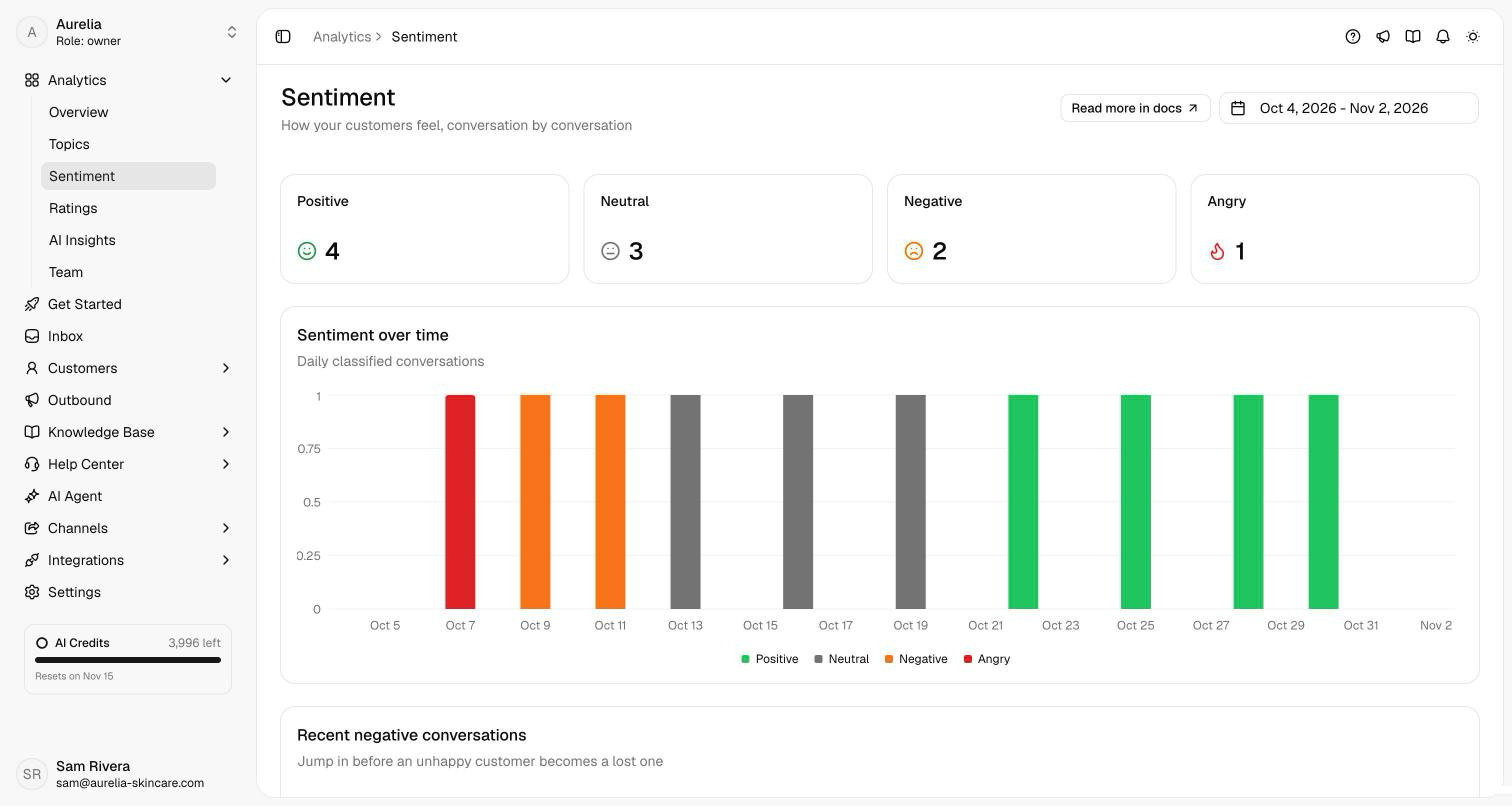
You can correct a conversation's sentiment from the inbox customer panel. Angry is also what the optional sentiment trigger in Escalation watches for during a conversation.
AI Insights
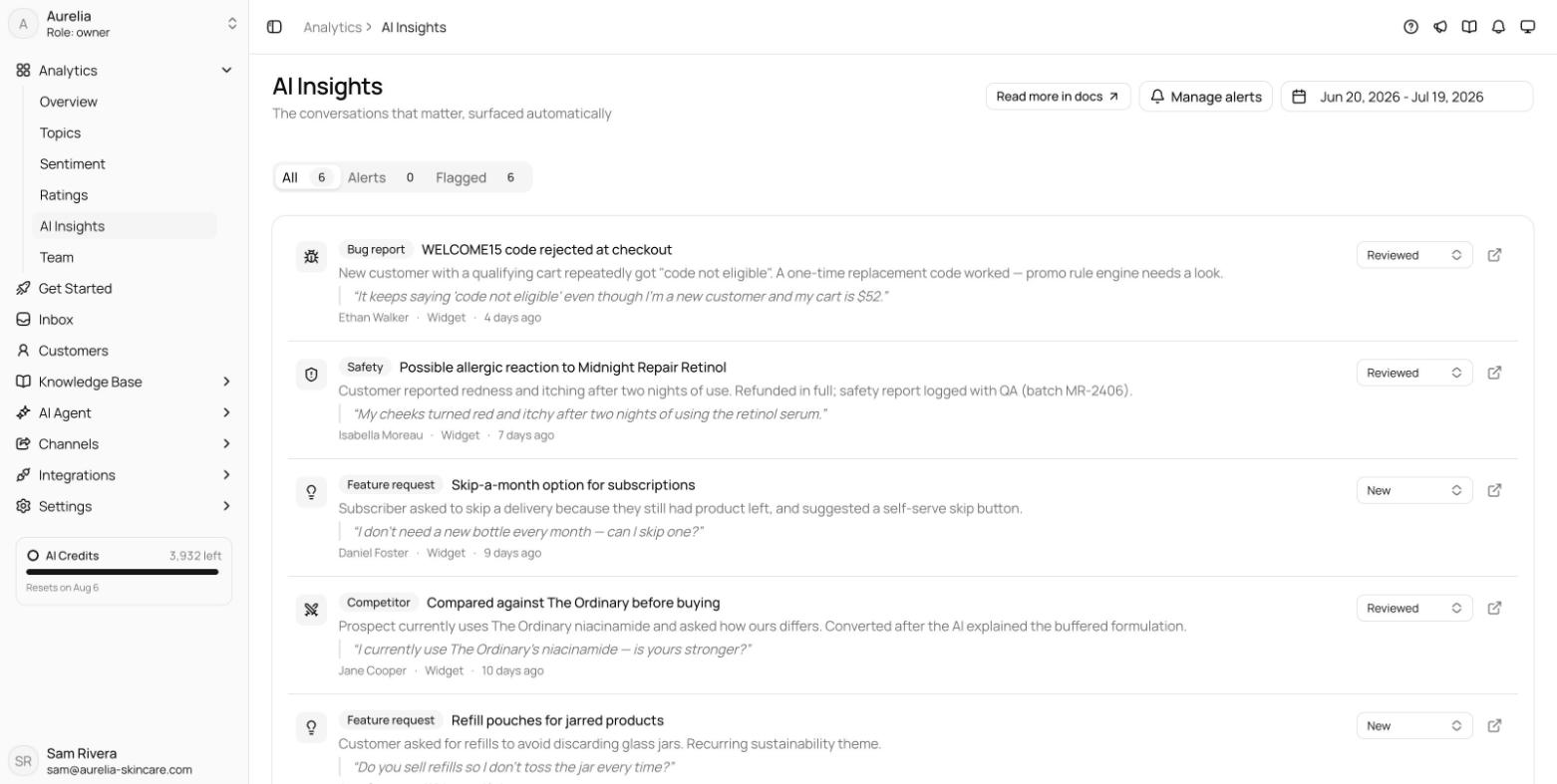
AI Insights, at https://app.asks.app/analytics/ai-insights, is a feed of the conversations that matter. With no setup, the AI flags feature requests, bug reports, competitor mentions, churn risks, and safety issues. Each item shows what was flagged, a quote from the conversation, and an Open conversation link; mark items Reviewed or Dismissed as you work through the feed. Tabs filter it to All, Alerts (your custom alerts), or Flagged (the built-in detectors).
Add your own detectors with Manage alerts: up to 10 alerts, each a name plus a plain-language description of what to watch for — "customers threatening to cancel", "mentions of our enterprise plan". The AI matches every new conversation against them. Each alert shows its match count and last match, and has a switch to pause it without deleting it.
Knowledge gaps
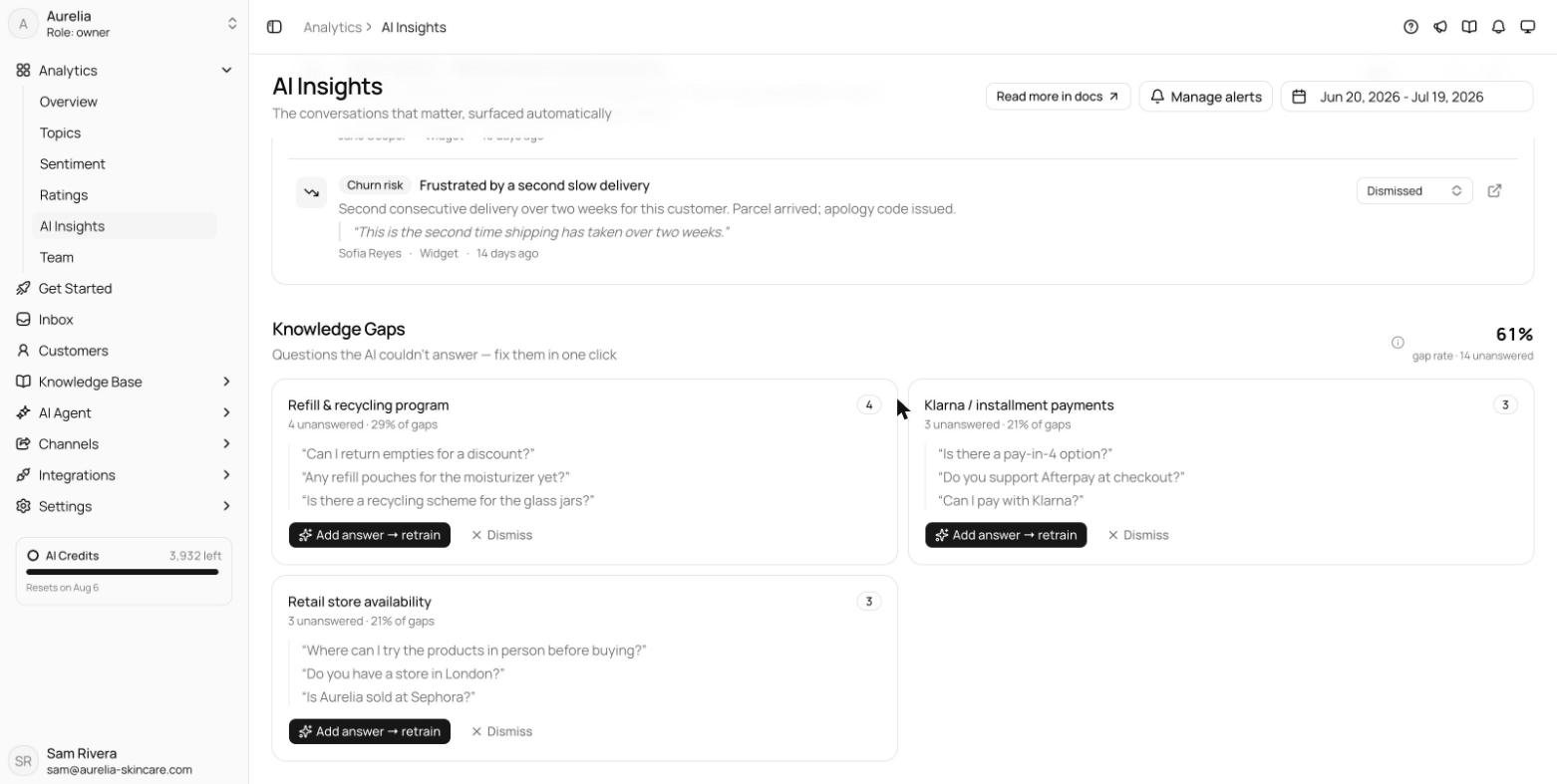
At the bottom of AI Insights, Knowledge Gaps lists the questions the AI couldn't answer, grouped into topics overnight, with sample questions per topic. The header shows the gap rate: unanswered questions divided by conversations the AI was in — mature setups trend below 15%.
Each gap has Add answer → retrain: it opens a pre-filled draft article you can edit, and Publish & retrain adds it to your knowledge base so the AI answers the question from then on. Published gaps show Article created and a View impact button that charts unanswered volume before and after the article was added; Dismiss removes gaps you don't plan to fix.
Counts reflect when conversations are analyzed, not when they happen: closed, escalated, and taken-over conversations are analyzed right away, and others after about a day of inactivity. A busy conversation from this morning may not show up in Topics yet.
Related
- Analytics overview — KPIs, charts, and plan history limits.
- Team performance — how your team does after handoff.
- Ratings & CSAT — what customers say when you ask.