Escalation & handoff
Escalation & human handoff
When and how the AI hands conversations to your team — handoff rules, business hours, off-hours behavior, notifications, and what happens when a conversation goes quiet.
Escalation is how a conversation moves from the AI to a person. When a trigger fires, the agent tells the customer a human will assist, the conversation lands in your inbox flagged Needs human, and the AI stays quiet until someone takes over or closes the escalation. Configure it at app.asks.app/ai-agent/escalation.
The page runs top to bottom through four sections — Handoff rules, Availability, After handoff, and Automation — and everything saves together with the action bar at the bottom. Only owners and admins can edit; other roles see the page read-only.
Handoff rules
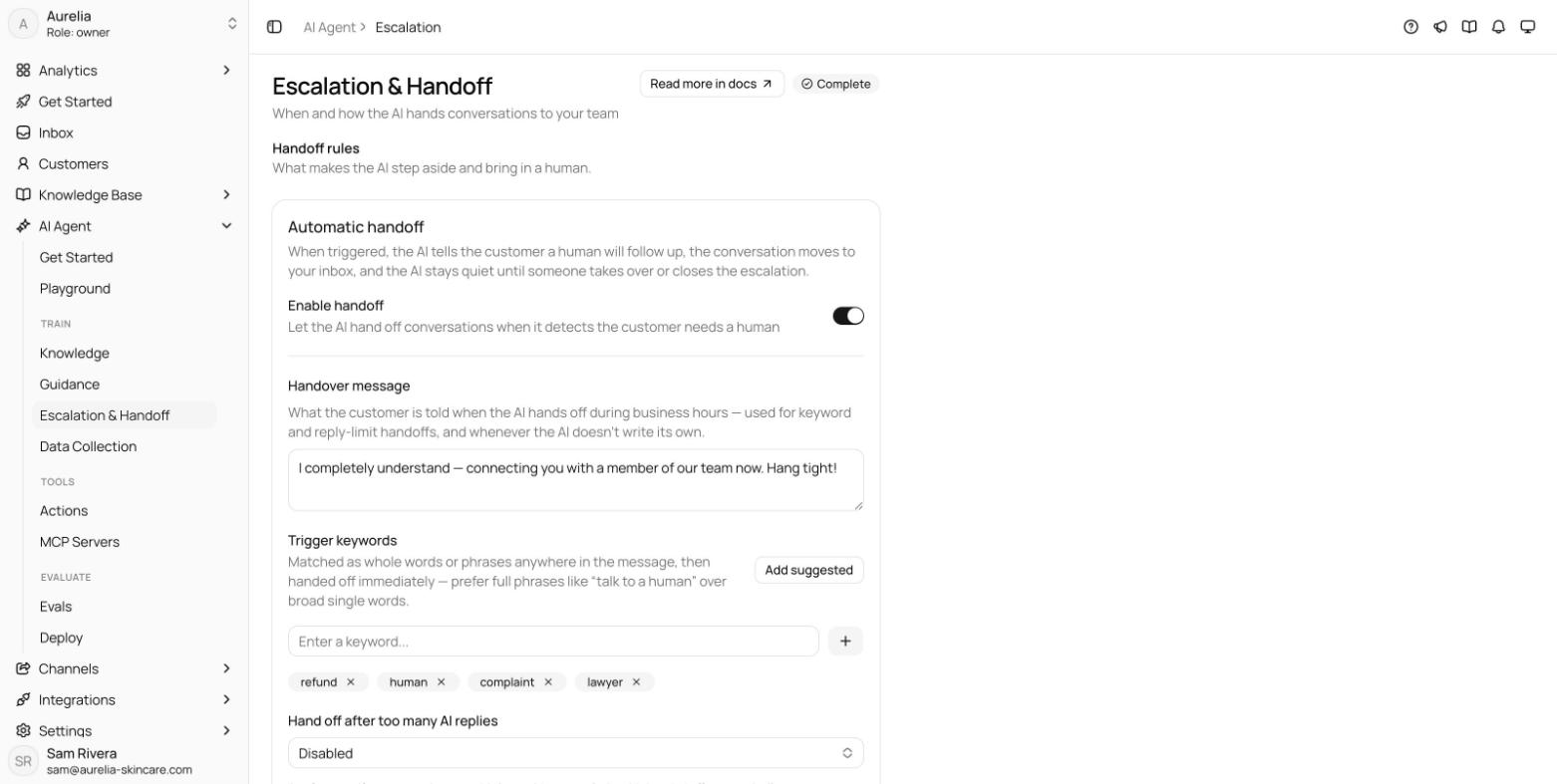
The Automatic handoff card leads with the Enable handoff toggle. It's on by default; with it off, the AI keeps handling every conversation itself, and the off-hours and after-handoff settings below are hidden.
Handover message. What the customer is told when the AI hands off during business hours — used for keyword and reply-limit handoffs, and whenever the AI doesn't write its own transfer message. Up to 1,000 characters; the default reads "I'm transferring you to a human agent who can better assist you."
Trigger keywords. Keywords are matched as whole words or phrases anywhere in the customer's message (two characters minimum), then handed off immediately. Prefer full phrases over broad single words — a keyword like "refund" would intercept questions your knowledge base can answer. Add your own, or click Add suggested for the defaults: speak to human, talk to agent, human agent, real person, live agent, speak to a manager. With no keywords at all, the AI still hands off based on its own judgment.
Hand off after too many AI replies. A safety net: if a conversation runs this many AI replies without resolution, it's handed off automatically. Choose 3, 5, 7, or 10 — or leave it disabled.
Sentiment. The agent can also escalate when a customer turns angry. This trigger is off by default and has no dashboard or API control — contact hello@asks.app to turn it on.
Business hours
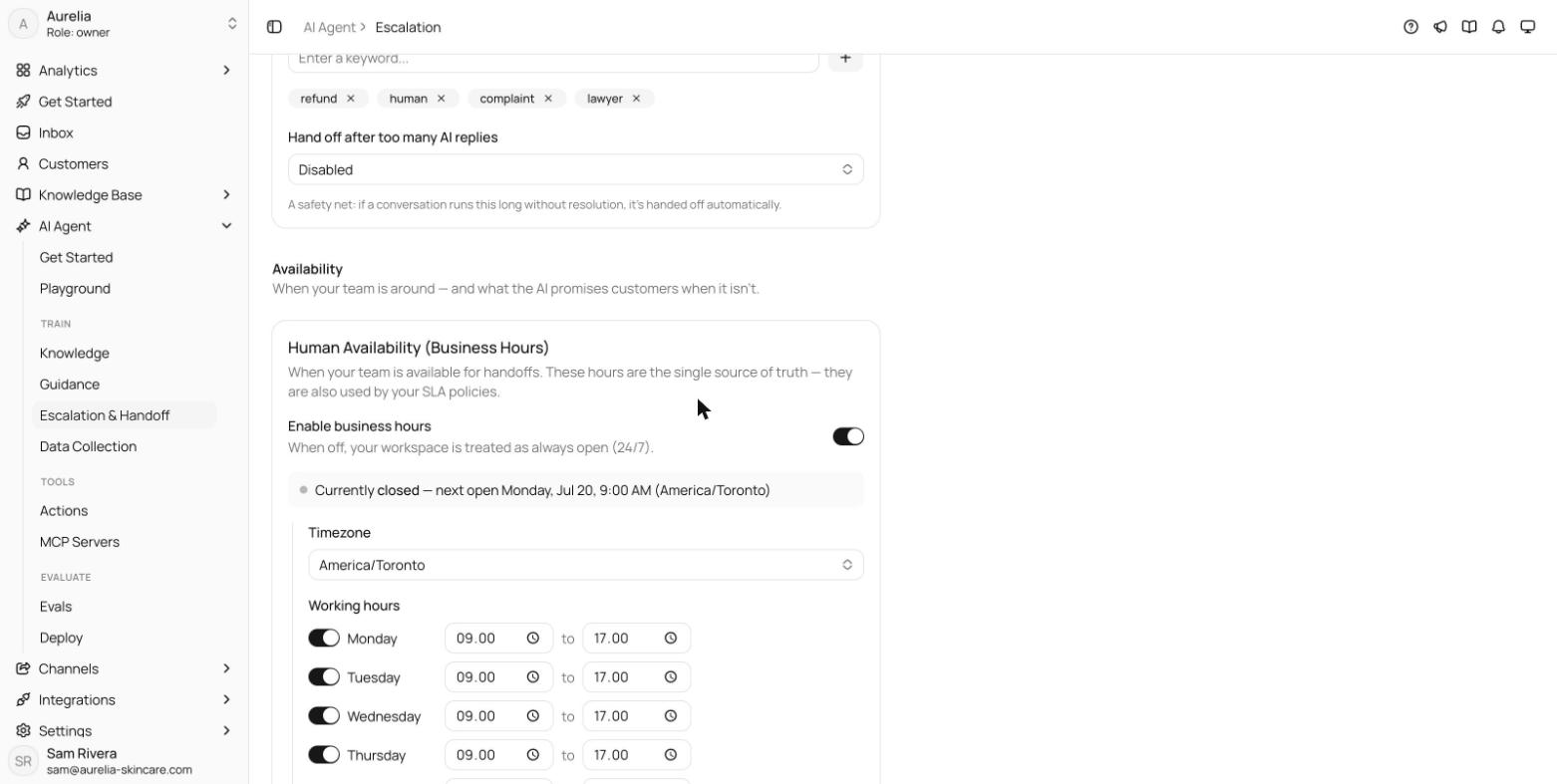
The Human Availability (Business Hours) card holds a workspace-scoped, timezone-aware schedule: per-day open hours (overnight ranges close the next day) plus holidays, evaluated in the IANA timezone you pick, with a live line showing whether you're currently open and when you next reopen. These hours are the single source of truth for availability — your SLA policies use them too. With business hours disabled, your workspace is treated as always open.
Off-hours behavior
In the Off-hours handoff card, turn on Use an off-hours message and an escalation outside business hours still hands the conversation off — but instead of promising a live transfer, the agent sends your off-hours message telling the customer when the team will be back.
The message (up to 1,000 characters) supports the {{next_open}} token, replaced with your next opening time — for example "Monday, Jun 22 at 9:00 AM (America/Toronto)". The default reads:
Our team is currently offline. I've passed this to a human agent who
will get back to you when we reopen ({{next_open}}).
Optionally, turn on Ask for contact info to have the agent invite the customer to leave an email off-hours when it doesn't already have one.
Off-hours handling only takes effect once business hours are enabled above — otherwise the workspace counts as always open and the off-hours message never sends.
After handoff
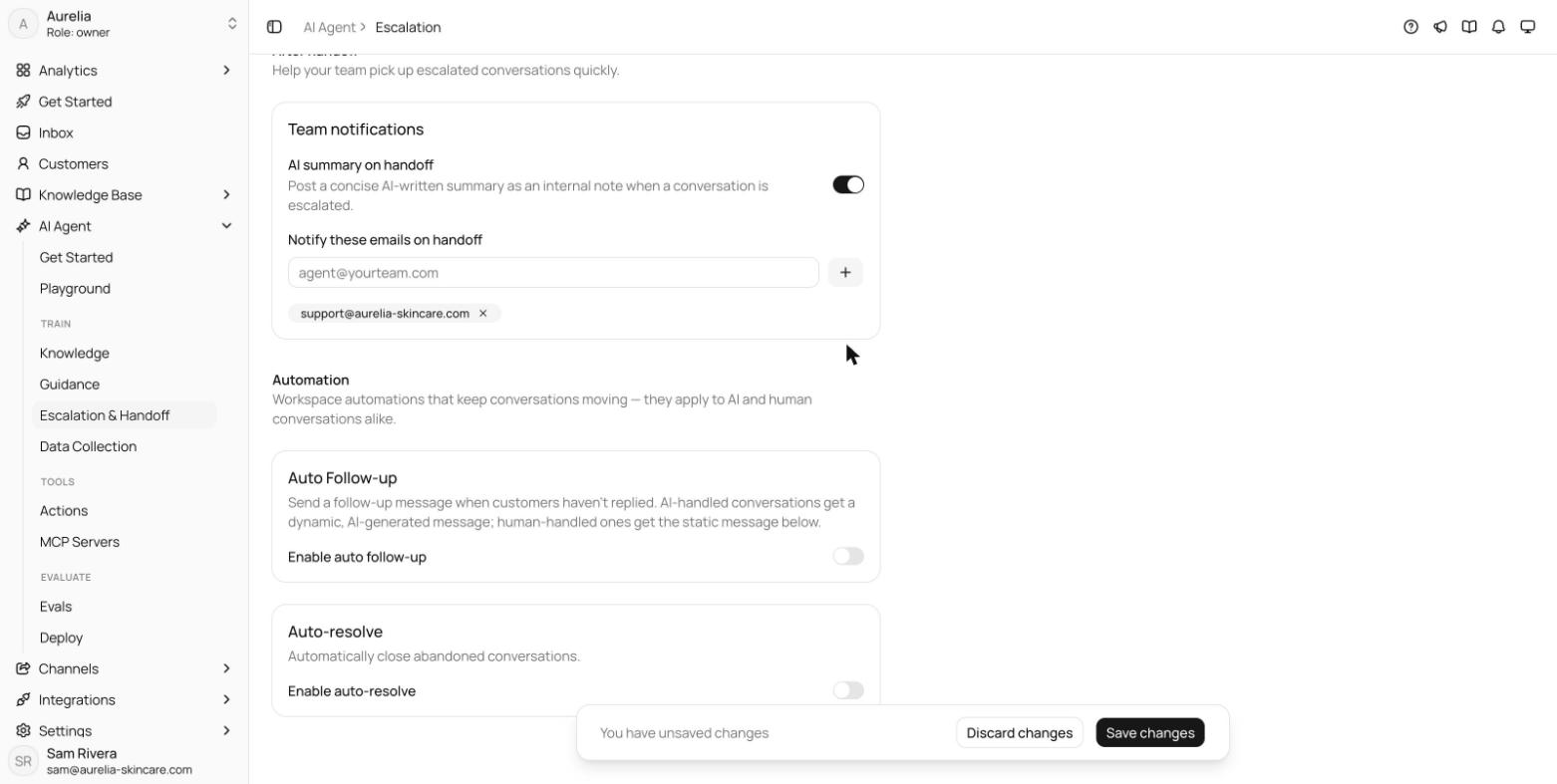
The Team notifications card helps your team pick up escalations quickly:
- AI summary on handoff Business and up — posts a concise AI-written summary of the conversation as an internal note the moment it's escalated or a teammate takes it over.
- Notify these emails on handoff — a list of addresses that get an email on every handoff. The card warns you when the list is empty, because then no one is told the AI handed off.
Automation
The Automation section holds one switch. Let the AI close resolved conversations is on by default: when the customer confirms their issue is solved, the AI closes the conversation itself, and a new customer message reopens it. Turn it off and the AI leaves closing to your team and to auto-resolve.
Auto follow-up and auto-resolve apply to every conversation, AI- or human-handled, so they live in workspace settings — Open conversation settings below the switch takes you there.
When a conversation goes quiet
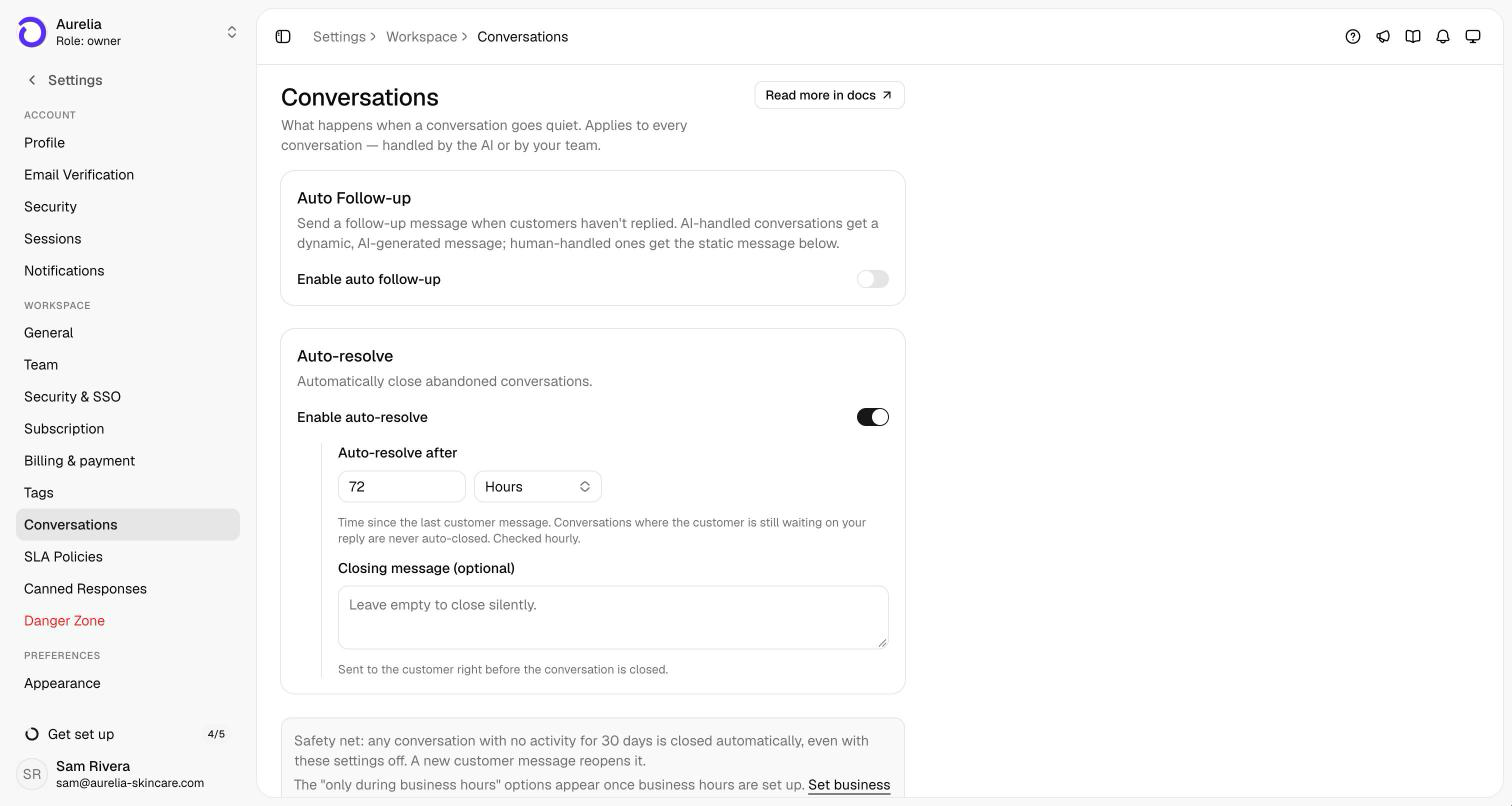
Configure these at app.asks.app/settings/workspace/conversations (Settings → Workspace → Conversations). Only owners and admins can change them, and both automations are checked hourly, so an action can land up to an hour after its timer runs out.
Auto Follow-up sends a check-in when the customer hasn't replied. Set the delay (minutes, hours, or days), the maximum follow-ups, an optional static message, and — once business hours are set up — whether to send only during business hours. AI-handled conversations get a dynamic AI-written check-in; human-handled ones get your static message, or a default written in the customer's language when you leave it blank.
- It only fires when your side — the AI or a teammate — spoke last, so a customer waiting on a reply is never nudged. A handed-off conversation whose last message is the AI's handover line counts as waiting: it's neither nudged nor auto-resolved.
- Max follow-ups per conversation defaults to 1, and the count resets when the customer replies, so the limit applies per quiet period rather than per conversation lifetime.
- On WhatsApp, Instagram, and Messenger it's skipped once the 24-hour messaging window has passed, and on WhatsApp it's never sent to a customer who opted out of your messages.
Auto-resolve closes abandoned conversations after a delay measured from the last customer message — or, optionally, from the last follow-up — and can be limited to business hours too. It never closes a conversation where the customer spoke last and is waiting on you. New workspaces start with it on at 72 hours and no closing message, so conversations close silently. If you write a closing message, it's skipped on WhatsApp, Instagram, and Messenger after the 24-hour window. Every automatic close leaves an internal note in the thread, such as "Closed automatically: no customer reply for 72 hours."
The default follow-up message tells the customer the conversation will be closed soon. If you run follow-ups with auto-resolve off, write your own message — otherwise conversations stay open after a message that says they won't.
The 30-day safety net. Any open conversation with no activity for 30 days is closed automatically — whoever spoke last, on every plan, even with both automations off. It closes silently, is recorded as unresolved, and a new customer message reopens it. This isn't configurable.
What escalation looks like in the inbox
Escalated conversations carry a Needs human badge in the inbox and its customer panel, and the inbox status filter has a Needs human option so your team can work the queue directly. When a human is done, the conversation can be handed back to the AI, which resumes with the full context. See Human handoff for the agent-side workflow.
Test your rules before going live: open the Playground, type one of your trigger keywords, and confirm the agent hands off the way you expect.