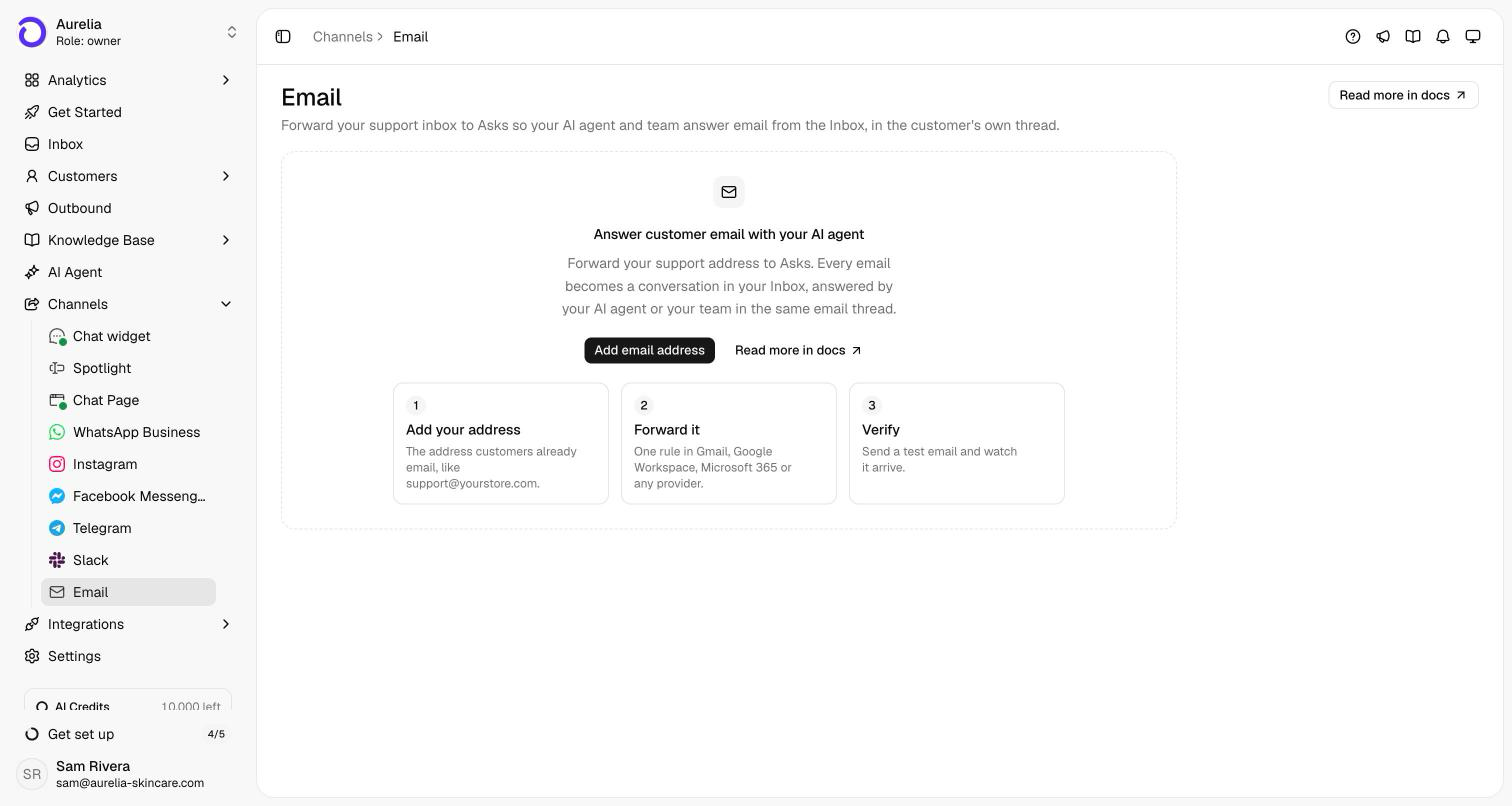
Forward your support address to Asks — your AI agent and your team answer every email from the Inbox, in the customer's own email thread.
The Email channel turns the address your customers already write to, like support@yourstore.com, into a channel. You keep your address and your mail provider and add one forwarding rule. Every email becomes a conversation in your Inbox, and your AI agent or your team answers it by email, in the customer's original thread.
You can connect several support addresses, for example support@ and orders@. Each one is its own channel in the Inbox.
Prerequisites
- A support address you control, and access to its forwarding settings. For Google Workspace and Microsoft 365, that's usually an admin.
- The Owner or Admin role in your Asks workspace.
Connect email
Go to app.asks.app/channels/email and click Add email address. Enter the Email address customers write to and, optionally, a Display name such as "Acme Support" — it's shown in the From field of replies, and an empty one uses your workspace name. Click Continue.
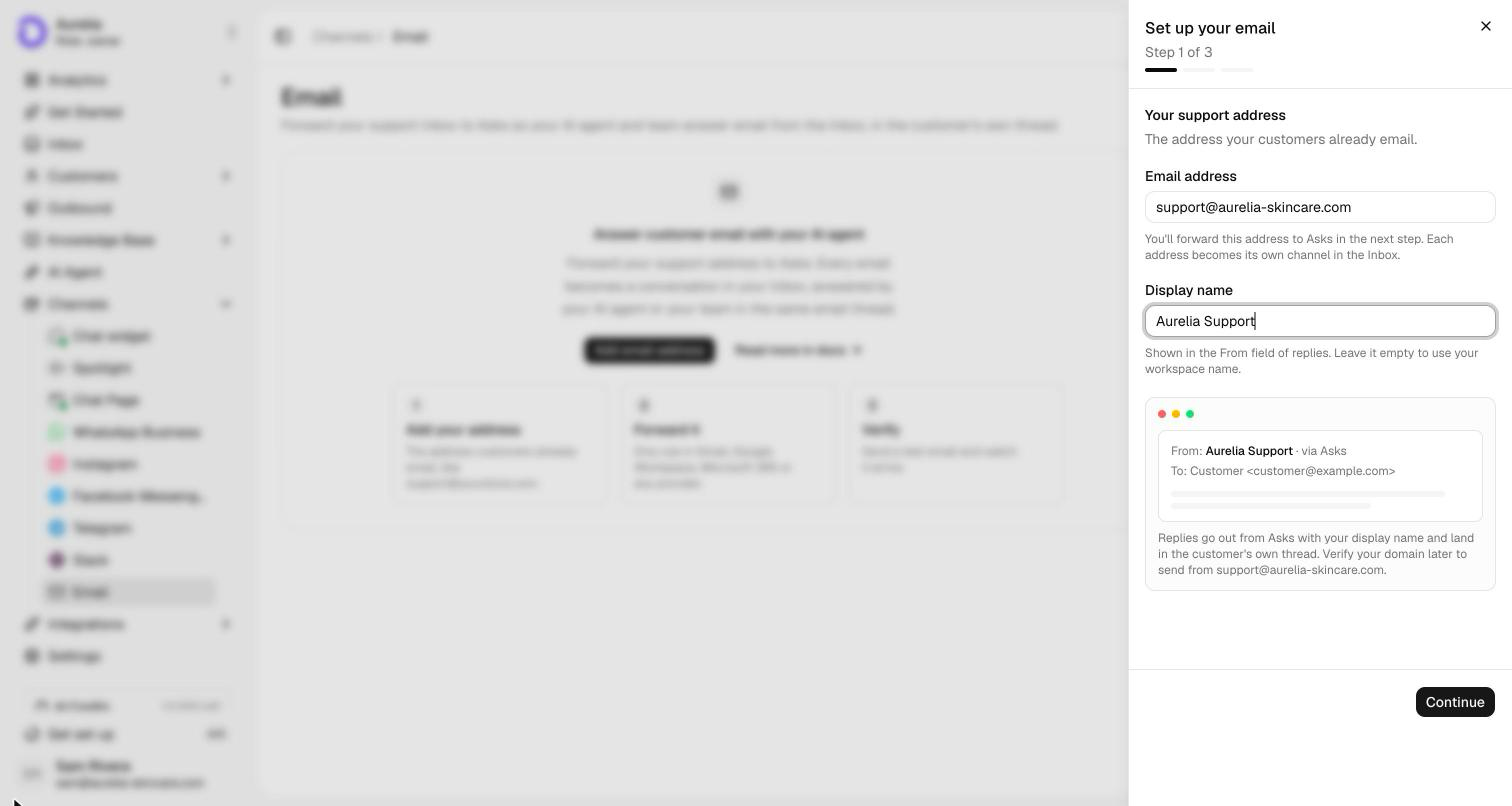
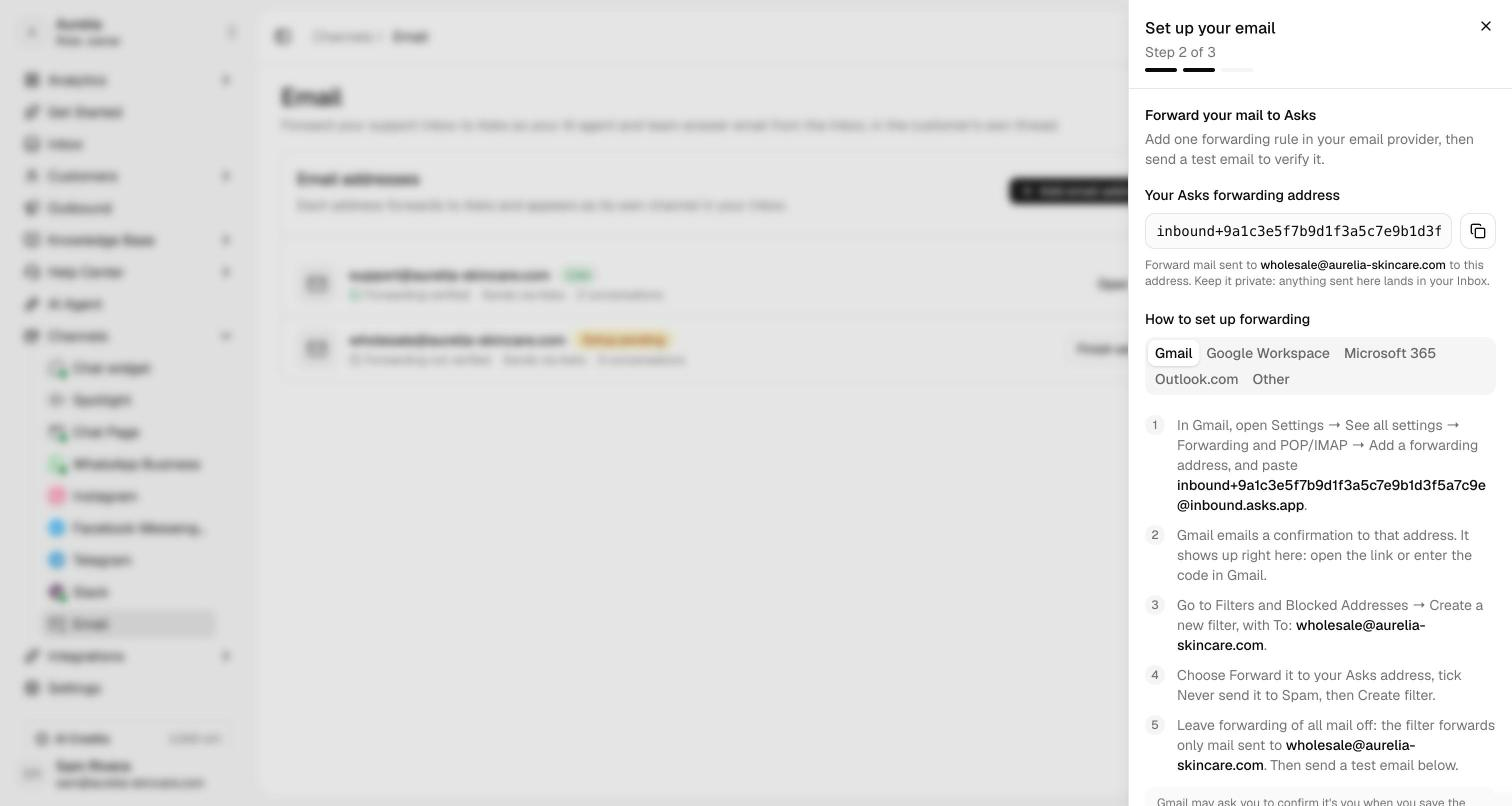
Asks shows Your Asks forwarding address, in the form inbound+<token>@inbound.asks.app. Add a forwarding rule to it at your email provider — see Set up forwarding below, or How to set up forwarding in the setup. Keep the address private: anything sent to it lands in your Inbox.
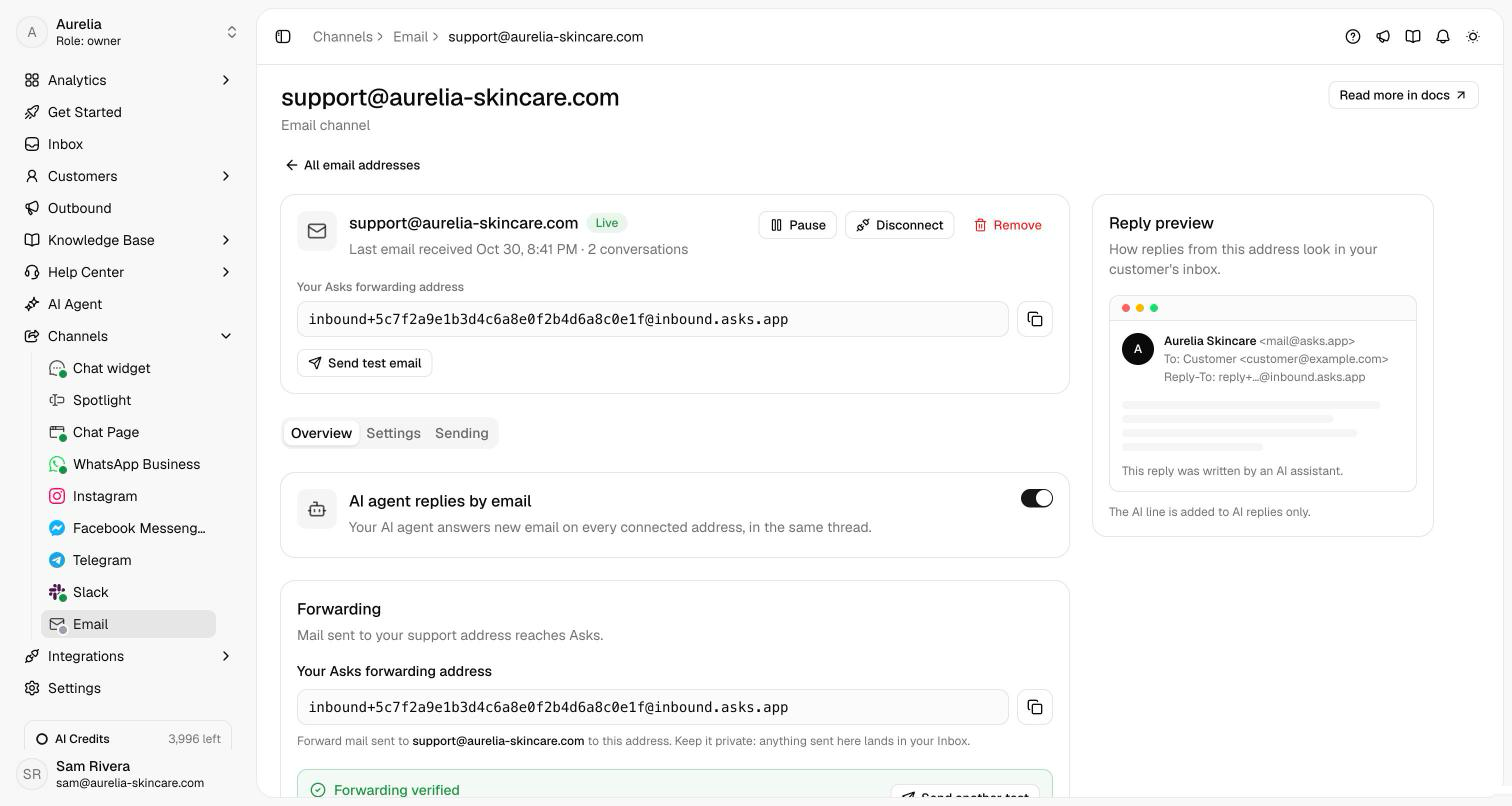
Click Send test email. Asks emails your support address, and when the message comes back through your forward, the setup shows Forwarding verified. The first customer email that arrives through the forward verifies it too. You can Continue without verifying and come back later with Finish setup.
Click Skip for now on Send from your own domain (optional). Replies are sent by Asks with your display name, and customer replies thread back automatically. Sending from your own domain is in early access — contact us to turn it on; once it's enabled, the address's Sending tab switches replies to your own domain after you add its DNS records.
Open the address and, on its Overview tab, turn on AI agent replies by email — connecting an address doesn't switch it on. The switch applies to every connected address, and matches Email under AI Agent → Deploy. With it off, email lands in your Inbox for your team to answer.
Set up forwarding
- In Gmail, open Settings → See all settings → Forwarding and POP/IMAP → Add a forwarding address, and paste your Asks forwarding address.
- Gmail emails a confirmation to that address. It appears right in the Asks setup: click Open confirmation link, or enter the confirmation code in Gmail.
- Go to Filters and Blocked Addresses → Create a new filter, with To set to your support address.
- Choose Forward it to your Asks address, tick Never send it to Spam, then Create filter. Leave forwarding of all mail off.
Gmail may ask you to confirm it's you when you save the filter, and shows a notice for 7 days that some of your mail is forwarded.
Verify it works — from a personal email account, write to your support address. The email appears as a conversation in your Inbox. Reply from Asks, and the reply lands in the same thread in your personal account.
How email works
- The customer's own thread. Replies keep the subject and the email's threading, so they land in the customer's original thread in any mail client. When the customer answers, the same conversation continues.
- What the agent reads. The customer's new message, without the quoted earlier emails or hidden text, plus attached images and PDFs. It replies in the customer's language, and on handover tells the customer a teammate will reply in this email thread.
- Reply-all. Replies go to the latest sender, with the other people on the thread in Cc. Your support address is never added.
- No messaging window. You can reply at any time.
Your team's replies go out in the same thread, with the teammate's first name before the display name; internal notes are never emailed, and attached files are sent as download links. A reply that isn't delivered is labeled Bounced, Marked as spam, Suppressed, or Not sent, and after a hard bounce or a spam complaint Asks stops sending to that address. See Takeover & collaboration for the email composer.
Reply settings
On an address's Settings tab, with a Reply preview of the result:
| Setting | What it does |
|---|---|
| Display name | The From name on replies. |
| Signature | Added to the end of every reply from this address. |
| AI disclosure line | Adds "This reply was written by an AI assistant." to AI replies only. On by default. |
| Auto-acknowledgement | Replies "We got your email and will get back to you soon" to new emails, only while AI replies are off. |
| Blocked senders | Email from these addresses or domains (@example.com) still reaches the Inbox but never gets an AI reply. |
Built-in safety
Auto-replies, bounce notices, and mail Asks sent itself never create conversations, so email loops can't start. No-reply senders, blocked senders, and bulk mail such as newsletters arrive in the Inbox, flagged, without an AI reply. The AI also stops answering a conversation that suddenly fills with replies, and mail that fails SPF, DKIM, and DMARC all at once. Mailing-list mail is answered normally, so a support address that's a Google Group works, and for a contact-form relay (like your Shopify store's contact form) the Reply-To address is the customer.
Manage your addresses
Each address has its own forwarding address, display name, signature, and blocked senders. From an address's page:
- Pause — incoming email isn't routed to Asks and no replies are sent.
- Disconnect — Asks stops receiving and answering email for the address. Reconnect keeps the same forwarding address.
- Remove — deletes the forwarding address. Past conversations stay in your Inbox; remove the forwarding rule at your provider too.
Troubleshooting
The test email doesn't arrive
- Check that the forwarding rule matches your support address exactly. Gmail forwards nothing until you confirm the forwarding address (the setup shows Gmail sent a forwarding confirmation), and doesn't forward mail it puts in Spam — tick Never send it to Spam on the filter.
- Google Workspace routing and some providers take a few minutes to apply a new rule.
- A test email counts only if it comes through your forward within 30 minutes. Mail sent straight to the Asks forwarding address doesn't verify the channel.
Then click Send another test.
Senders get "550 5.7.520 Access denied" from Microsoft 365
Microsoft 365 is blocking forwarding to outside addresses. Turn on Automatic forwarding rules (step 1 of the Microsoft 365 setup), give it time to take effect, then send another test.
The AI agent doesn't reply
Check that AI agent replies by email is on, and that the sender isn't blocked, a no-reply address, or bulk mail.
A customer's reply opened a new conversation
Replies thread by the email's headers and reply address. A customer who writes a fresh email with a new subject, instead of replying, starts a new conversation.
My out-of-office test didn't create a conversation
Expected: auto-replies are dropped. Test with a normal, hand-written email.