Slack
Slack
Bring your AI agent and your inbox into Slack — mention @Asks for answers in the thread, work on conversations from Slack threads, and get alerts when it matters.
Asks connects to one Slack workspace and gives you three things there:
- The AI agent in Slack. @mention Asks in a channel, or message it directly, and your AI agent answers in the thread. Every Slack conversation lands in your inbox. Set it up on Channels → Slack.
- Slack threads. Conversations from any channel (website chat, WhatsApp, Instagram, email…) are posted to a Slack channel as cards. Your team replies to the customer, adds notes, assigns and closes, all from the card's thread. Set it up on Integrations → Slack.
- Alerts. Your AI agent posts to a Slack channel when a customer brings up a topic you care about, without handing the conversation over. Also on Integrations → Slack.
All three use the same connection: connecting from either page installs Asks once for your workspace.
Prerequisites
- A Slack workspace where you're allowed to install apps. If your Slack workspace requires admin approval for new apps, get that first.
- The Owner or Admin role in your Asks workspace.
- For Slack threads: each teammate who replies from Slack needs the same email on their Slack profile as on their Asks account.
Connect Slack
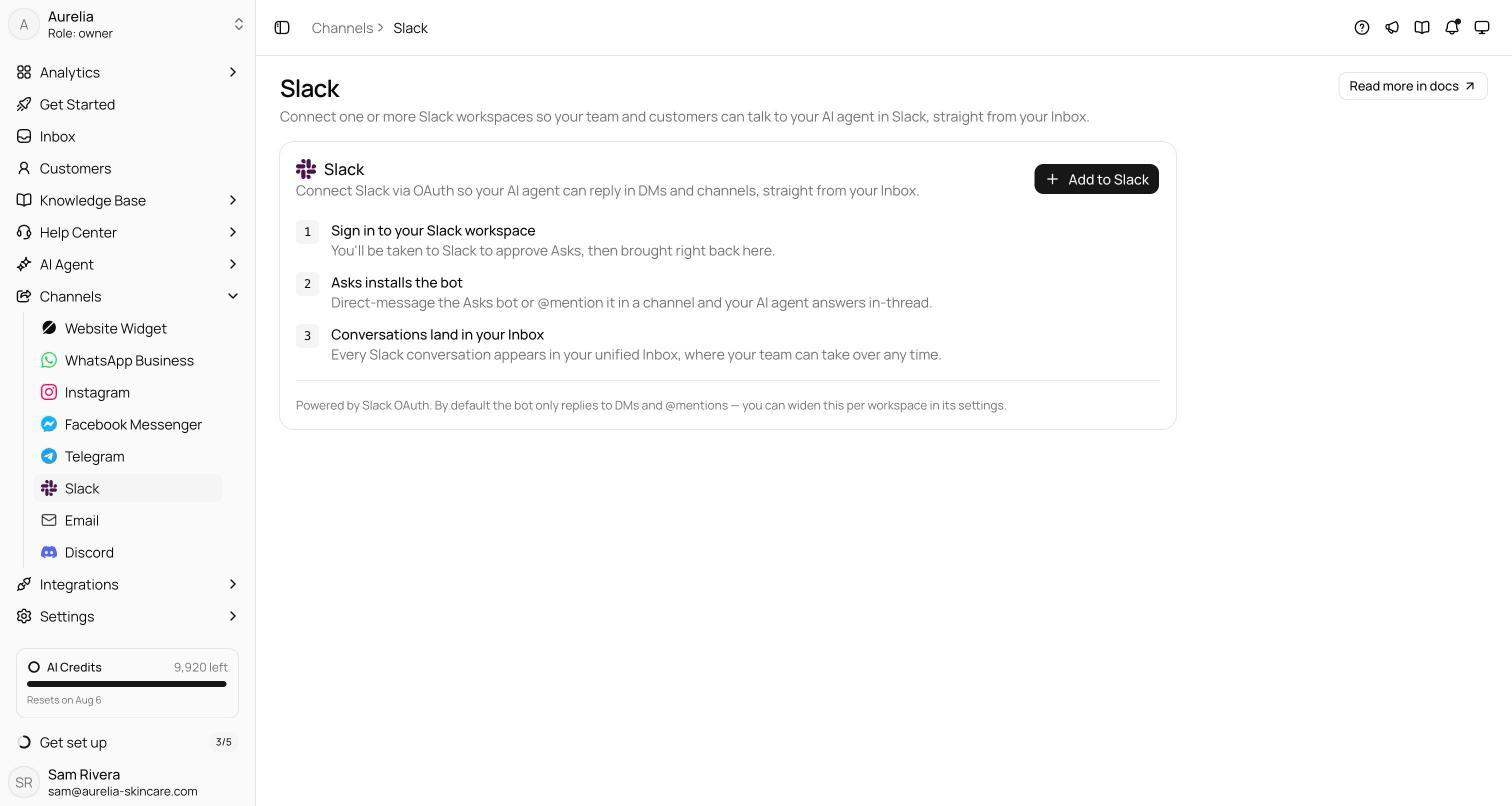
Go to app.asks.app/channels/slack (or Integrations → Slack) and click Add to Slack. Pick the Slack workspace, review the requested permissions, and allow. Slack returns you to the page you started from, with the workspace connected.
On the Overview tab of Channels → Slack, turn on AI agent replies in Slack. Connecting doesn't switch it on by itself. With it off, mentions and direct messages still reach your inbox, and only your team answers them. The preview on the right shows how a thread with your agent looks.
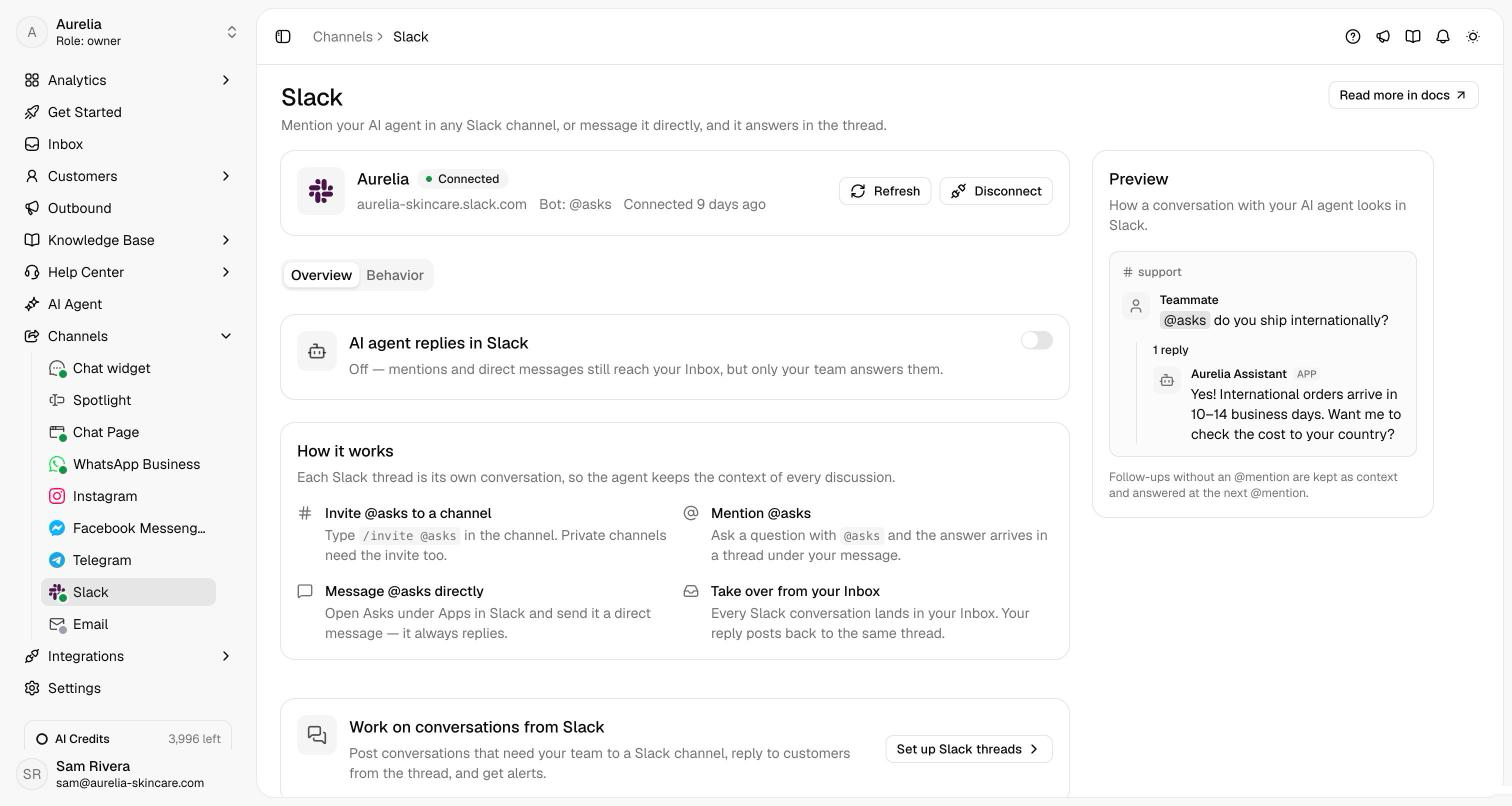
Direct messages work without an invite. To use Asks in a channel, type /invite @Asks there. Public channels you pick for Slack threads or alerts are joined automatically; private channels always need the invite.
Verify it works — in a channel Asks is in, post @Asks followed by a question your knowledge base covers. The answer arrives in a thread under your message, and the conversation appears in your inbox.
An Asks workspace connects to one Slack workspace, and a Slack workspace to one Asks workspace. To switch, disconnect first, then connect the other one. Disconnecting stops all three features; past conversations stay in your inbox.
The AI agent in Slack
- Mention @Asks in a channel. The answer arrives in a thread under your message, posted under your AI agent's name and avatar.
- Each thread is its own conversation, so the agent keeps the context of every discussion. By default, follow-ups in the thread without a new mention are kept as context and answered at the next mention.
- Message Asks directly from Apps → Asks in Slack. It always replies.
- Take over from the inbox. Your reply posts back to the same Slack thread, under your name.
Files and screenshots shared with Asks are captured into the conversation. When several people talk in one thread, each message carries the speaker's name.
On the Behavior tab you choose when the agent answers in channels:
| Setting | What it does |
|---|---|
| Keep replying in threads without a new mention | Once the agent is in a thread, it answers every follow-up there. |
| Reply to every message in channels it's in | Answers every message in channels where Asks is a member, not just mentions. Use it for dedicated support channels only. |
| Ignore other bots and apps (on by default) | Doesn't answer messages or mentions posted by other bots. Asks never answers its own messages. |
Slack threads
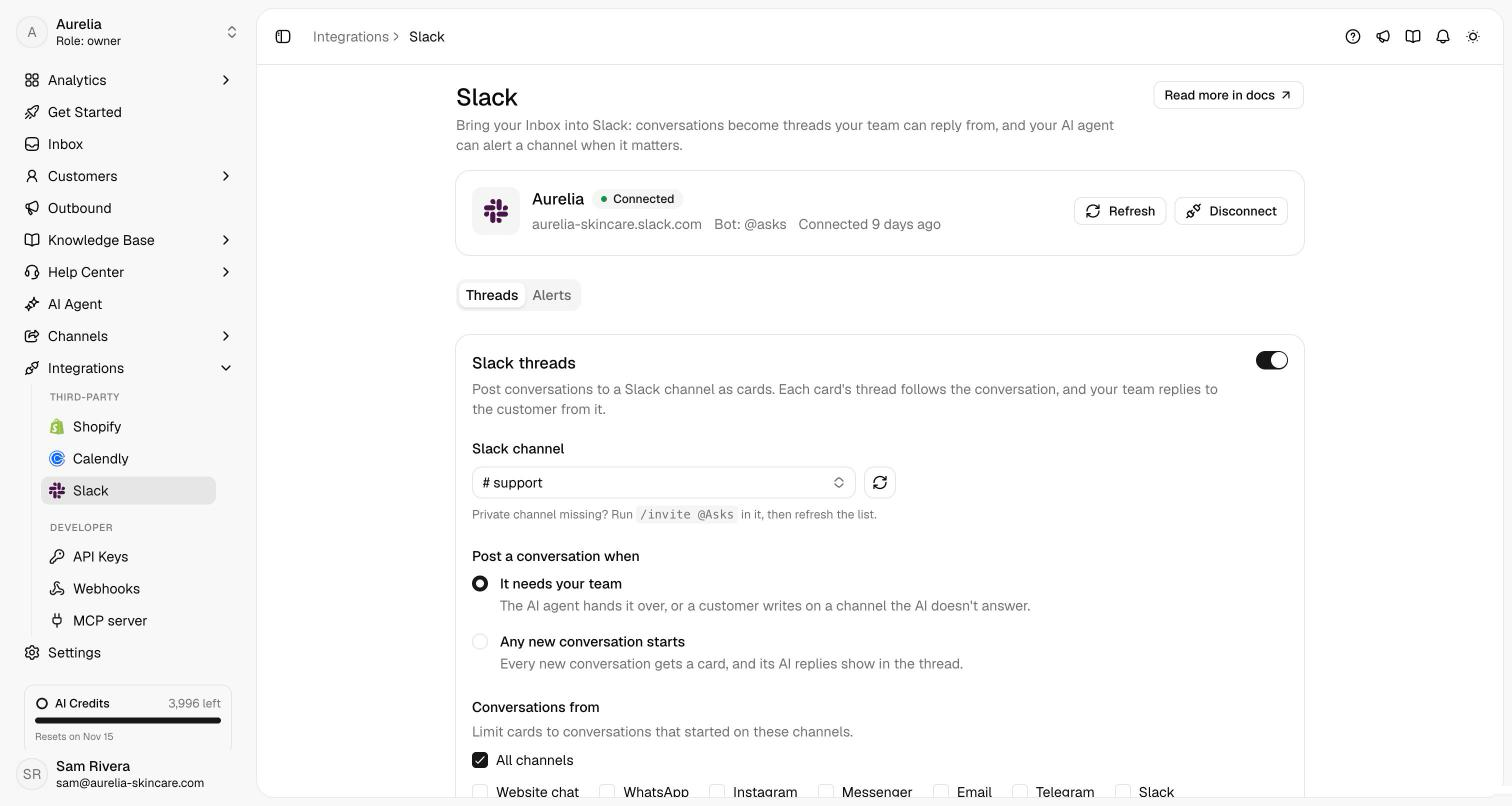
On Integrations → Slack, open Threads, turn on Post conversations to Slack, and pick the channel. Under Post a conversation when, choose:
- It needs your team (default) — the AI agent hands it over, or a customer writes on a channel the AI doesn't answer.
- Any new conversation starts — every new conversation gets a card, and the AI's replies show in the thread too.
Optionally limit cards to conversations from certain channels (for example, only WhatsApp and email). Use Send test message to check that Asks can post in the channel.
Each conversation gets one card: number and subject, status and assignee, the customer and their channel, and their latest message, with Assign to me, Close, and Open in Asks. The card updates in place when the status or assignee changes. A card posted at handoff starts its thread with the conversation so far.
Working from the thread
| You write in the thread | What happens |
|---|---|
| A normal message | Sent to the customer on their channel, and the conversation is assigned to you. Asks reacts with ✅. |
A message starting with internal: | Saved as an internal note, without the prefix. Asks reacts with 📝 and tells you privately why it wasn't sent. |
A message that @mentions a teammate, a user group, @here, or a channel | Saved as an internal note, as above. |
A message that mentions @Asks | The AI agent posts a suggested reply in the thread. Nothing reaches the customer until you send it. |
Replies reach the customer right away; editing or deleting in Slack doesn't unsend them. Files you attach go with the reply or note. In the inbox, replies sent from Slack carry a via Slack tag, and the conversation sidebar links to the Slack thread.
Everything that happens outside Slack is mirrored into the thread: customer messages, replies and notes from the inbox, AI replies, assignment changes, and closes or reopens. When a conversation closes, its AI summary follows in the thread once Asks has analyzed it.
When Asks can't send your message it reacts with ⚠️ and tells you why, privately: your Slack email doesn't match a teammate in the Asks workspace, another teammate is handling the conversation (click Assign to me to take it over), the conversation is closed (reopen it in Asks — notes still work), or the customer's channel rejected the message (for example, the WhatsApp 24-hour window has closed).
Alerts
On Integrations → Slack, open Alerts and click New alert. Give it a name, pick the Slack channel under Post to, and describe under When to send when the agent should alert, for example: Send an alert whenever the customer mentions a refund, a damaged item, or a late order. You can limit an alert to conversations from certain channels.
The alert names the customer, their channel, and the agent's one-line reason, with an Open in Asks button. The AI agent keeps helping the customer — an alert is a heads-up, not a handoff. Use escalation when a person should take over.
Be specific about topics: vague instructions cause noise or missed alerts. Alerts also appear on AI Agent → Actions as a shortcut. In the Playground, alerts are simulated and nothing is posted.
Troubleshooting
Asks doesn't reply in a channel
Check that Asks is invited to the channel, that you @mentioned it (or Reply to every message in channels it's in is on), and that AI agent replies in Slack is on.
No cards appear in the Slack threads channel
Check the trigger (It needs your team only posts on handoff), the channel filter, and that Asks is in the channel — run /invite @Asks for a private channel. A failed post shows Needs attention on the Threads tab with the reason.
A teammate's replies get ⚠️
Their Slack profile email must match their Asks email, and they must be a member of the Asks workspace.
"This Slack team is already connected to a workspace"
The Slack workspace is connected to another Asks workspace. Disconnect it there first.
Asks asks you to update permissions
New Slack features need new permissions. Click Update permissions on the connection card and approve in Slack; your settings stay as they are.
Someone uninstalled the app from Slack
Asks detects the uninstall, marks the connection Needs reconnect, and emails your team. Click Reconnect to install it again. Past conversations stay in your inbox.