Overview
AI agent overview
How the Asks AI agent answers customers, the setup checklist, and where each setting lives.
The AI agent is the model that answers your customers. It reads the conversation, retrieves the relevant material from your knowledge base, optionally calls tools — custom actions, MCP tools, or built-ins like order lookup — and writes a reply grounded in what it found, citing its sources. When it can't help, or the customer asks for a person, it escalates to your team; when the customer's question is settled, it can resolve the conversation on its own. Configure it at app.asks.app/ai-agent.
How a reply is produced
- Retrieve — the agent searches your knowledge base and answers from that content rather than inventing.
- Act — if the question needs live data or a side effect, it calls a tool: a custom action against your API, a connected MCP tool, or a built-in.
- Respond — it writes the reply in your configured tone and length, in the customer's own language, citing the sources it used.
- Escalate or resolve — it hands off to a human when your escalation rules fire, and closes conversations it's confident are solved (on by default). After a human has handled a conversation, it can be handed back to the AI, which picks up with the full context.
Finding your way around
The AI Agent section of the sidebar starts with Get Started and the Playground, then groups the rest: Train (Knowledge, Guidance, Escalation & Handoff), Collect (Collect Leads, Collect Data), Tools (Custom Actions, MCP Servers), and Evaluate (Evals, Deploy).
The master switch
The AI Agent Status card on the Get Started page controls whether the agent responds at all — the same toggle also appears on the Deploy page. Off means no AI replies on any channel; everything else — knowledge, guidance, actions — stays configured and waits.
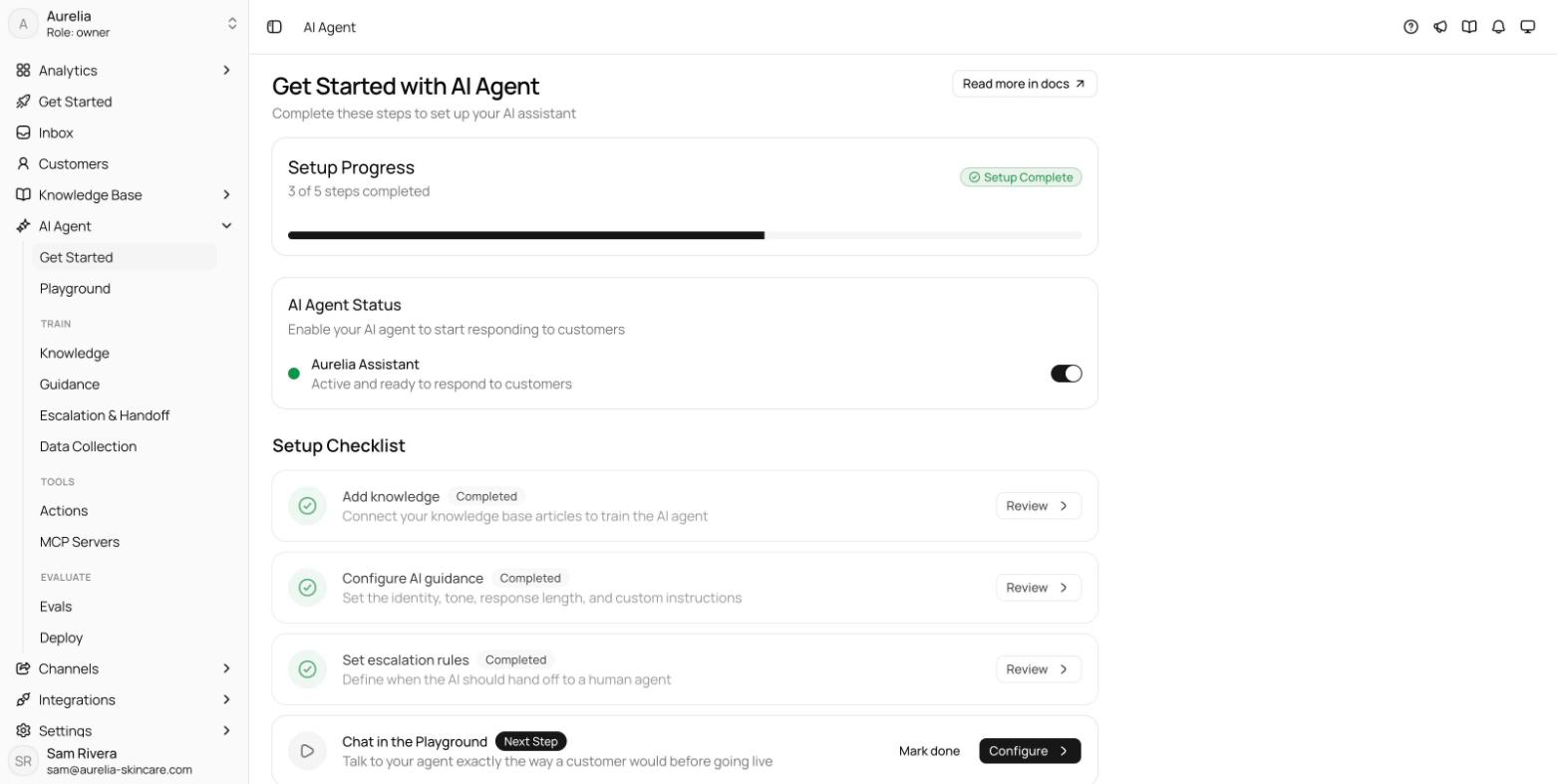
The agent's name is set on the Guidance page; customer-facing branding — colors, launcher, avatar — comes from your widget settings.
AI disclosure
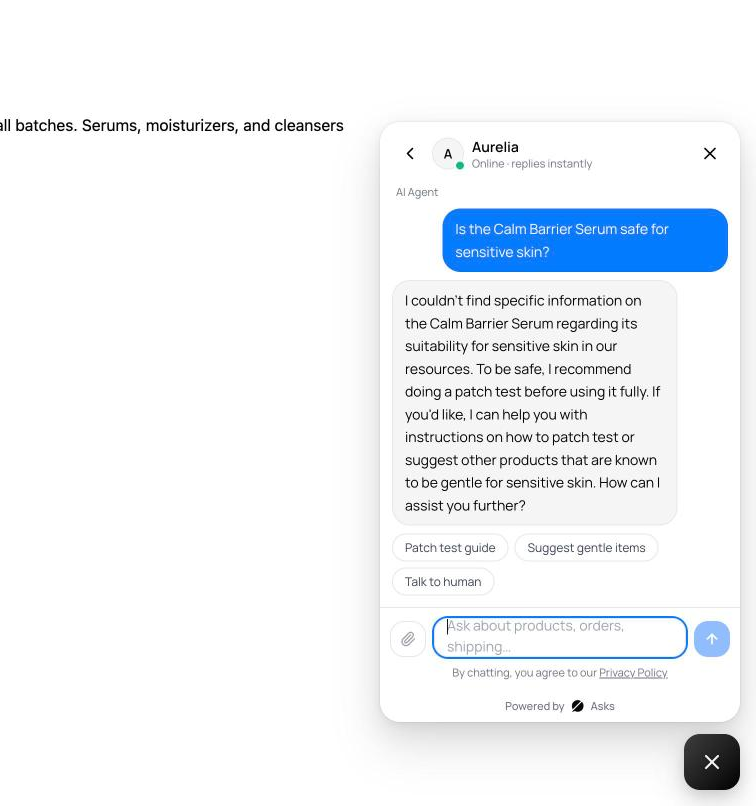
In the chat widget, the agent's replies carry an "AI Agent" sender label — on its first reply and again whenever the sender changes, for example after a teammate takes over and the AI answers again. There is no setting for this — customers should know when they're talking to an AI, and Asks enforces that transparency for every workspace.
Setup checklist
The Get Started page tracks five setup steps with a progress bar. Each step links to its page, the next one is highlighted, and you can select Mark done as you go. If you set up with the onboarding wizard, the knowledge and guidance steps start out done.
Connect knowledge base articles, websites, and documents so the agent has something to answer from.
Set the identity, model tier, tone, response length, and custom instructions. See Model & guidance.
Define when the AI hands off to a human. See Escalation & human handoff.
Talk to your agent exactly the way a customer would before going live. See the Playground, then keep what you checked as tests.
Turn the agent on where you want it to answer.
Deploy per channel
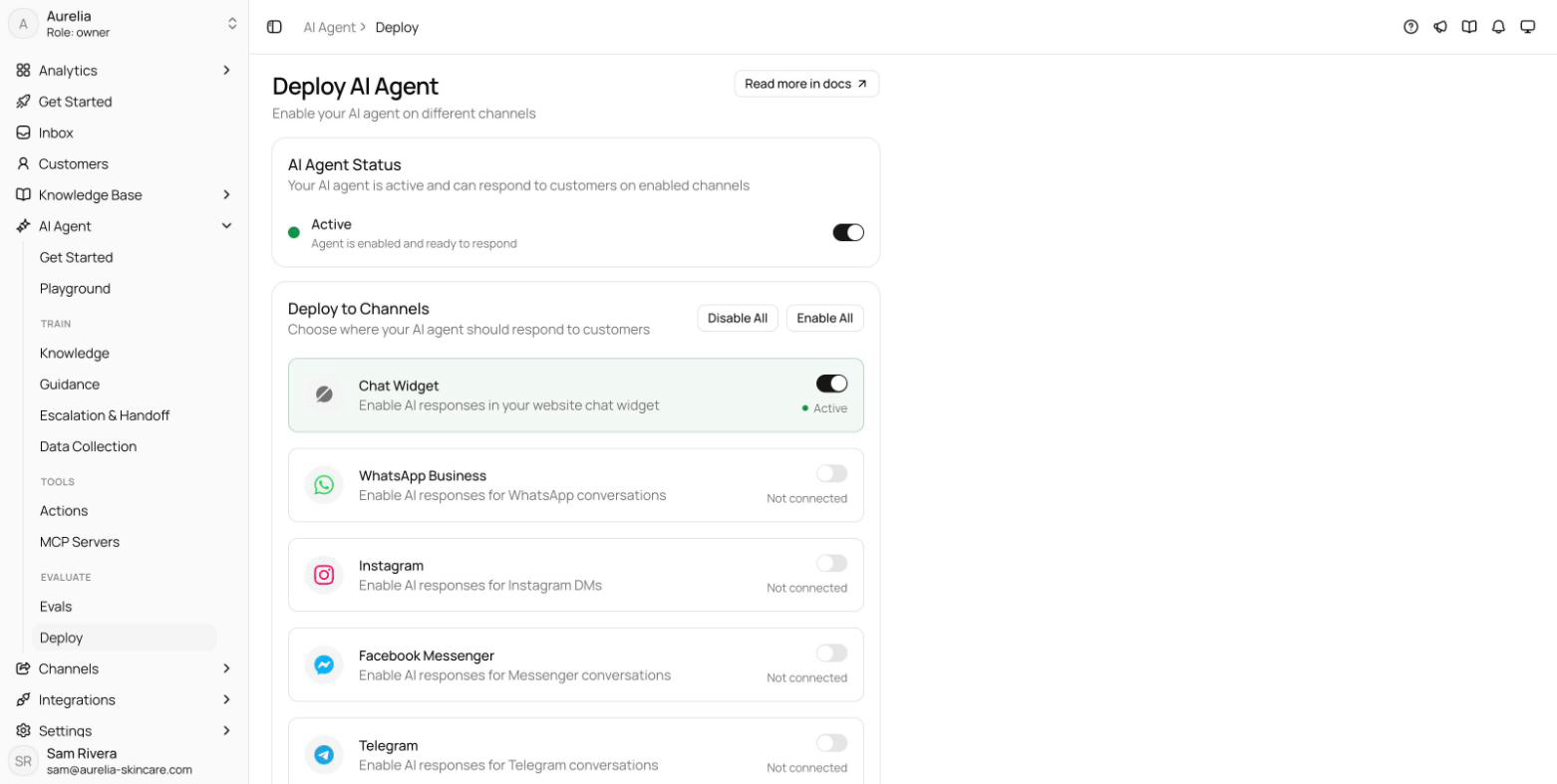
The agent is enabled per channel, not globally. On the Deploy page you toggle AI responses independently for Chat widget (every website channel — the chat widget, Spotlight, and the Chat Page), WhatsApp Business, Instagram, Facebook Messenger, Telegram, Slack, Email, and API (the agent chat API Premium) — or use Enable All and Disable All. A channel you haven't connected yet shows Not connected and prompts you to connect it first. Deploying is locked until the knowledge and guidance steps are complete. Some teams run AI-first on the website but human-only elsewhere.
AI usage
Every AI-sent message consumes credits based on the model tier — 1, 4, or 8 credits per message. The Subscription page breaks the last 30 days of consumption down by tier and lists every credit transaction, so you can see where your allowance goes. Allowances per plan are in Limits & quotas.