Ratings & CSAT
Ratings & CSAT
Ask customers to rate conversations when they wrap up, and see scores, reasons, and written feedback.
Ratings measure how conversations actually went. When enabled, customers are asked to rate the conversation out of 5 as it wraps up — in the Chat widget, on the Chat Page, and through star links in the resolved email. High ratings submit in one tap; low ratings ask why. Results live at https://app.asks.app/analytics/ratings, available on every plan.
Turn it on
Ratings are off by default, and the switch lives on the Ratings page itself. Only owners and admins can change it.
Go to https://app.asks.app/analytics/ratings. The Conversation rating card sits at the top.
Turn Conversation rating on. The setting covers the whole workspace and all three surfaces at once.
Click Save changes in the "You have unsaved changes" bar at the top of the page.

When customers are asked
- Chat widget and Chat Page — the rating appears in the thread when the conversation is resolved, or after 30 minutes without a new message in an open conversation the AI has replied in. Each customer is asked once per conversation.
- Resolved email — when a conversation closes and the customer's email is known, Asks sends them a short recap of the conversation. With ratings on, it carries 1–5 star links; with ratings off, it goes out without them.
A 4- or 5-star rating submits immediately. A rating of 3 or below adds a step asking why, with an optional written comment.
The Ratings page
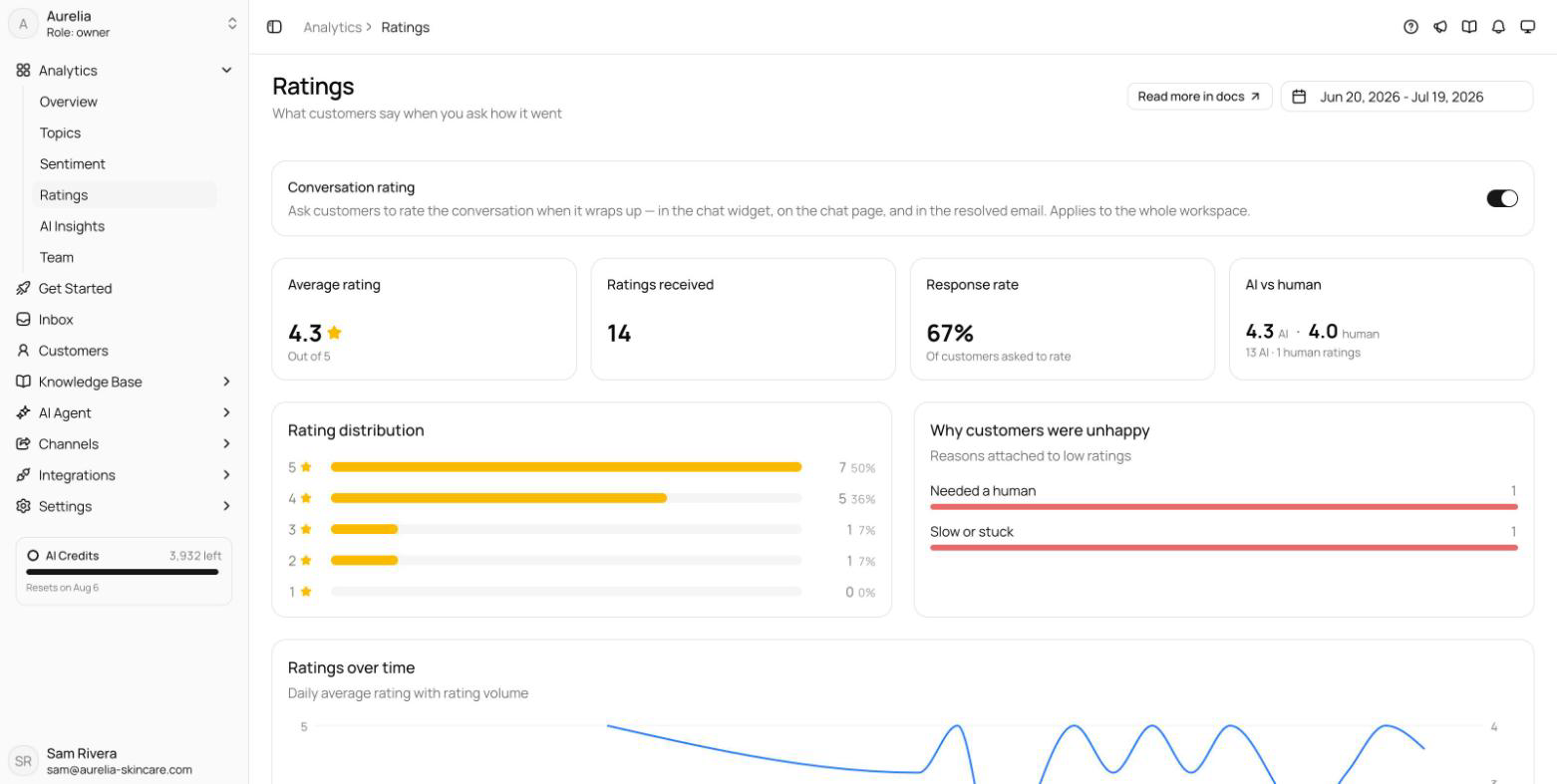
Four numbers up top:
- Average rating — out of 5, with a delta versus the previous period.
- Ratings received — how many customers rated.
- Response rate — ratings received divided by conversations resolved in the period.
- AI vs human — average rating split by who handled the conversation.
Below: the Rating distribution from 5 stars down to 1, Why customers were unhappy, Ratings over time, and Recent feedback — each rating's stars, reason, channel, and written comment, with a click-through to the conversation in the inbox.
Rating reasons
When a customer leaves a rating of 3 or below, they can pick a reason:
| Reason | Usually points at |
|---|---|
| Wrong answers | Gaps in your knowledge base — see Knowledge gaps |
| Didn't understand | The agent's guidance |
| Slow or stuck | Response times and AI health on Team performance |
| Needed a human | Your escalation settings |
| Other | Read the written comment |
Watch response rate alongside the average. A 4.8 from 2% of customers says less than a 4.3 from 30%.
Ratings across the dashboard
- Inbox — the customer panel shows a CSAT row with the stars and the customer's written feedback.
- Customers — each customer's average CSAT appears in the directory and on their profile.
- Alerts — a rating of 1 or 2 emails the conversation's assignee, or the owners and admins when nobody holds it. The Negative ratings toggle under Settings → Account → Notifications turns these emails off.
Related
- Widget customization — everything else about how the widget looks and behaves.
- Analytics overview — CSAT alongside your other KPIs.