Invoices & receipts
Invoices & receipts
Every order has a printable invoice while it's unpaid and a receipt once it's paid, with your business details, numbered per year, and saved as a PDF from the browser.
Each order has one document at a private link: an Invoice while it's unpaid, and a Receipt once it's paid. The payment confirmation customers get has a View receipt button, and your team can open or share either document from the order. Anyone with the link can open it, without signing in.
Set up your business details
Commerce → Settings → Invoices & receipts sets what every document shows (owners and admins):
| Field | Default |
|---|---|
| Logo | Your workspace logo. Upload logo sets one for invoices only. |
| Business name | Your workspace name. |
| NPWP (optional), Phone, Email, Address | Empty: shown only when set. |
| Invoice number prefix | Your order number prefix. 1–10 capital letters or digits. |
| Note or terms | Empty. A line at the bottom, such as your return policy. |
Next invoice number shows the number the next document will get.
Invoice numbers
Invoices are numbered INV/<prefix>/<year>/<number>, such as INV/ORD/2026/00001. An order gets its number the first time its invoice or receipt is opened or shared, so numbers follow the order you issue them in, with no gaps. Numbering starts again at 00001 each calendar year (WIB). The order keeps its number when it moves from invoice to receipt, and the order page shows it under Voucher & invoice.
Open or share a document
On an order, click View invoice, or View receipt once it's paid, to open it in a new tab. The copy button next to it copies the link to send to the customer yourself. The link works for 180 days.
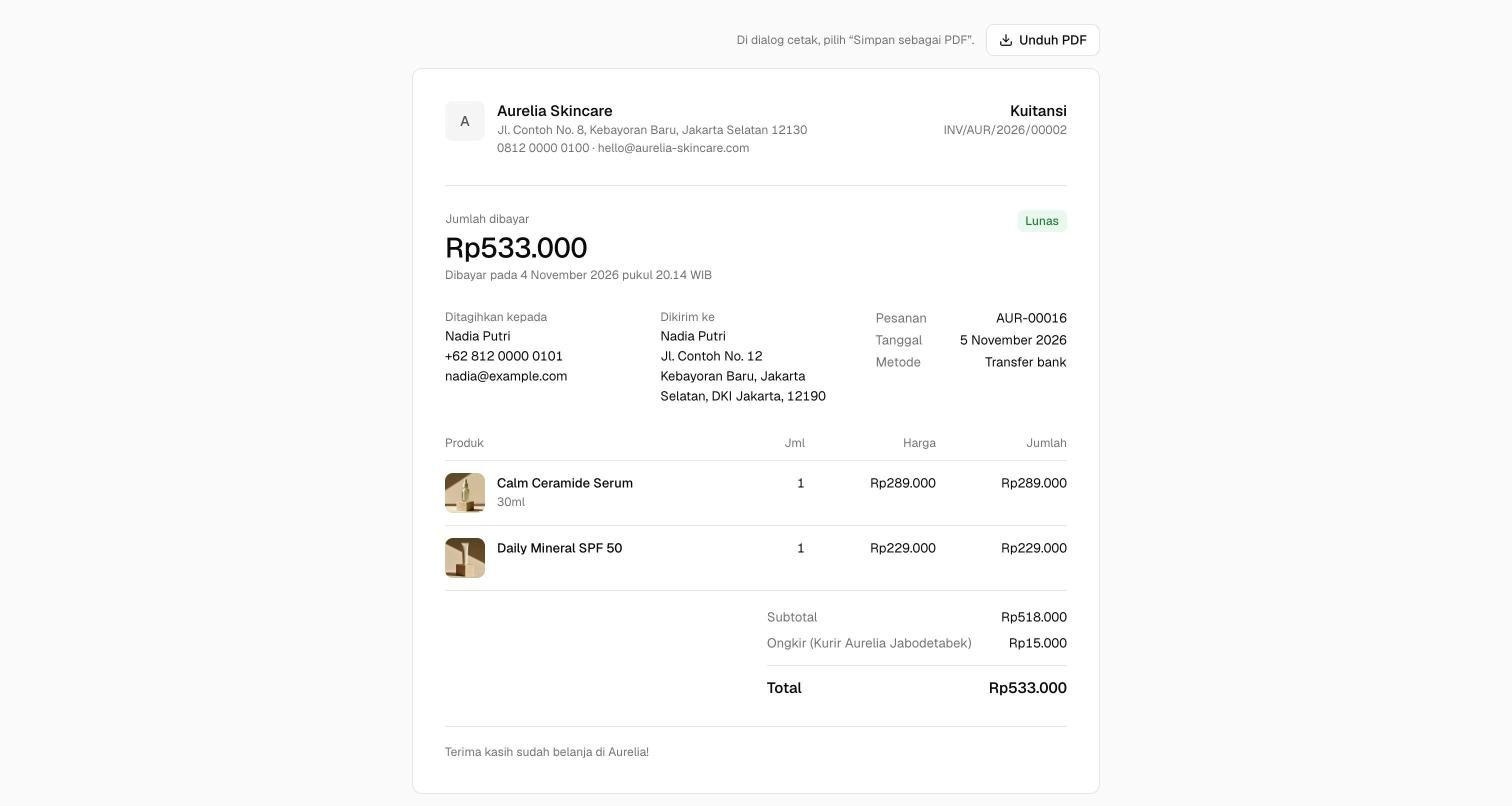
The document is in the conversation's language, or Indonesian when it isn't known, and shows:
- your business details, the amount paid or due with its status, the customer under Bill to, and the delivery address under Ship to;
- the order number, the date, and the payment method; Pay before with the link's expiry on an unpaid order, or the paid date on a receipt;
- the items with the photo of the variant bought, subtotal, discount (with the voucher code), shipping, tax and total, plus what was paid and any refunds;
- on an unpaid order, a Pay now button for a live Xendit link, or your bank accounts with a request to add the order number to the transfer note.
Download PDF opens the browser's print dialog: choose Save as PDF. The page is laid out for A4, and the button and the Powered by Asks line don't print.
Related
- Payments & settings — the other Commerce settings.
- Orders — where an order's documents open.
- Orders in chat — the payment confirmation with its View receipt button.