Edit & refund orders
Edit and refund orders
Change an order until it's paid, with stock and the payment link kept right, and record the refunds you make outside Asks.
Customers change their minds before they pay: another size, one more item, a different address. Edit the order instead of cancelling it and creating a new one. After an order is paid, Asks doesn't change it; when you return money, record the refund so the order, your sales and the customer's receipt stay correct.
Edit an unpaid order
An order can be edited while it's Pending and its payment is Awaiting payment or Expired, and no payment is waiting for review. Anyone on the team can edit it, and a customer can ask the AI agent to change it in chat; the agent confirms the updated summary with them first.
Open the order and click Edit order.
Change quantities, remove items, add products from your catalog, or add a custom item. Under Shipping, keep the current option, set a fee by hand, or choose No shipping, and correct the address. You can also change the payment method, the discount, the voucher and the tax. New total shows the result.
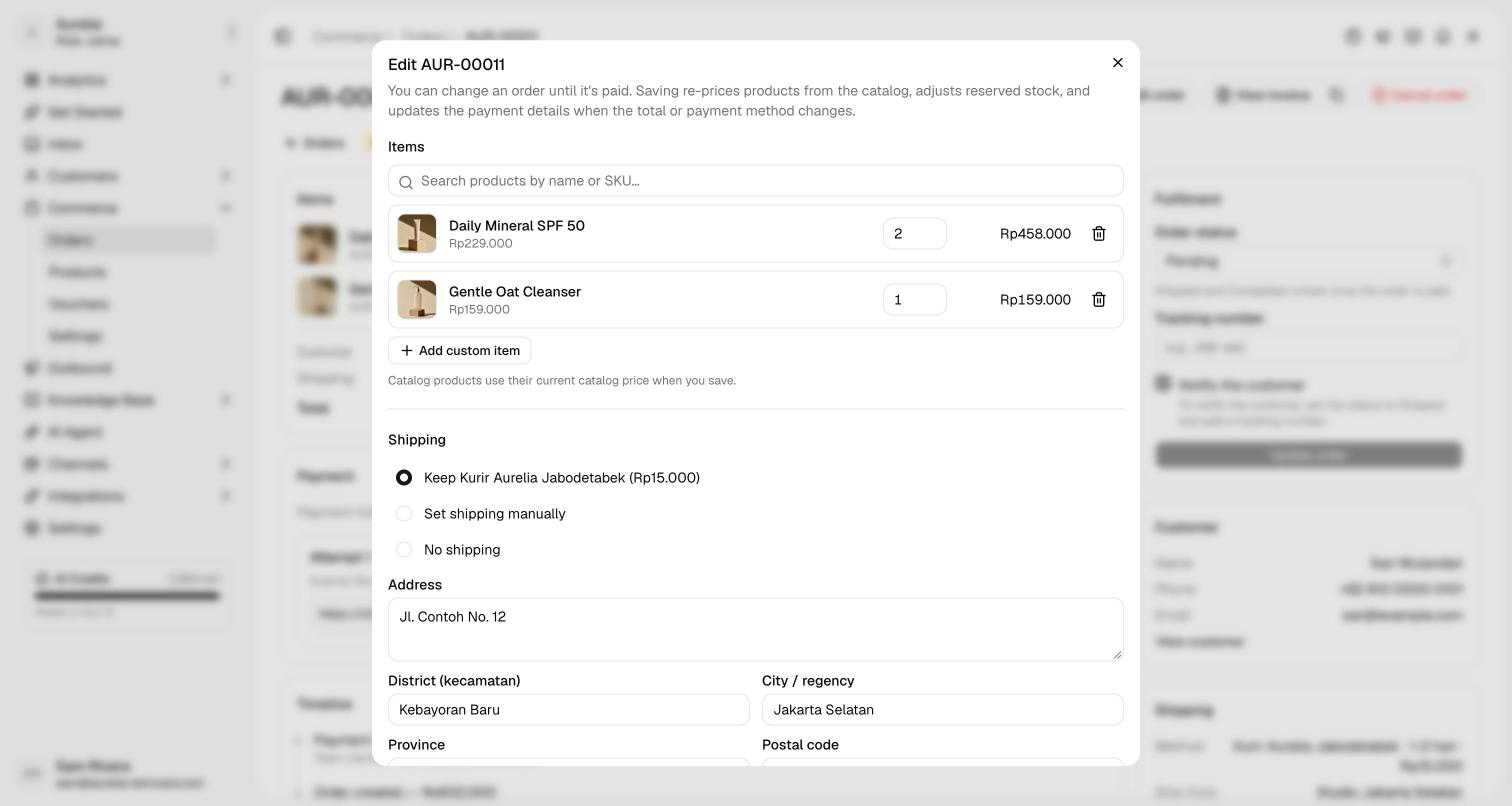
Keep Send the updated summary and payment details to the customer ticked to send the new summary in the conversation, then click Save changes.
When you save:
- Catalog products are re-priced at their current catalog price, and reserved stock moves by the difference. If an item no longer has enough stock, nothing is saved.
- When the total or the payment method changed, Asks closes the current payment link and creates one new link or bank-transfer request for the new total. There is never more than one live link.
- If the customer pays the old link anyway, the payment isn't accepted as paid: the order goes to Needs review.
- The timeline records the edit with the old and new totals, and the conversation gets an internal note.
Record a refund
Asks doesn't send money back. Refund the customer in your Xendit dashboard or by bank transfer, then record it on the order, so everyone sees what was returned.
On a paid order, click Record refund (owners and admins).
Enter the Amount refunded, up to what was paid minus earlier refunds, the Reason, and optionally How it was refunded, such as a BCA transfer on a given date.
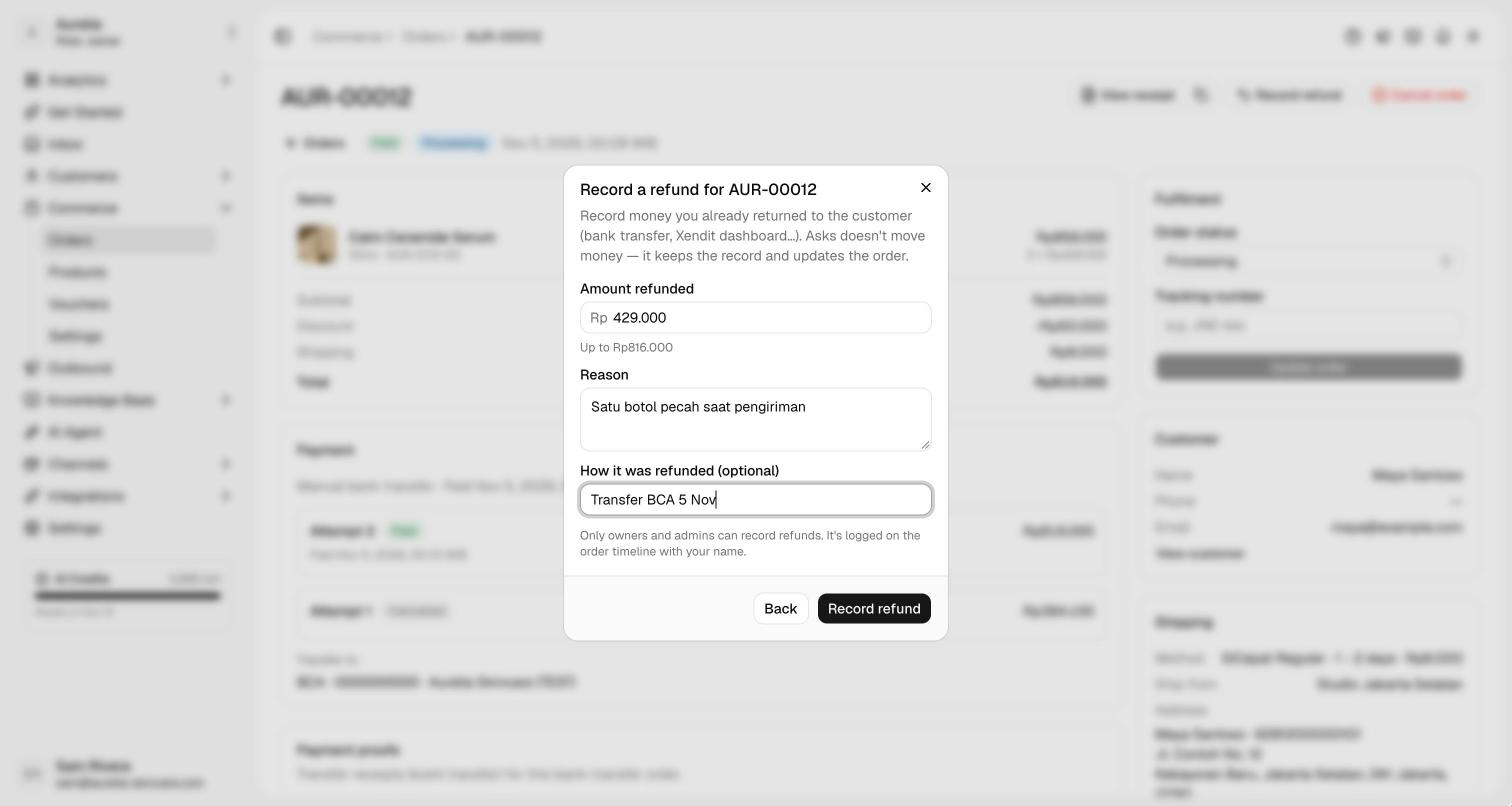
Click Record refund.
The order's payment status becomes Partially refunded or, once everything paid has been returned, Refunded. The Refunds card lists each refund with its reason, who recorded it and when; the timeline, the conversation's internal note and an order.updated webhook record it too. Paid sales on Analytics → Sales counts sales minus refunds, and the receipt shows the refunded amount.
A refund doesn't change the order status: a partly refunded order can still be shipped. To stop an order, cancel it; a paid order that's fully refunded can be cancelled without a review. Asks doesn't message the customer about a refund.
Related
- Orders — statuses, reviews and cancelling.
- Invoices & receipts — what the customer's receipt shows.
- Vouchers — how a voucher behaves when you edit an order.