Products
Products
Build the catalog the AI agent sells from, with rich-text descriptions, variants with their own photos, prices, stock and weight, added one by one or imported from a CSV.
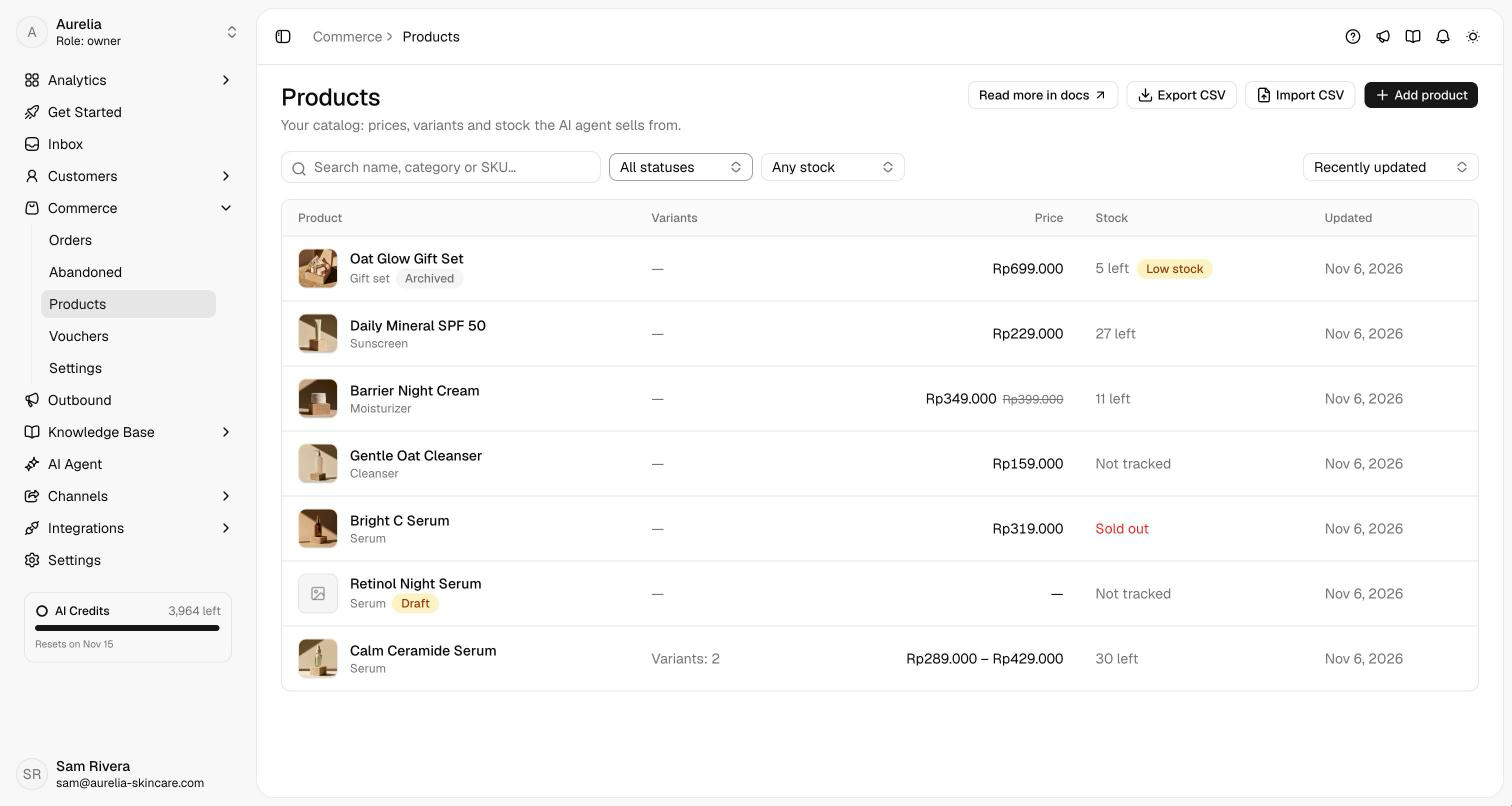
Commerce → Products is your catalog. The AI agent quotes and sells only what's in it, at these prices, and reads each description to answer product questions. Owners and admins manage products; members can see them.
Add a product
Click Add product. Enter the Name and a Description: what it is, the size, the ingredients, how to use and store it. Under Organization, set a Category and the Status. Not ready yet? Save it as a draft. See Write a good description.
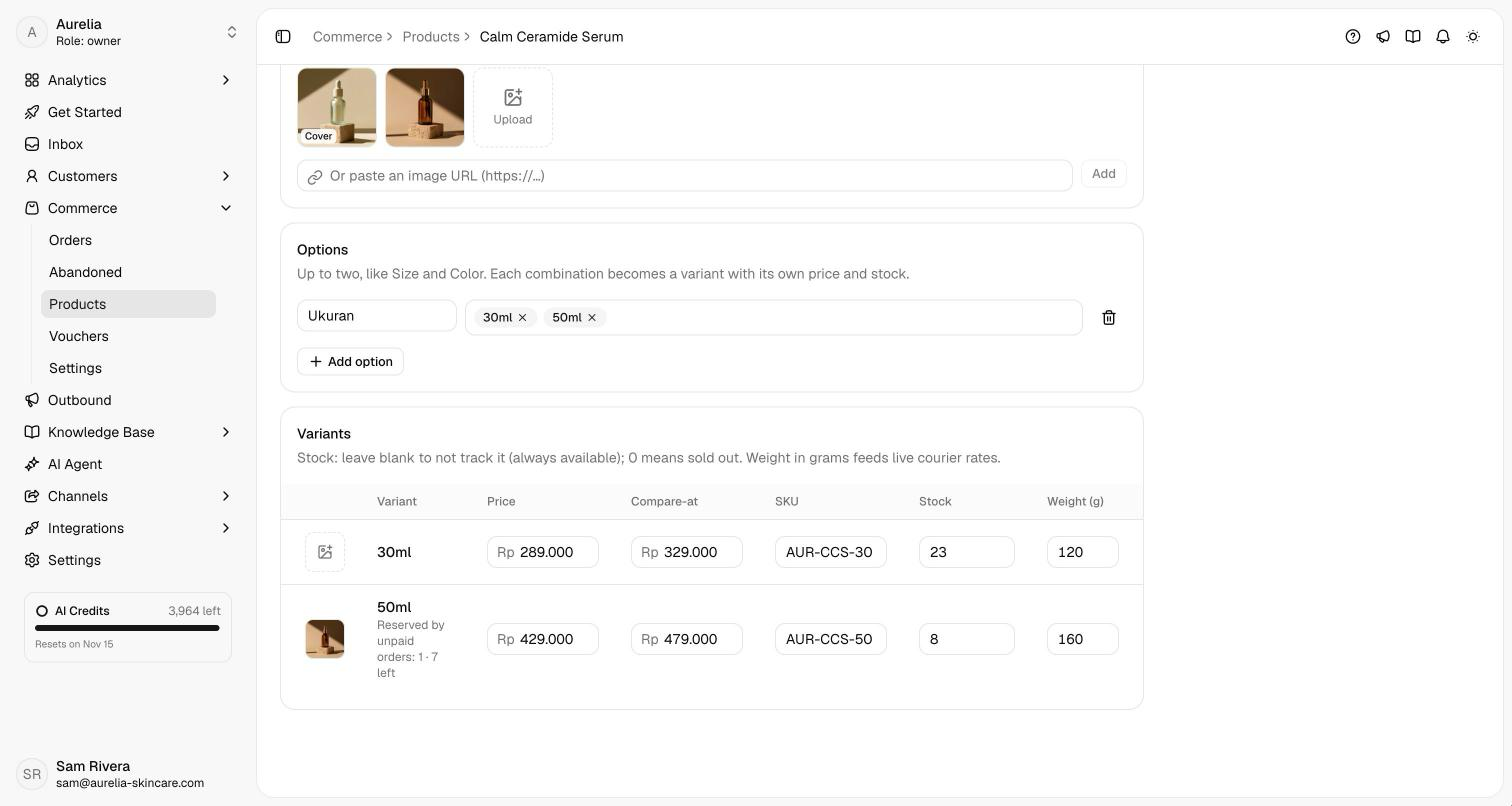
Add up to 10 images with Upload or by pasting an image URL that starts with https://. The first image is the cover; Make cover moves another one to the front.
A product without options is sold as one item. For sizes, colors or flavors, click Add option, name it (for example Size), and type each value followed by Enter. Up to two options; every combination becomes a variant with its own price and stock, up to 100 variants per product.
For each variant, enter the Price in rupiah, a Compare-at price if it's on sale, a SKU, the Stock and the Weight (g).
Click the image slot at the start of a variant's row, pick one of the product's images or Upload a new one, and click Done. With two options, Also use for every applies the photo to all the variants sharing a value, such as every Merah size. A variant without its own photo shows the product's cover. Then click Create product.
Write a good description
The Description field has headings, bold, italic, bulleted and numbered lists, and links, and takes up to 6,000 characters. You can also type Markdown: ## starts a heading, - a list and **bold** bold text.
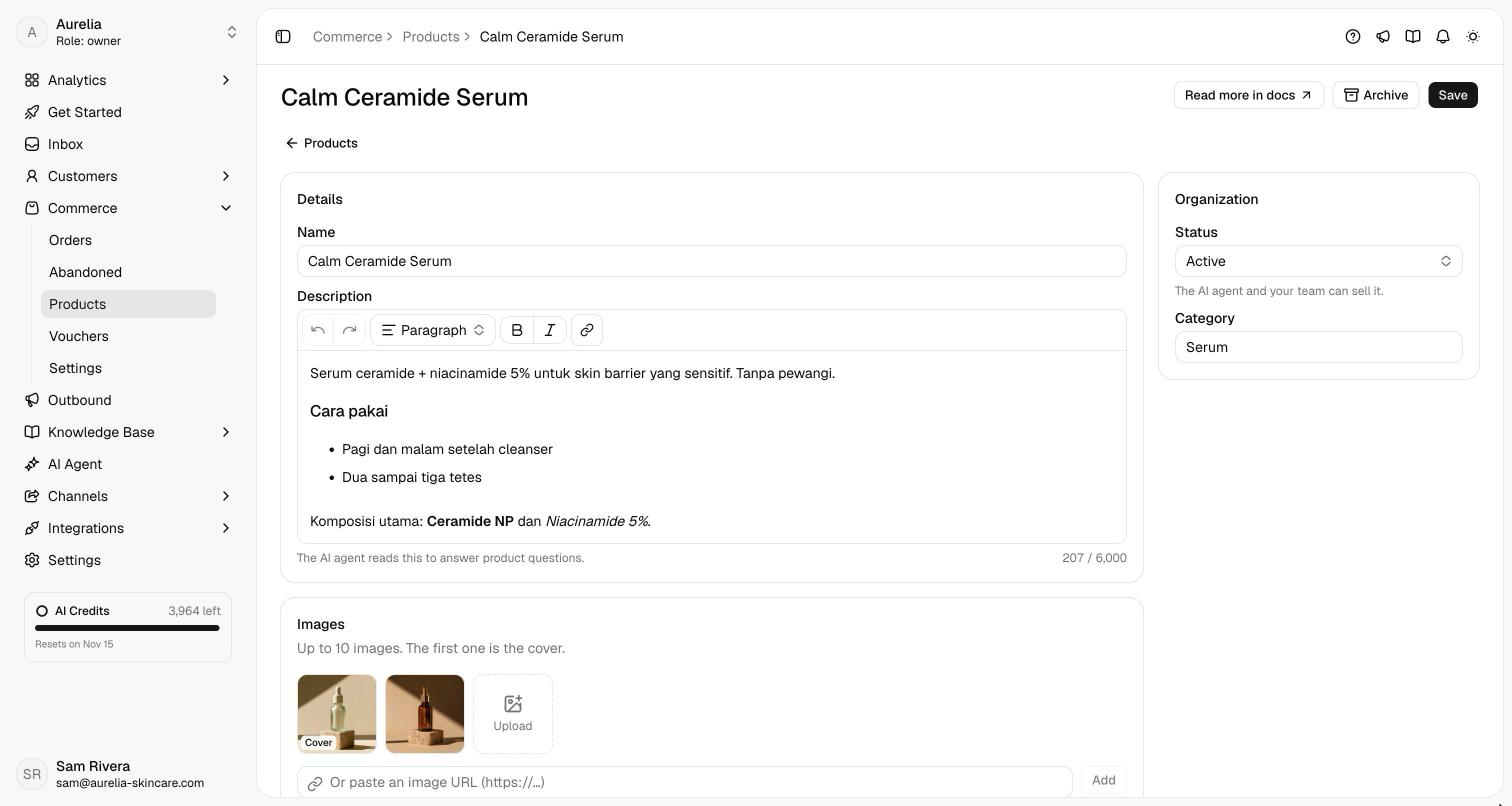
The AI agent reads it as plain text to answer questions, so write down what customers ask: ingredients, sizes, how to use it, how to store it. When something isn't there, the agent says so rather than guessing.
Sale prices
Compare-at is the normal price, shown struck through next to the price you charge: harga coret. It has to be above the price, and it's never charged.
When a customer asks about a variant on sale, the AI agent gives both, such as "Rp289.000, normally Rp329.000". It only ever says this from the number you set, so it can't invent a discount. Orders, totals and vouchers all use Price.
Drafts
A Draft is a product you're still writing. The AI agent doesn't see it, it can't be ordered, and it stays off the Create order picker.
Click Save as draft on a new product, or set Status to Draft. A draft needs only a name; a missing price stays blank until you fill it in. When it's ready, set Status to Active and save: at that point every variant needs a price.
| Status | Sold | The AI agent sees it |
|---|---|---|
| Active | Yes | Yes |
| Draft | No | No |
| Archived | No, but stays on past orders | No |
How the agent uses variant photos
When a customer asks about one variant, the product card shows that variant's photo: asking for the bubuk shows the bubuk photo. Otherwise the card shows the cover. The order, the invoice or receipt and best sellers keep the photo of the variant that was bought.
Stock
| Stock field | Meaning |
|---|---|
| Empty | Not tracked. The variant is always available. |
0 | Sold out. The agent tells customers it's out of stock, and orders for it are refused. |
| A number | Units on hand. Each unpaid order reserves its units ("Reserved by unpaid orders"); paying deducts them, and an expired link or a cancellation releases them. |
What's available is the stock minus the reserved units, and that's what the list and the agent show ("7 left"). A product with a variant at or below your low-stock threshold (5 units by default) carries a Low stock badge, and your team is alerted when a sale takes it there. Weight (g) feeds live courier rates; a variant without a weight counts as 500 g.
Find and manage products
Search by name, description, category or SKU. Filter by status (Active, Draft, Archived or All statuses) and stock (In stock, Low stock or Sold out), and sort by Recently updated, Name (A–Z), Lowest price or Highest price.
Archive a product to take it out of the catalog: the agent stops offering it, past orders keep it, and you can set it back to Active at any time.
Import and export CSV
Export CSV downloads the whole catalog. Import CSV adds or updates products in bulk:
- One row per variant. Rows with the same
product_namebecome one product. - A product with the same name as an existing one (ignoring case) is updated; its variants are matched by SKU, then by option values.
- Up to 2,000 rows per file. Asks checks the file first and shows how many products are new and updated, and which rows have errors. Rows with errors are skipped, everything else is imported.
- Download template gives you the header and an example product.
| Column | Contents |
|---|---|
product_name | Required. |
description, category | Taken from the product's first row. A description can be plain text or Markdown. |
option1_name, option1_value, option2_name, option2_value | Up to two options; every row of a product needs a value for each. |
price | Required, in whole rupiah. |
compare_at_price | Optional. The normal price, only kept when above price. |
sku | Optional. |
stock | Leave blank to not track stock. |
weight_grams | Used for courier rates. |
image_url | An https:// image for that variant. |
status | active (default), draft or archived, taken from the product's first row. |
product_name,description,category,option1_name,option1_value,option2_name,option2_value,price,compare_at_price,sku,stock,weight_grams,image_url,status
Kopi Arabika Gayo,"Biji kopi sangrai medium, 250 g",Kopi,Gilingan,Biji utuh,,,85000,100000,KOPI-GAYO-BIJI,20,260,,active
Kopi Arabika Gayo,"Biji kopi sangrai medium, 250 g",Kopi,Gilingan,Bubuk,,,85000,100000,KOPI-GAYO-BUBUK,,260,,active
Related
- Orders — how orders reserve and deduct stock.
- Shipping — courier rates use product weight.
- Orders in chat — how the agent uses the catalog.
- Reminders & alerts — low-stock alerts.