Collect Leads
Collect Leads
Have the AI agent capture visitors' name, email, and phone — with a short widget form or naturally in conversation.
Collect Leads lets the agent ask interested visitors for their contact details so your team can follow up — a pricing question, a demo request, a "let me know when it's back in stock". The agent asks at the moment you describe, saves the details to the customer record, and delivers each lead to your Leads list, your inbox, and any email addresses or webhooks you choose. Configure it at app.asks.app/ai-agent/collect-leads.
Workspaces set up with the onboarding wizard usually start with Collect Leads on, in form mode, asking for name and email. Only owners and admins can change these settings.
Set it up
Switch on Collect leads, then describe the moment in When to use (up to 1,000 characters) — for example, "when the visitor asks about pricing or wants a follow-up". Left empty, the agent asks once the visitor shows interest, and only after it has helped with their question.
Under How should details be collected?, pick Collect from a form — the agent shows a short form under its reply in the chat widget — or Collect conversationally, where it asks in plain messages. The form applies to your website channels; WhatsApp, Instagram, and other messaging channels always collect conversationally.
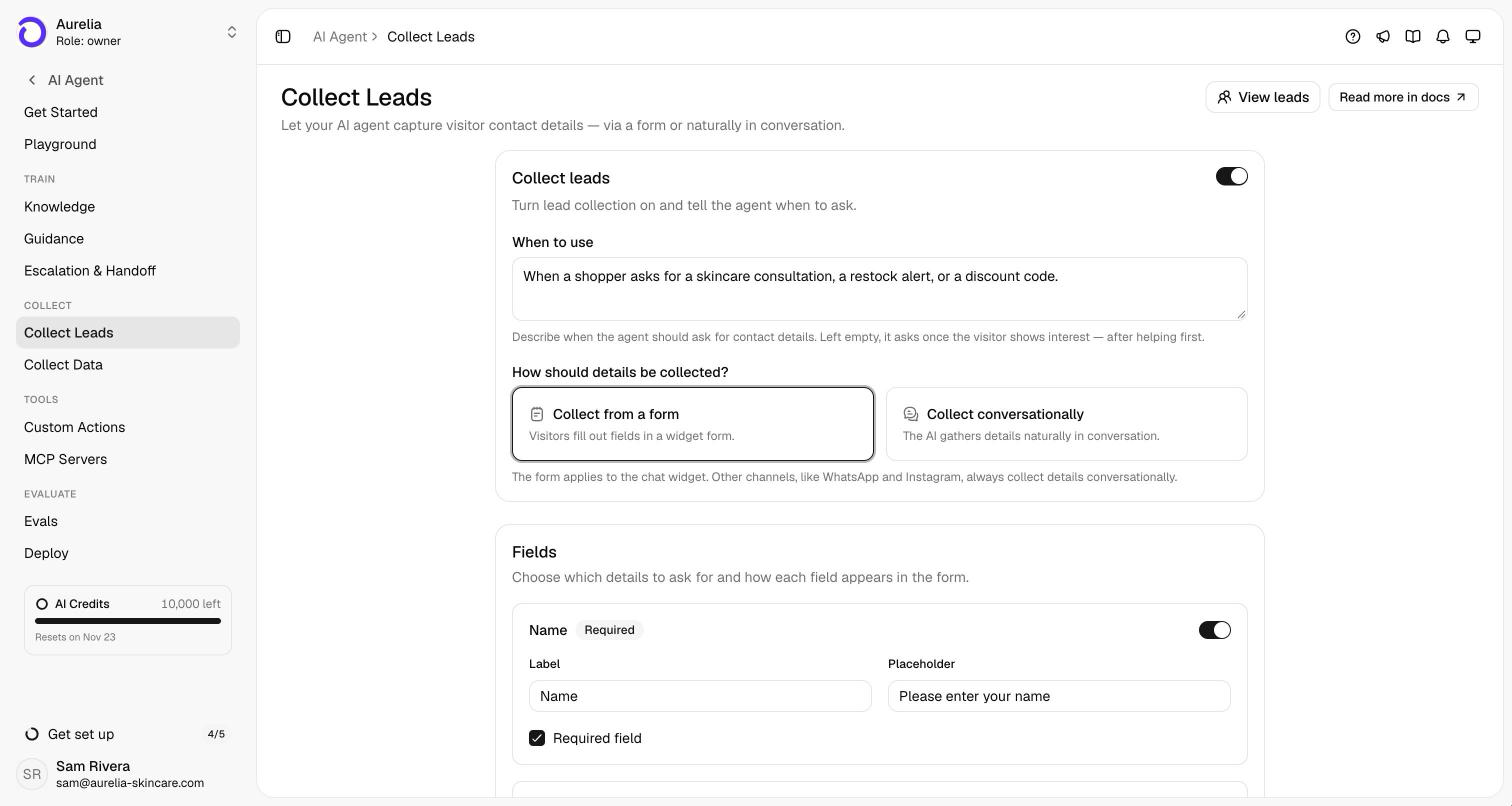
In Fields, switch Name, Email, and Phone number on or off. For each one you can set the Label and Placeholder shown in the form and mark it Required field. Every lead must be reachable, so email or phone has to be on and required before you can save.
In form mode, Messages sets the Success message and Dismiss message the agent sends after the visitor submits or closes the form. Destinations emails each new lead to the addresses you add and lists the webhook endpoints subscribed to lead.captured (or to all events). Channels collects everywhere by default; switch it on to pick specific channels instead — useful where you already know who the customer is.
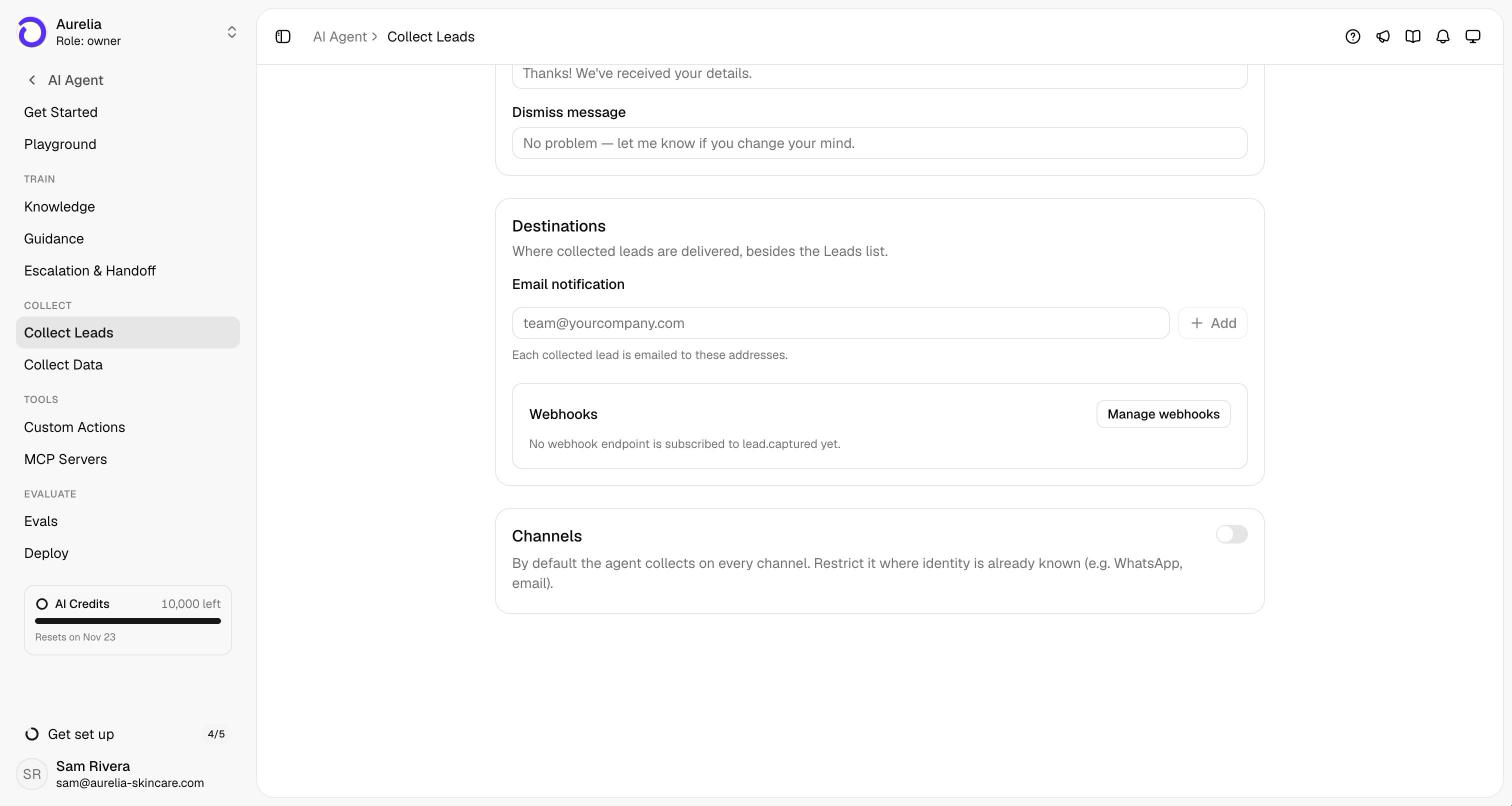
Save with the action bar at the bottom of the page. The next conversation that meets your condition uses the new settings.
Settings reference
| Setting | Default | Notes |
|---|---|---|
| Collect leads | Off (on after the onboarding wizard) | The master switch. |
| When to use | Empty | Empty means "after helping, once the visitor shows interest". |
| Collection mode | Collect from a form | The form shows on website channels only. |
| Fields | Name and Email on, Email required, Phone number off | Email or phone must be on and required. |
| Email notification | None | Up to 10 addresses; each completed lead is emailed. |
| Webhooks | — | lead.captured; webhooks need Business Business and up. |
| Channels | Every channel | Restrict to the channels you check. |
How the agent asks
- Form mode — when your condition is met, the agent adds one short sentence and shows the form under its reply. It shows the form at most once per conversation and never again after the visitor submits or dismisses it. If the visitor types their details in the chat instead, those are saved and the form counts as done.
- Conversational mode — the agent asks for at most one missing detail per message and keeps it light and optional.
- Either way, it never asks again for something the customer already gave or that's already on their record, never asks for sensitive data such as passwords, card numbers, or government IDs, and moves on when a customer declines.
- A request to be contacted later is handled as a lead, not a handoff. If the agent does escalate to your team while contact details are still missing, it shows the form in the same turn so your team can reach the customer.
Where leads go
- The customer record — name, email, and phone fill empty fields on the customer's profile. A verified identity from your site always wins over typed details.
- Customers → Leads — every lead at app.asks.app/customers/leads, with name, email, phone, source (Form or Conversation), channel, and a link to the conversation. Export CSV downloads the list. View leads on the settings page opens it.
- The inbox — the customer panel shows the data the AI collected during the conversation.
- Email and webhooks — your notification addresses and any
lead.capturedendpoints.
Ask for the minimum. Every extra required field is one more thing a visitor has to type — add phone only if your team actually calls. Test the flow in the Playground, where saved leads are simulated.
Related: Collect Data, Customers, Webhooks.