Payment proofs
Payment proofs
Keep the customer's transfer receipt (bukti transfer) on a bank-transfer order, check it against your account, then mark the order paid or reject the proof.
With manual bank transfer, customers usually send a screenshot of their transfer, the bukti transfer. Attach it to the order so your team checks the right payment, and so the order list shows which transfers are waiting for a check. The AI agent attaches a receipt the customer sends in chat, and your team can attach one by hand. A proof is the customer's claim, not the money: the order stays unpaid until an owner or admin has seen the transfer arrive and clicks Mark as paid.
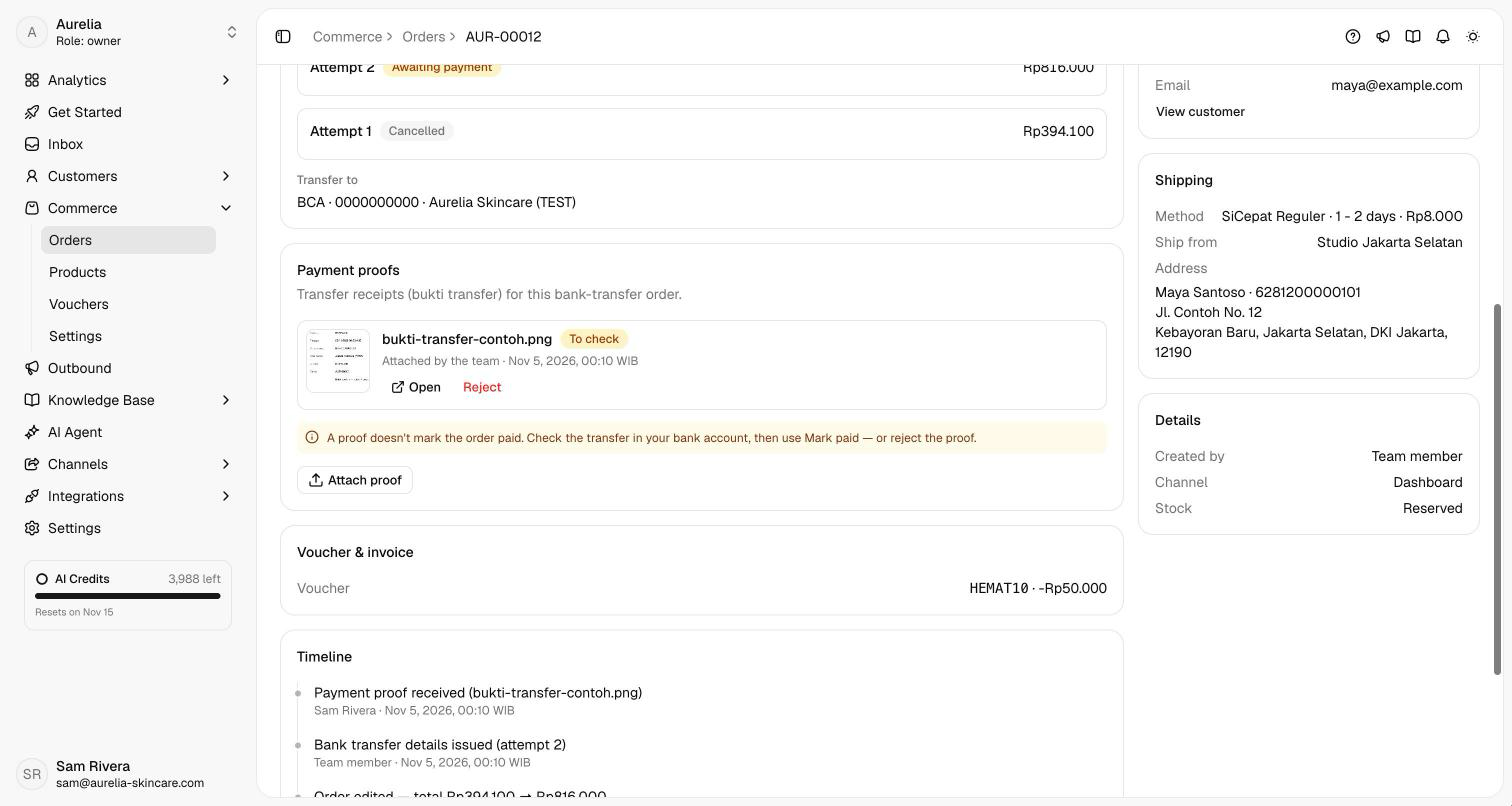
Attach a proof
When a customer sends a photo, screenshot or PDF of their transfer in a conversation the AI agent is answering, the agent attaches it to their unpaid bank-transfer order and tells them your team will check it. If they have several unpaid transfer orders, it asks which one the proof is for. To attach one yourself:
Open the bank-transfer order from Commerce → Orders, or from the customer panel's Orders section in the Inbox.
In Payment proofs, click Attach proof and choose the image or PDF the customer sent (PNG, JPEG, WebP, HEIC or PDF, up to 10 MB). An order can hold up to 10 proofs, and the same file is attached only once.
The proof shows To check, the order gets a Proof received badge in the order list, and the timeline and the conversation's internal note record it. Turn on the Proof received filter on the Orders page to see every transfer waiting for a check. Anyone on the team can attach a proof to an unpaid or expired bank-transfer order that isn't cancelled.
While a proof is waiting, Asks doesn't send the customer a payment reminder for that order.
Check it and mark the order paid
Compare the proof with your bank or e-wallet account: the amount, the sender and the date. When the money is there, click Mark as paid (owners and admins). The order moves to Processing, stock is deducted, the proofs are marked Accepted, and the customer gets the payment confirmation with a View receipt button for their receipt.
Mark an order paid only after the money is in your account. A screenshot can be edited, and the AI agent never marks an order paid from a proof or from "sudah transfer".
Reject a proof
If the transfer isn't in your account, or the amount doesn't match, click Reject on the proof (owners and admins) and give a Reason. With Tell the customer in the conversation ticked, the customer gets your reason and a request to check the transfer and send the proof again.
The order stays unpaid, the proof shows Rejected with your reason, and the timeline and the conversation's note record it. On WhatsApp, Instagram and Messenger, the customer can be told only within 24 hours of their last message; outside that window the proof is still rejected, and the note says the customer wasn't told.
Proof statuses
| Status | Meaning |
|---|---|
| To check | Attached and waiting for your team. |
| Accepted | The order was marked paid. |
| Rejected | Your team rejected it, with the reason shown. |
Each proof also says where it came from: Attached by the team or Attached by the AI agent.
Related
- Payments & settings — your bank and e-wallet accounts.
- Orders — marking an order paid and shipping it.
- Reminders & alerts — reminding customers who haven't paid.