Orders
Orders
Follow every order from chat, the dashboard and the API, take payment, ship it, and handle the orders that need a person.
Commerce → Orders lists every order, whoever created it: the AI agent in a conversation, a teammate, or the API. Each order has a number made of your prefix and a sequence, such as ORD-00001 (set the prefix in settings), an order status and a payment status.
The Orders page
The list shows orders newest first, 100 to a page. Search by number, customer, phone, email, tracking number or address, and filter by Order status, Payment status, Channel, Product, Created date, Needs review and Proof received (bank-transfer orders whose customer sent a payment proof your team hasn't checked yet; they carry a Proof received badge). Sort by newest, oldest, highest or lowest amount. Export CSV downloads the orders that match your filters.
When orders need a person, a banner above the list counts them; Show them filters the list. See Needs review.
Customers who left an order before paying are on Abandoned orders. Your sales numbers, including what the AI agent closed, are on Analytics → Sales. Your Xendit balance is on Online payments.
An order
Click an order to open it:
- Items with the subtotal, discount, shipping, tax and total.
- Payment — the method and every payment attempt with its amount, status and expiry. A live Xendit link has Copy payment link and Open payment link; a bank transfer shows the account to Transfer to.
- Payment proofs (bank transfer) — the transfer receipts attached to the order. See Payment proofs.
- Refunds and Voucher & invoice — when the order has them: each refund you recorded, the voucher code with its discount, and the invoice number.
- Timeline — every moment of the order: created, link issued, paid, expired, edited, proof received or rejected, refund recorded, status and tracking changes, cancellation. Changes made by hand carry the teammate's name.
- Fulfilment, Customer (with View customer), Shipping (method, fee, Ship from, tracking number and address) and Details (who created it, the channel, shipped and completed times, and the stock state).
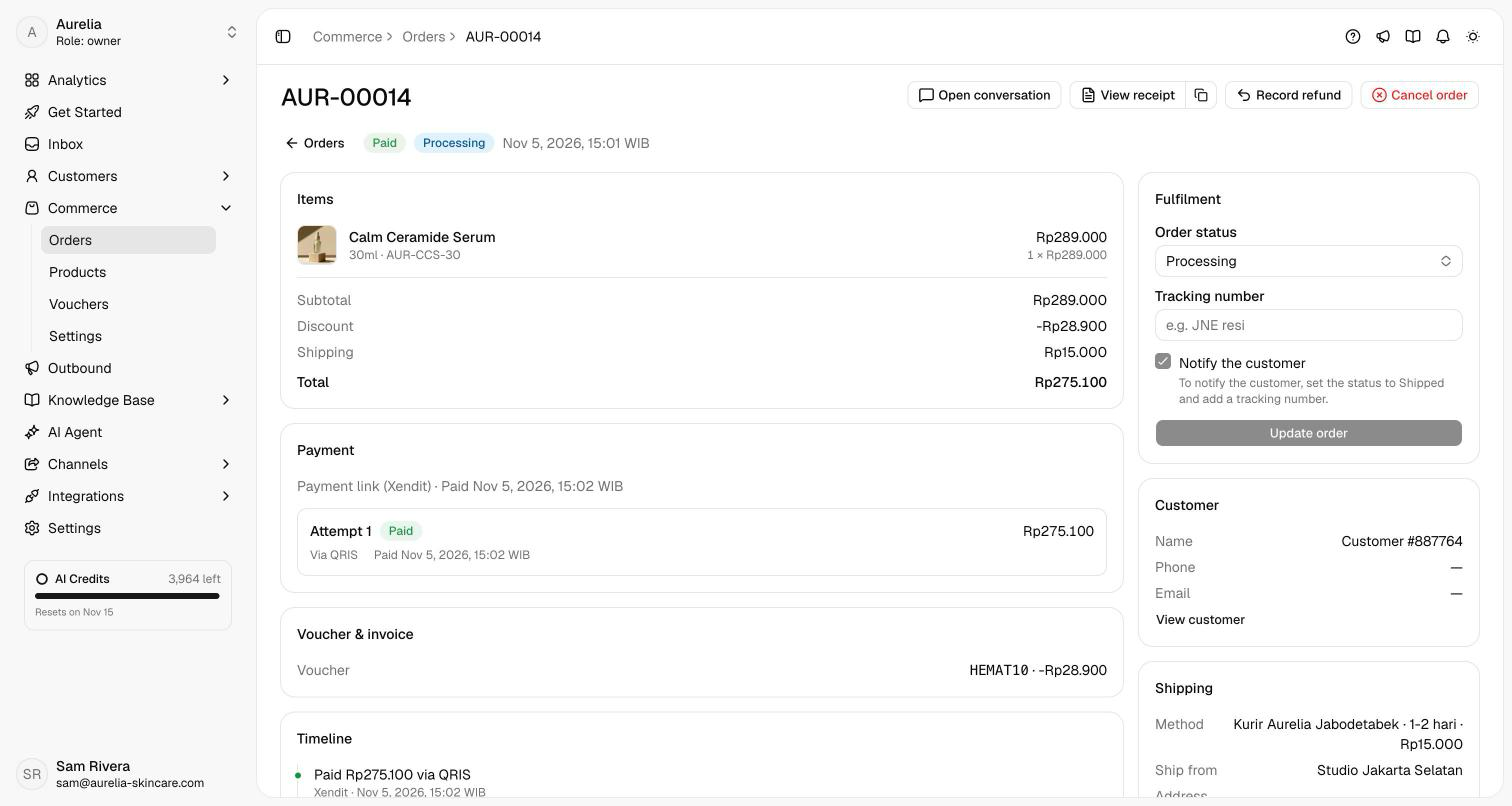
The buttons at the top depend on the order: Open conversation, Check payment status (asks Xendit now while a link is unpaid), New payment link, Mark as paid or Resolve review, Edit order while it's unpaid, View invoice or View receipt, Record refund once it's paid, and Cancel order. See Edit and refund orders and Invoices & receipts.
Fulfil an order
A new order is Pending and Awaiting payment. A Xendit payment moves it to Processing on its own, and the customer gets the payment confirmation with a View receipt button. For a bank transfer, check that the total arrived in your account (the customer's payment proof is a claim, not the money), then click Mark as paid (owners and admins). The order moves to Processing, stock is deducted, and the timeline records your name.
In Fulfilment, set Order status to Shipped, enter the Tracking number, and click Update order. With Notify the customer ticked, the conversation gets a message with the shipping method and tracking number. Shipped and Completed unlock once the order is paid.
Set Completed once the customer has the order.
Statuses
| Order status | Meaning |
|---|---|
| Pending | Created and waiting for payment. |
| Processing | Paid and ready to pack. Your team can also move an unpaid order here. |
| Shipped | On its way. Paid orders only. |
| Completed | Delivered. Paid orders only. |
| Cancelled | Cancelled by the customer through the agent, or by your team. A cancelled order can't be reopened. |
| Payment status | Meaning |
|---|---|
| Awaiting payment | No payment yet. |
| Paid | Xendit confirmed the payment, or an owner or admin marked the transfer as received. |
| Expired | The payment link expired unpaid and the order's stock was released. Send a New payment link. |
| Cancelled | The order was cancelled before it was paid. |
| Partially refunded / Refunded | You recorded a refund for part or all of what was paid. Asks doesn't move the money: you refund the customer in Xendit or by bank transfer. |
Stock and payment links
Creating an order reserves the stock of tracked products. Paying deducts it; an expired link or a cancellation releases it. A bank-transfer order has no expiry, so it holds its stock until you mark it paid or cancel it.
A link stays valid for the time set in settings, 24 hours by default. When it expires unpaid, New payment link issues a fresh link for the same order, and the agent does the same when the customer asks. Stock is reserved again first, so a new link is refused if an item sold out in the meantime.
Needs review
Some payments need a person. The order gets a Needs review badge when:
- the amount paid doesn't match the order (the payment isn't accepted as paid),
- an old payment link was paid after the order was edited to a new total,
- the order was paid twice, or
- it was paid after it was cancelled.
Check the payment in Xendit and refund what's needed (then record the refund), then click Resolve review (owners and admins): the payment is accepted as received and the flag clears. Owners and admins get a Payments to review alert for each one.
Cancel an order
Click Cancel order and give an optional reason, shown on the timeline. For an unpaid order, the payment link stops working, the stock goes back to your catalog, and a voucher use is given back. Cancelling a paid order doesn't refund the customer: refund them in Xendit or by transfer and record the refund. A paid order you cancel is flagged Needs review until you resolve it, unless you'd already recorded a full refund.
A Xendit order is marked paid only by Xendit. Mark as paid appears only for bank-transfer orders, and for resolving a review.
Related
- Orders in chat — orders the agent takes, and creating one from a conversation.
- Payments & settings — Xendit, bank transfer and order numbering.
- Sales — paid sales, what the AI agent closed, channels and best sellers.
- Products — stock, variants and the catalog.
- Reminders & alerts — payment reminders and team alerts for new, paid and flagged orders.