Orders in chat
Orders in chat
How the AI agent takes an order in the conversation, what the customer is sent, and how your team creates and sends an order from the Inbox.
With Commerce on, the AI agent can sell from your catalog in every conversation it answers: on your website chat, WhatsApp, Instagram, Messenger, Telegram and every other channel it's deployed to. Customers ask in their own words; the agent finds the product, prepares an order summary, and creates the order only after the customer confirms that summary. Your team can do the same from the Inbox.
How the agent takes an order
- Finds the product. It searches your catalog, shows product cards with price and availability, and asks which variant and how many.
- Prepares a summary. It checks stock and lists the items, prices, shipping option and fee, the total and the payment method. For delivery it first asks for the street address and the 5-digit postal code (kode pos). A returning customer can ask for an address they used before ("alamat yang kemarin"): the agent offers their saved addresses, and only theirs. A customer can also share their location. A store pickup option needs no address.
- Asks the customer to confirm. The customer has to confirm that exact summary in a later message. If anything changes (an item, a quantity, the address or the shipping choice), the agent prepares a new summary and asks again, so one purchase never becomes two orders.
- Creates the order. It replies with the order number, the total, and the Xendit payment link as a button, or your bank details exactly as you set them.
- Confirms the payment. When Xendit confirms the payment, the customer gets an automatic "payment received" message in the same conversation, with a View receipt button for their receipt. For a bank transfer, the agent tells the customer your team confirms the order after checking the transfer.
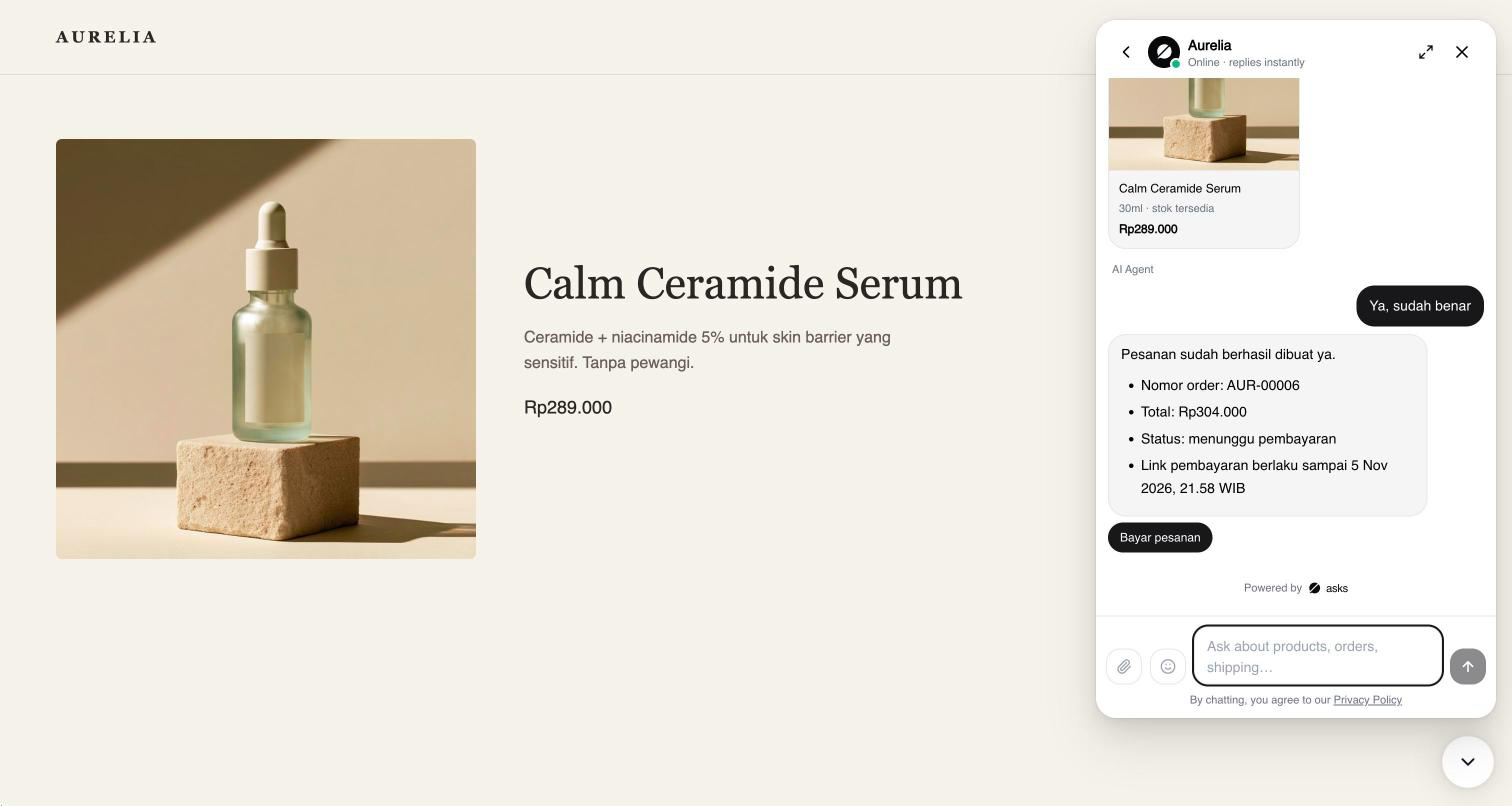
The agent follows these rules on every order:
- Prices, totals, shipping fees, couriers and payment methods come only from your catalog and settings. It never estimates a shipping fee.
- An order is paid only when the order itself says so. When a customer says they've paid or transferred, the agent looks the order up and reports what it shows.
- It talks only about the customer's own orders: those from the same conversation, the same customer profile, or the WhatsApp number used to order. It never reveals or confirms anyone else's order.
- An unpaid order whose link expired gets a fresh link for the same order, never a new order.
- A customer can cancel or change an unpaid order in the chat. Cancelling, refunding, returning or changing a paid order goes to your team through handoff. Buying more after a paid order is simply a new order.
- The order is saved to the customer's profile, and its delivery address to their saved addresses.
Vouchers, changes and transfer proofs
The agent handles the rest of the order in the same conversation, under the same rules:
- A voucher code. When the customer types a code, the agent adds it to the summary with its discount, or says why it doesn't apply. It never suggests or invents a code. See Vouchers.
- A shared location. When the customer shares their location on WhatsApp or Messenger, the agent uses it for the delivery address and asks for the house number and a landmark (patokan) when the location doesn't include them. The location also lets instant couriers quote. See Customers & addresses.
- A change to an unpaid order. When the customer asks for another item, quantity, address, shipping option or voucher, the agent prepares an updated summary of the same order and asks them to confirm it. After they confirm, the order keeps its number and the customer gets the new payment link or transfer amount; the old link stops working. See Edit and refund orders.
- A transfer receipt. When the customer sends a photo, screenshot or PDF of a transfer, the agent attaches it to their unpaid bank-transfer order for your team to check, and tells them it was received. It asks which order when they have several. The order stays unpaid until an owner or admin marks it paid. A payment-link order needs no proof, and the agent says so. See Payment proofs.
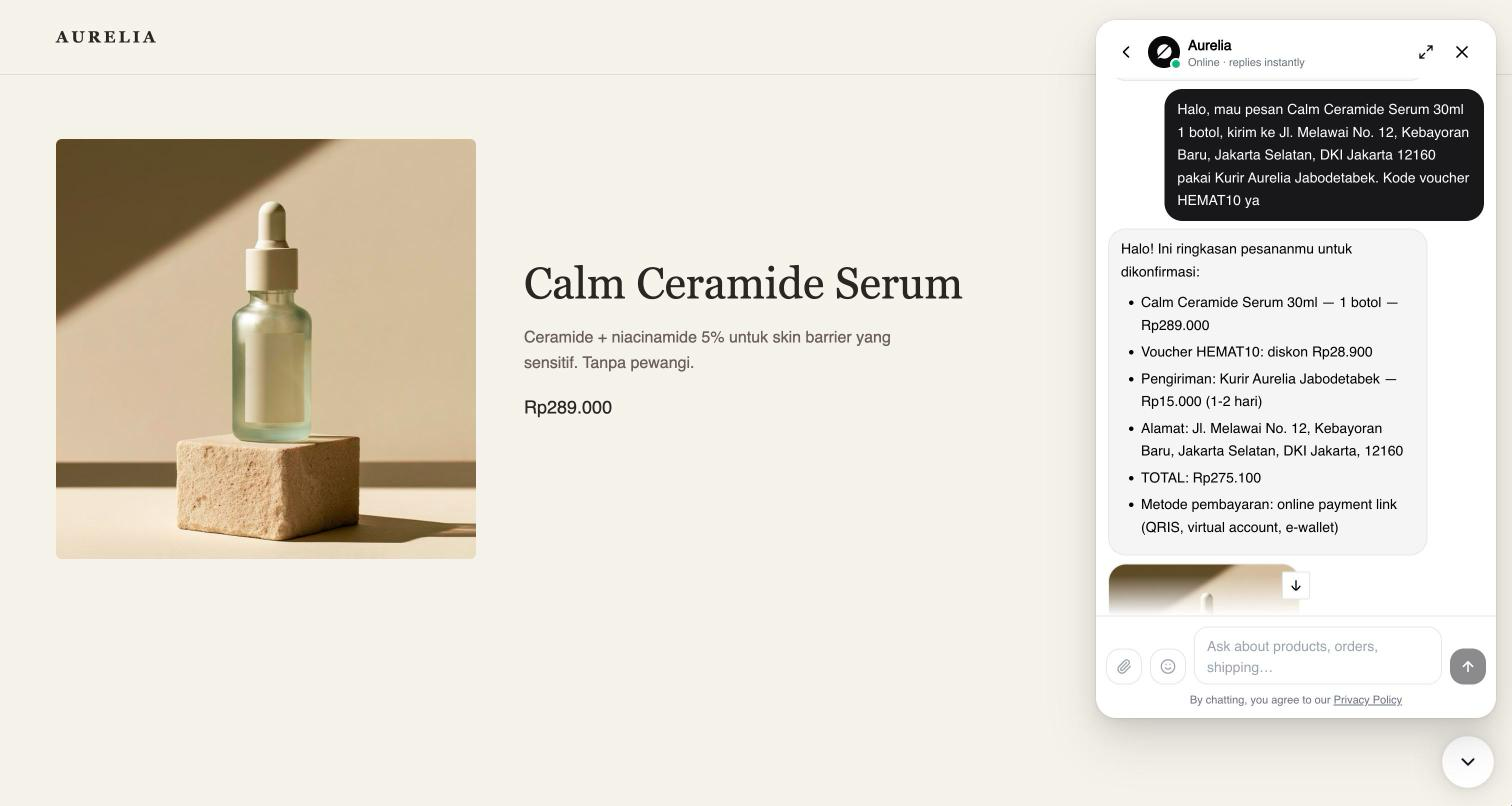
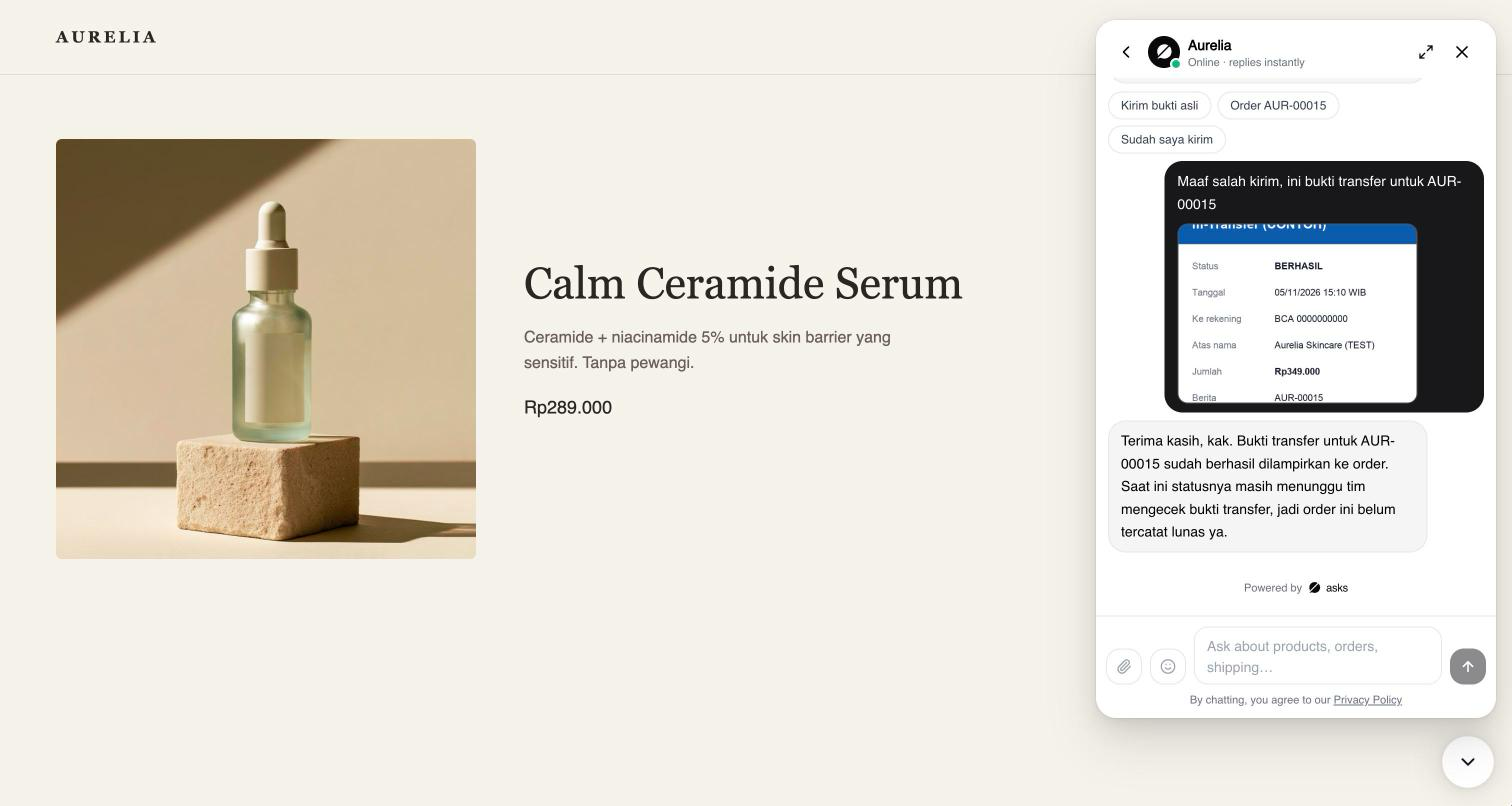
Turn ordering on or off
Let the AI agent create orders under Commerce → Settings → Order rules is on by default. Off, the agent still searches your catalog and answers questions about existing orders, but doesn't prepare, create, change or cancel orders, send payment links or attach transfer receipts. The same applies while no payment method is set up.
In the Playground and in tests, catalog searches, order lookups and order summaries run for real. Creating or changing an order, issuing a payment link, cancelling and attaching a transfer receipt are simulated: no order is created or changed.
Create an order from a conversation
In the Inbox, the customer panel's Orders section lists this conversation's and this customer's orders with their payment and order status, and what the customer has paid in total; click one to open it. Click Create order. When the customer shared their location on WhatsApp, Use as shipping address under the location in the conversation opens Create order with that address filled in (details).
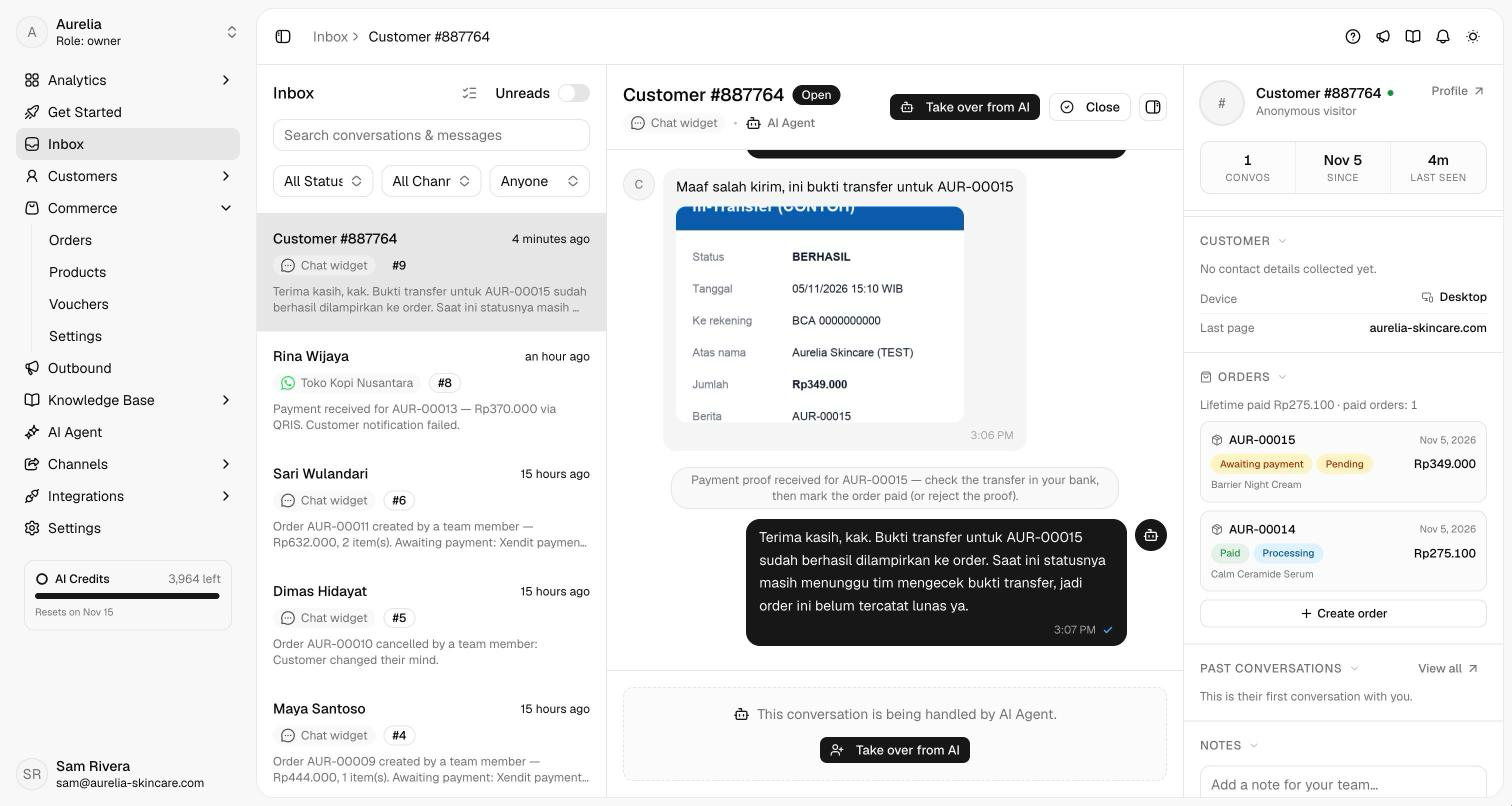
The order belongs to the conversation's customer; Contact on this order changes the name, phone or email on this order only. Search products by name or SKU, set quantities, change a unit price if you agreed one, or Add custom item. Under Shipping, choose one of the customer's saved addresses or New address (search it on the map or type it), pick the Ship from address if you have several, and click Get shipping options, or enter a Manual fee. Pick the payment method, and add a voucher, a discount, tax or notes. See Customers & addresses for the customer and address fields.
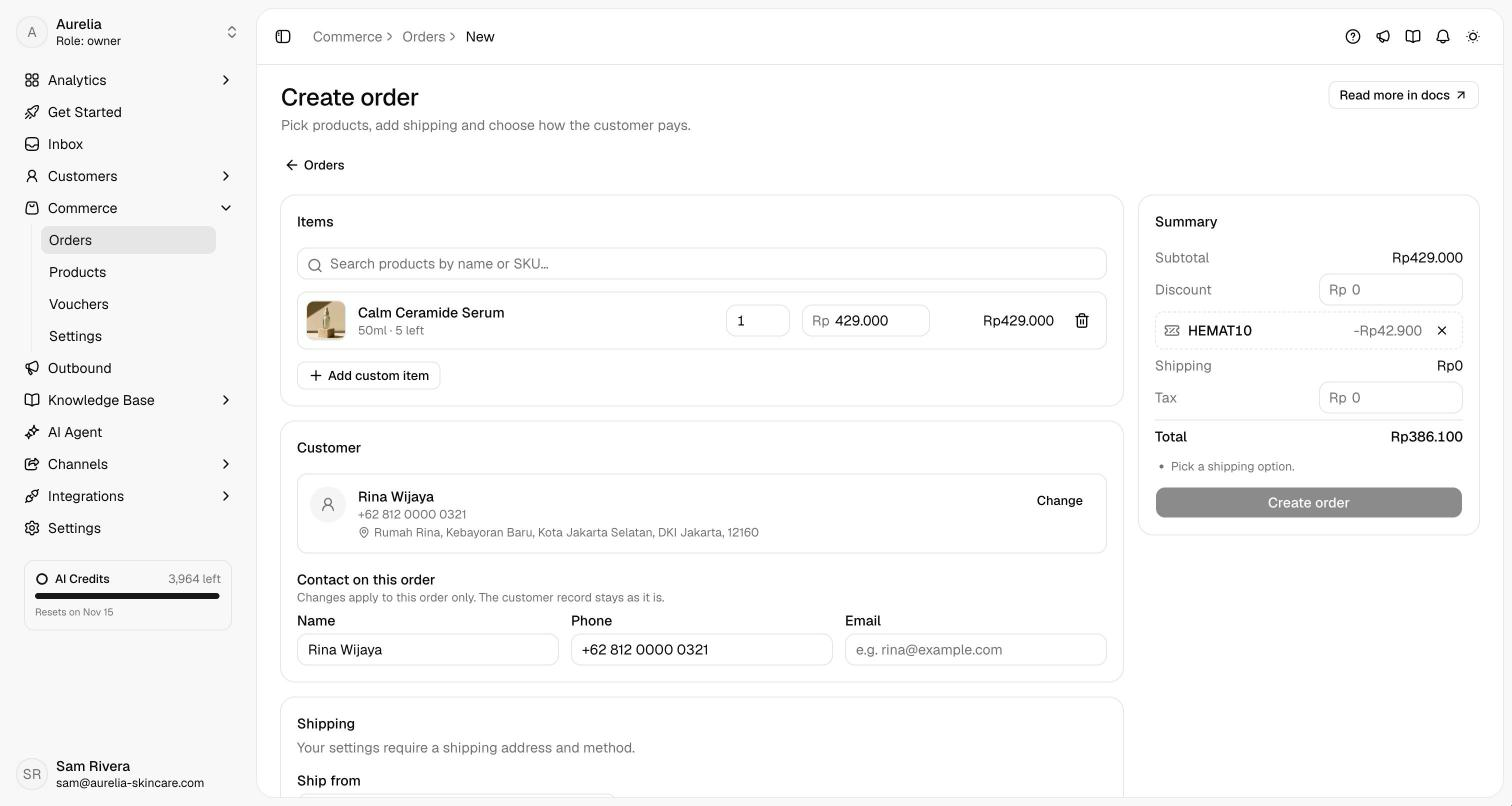
Keep Send the order summary and payment details to the customer in this conversation ticked and click Create order. The customer gets the summary with a Pay now button for the Xendit link, in the conversation's language (Bayar sekarang in Indonesian), or your bank details. If the payment link fails, the order is still created but nothing is sent: open the order and click New payment link.
Messages and notes
Asks sends the customer these automatic messages, in the conversation's language (Indonesian when it isn't known yet). None of them uses AI credits.
| Message | When |
|---|---|
| Payment received, with a View receipt button | The order is paid, through Xendit or marked paid by your team. |
| Shipped, with the shipping method and tracking number | Your team sets Shipped with a tracking number and Notify the customer ticked. |
| Payment reminder | Before an unpaid order's payment window closes, when the payment reminder is on (it is by default). |
| The updated order summary | Your team edits an unpaid order with Send the updated summary ticked. |
| Payment proof not confirmed, with your reason | Your team rejects a payment proof with Tell the customer ticked. |
On WhatsApp, Instagram and Messenger these messages go out only within 24 hours of the customer's last message. Outside that window nothing is sent, and the conversation's note says the customer wasn't notified.
Each order moment adds one internal note to the conversation, which only your team sees: created, paid, link expired, needs review, edited, payment proof received or rejected, payment reminder sent, refund recorded and cancelled, plus shipped when you notify the customer.
Related
- Orders — payment, fulfilment and the order timeline.
- Shipping — the fees the agent may quote.
- Customers & addresses — the customer each order belongs to, and their saved addresses.
- Escalation & handoff — when the agent hands a conversation to your team.