Customers & addresses
Customers & addresses
Every order belongs to a customer, whose delivery addresses are saved for the next order. Pick an address on a map, or from a location the customer shares.
In Commerce, every order belongs to a customer, the same record your inbox uses. An order from a conversation belongs to that conversation's customer, whether the AI agent or your team created it. The customer's profile shows their orders and saved addresses, and the next order can reuse an address in one click.
Choose the customer
On Create order, the Customer card decides who the order is for:
- From a conversation, it's the conversation's customer and can't be changed: "From this conversation: the order belongs to this customer."
- From Commerce → Orders, search your customers by name, phone or email and pick one, or click New customer and enter a name and a phone number or email. If that phone or email already belongs to a customer, that customer is selected instead of a duplicate.
- From a customer's profile, a customer without orders yet has Create order, which opens the page with that customer chosen.
Contact on this order holds the name, phone and email printed on the order. Changes there apply to this order only; the customer record stays as it is.
Phone numbers are matched in any common Indonesian form: 0812 3456 7890, +62 812 3456 7890 and 62 812 3456 7890 are one number, saved as 6281234567890. Orders created through the API with a customer, phone or email are linked to a customer the same way.
Saved addresses
Each delivery address is saved to the customer once the order is created, so nobody types it again:
- The same street and postal code is saved once, even when it's written differently ("Jalan" or "Jl.", "Nomor" or "No."). Using it again fills in any missing details and moves it up the list.
- The first address becomes the default. A customer can have up to 20 addresses.
- Store pickup orders save no address.
On Create order, Deliver to lists the customer's saved addresses, default first, and New address. For a new address, Save this address to the customer is ticked by default; untick it for a one-off delivery. The AI agent uses the same list: when a returning customer asks for "the same address as last time", it offers that customer's saved addresses, and never anyone else's.
Pick an address on the map
Above the address fields, search an address or place, or drag the map until the pin sits on the exact spot, and click Use this pin. Asks fills in the street, district, city, province and postal code, and keeps the pin on the order and the saved address. Check the fields before you create the order; you can always type the address instead.
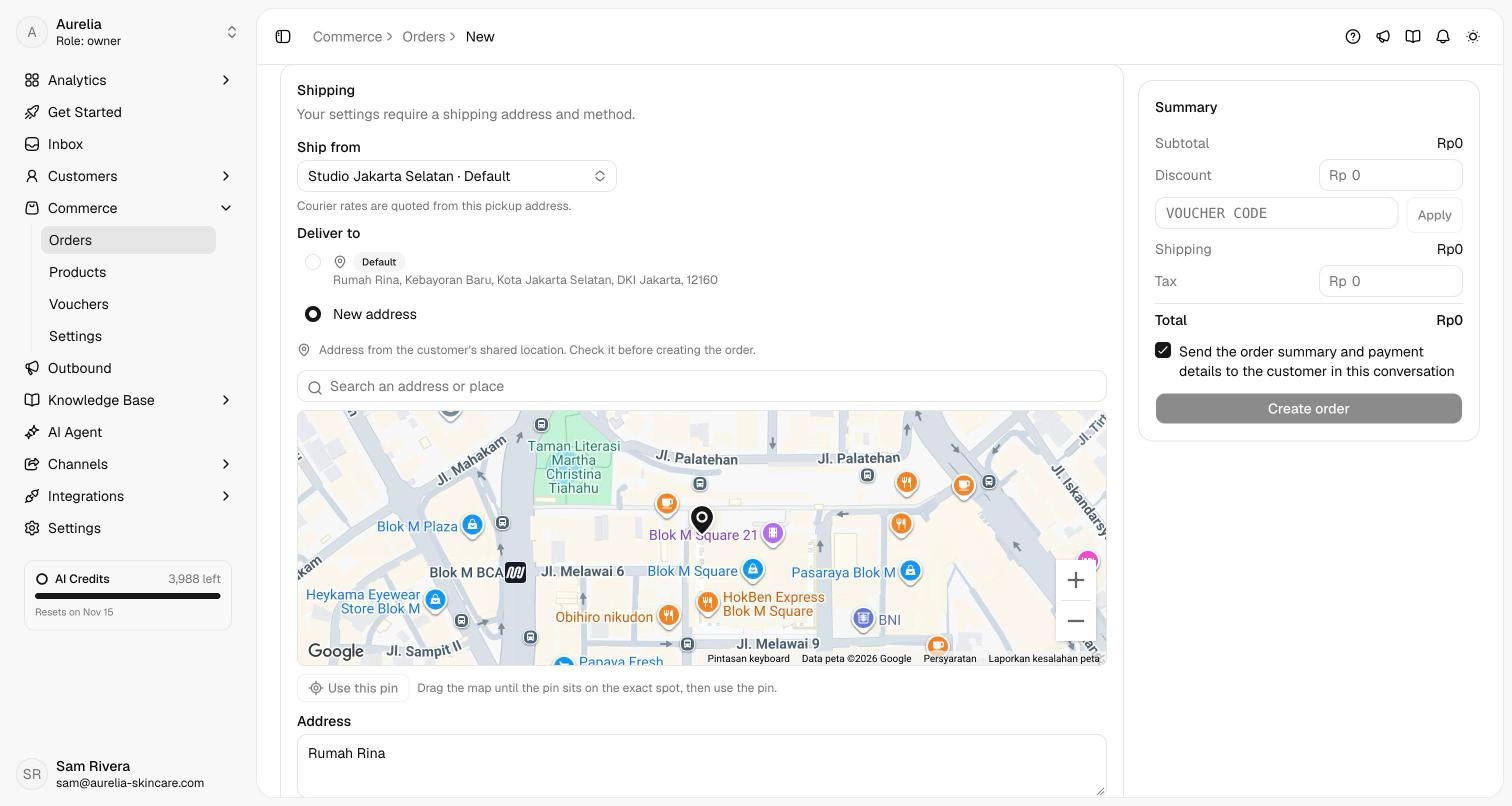
The pin is what lets instant couriers quote: GoSend and GrabExpress price a delivery only when both the pickup address and the delivery address have a pin. Couriers that price by area, such as JNE or J&T, don't need one. A typed address has no pin, so it gets no instant couriers until someone sets one on the map.
Use a shared location
When a customer shares their location in a WhatsApp conversation, the location card in the Inbox has Use as shipping address.
Create order opens for that conversation and reads the shared location ("Reading the customer's shared location…").
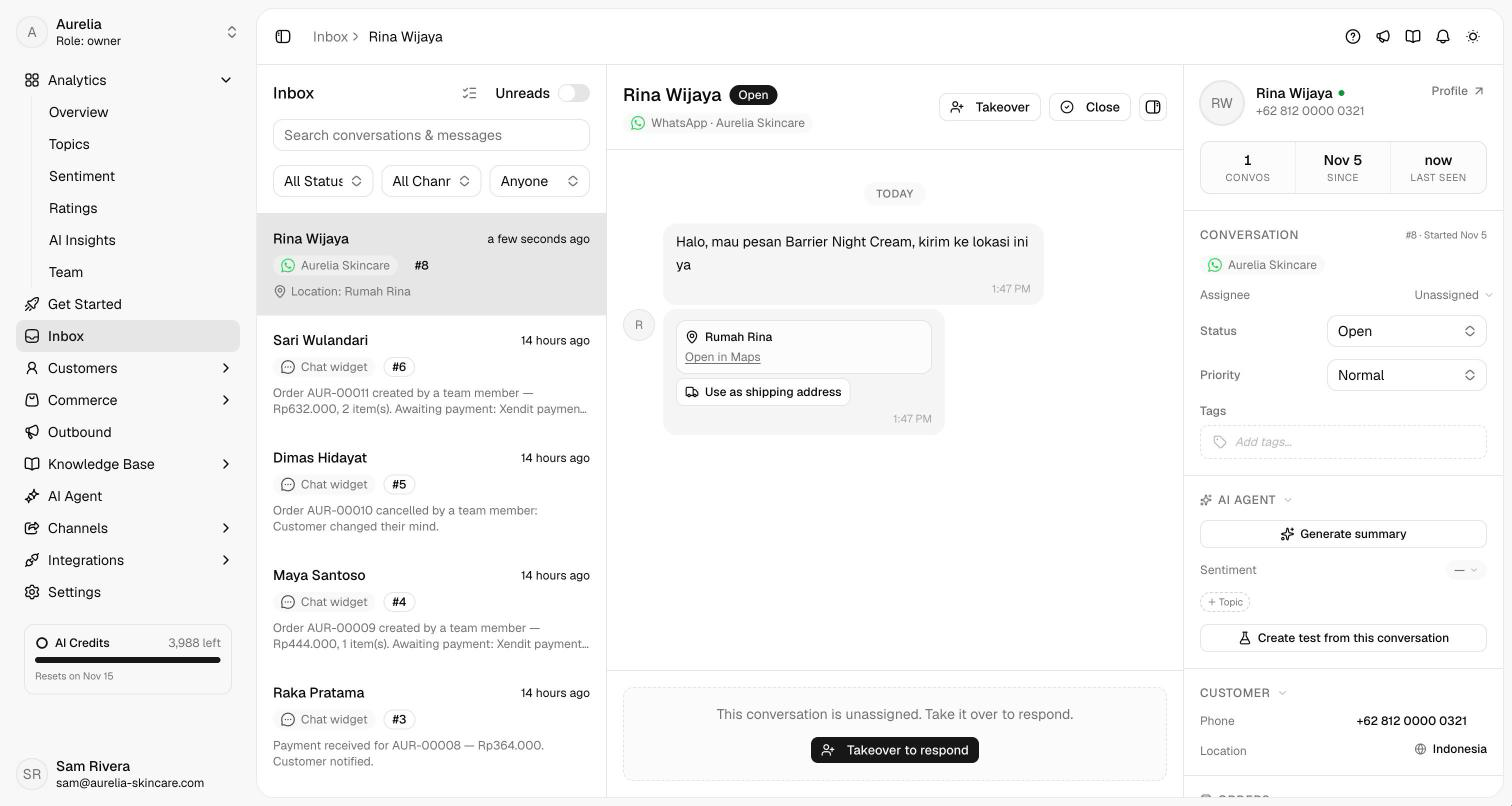
The address fields and the pin are filled in from the location, with the note "Address from the customer's shared location. Check it before creating the order." Add the house number or anything the location doesn't say.
Add the products and shipping as usual. The address is saved to the customer, marked From a shared location.
The AI agent uses a shared location too: when the customer shares theirs on WhatsApp or Messenger while ordering, the agent takes the delivery address from it and asks for the house number and a landmark (patokan) when the location doesn't include them. An order the agent creates saves the address with its pin, marked From an AI order.
The customer's orders and addresses
With Commerce, a customer's profile has two more sections:
- Orders — what the customer has paid in total, minus refunds (Lifetime paid), the number of paid orders and of all orders, and each order with its date, payment status, order status and total.
- Addresses — every saved address with its label, recipient and where it came from: Added by your team, From an order, From an AI order or From a shared location. Add address adds one, and each address's menu has Edit, Set as default and Delete; the address dialog has the same map. Deleting the default makes the most recently used address the default, and orders keep their own copy of the address.
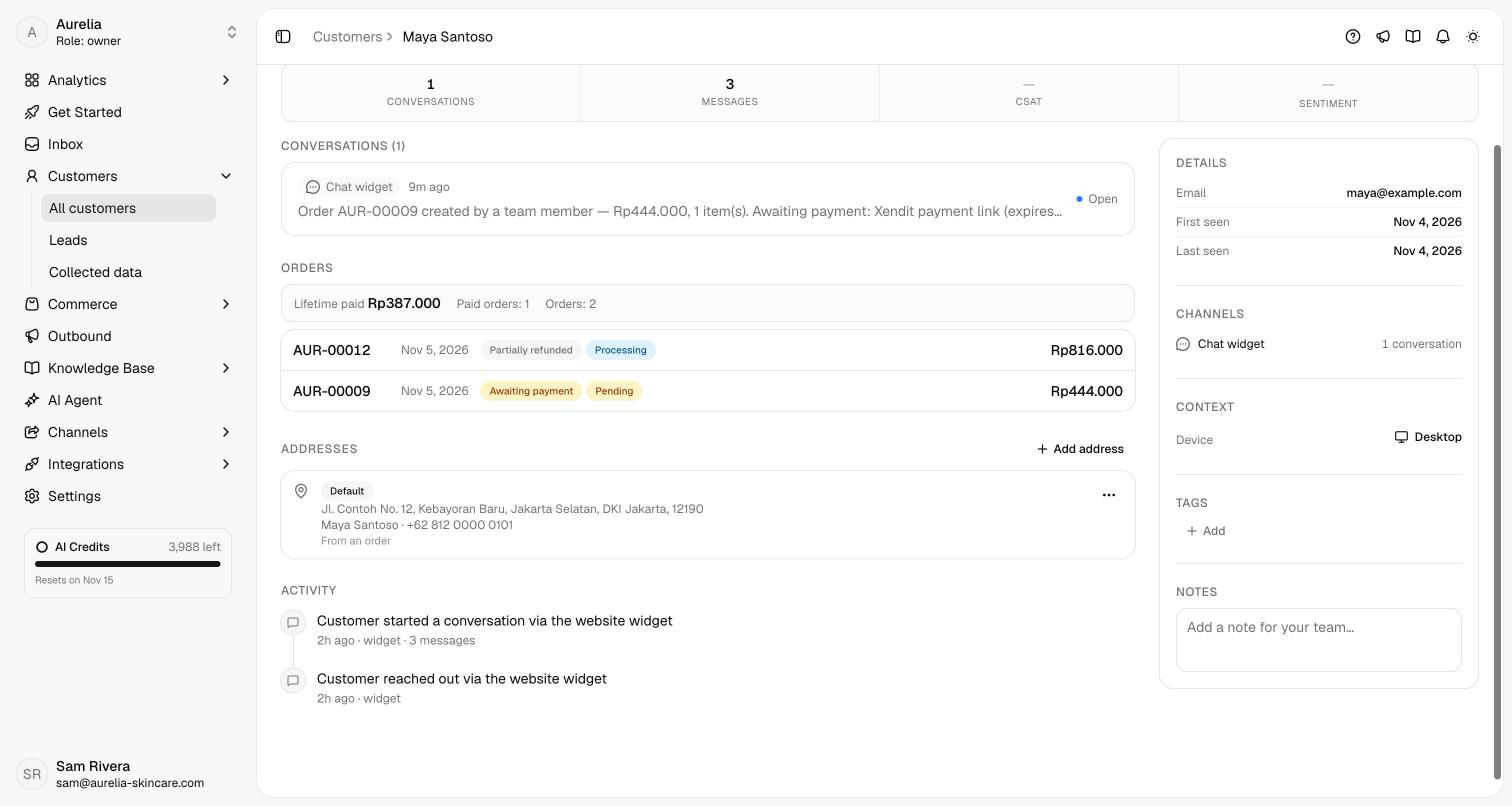
In the Inbox, the customer panel's Orders section shows the same lifetime total and paid-order count above the customer's orders.
Related
- Orders in chat — creating an order from a conversation.
- Shipping — pickup addresses, pins and courier rates.
- Customers — the directory and the full customer profile.