Stripe
Stripe
Let your AI agent answer billing questions and manage subscriptions in Stripe for verified customers.
Updated
The Stripe integration lets your AI agent read a customer's own subscriptions and invoices from your Stripe account and, if you allow it, change them: switch plans, change quantity, cancel or undo a cancellation, update billing details, and send a secure link to update the card. It only ever works on the account of a customer it has verified.
Availability — Stripe isn't available for workspaces in Indonesia.
It has two parts, managed in different places:
- The connection — a restricted Stripe key, connected once per workspace at app.asks.app/integrations/stripe. Connecting turns nothing on by itself.
- Stripe actions — what the AI agent may do, in the Stripe section of app.asks.app/ai-agent/actions. Each action has its own instructions, rules and channels.
Plans and roles — Stripe actions are part of every paid plan, with the same allowance as custom actions (5 on Starter, 15 on Business, 50 on Premium), counted separately. The Free plan doesn't include them. Only workspace owners and admins can connect Stripe or change Stripe actions.
Connect Stripe
Go to Integrations → Stripe. Tick the actions you plan to turn on. The list of permissions below updates to exactly what those actions need.
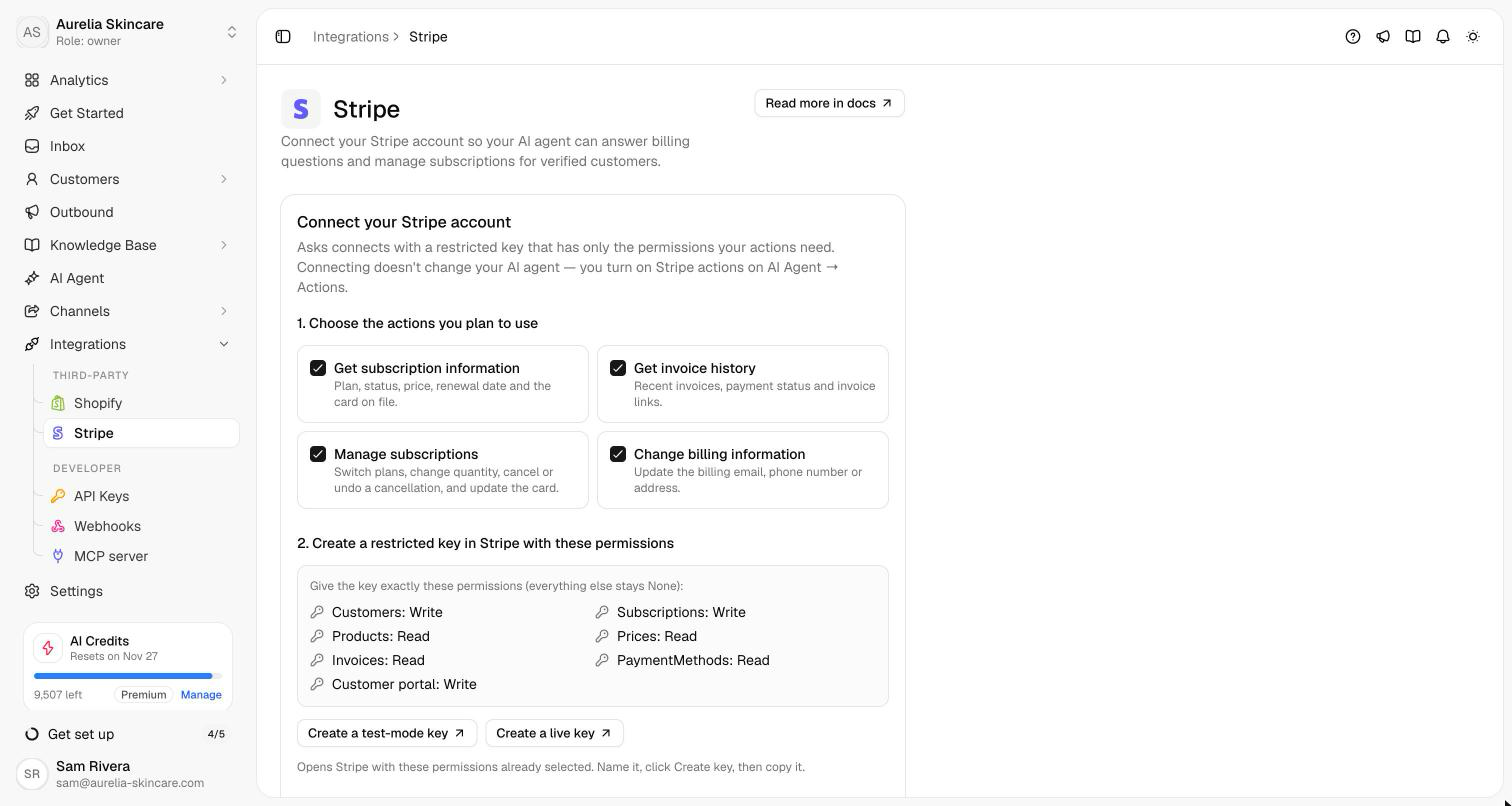
Select Create a test-mode key or Create a live key. Stripe opens with those permissions already selected and everything else set to None. If Stripe first asks how you'll use the key, choose Providing this key to a third-party application and check that the permissions still match the list. Name the key, select Create key, and copy it.
Paste the key (it starts with rk_test_ or rk_live_) and select Connect Stripe. Asks checks what the key can do and shows the account, the mode and each action's permissions.
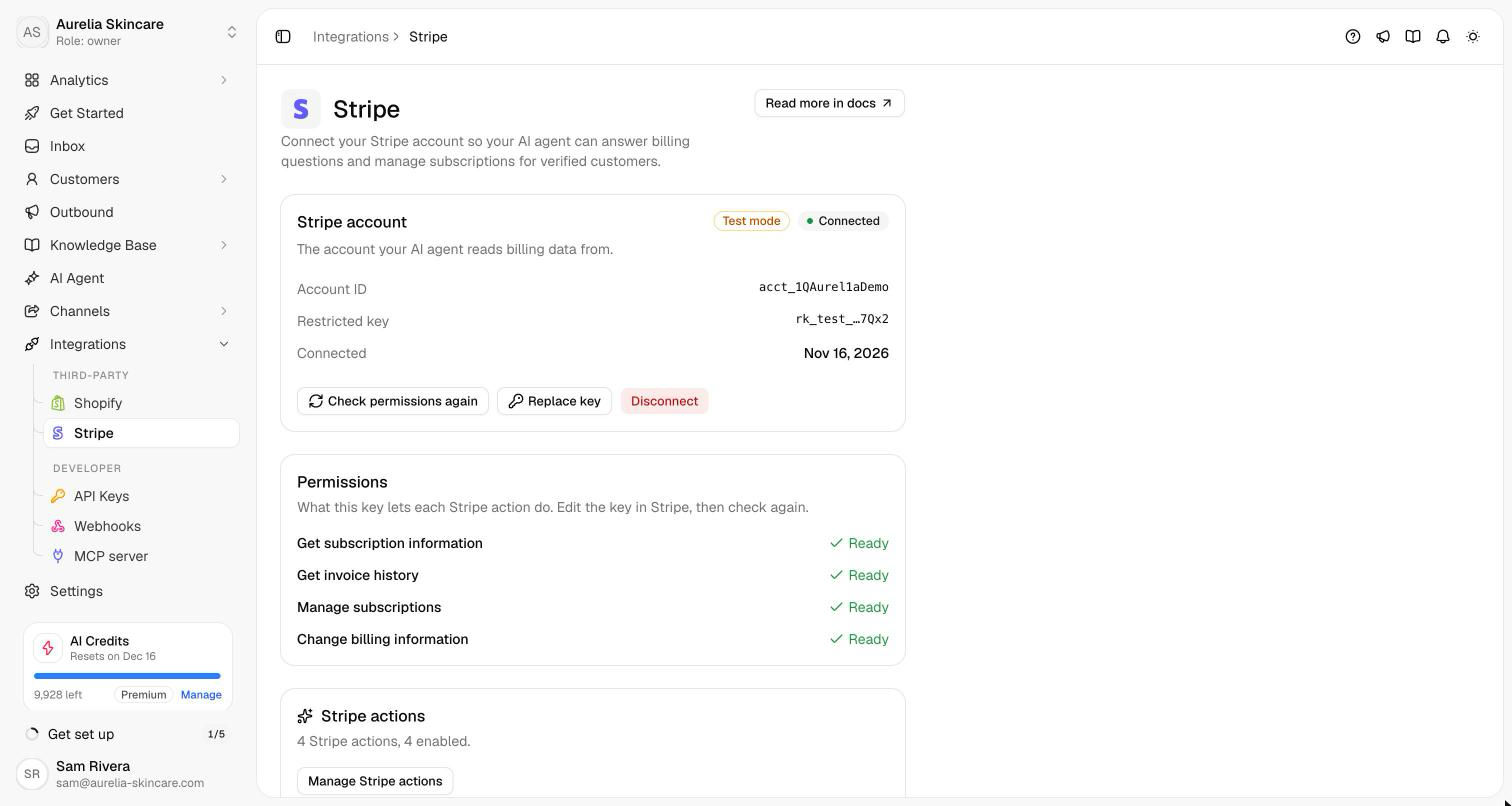
Select Set up Stripe actions (or go to AI Agent → Custom Actions and select Add Stripe action), pick an action, and configure it as described below.
Asks refuses secret keys (sk_…) and publishable keys (pk_…). The key is stored encrypted and never shown again; the page shows only its last four characters. A test-mode key works with your Stripe test data, so you can try everything before you connect a live key.
The actions
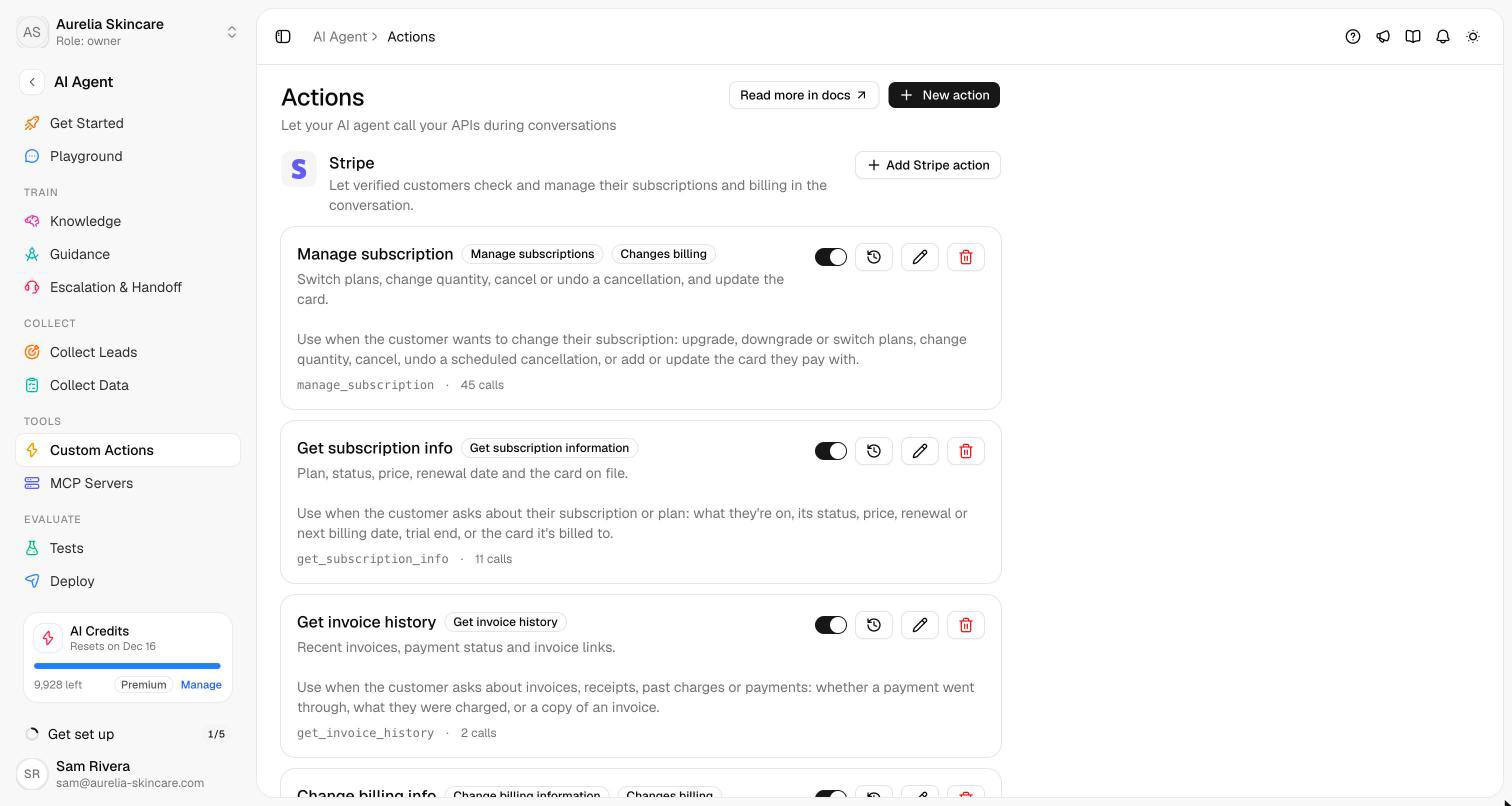
| Action | What the agent can do |
|---|---|
| Get subscription information | Plan, status, price, renewal or cancellation date, trial end, and the card on file. |
| Get invoice history | Recent invoices with amount, status and date, and links to the invoice page and PDF. |
| Manage subscriptions | Switch plans, change quantity, cancel or undo a scheduled cancellation, and share a secure link to add or update the card. |
| Change billing information | Update the billing email, phone number, name or address. |
Configure an action
Action namestringrequiredWhen to usestringrequiredSubscriptionsManage subscriptionsCancellationManage subscriptionsPayment methodManage subscriptionsBilling detailsChange billing informationInvoices shownnumberChannelsall | some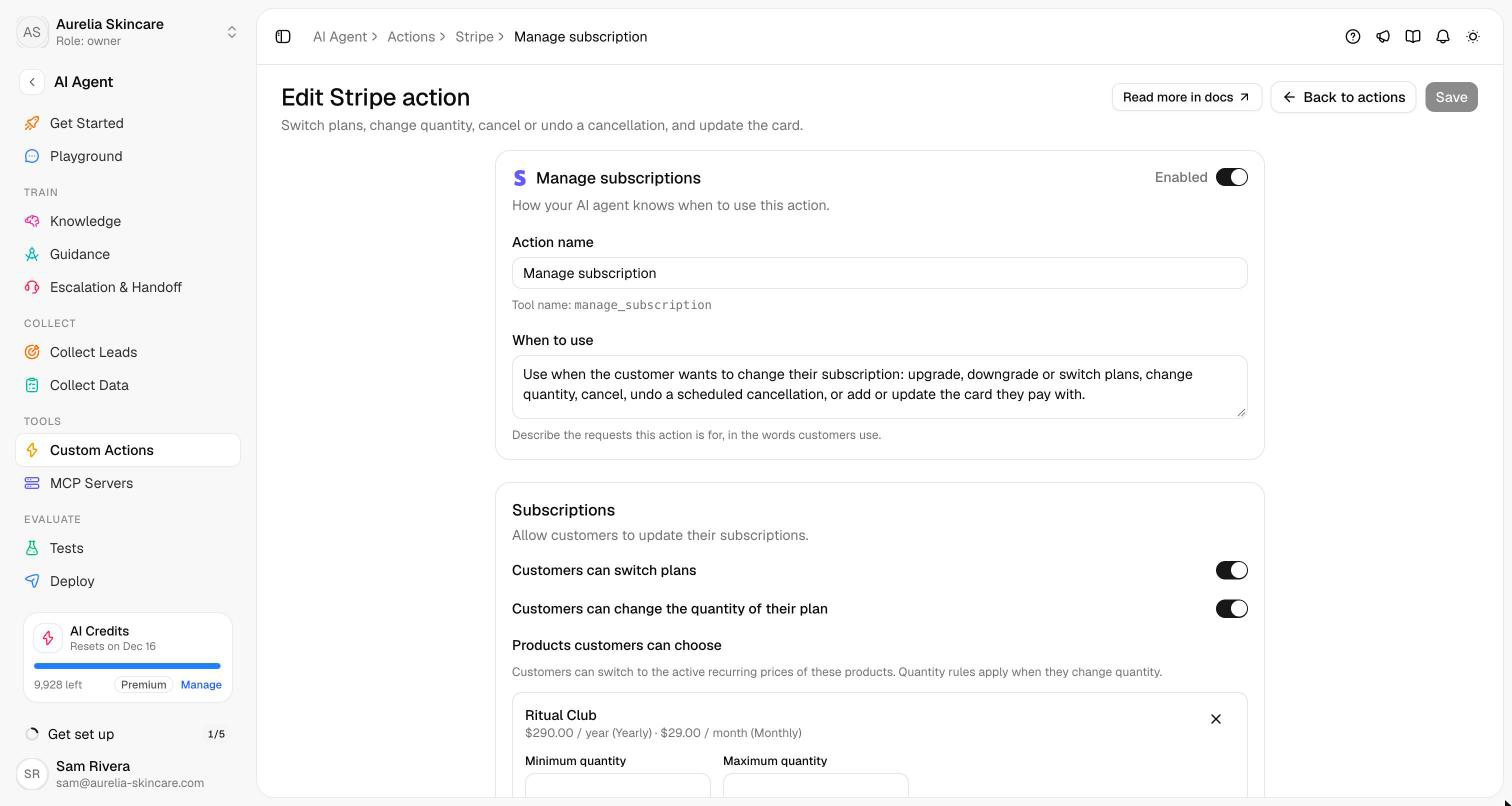
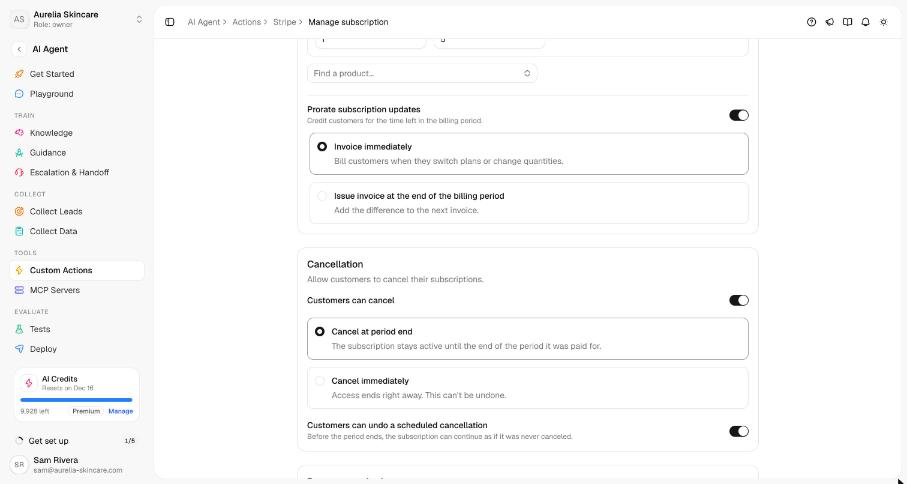
New actions start disabled. Select Save & enable, or turn the action on later from the Actions page.
Who the agent helps
Billing data is only for the verified account holder. The agent shares or changes nothing until one of these is true:
- Signed in on your site. The customer chats in the widget with a verified login whose user ID is their Stripe customer ID, or matches the
asks_user_idmetadata on their Stripe customer. - Confirmed their billing email. The customer gives the email on their Stripe account and replies with the six-digit code Asks emails to it. The confirmation lasts 30 minutes in that conversation.
A typed email alone never shows anything. When one email belongs to more than one Stripe customer, the agent asks which account by its name, never by an ID. Stripe IDs are never shown to the customer or the AI.
What the agent does
- Answers from live Stripe data, and says plainly when a subscription won't renew, when it ends, or when a payment failed.
- Before any change, shows what changes and what the customer pays or is credited, from Stripe's own invoice preview. It makes the change only after the customer confirms in a new message, and each change is made once, even if the customer confirms twice.
- If the payment for a plan change is declined, nothing changes and the agent offers the card update link.
- Adds a note to the conversation for every change it makes, such as a plan switch or a scheduled cancellation, so your team can see it.
- Refunds aren't part of the integration. The agent hands those requests to your team.
Verify it works — in the Playground, test as a customer with a verified login and turn on Signed in, then ask "When does my plan renew?". Lookups are real; changes are simulated, so nothing changes in Stripe. The Playground never sends an email code.
In the inbox
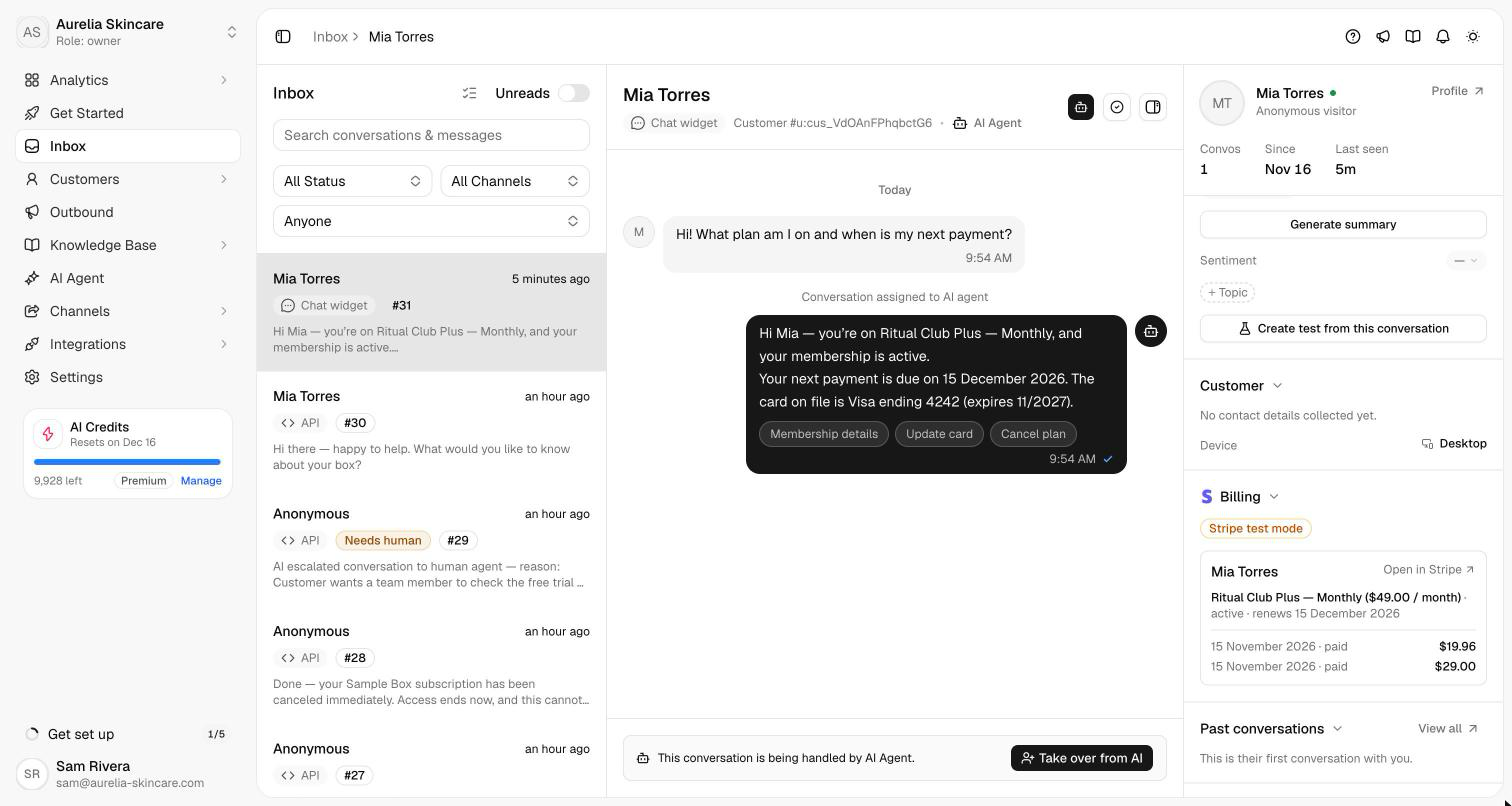
When Stripe is connected, the customer panel has a Billing section: the customer's Stripe subscriptions and recent invoices, with Open in Stripe. It matches the customer by their verified login, or by their email address, marked "Matched by email address — the customer may not have verified it". A test-mode key shows a Stripe test mode badge.
Disconnecting and reconnecting
Disconnect makes Asks forget the key. Your Stripe actions are kept but paused until you connect again. Delete or roll the key in Stripe as well.
If Stripe stops accepting the key (it was rolled, deleted or expired), the integration shows Needs reconnect and the agent can't read or change billing until you connect a new restricted key. If you edit the key's permissions in Stripe, select Check permissions again. Connecting a key for a different Stripe account flags each Manage subscriptions action: open it, check its products and save, so customers are offered plans from the new account.
Activity
Each action's Recent calls shows its last 20 Stripe calls, such as "Subscriptions read", "Cancellation previewed" or "Plan switched", with status and timing. Card details are never logged.
Related
- Custom actions — call your own APIs.
- Identity verification — sign customers in to the widget.
- Playground — test as a signed-in customer.