Google Tag Manager
Add Asks with Google Tag Manager
Load the Asks AI chat widget through Google Tag Manager with a Custom HTML tag that creates the embed script, fired on DOM Ready on every page.
Learn more about the Asks AI chatbot for websites →
Updated
To load the Asks AI chat widget with Google Tag Manager, create a Custom HTML tag that adds the Asks embed script with a few lines of JavaScript, fire it with a DOM Ready trigger on all pages, and publish the container. Don't paste the plain snippet into the tag: Tag Manager doesn't reliably keep custom data- attributes on the script tags it injects, and without data-widget-key the widget never starts.
Before you start
- Google Tag Manager's container snippet is already on every page of your site.
- The Chat widget reads Live at Channels → Chat widget.
Add the tag
Open Channels → Chat widget → Deploy, keep Code snippet and HTML, select For website visitors without logins, and copy the snippet. You need the value of its data-widget-key attribute.
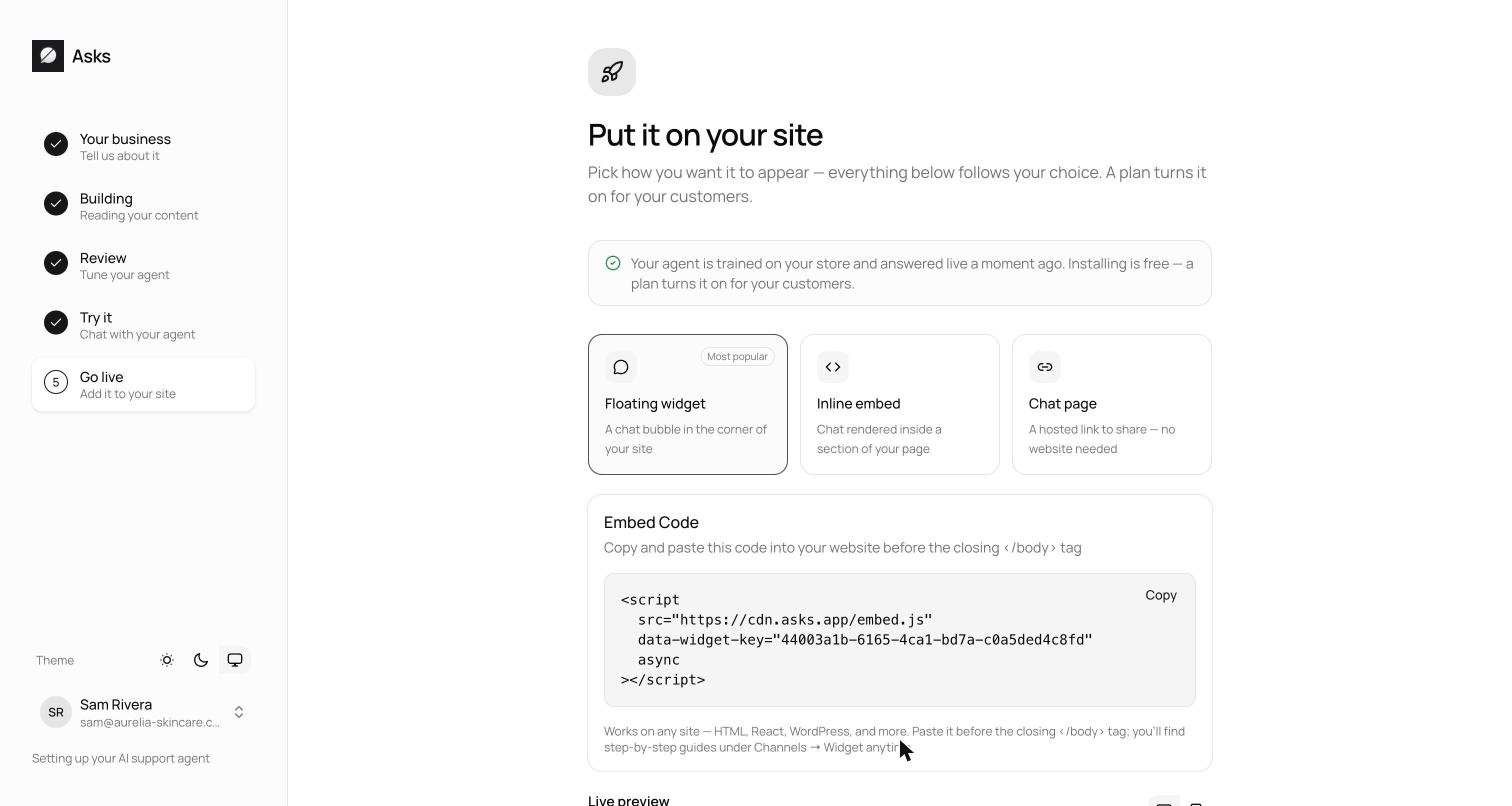
In Tag Manager, go to Tags → New, open Tag Configuration, and select Custom HTML. Paste this code and replace YOUR_WIDGET_KEY with your key:
<script>
  (function () {
    var s = document.createElement("script");
    s.src = "https://cdn.asks.app/embed.js";
    s.async = true;
    s.setAttribute("data-widget-key", "YOUR_WIDGET_KEY");
    document.body.appendChild(s);
  })();
</script>
The code builds the same script tag as the Asks snippet, so the widget reads its key exactly as it would from your page. Leave Support document.write off.
Under Triggering, add a new trigger, choose DOM Ready as the trigger type, and keep All DOM Ready Events. The widget attaches to the page body, which exists once the DOM is ready. Name the tag, for example "Asks chat widget", and save it.
Select Preview, open your site in Tag Assistant, and check that the tag appears under the tags that fired. Then select Submit and Publish.
Verify it works
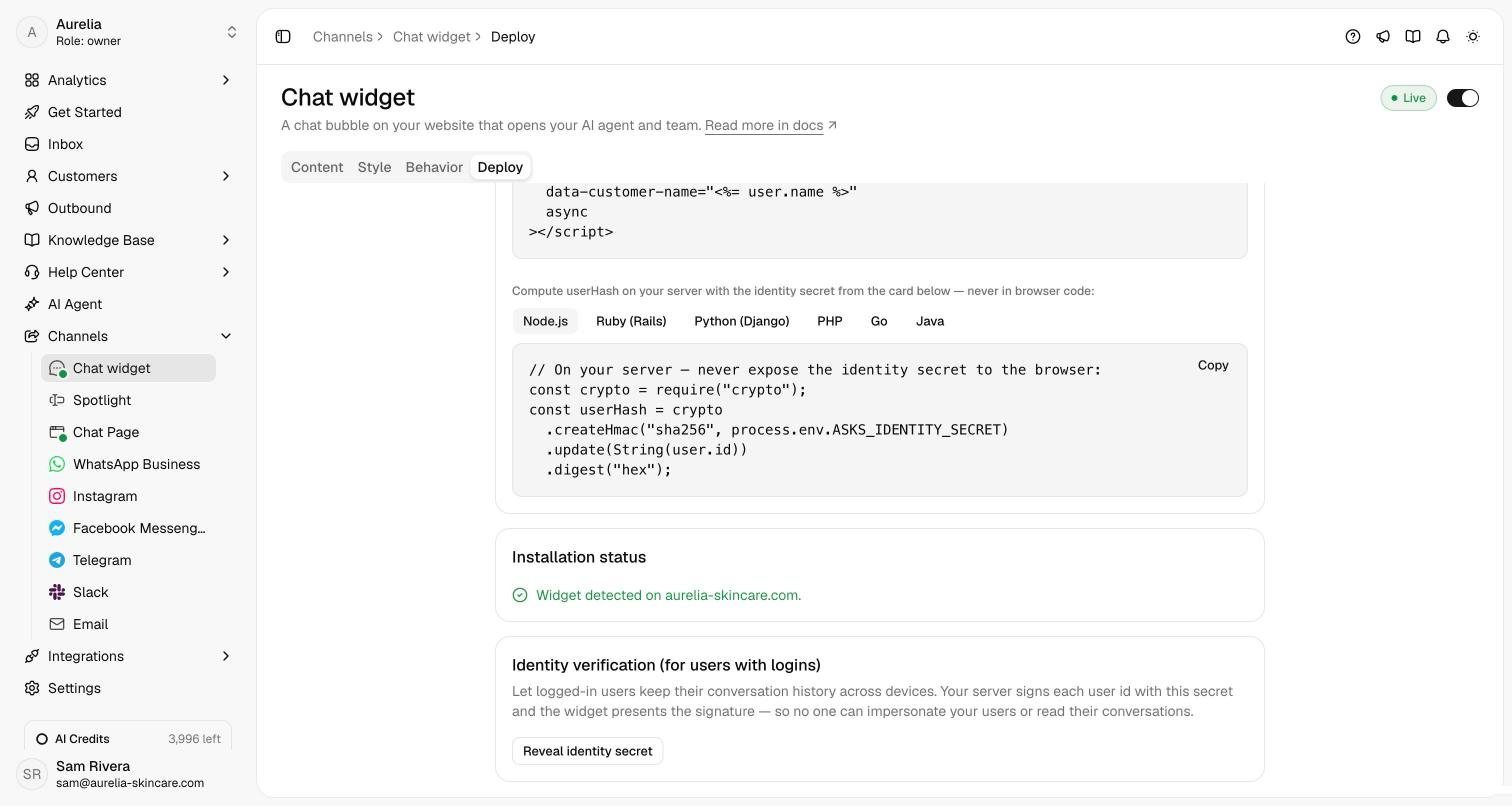
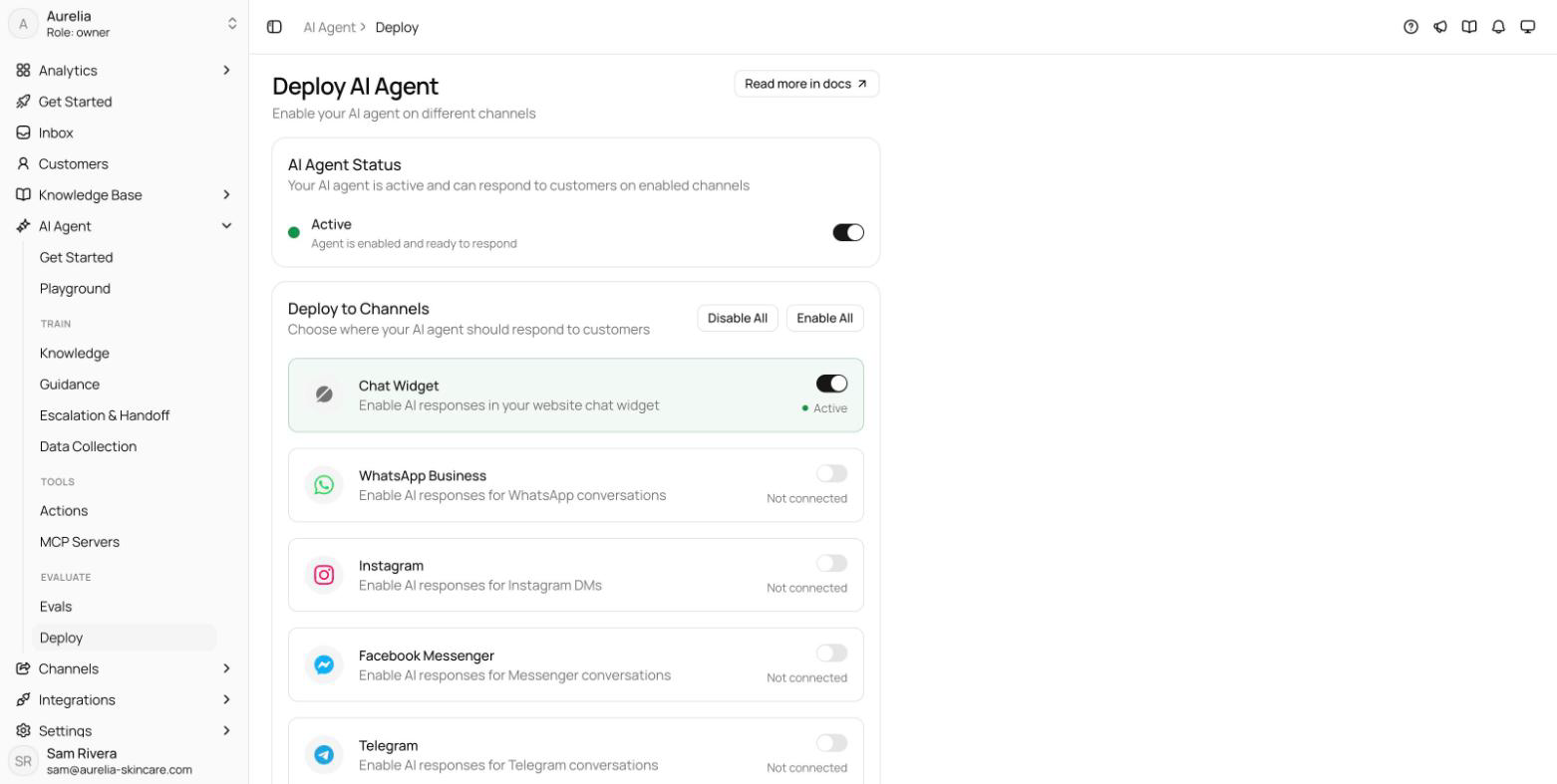
Open your site in a private window. The launcher appears in the bottom corner, and the Deploy tab's Installation status card reads "Widget detected on" followed by your domain. Send a test message: it lands in your Inbox, and the agent replies when it's on for the Chat widget at AI agent → Deploy.
Troubleshooting
The tag fired, but there's no launcher
Open the browser console: the widget logs under an [asks-widget] prefix. A 404 Widget not found on the config request means the key is wrong; a 400 Widget is not active means the Chat widget or Spotlight isn't Live. A Content-Security-Policy error means your site needs the origins in the Content-Security-Policy table.
The widget loads only after visitors accept cookies
Your consent setup holds this tag until the visitor accepts a consent type the tag requires. Check the tag's consent settings in Tag Manager against how your privacy policy treats a support chat.
The snippet is also in my site's code
Load the widget one way only. Remove either the tag or the snippet in your templates.
Logged-in customers
Tag Manager can't sign user ids on your server. For verified, cross-device history, add the logged-in snippet to your site's templates, or call window.AsksWidget.identify() after login; see Logged-in users.
Google Tag Manager steps checked in November 2026 against Google's help article Custom HTML tags.
Related
- Other ways to install: HTML, WordPress, React & Next.js, or all install guides.
- Widget developer guide: every embed attribute and the JavaScript API.
- On asks.app: the AI chatbot for websites and the shared inbox your team answers from.