Overview
Install the chat widget on your website
Add the Asks AI chat widget to any site with one script tag. Exact steps for WordPress, Wix, Squarespace, Webflow, Framer, Shopify, GTM, React and HTML.
Learn more about the Asks AI chatbot for websites →
Updated
One script tag puts your Asks AI agent on any website: copy it from Channels → Chat widget → Deploy and load it right before the closing </body> tag on every page. On Shopify there's no code at all, because the Asks app adds the widget through your theme editor. Pick your platform for the exact menu path.
Where the code goes
| Platform | Where you paste it | What the platform requires |
|---|---|---|
| HTML | Right before </body>, in every page or your shared footer template | Access to your site's files |
| WordPress | WPCode: Code Snippets → Header & Footer → Footer | A plugin install (on WordPress.com, a paid plan) |
| Wix | Settings → Custom Code, All pages, Body – end | A published site with a connected domain |
| Squarespace | Code Injection → Footer | A plan with code injection: Core, Plus, Advanced, or some legacy plans |
| Webflow | Site settings → Custom code → Footer code | A paid site plan, then a publish |
| Framer | Site Settings → General → Custom Code, end of <body> | A paid site plan, then a publish |
| Shopify | Theme editor → App embeds → Asks Widget | The Asks app installed |
| Google Tag Manager | A Custom HTML tag on a DOM Ready trigger | The GTM container on your site |
| React & Next.js | next/script in the root layout, or @asksdotapp/widget-js | Nothing extra |
Platform menus and plan requirements were checked against each platform's own help center in November 2026. Each guide links the page it was checked against.
Before you install
- The Chat widget is Live. The switch in the header of Channels → Chat widget reads Live. The same snippet shows Spotlight instead when Spotlight is your live website channel, with no code change.
- You picked the right snippet. Under Configure your code snippet, the Deploy tab starts on For users with logins. Most marketing sites and stores built on a site builder have no customer logins, so select For website visitors without logins before you copy. The logged-in version needs server code and is covered in the widget developer guide.
- Someone will answer. Installing is free. The AI agent answers your visitors once your workspace has an active plan or trial (Plans & billing) and the agent is on for the Chat widget at AI agent → Deploy. Until then, messages still reach your Inbox.
Can't edit your site's code?
Select Email instructions to a developer under the Deploy tab's Installation status card. It opens an email with your snippet and a link to these docs, ready to send to whoever manages your site. If nobody can add code, share the hosted Chat Page link instead: it needs no website.
Check any install
The Deploy tab's Installation status card watches for the widget and turns green, "Widget detected on" followed by your domain, on the first page load that runs the snippet. The Install on your site step of the Get set up checklist on Get Started checks itself off at the same time.
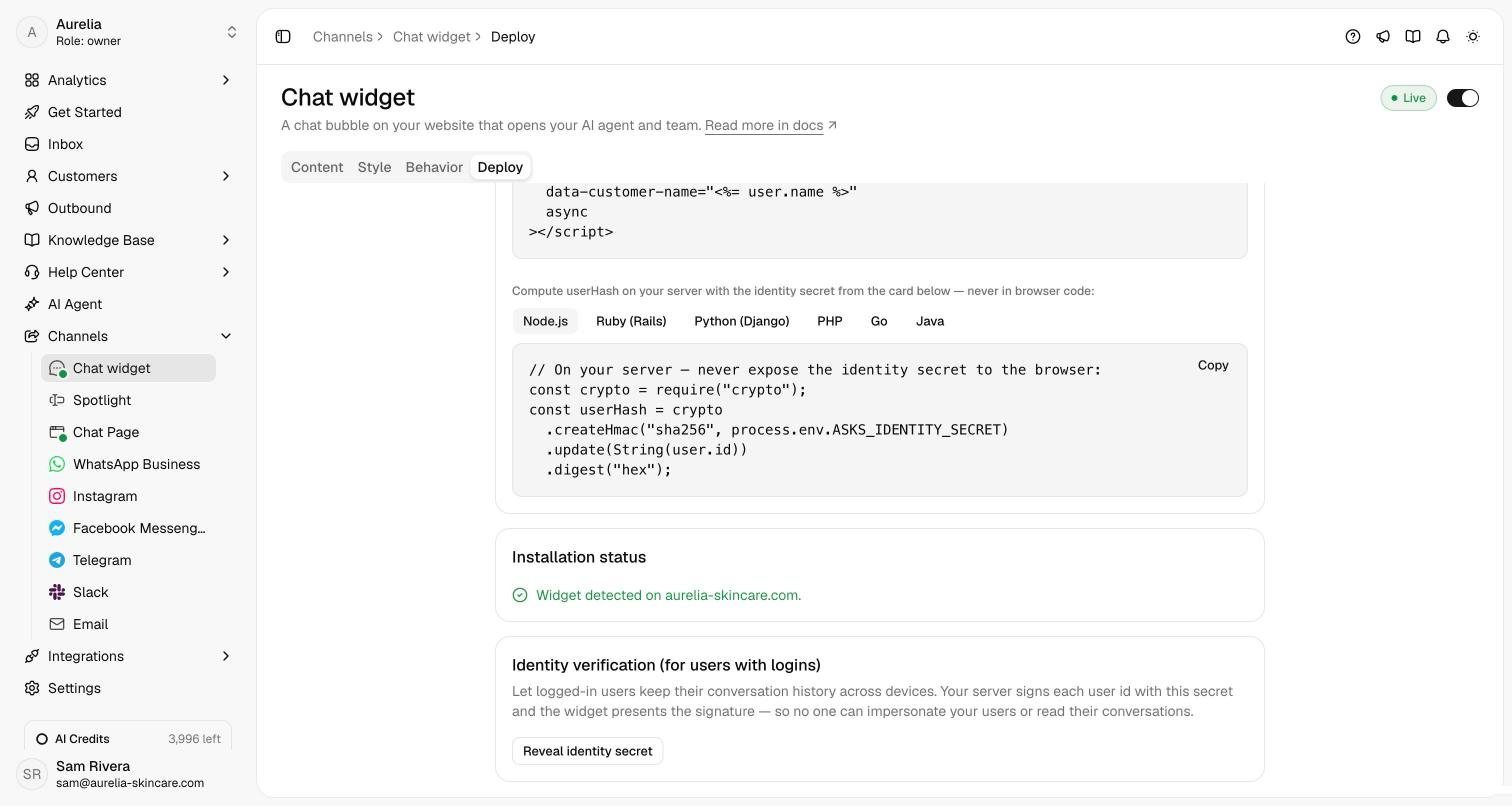
Then open your site in a private window, start a chat, and ask something your website answers. The conversation appears in your Inbox as it happens.
Related
- Chat widget: turn it on, pick the audience, identity verification, and what visitors see.
- Widget customization: colors, launcher, greeting, and languages.
- Widget developer guide: every embed attribute, the JavaScript API, and Content-Security-Policy rules.
- On asks.app: the AI chatbot for websites and the shared inbox your team answers from.