WordPress
Add Asks to WordPress
Add the Asks AI chatbot to WordPress without editing theme files. Paste the embed script into the free WPCode plugin's site-wide footer and save.
Learn more about the Asks AI chatbot for WordPress →
Updated
To add the Asks AI chatbot to a WordPress site, copy your snippet from the Asks Deploy tab, paste it into the Footer box under Code Snippets → Header & Footer in the free WPCode plugin, and select Save Changes. WPCode prints it just above </body> on every page, and it stays in place when you update or switch themes. No developer or theme edit is needed.
Before you start
- You need an administrator account in wp-admin.
- A self-hosted WordPress site (WordPress.org software) can install WPCode. On WordPress.com, installing plugins needs a paid plan.
- Make sure the Chat widget reads Live at Channels → Chat widget.
Add the widget with WPCode
Open Channels → Chat widget → Deploy. Under Choose how to install, select WordPress. Under Configure your code snippet, select For website visitors without logins: most WordPress sites don't have logged-in customers, and the Deploy tab says so too. Then select Copy:
<script
  src="https://cdn.asks.app/embed.js"
  data-widget-key="YOUR_WIDGET_KEY"
  async
></script>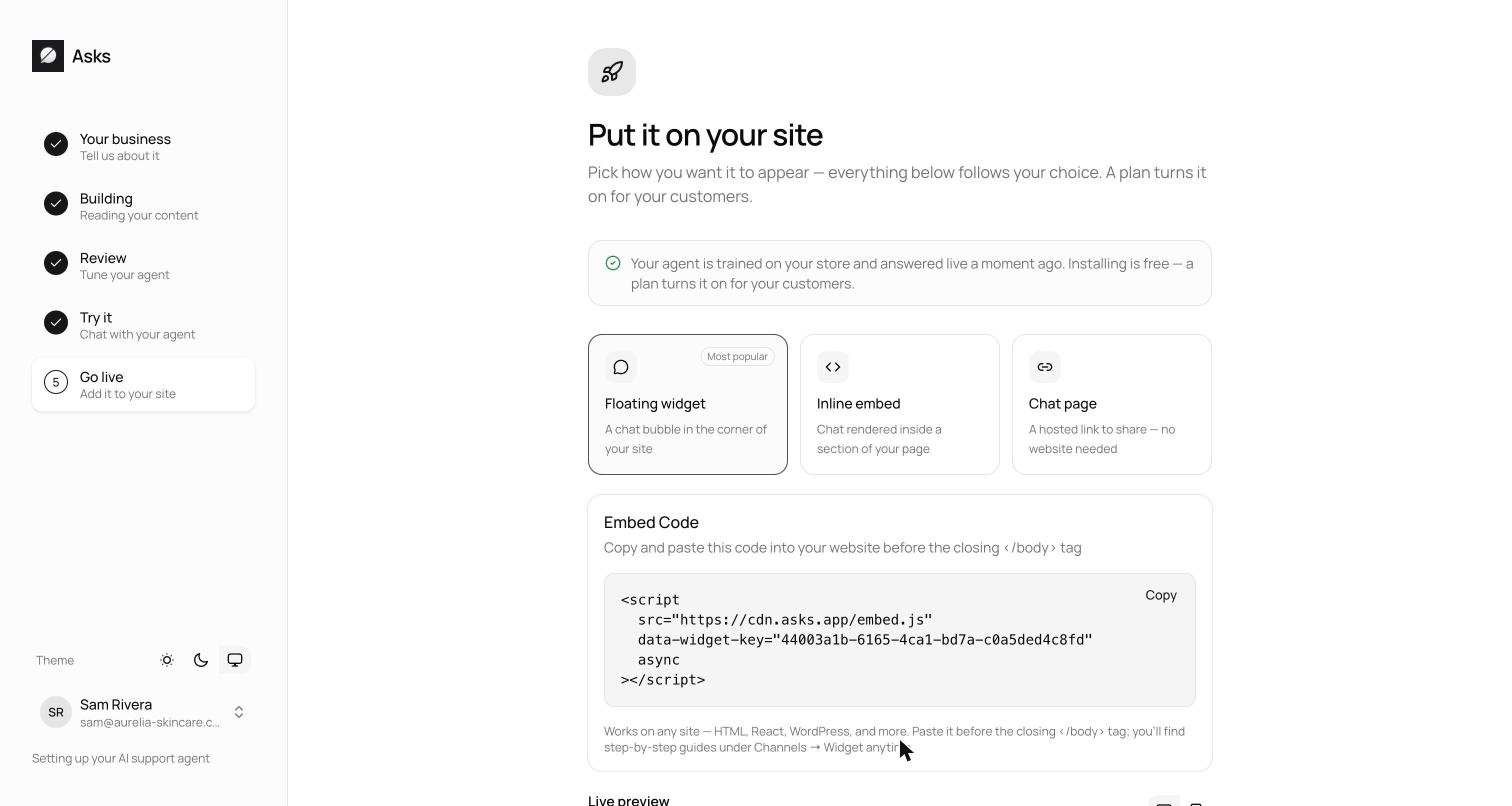
In wp-admin, go to Plugins → Add New Plugin, search for WPCode, then select Install Now and Activate on "WPCode – Insert Headers and Footers + Custom Code Snippets". If WPCode is already installed, skip this step.
Go to Code Snippets → Header & Footer. Paste the snippet into the Footer box, the last of the three. Leave Header and Body alone.
Select Save Changes at the top right of the page. If you use a caching plugin or your host caches pages, purge the cache so visitors get pages with the snippet.
Without a plugin
On a classic theme you can paste the snippet into the theme instead: Appearance → Theme File Editor, open footer.php, paste it on the line right before </body>, then select Update File. A theme update replaces that file and removes the snippet unless you edit a child theme. Block themes, such as Twenty Twenty-Two and the default themes after it, have no footer.php, so use WPCode there.
A Custom HTML block on one page loads the widget on that page only. Use it only when that's what you want.
Verify it works
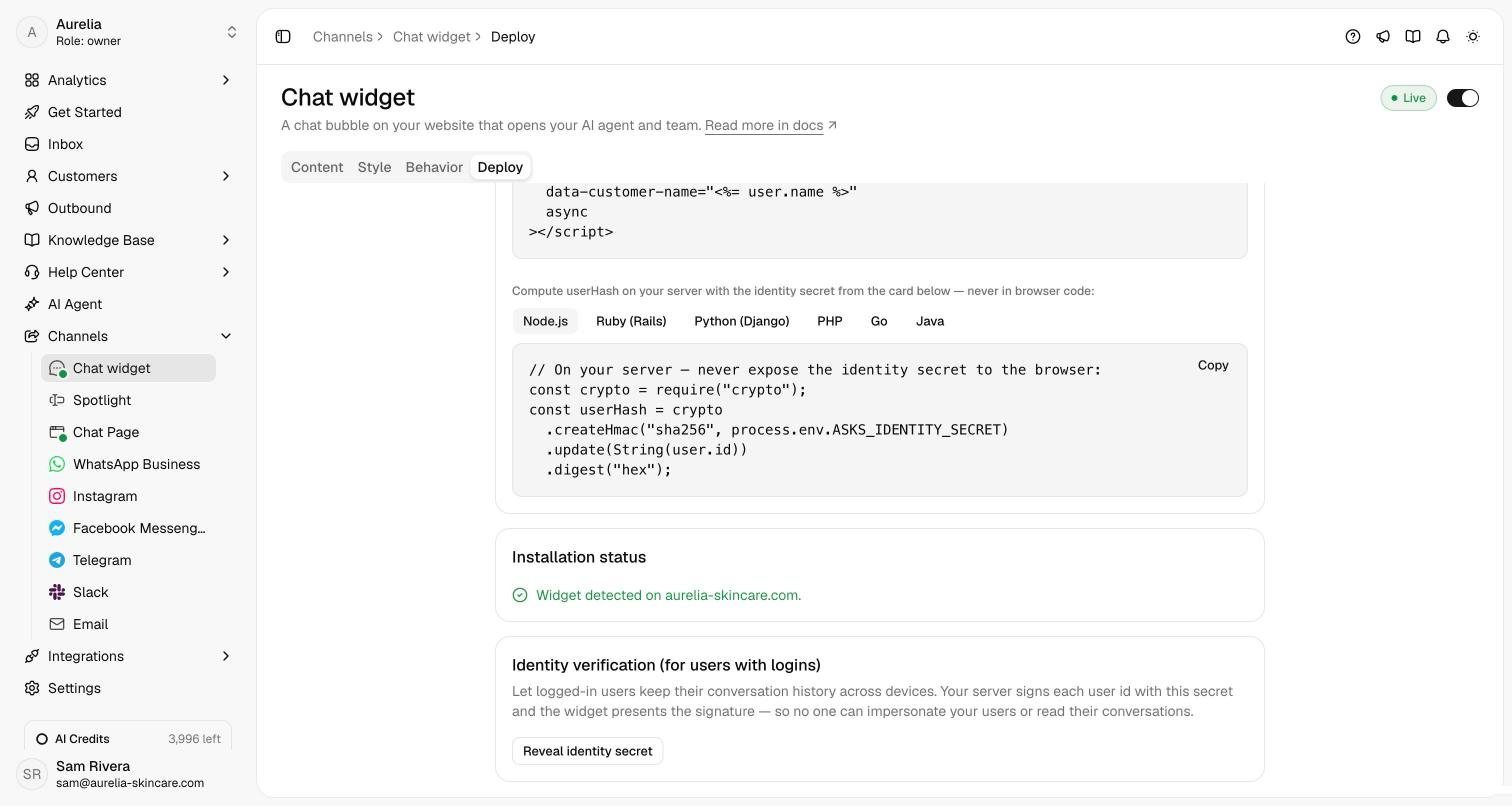
Open your site in a private window. The launcher appears in the bottom corner, and the Deploy tab's Installation status card reads "Widget detected on" followed by your domain. Send a test message: it lands in your Inbox, and the agent replies when it's on for the Chat widget at AI agent → Deploy.
Troubleshooting
WPCode saved, but visitors don't see the launcher
Purge your page cache and any CDN cache, then reload in a private window. If you use WP Rocket, its Delay JavaScript execution option on the File Optimization tab holds every script until the visitor moves the mouse, scrolls, or types, so the launcher appears only then. To load it right away, add cdn.asks.app/embed.js to Excluded JavaScript Files. Other optimization plugins that delay or combine JavaScript need the same exclusion.
The browser console shows a Content-Security-Policy error
A security plugin or your host sends a Content-Security-Policy header. Allow the origins in the developer guide's Content-Security-Policy table.
The chat says "This chat isn't live yet"
Your workspace has no active plan or trial yet. Start one from Plans & billing.
Another chat plugin's bubble covers the launcher
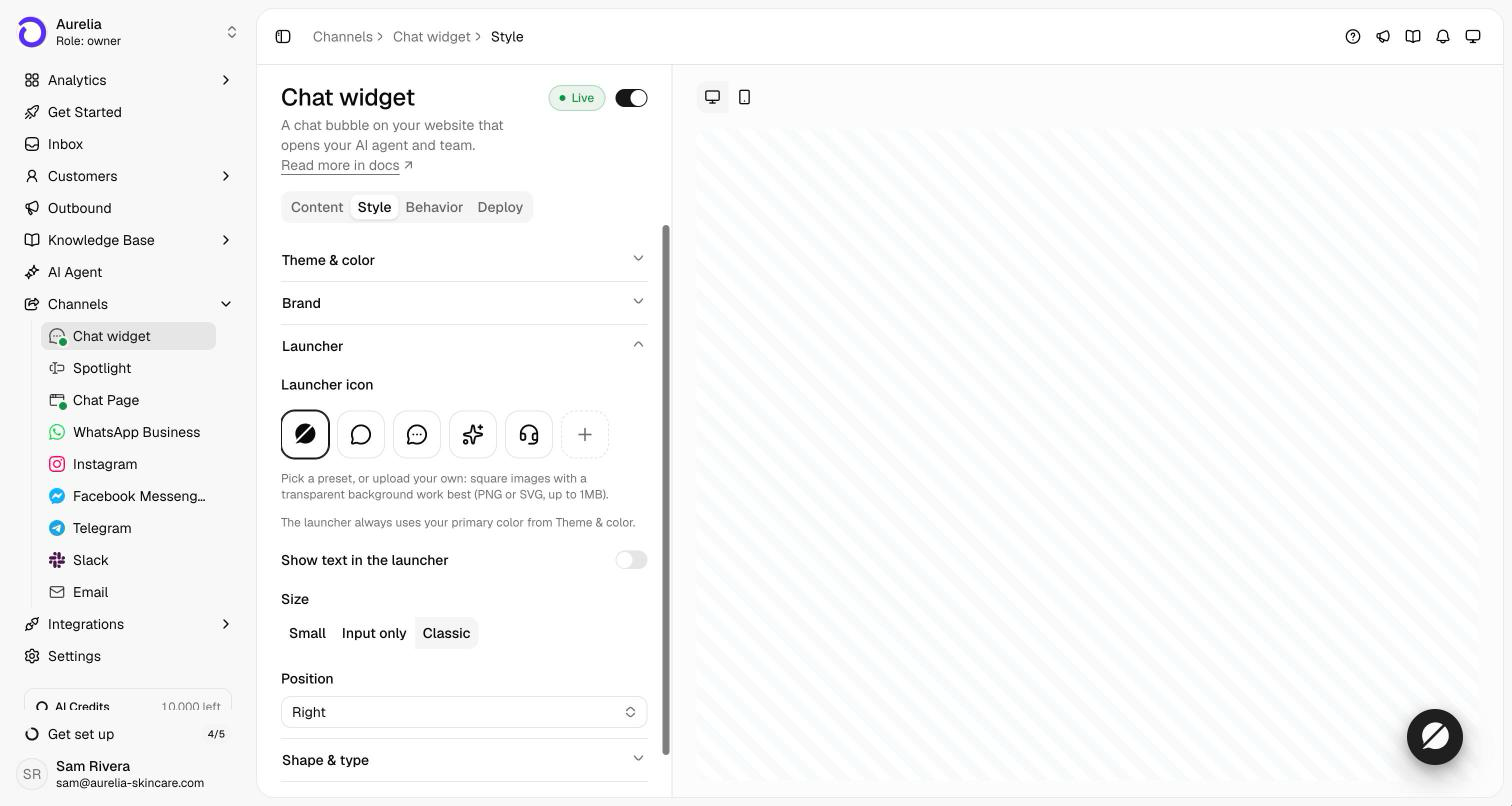
Deactivate the other chat plugin, or move the Asks launcher with Position on the Style tab.
WordPress steps checked in November 2026 against WPCode's Header & Footer documentation and WP Rocket's Delay JavaScript execution documentation.
Related
- Other platforms: Wix, Squarespace, Google Tag Manager, or all install guides.
- Chat widget: audiences, identity verification, and what visitors see.
- On asks.app: Asks for WordPress, the AI chatbot for websites, and the shared inbox.