WhatsApp catalog
WhatsApp catalog
Show products in a WhatsApp catalog, send them as product messages, and turn carts into bank transfer orders. A beta for invited workspaces in Indonesia.
Updated
The WhatsApp catalog puts your Commerce products inside WhatsApp. Asks keeps a Meta catalog in sync with your products, so the AI agent and your team can send them as WhatsApp product messages. Customers open a product, add it to a cart and send the cart to you in the chat.
WhatsApp has no in-chat payment in Indonesia, so it works as "order via WhatsApp, pay by bank transfer". A cart is the customer's list of what they want, not an order: the AI agent prices it again at your Asks prices, sends the order summary, and creates the order once the customer confirms it. The customer pays by bank transfer, as for any Commerce order.
Beta, by invitation — the WhatsApp catalog is a beta for Commerce workspaces in the Indonesia market. Asks turns it on per workspace for the stores it invites; it isn't available to every workspace. Once it's on for yours, WhatsApp catalog appears under Channels in the Commerce settings menu. It also needs a paid plan or the trial, and a connected WhatsApp number.
Connect your catalog
Owners and admins connect and change the catalog; members see the page read-only.
Go to Commerce → Settings → WhatsApp catalog. Without a WhatsApp number in Asks, the page asks you to Connect WhatsApp first.
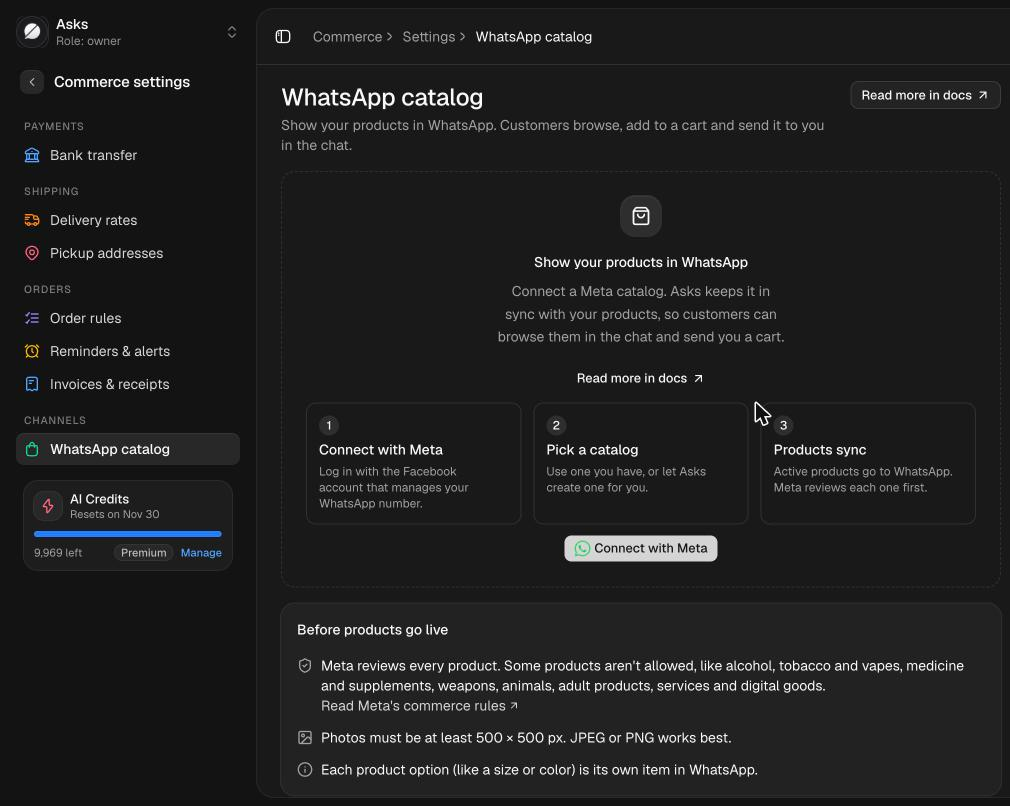
Click Connect with Meta, log in with the Facebook account that manages your WhatsApp number and allow catalog access. Meta sends you back to this page.
If Meta's window offers to create a catalog, skip it: the catalog it creates isn't an E-commerce one, and WhatsApp can't show products from it.
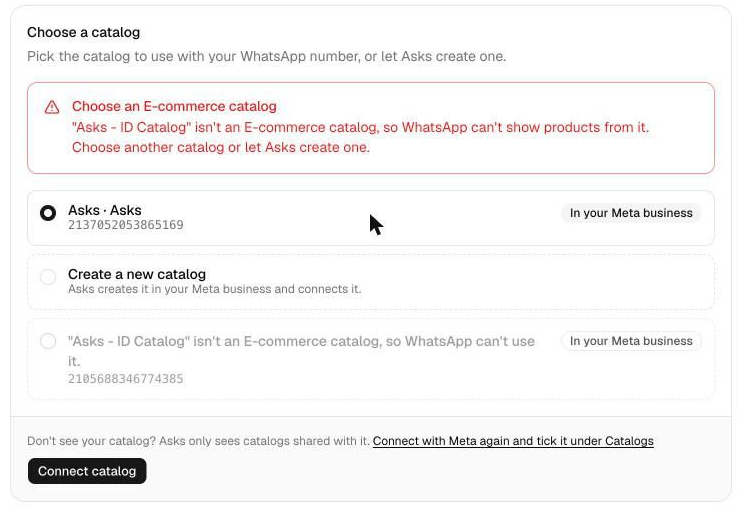
With several WhatsApp numbers, pick the WhatsApp number first. Pick a catalog (marked Already on this number, Shared with Asks or In your Meta business) and click Connect catalog. Only E-commerce catalogs can be picked; any other catalog in your business is greyed out with the reason.
Create a new catalog asks Meta to create Asks · <your workspace name> in your business, which Meta allows only in some businesses. If Asks says Meta doesn't let it, open Commerce Manager, choose your business, click + next to Catalogues, pick Online products and create it, then come back and pick it here.
A catalog already connected to your number is the one Asks uses. Asks never replaces it: it adds its products and leaves your own items alone. One catalog serves every number of a WhatsApp account.
Under WhatsApp numbers, set two switches per number:
- Allow cart — customers can add products to a cart and send it to you. Product messages need it.
- Show catalog in chat — a shop button shows at the top of the chat, and the whole catalog can be sent.
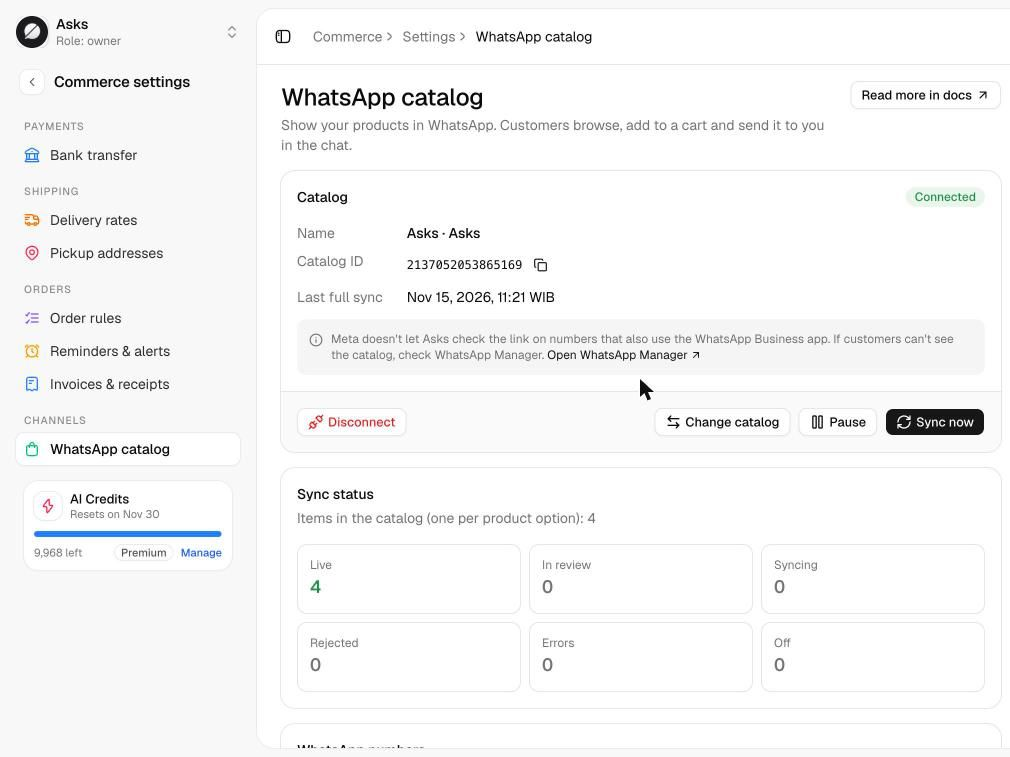
Your products then start syncing. Sync status counts the catalog's items by state, and Sync now sends everything again.
Numbers that also use the WhatsApp Business app
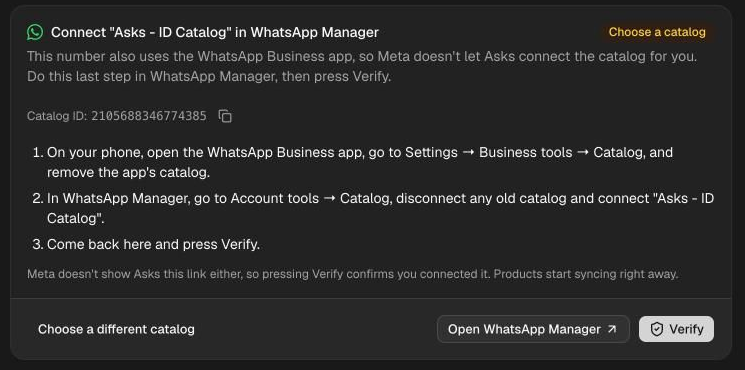
A number that runs the WhatsApp Business app alongside Asks (coexistence) carries a WhatsApp Business app badge. Meta doesn't let Asks connect a catalog to these numbers, or see which one is connected, so you do the last step yourself. After Connect catalog the page shows Connect "<your catalog>" in WhatsApp Manager with the catalog ID:
- If the WhatsApp Business app on your phone has its own catalog, remove it first (Settings → Business tools → Catalog).
- Click Open WhatsApp Manager. Check that the business at the top is the one that owns the number, then go to Account tools → Catalogue, disconnect any old catalog, click Choose a catalogue, search for your catalog's name or ID and click Connect catalogue.
- Come back and click Verify. Because Meta can't show Asks the link, Verify is your confirmation: the catalog turns Connected and products start syncing. A short note stays on the page until the first cart from that catalog arrives.
After this you can't edit products in the WhatsApp Business app. You edit them in Asks, and carts from customers come into Asks.
What syncs
Every active product is on WhatsApp unless you turn it off. Each option of a product (each variant, such as a size or a color) is its own item, grouped under its product, and Meta reviews every item before customers see it. Your changes reach WhatsApp within a few minutes, and Asks checks the whole catalog once a day.
| In Asks | In the WhatsApp catalog |
|---|---|
| Product name | The item title, the same for every option |
| Description | Plain text, without links |
| Price and Compare-at | The price; a compare-at price above it shows as a sale |
| Stock | In stock, or out of stock when nothing is available (stock minus the units unpaid orders reserve) |
| Photos | The option's own photo first, then the product's |
| Options | Size (Ukuran) and color (Warna) as WhatsApp's size and color; other options as an extra attribute |
| Category | The product type |
| Business name on your invoices | The brand (your workspace name when it's empty) |
Drafts, archived products and options, and products you turn off are hidden from WhatsApp. An option with no photo (neither its own nor the product's), or priced at Rp0, isn't sent: it shows Needs fix until you add one.
Meta requires a web page for every item, so each links to a product page Asks hosts on app.asks.app, with the photos, price, availability, options and description, and an Order on WhatsApp button (Pesan via WhatsApp in Indonesian) that opens a chat with your number. Search engines don't index it.
Product status
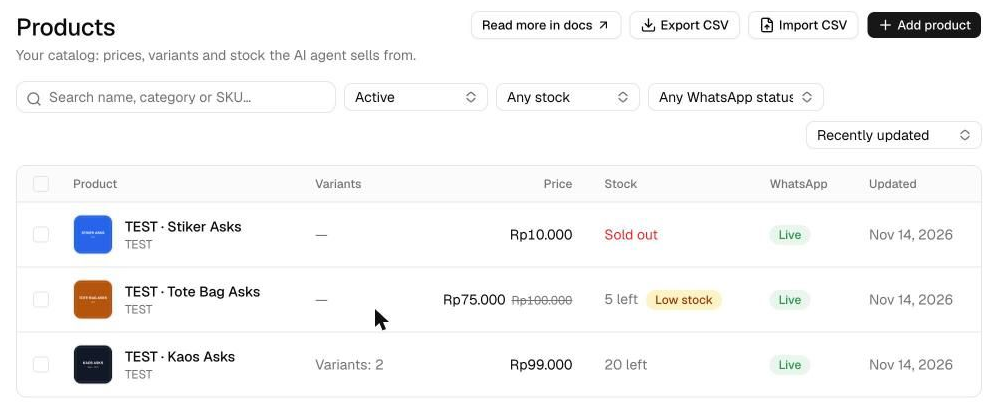
With a catalog connected, Commerce → Products has a WhatsApp column. A product's badge is its least ready option; the product editor's WhatsApp catalog card lists each one under By option. Hover a Rejected, Needs fix or Error badge to see why.
| Status | Meaning |
|---|---|
| Off | Hidden from WhatsApp: turned off, a draft, or archived. |
| Syncing | Not sent yet, or a change is on its way to Meta. |
| In review | Meta is reviewing it. |
| Live | Meta approved it. Customers see it, and it can be sent. |
| Rejected | Meta's review refused it. |
| Needs fix | Something you can fix in Asks: a missing photo or price, or a field Meta refused. |
| Error | Sending it failed for another reason. Asks tries again, and so does Sync now. |
WhatsApp problems in the WhatsApp status filter lists the rejected, needs-fix and error products; See products with problems on the settings page opens it. To keep products off WhatsApp, select them and click Hide from WhatsApp (Show on WhatsApp adds them back), or turn off Show in WhatsApp catalog in the product editor. They stay in Asks, and the agent still sells them in the chat.
Meta reviews items against its commerce policy. Some products aren't allowed, such as alcohol, tobacco and vapes, medicine and supplements, weapons, animals, adult products, services and digital goods.
What the AI agent sends
On a number with Allow cart on, the agent's product cards go out as WhatsApp product messages, with the text before them as the message text:
- One product — a single-product message.
- Two to four products — one product list, grouped by category.
- The whole catalog — when the customer wants to browse everything ("lihat katalog") and Show catalog in chat is on, a message that opens your catalog.
It's all or nothing: when a product in the reply isn't Live or is out of stock, or the catalog is paused, the reply goes out as regular product cards (a photo of each product with its name and price). When WhatsApp refuses a product message, Asks sends the same products as regular cards once, and the inbox labels it Sent as cards (WhatsApp refused the product message).
When a customer taps Message business on a product in your catalog, the agent knows which product and option they mean, with its price and stock.
Carts and orders
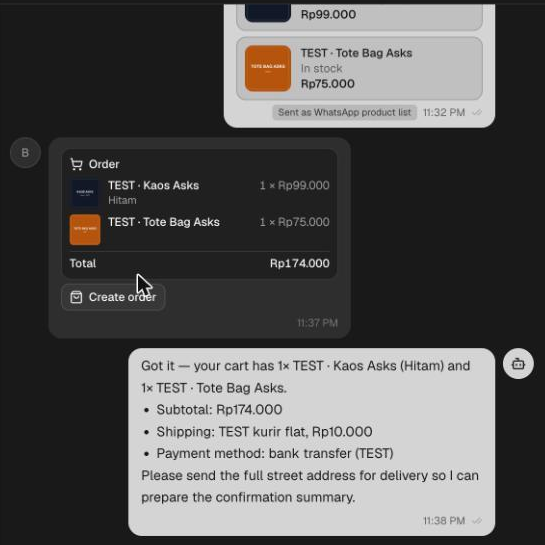
When a customer sends a cart, the AI agent (when it's answering) turns it into an order under the usual rules:
- It prices the cart again. The cart shows what WhatsApp displayed; the order uses your prices in Asks.
- It says what changed with the summary: a new price, fewer left, or an item that's sold out, not for sale or not in your products, which it leaves out.
- It asks the customer to confirm. After the address and shipping, the customer confirms the summary's total; then the agent creates the order and sends your bank transfer details.
A newer cart replaces the summary of an earlier one, and changes the customer asks for in words ("tambah 1") stay when the agent prepares that cart again. With Let the AI agent create orders off, or no bank account set up, the agent doesn't take the order and offers your team.
A cart has no words of the customer's own, so the agent answers it in the language of their last typed message, or in Indonesian when the chat opens with the cart.
Create an order from a cart
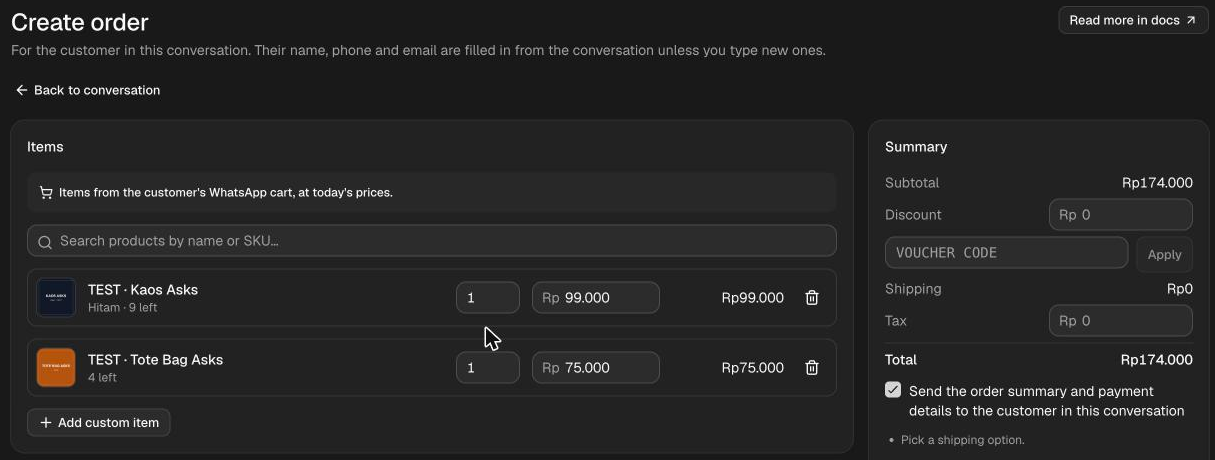
In the Inbox, a cart shows each item at today's price and stock, flagged where something changed: Price changed, Sold out, Only 2 left (the number available), Not in your products or Not for sale. When the total moved, Cart total is struck through above Total now. Create order opens Create order with the cart's items at today's prices and the Changes from the cart; add the shipping and create it as usual.
Send products from the Inbox
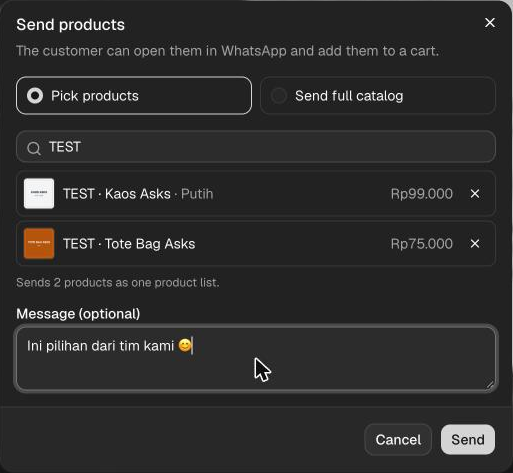
In a WhatsApp conversation, Send products (the shopping-bag button in the composer toolbar) shows while the catalog is connected and not paused. It works within 24 hours of the customer's last message; otherwise it's grayed out with the tooltip Customer must message first. Any teammate who can reply can send.
Choose Pick products and pick up to 30 options (only Live ones in stock): one goes out as a single product, two or more as one product list. Or choose Send full catalog. Picking products needs Allow cart on that number, the full catalog Show catalog in chat. Add a Message (optional) and click Send; the transcript labels it Sent as WhatsApp product, Sent as WhatsApp product list or Sent as WhatsApp catalog.
Pause or disconnect
- Pause turns off the cart and hides the catalog on every number. Your products stay in the catalog, and the agent sends regular product cards. Resume puts the switches back and syncs again.
- When the workspace moves to a plan without Commerce, or Commerce turns off for it (for example when you switch to your Shopify store), Asks pauses the catalog and resumes it once Commerce is back. A catalog you paused stays paused.
- Change catalog moves Asks's products to another catalog without disconnecting (you keep your Meta login). On a WhatsApp Business app number, swap the catalog in WhatsApp Manager too, then click Verify.
- Disconnect stops syncing and removes Asks's products from the catalog. It also removes Asks's Meta login, so connecting again starts with Connect with Meta. To unlink the catalog from your number, also remove it in WhatsApp Manager (Account tools → Catalog).
Limits
| Limit | Value |
|---|---|
| Items in one product list | 30 (the AI agent sends up to 4) |
| Sections in one product list | 10, one per category |
| Message text with products | 1,024 characters |
| Photos | At least 500 × 500 px; JPEG or PNG works best. Asks enlarges a smaller photo, so upload them at least that size. SVG isn't accepted |
| Items per product | One per option (variant) |
| Catalogs | One per WhatsApp account, shared by its numbers |
| When products can be sent | Within 24 hours of the customer's last message |
Verify it works — from another phone, message your WhatsApp number and ask for a product that shows Live. The agent sends it as a product message: add it to the cart and send the cart. The agent answers with the order summary at your Asks prices and asks you to confirm. The Playground and tests can't receive a WhatsApp cart.
Troubleshooting
| You see | What to do |
|---|---|
| "Connecting isn't set up yet." under Connect with Meta | Contact Asks support. |
| "No catalogs found. Create one in Meta Commerce Manager, then check again." | Create a catalog in Commerce Manager, then click Check again. |
| "Accept Meta's catalog terms in Commerce Manager first, then try again." | Accept the terms in Commerce Manager, then click Connect catalog again. |
| "Meta doesn't let Asks create a catalog in this business…" | Add an Online products catalog in Commerce Manager (see Choose a catalog), then pick it. |
| "… isn't an E-commerce catalog, so WhatsApp can't show products from it." | Pick an E-commerce catalog or create one, from the same card or with Change catalog. On a WhatsApp Business app number, also swap the catalog in WhatsApp Manager and click Verify. |
| "This number also uses the WhatsApp Business app…" | Follow the WhatsApp Business app steps. |
| The catalog needs attention | Reconnect with Meta when Meta no longer accepts the login, or Check again after fixing the link in WhatsApp Manager. |
Related
- Products — the catalog that syncs to WhatsApp.
- Orders in chat — how the agent takes and confirms an order.
- WhatsApp — connecting a number, coexistence and templates.
- Bank transfer & settings — the accounts customers pay into.