Framer
Add Asks to Framer
Add the Asks AI chatbot to a Framer site: paste the embed script into Site Settings → General → Custom Code at the end of the body, then publish.
Learn more about the Asks AI chatbot for websites →
Updated
To add the Asks AI chatbot to a Framer site, open Site Settings → General, scroll to Custom Code, paste your Asks snippet into the End of <body> tag box, and publish. Framer runs custom code only on the published site, not on the canvas or in preview, and custom code needs a paid Framer site plan.
Before you start
- Your Framer site has a paid site plan.
- The Chat widget reads Live at Channels → Chat widget.
Add the widget in Site Settings
Open Channels → Chat widget → Deploy. Under Choose how to install, keep Code snippet and HTML. Under Configure your code snippet, select For website visitors without logins, then select Copy:
<script
  src="https://cdn.asks.app/embed.js"
  data-widget-key="YOUR_WIDGET_KEY"
  async
></script>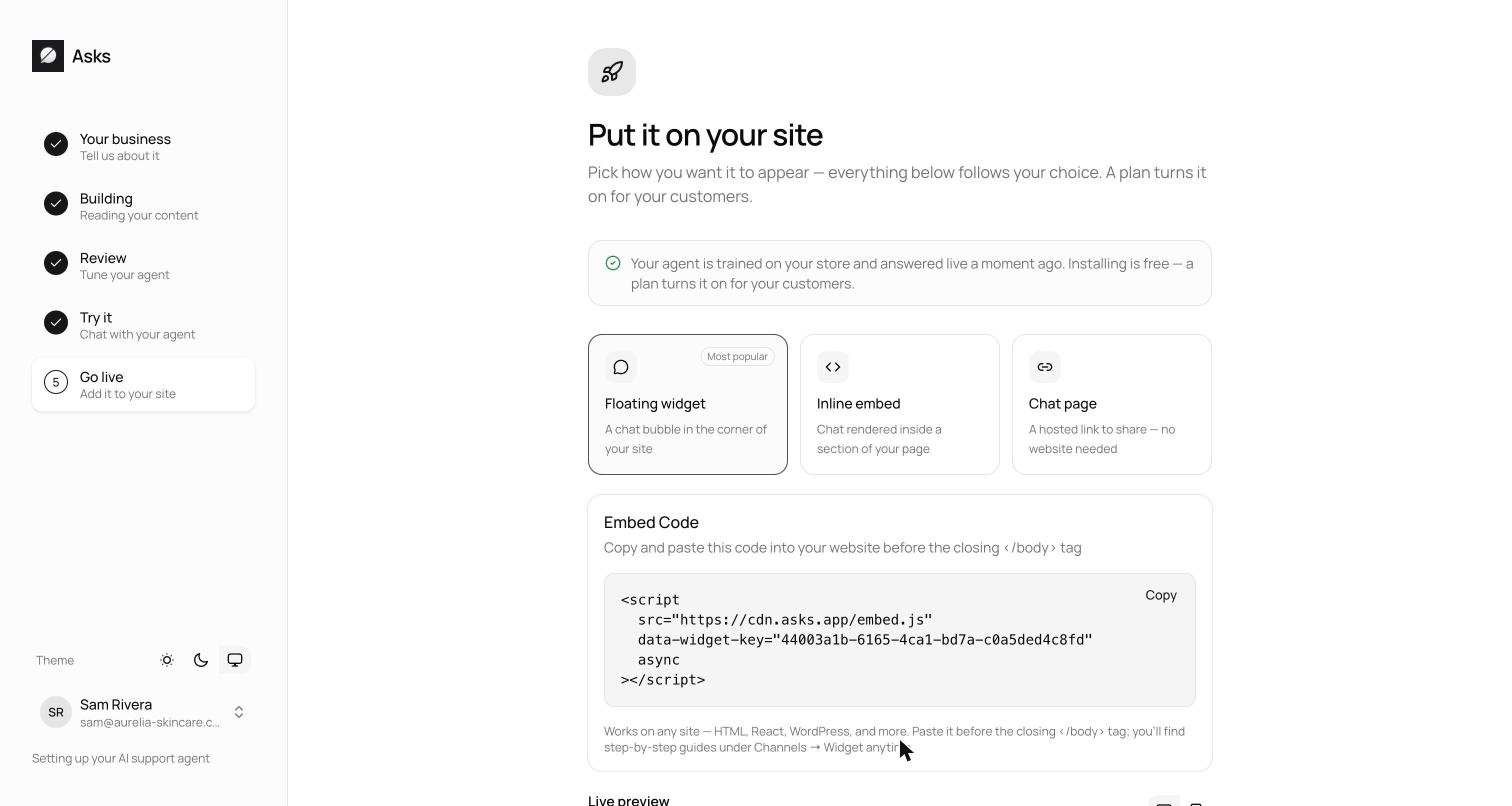
In your Framer project, open Site Settings from the gear icon, select the General tab, and scroll to Custom Code.
Paste the snippet into End of <body> tag. Don't use the head box: the widget attaches to the page body, which doesn't exist yet when head scripts run.
Select Publish at the top right (Update on a site that's already live). The snippet goes live with the publish.
Verify it works
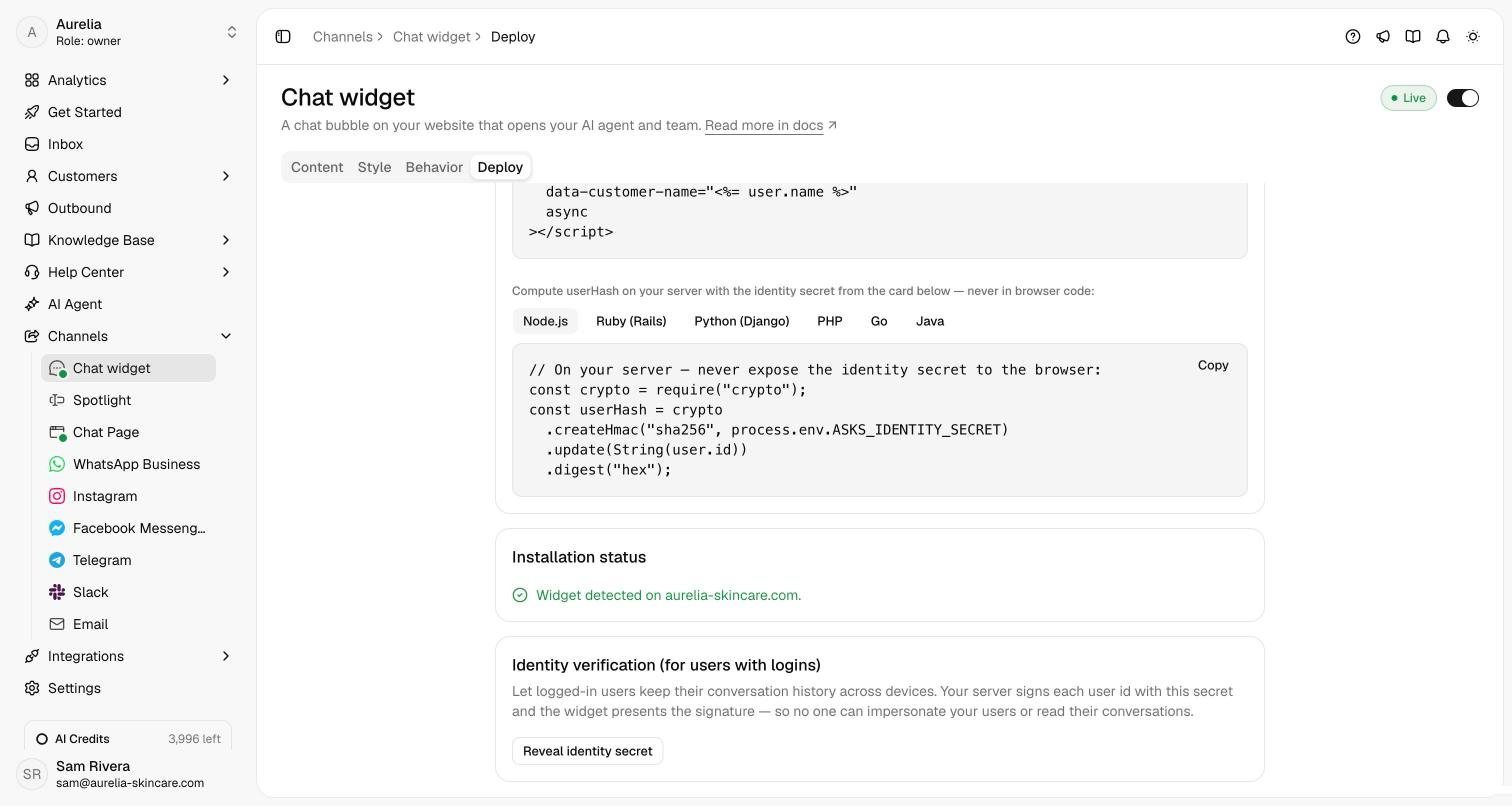
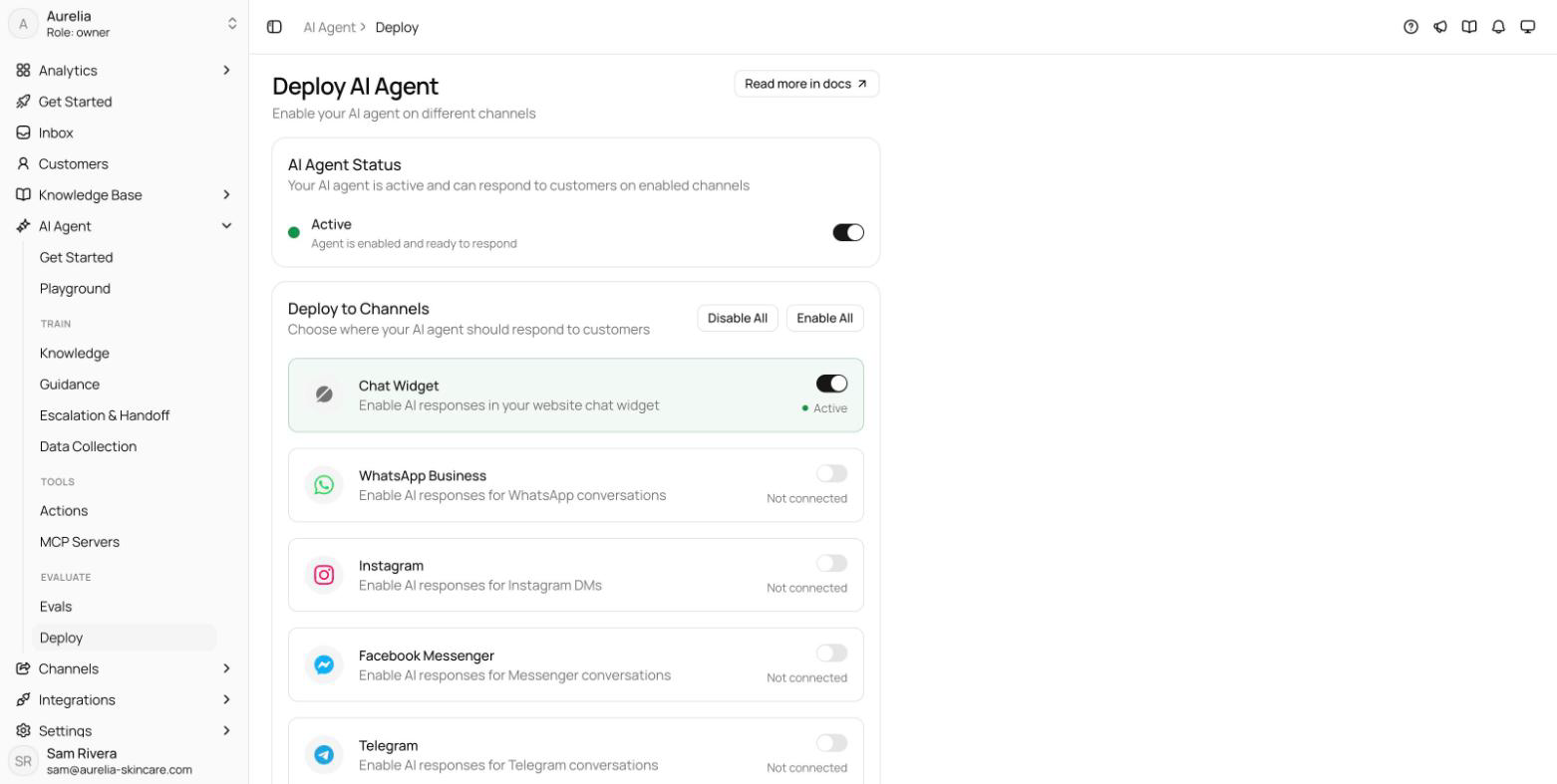
Open the published site in a private window. The launcher appears in the bottom corner, and the Deploy tab's Installation status card reads "Widget detected on" followed by your domain. Send a test message: it lands in your Inbox, and the agent replies when it's on for the Chat widget at AI agent → Deploy.
Troubleshooting
The launcher doesn't show on the canvas or in preview
That's expected: Framer runs custom code on the published site only. Publish, then check the live URL.
The widget shows on one page only
The snippet went into one page's own custom code in its page settings, which affects that page only. Move it to Custom Code in Site Settings.
Framer won't publish the custom code
Custom code needs a paid site plan. Until the site has one, share the hosted Chat Page link instead.
The chat says "This chat isn't live yet"
Your workspace has no active plan or trial yet. Start one from Plans & billing.
Framer steps checked in November 2026 against Framer Academy's lesson Add Custom Code to your site.
Related
- Other site builders: Webflow, Wix, Squarespace, or all install guides.
- Widget customization: colors, launcher, greeting, and languages.
- On asks.app: Asks integrations, the AI chatbot for websites, and the shared inbox.