Browser notifications
Browser notifications
Get a toast, a desktop notification, and a chime when a conversation needs you, in a background tab or with Asks closed.
Updated
Browser notifications tell you when a conversation needs you: a toast on another dashboard page, a desktop notification when Asks is in a background tab, and a short chime. Turn on Notify me when Asks is closed to get desktop notifications with no Asks tab open. Each teammate sets their own, and your notification emails still reach you either way.
Turn them on
Open Settings → Account → Notifications. In the Browser notifications card, the Browser notifications switch is on by default. It covers every browser you're signed in on; turning it off stops them everywhere. Save to apply a change.
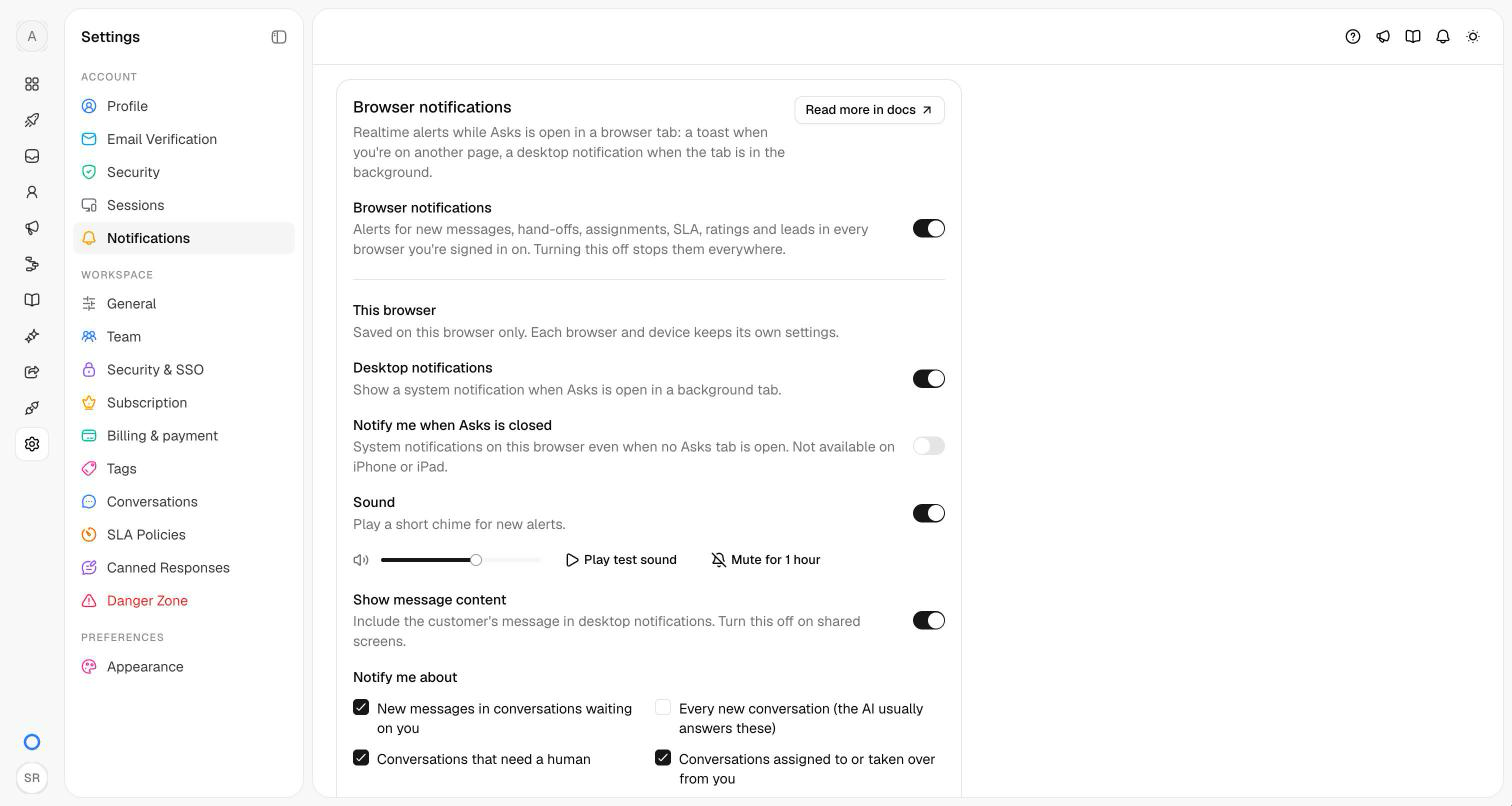
Under This browser, click Enable next to Desktop notifications and allow notifications when your browser asks. A test notification confirms "Desktop notifications are on". Your browser is never asked until you click Enable.
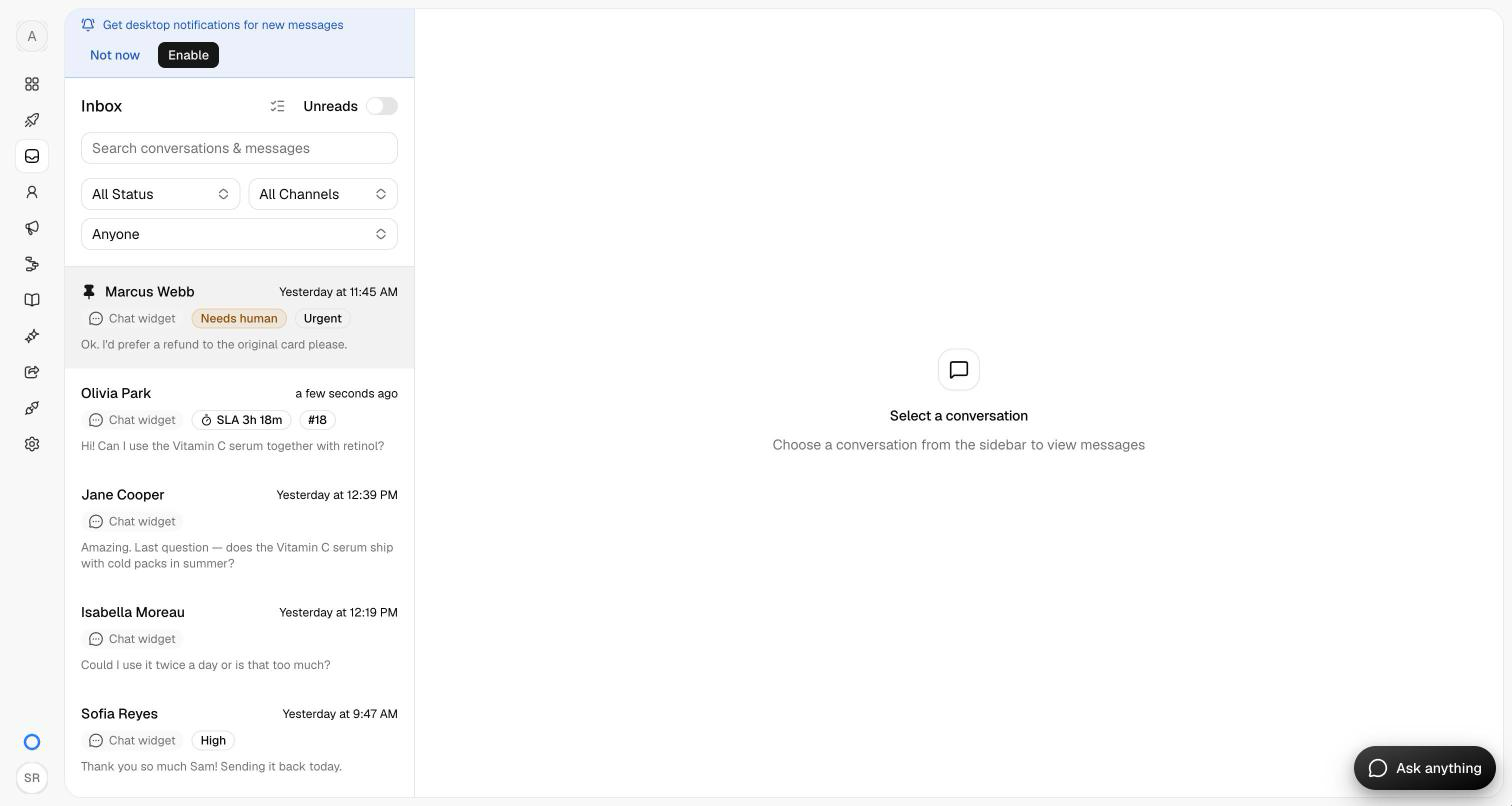
The inbox offers the same once, above the conversation list: Get desktop notifications for new messages, with Enable and Not now, which hides it for 7 days.
Set the sound and tick the alerts you want under Notify me about. These save right away, for this browser only.
To be alerted with no Asks tab open, turn on Notify me when Asks is closed (below Desktop notifications, once they're allowed).
What you're notified about
Who receives each alert mostly follows the matching email, and you're never alerted about your own action. Automations run as the workspace owner, so the owner is alerted when one assigns or moves a conversation.
| Notify me about | When | Who gets it |
|---|---|---|
| New messages in conversations waiting on you | A customer writes and a person has to answer | The assignee. If the conversation needs a human, or nobody holds it and the AI agent isn't answering, everyone in the workspace (in a team queue, that team) |
| Every new conversation (the AI usually answers these) | A customer starts a conversation | Everyone not already alerted for it. Off by default |
| Conversations that need a human | The AI agent or an automation hands a conversation to your team | Everyone in the workspace |
| Conversations assigned to or taken over from you | A conversation is assigned or transferred to you, or someone else takes yours | You |
| SLA at risk or breached Business and up | An SLA turns at risk or breached | The assignee, or owners and admins when unassigned |
| Negative ratings | A customer rates a conversation 1 or 2 | Whoever gets the Negative ratings email |
| New leads | Collect Leads captures a lead | Owners and admins |
| Orders and stock alerts | A Commerce order or stock alert | Whoever has its In-app switch on under Commerce alerts |
Alerts come from all your workspaces; one from another workspace names it, and opening it switches there.
How alerts reach you
| Where Asks is | What you get |
|---|---|
| Showing that conversation | Nothing: you're already looking at it |
| In front, on another page | A toast in the top-right corner with Open, and a chime |
| In a background tab or a minimized window | A desktop notification and a chime. The tab title starts with an unread count, such as "(1)", and the favicon gets a dot until you come back |
| Not open in any tab | With Notify me when Asks is closed on, a desktop notification through your browser, with your computer's notification sound. Otherwise nothing; your notification emails still reach you |
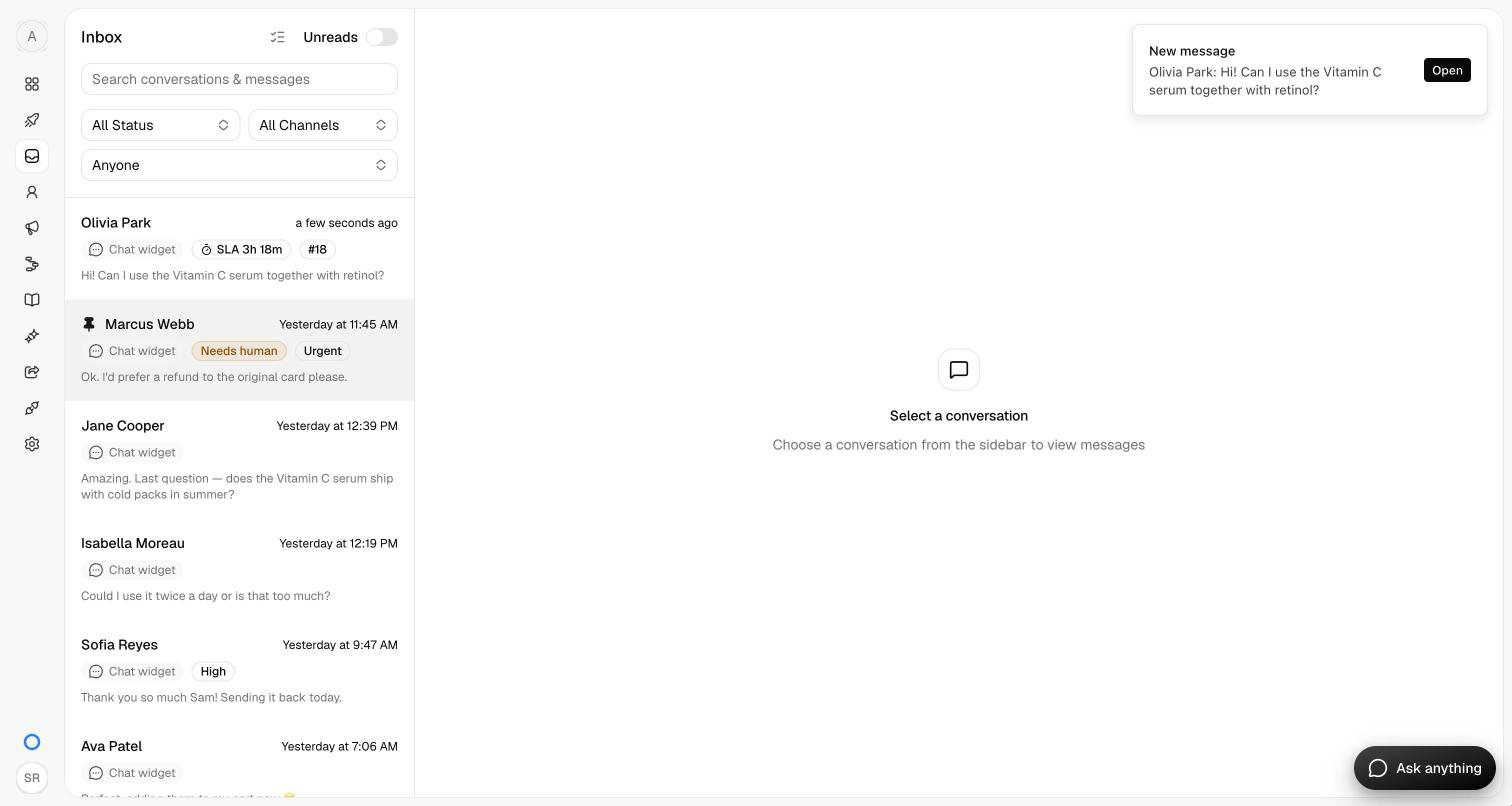
- Open, or a click on a desktop notification, brings Asks to the front and opens the conversation, in a new tab when none is open. A lead without a conversation opens Customers → Leads.
- Desktop notifications for hand-offs and assignments stay on screen until you click or dismiss them.
- The chimes are Asks's own: one for new messages, and a brighter one for hand-offs to a human, SLA alerts, takeovers, and negative ratings. A burst of messages plays one chime.
This browser settings
| Setting | Default | What it does |
|---|---|---|
| Desktop notifications | Off until you click Enable | System notifications while Asks is in a background tab. Once allowed, a switch turns them off and on. |
| Notify me when Asks is closed | Off | Desktop notifications on this browser even with no Asks tab open, as long as the browser itself is running. Needs Desktop notifications on; turning those off turns this off too. Signing out turns it off, so the next person on this browser chooses for themselves. You're never alerted twice: an open Asks tab shows the alert itself. |
| Sound | On, volume 60% | A chime with each alert. Play test sound plays it; Mute for 1 hour silences sounds until the time shown, and Unmute ends that early. |
| Show message content | On | Includes the customer's message in desktop notifications. Turn it off on shared screens. |
| Notify me about | All on except Every new conversation | The alerts this browser shows. |
Troubleshooting
I don't hear a sound
Browsers play sound only after you interact with the page: once you open Asks, click, tap, or press a key in the tab. Until then, alerts are silent. Also check Sound, the volume, Mute for 1 hour, and that the tab and your device aren't muted.
Desktop notifications are blocked
The card then says "Notifications are blocked". Allow notifications for app.asks.app, then reload Asks:
- Chrome and Edge — click the icon to the left of the address bar and set Notifications to Allow (or find it under Site settings).
- Safari — in Safari → Settings → Websites → Notifications, set
app.asks.appto Allow. - Firefox — click the icon to the left of the address bar, clear the blocked Send notifications permission, then click Enable again.
Your computer can hide them too: allow your browser in macOS System Settings → Notifications or Windows Settings → System → Notifications, and turn off Focus or Do Not Disturb.
Several Asks tabs are open
You get one alert per event, from the tab you're looking at when there is one.
On a phone or tablet
Mobile browsers generally don't show desktop notifications from a web page, so the card may say "This browser doesn't support desktop notifications". Toasts and sounds still work while Asks is open on screen. On Android, Chrome can use Notify me when Asks is closed; on iPhone and iPad the option isn't offered.
Related
- Takeover & collaboration — working the conversation once you open it.
- Escalation & handoff — when the AI hands conversations to your team.
- Chat widget — how your visitors hear about replies.