Shopify
Add Asks to your Shopify store
Put the Asks AI chatbot on your Shopify storefront without code: install the Asks app, then turn on the Asks Widget app embed in your theme and save.
Learn more about the Asks Shopify integration →
Updated
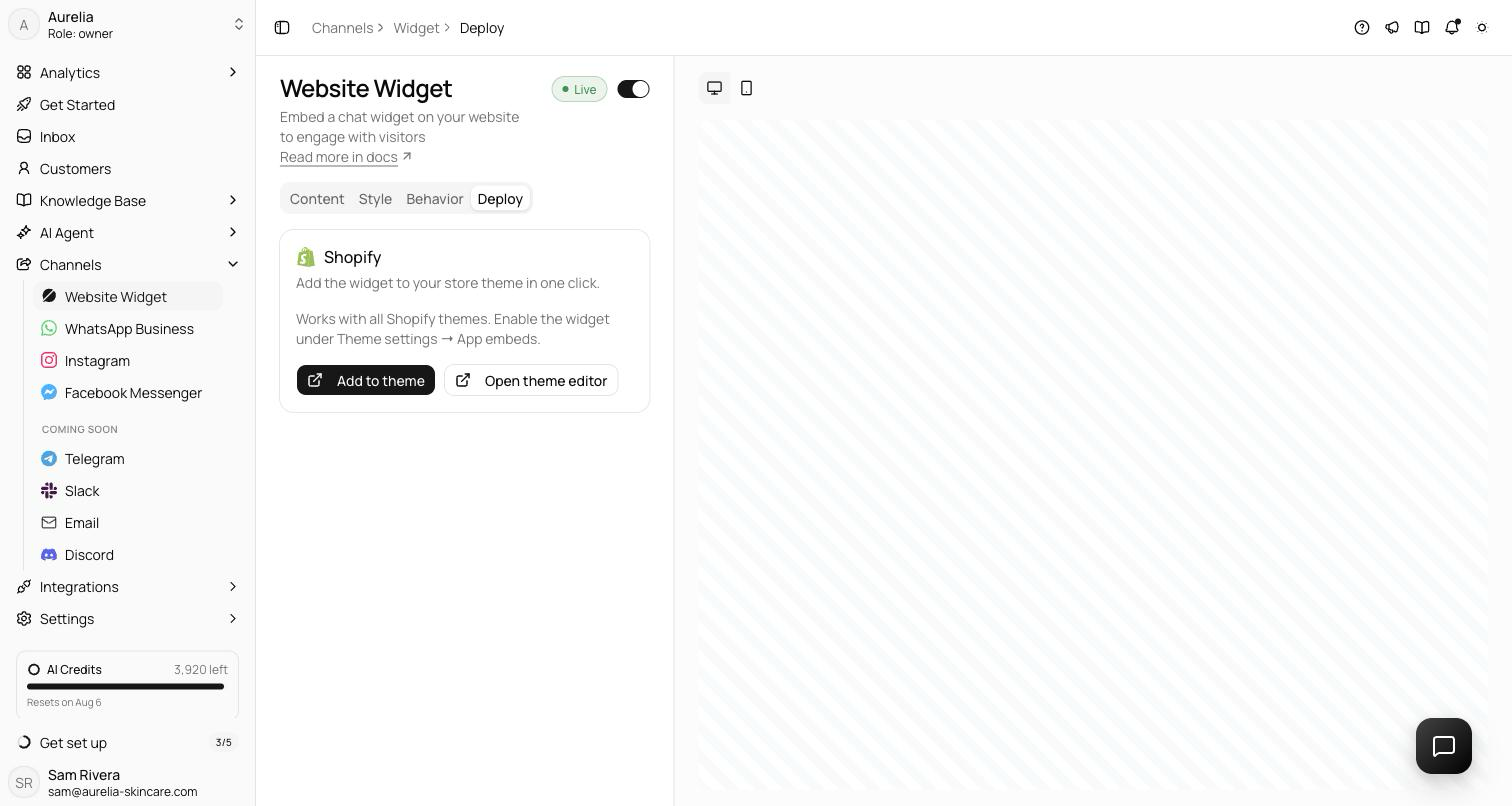
On Shopify you don't paste any code. Install the Asks app from the Shopify App Store, then select Add to my store in Asks: your theme editor opens with the Asks Widget app embed already turned on, and you select Save in Shopify. The embed works with every Shopify theme, and the same app connects your catalog, policies, carts, and order status to the agent.
Add the widget to your theme
Install Asks from the Shopify App Store and approve the permissions Shopify asks for. Shopify opens Asks in a new tab and signs you in with your Shopify identity, with no separate sign-up.
A new store starts the setup wizard with your store's details filled in, and the agent learns from your storefront, catalog, and policies. The wizard is described step by step in the Quickstart.
The wizard's last step, Put it on your store, has Add to my store. It opens your theme editor with the Asks widget already enabled. Later, the same action is Add to theme on the Shopify card of Channels → Chat widget → Deploy.
Select Save in the top-right corner of the theme editor, then come back to the Asks tab. It watches for the change and updates on its own.
Once the embed is on, the Shopify card on the Deploy tab reads "Widget is on your Shopify storefront." with Open theme editor and View store.
Turn the embed on by hand
If you closed the theme editor before saving, or you switched themes, turn the embed on yourself. In your Shopify admin, go to Online Store, find the theme, and select Edit theme. In the sidebar, select the App embeds icon, switch on Asks Widget, and select Save. App embeds are saved per theme, so a theme you publish later needs the embed turned on too.
Use the app embed rather than pasting the script into theme.liquid. The embed passes signed-in customers' names and emails to the chat, as personalization hints only, and names your store on each storefront conversation. A pasted snippet does neither.
Verify it works
Select View store on the Deploy tab, start a chat, and ask about a real product. With the store connected, the answer quotes the live price and links to the product page, and the conversation appears in your Inbox.
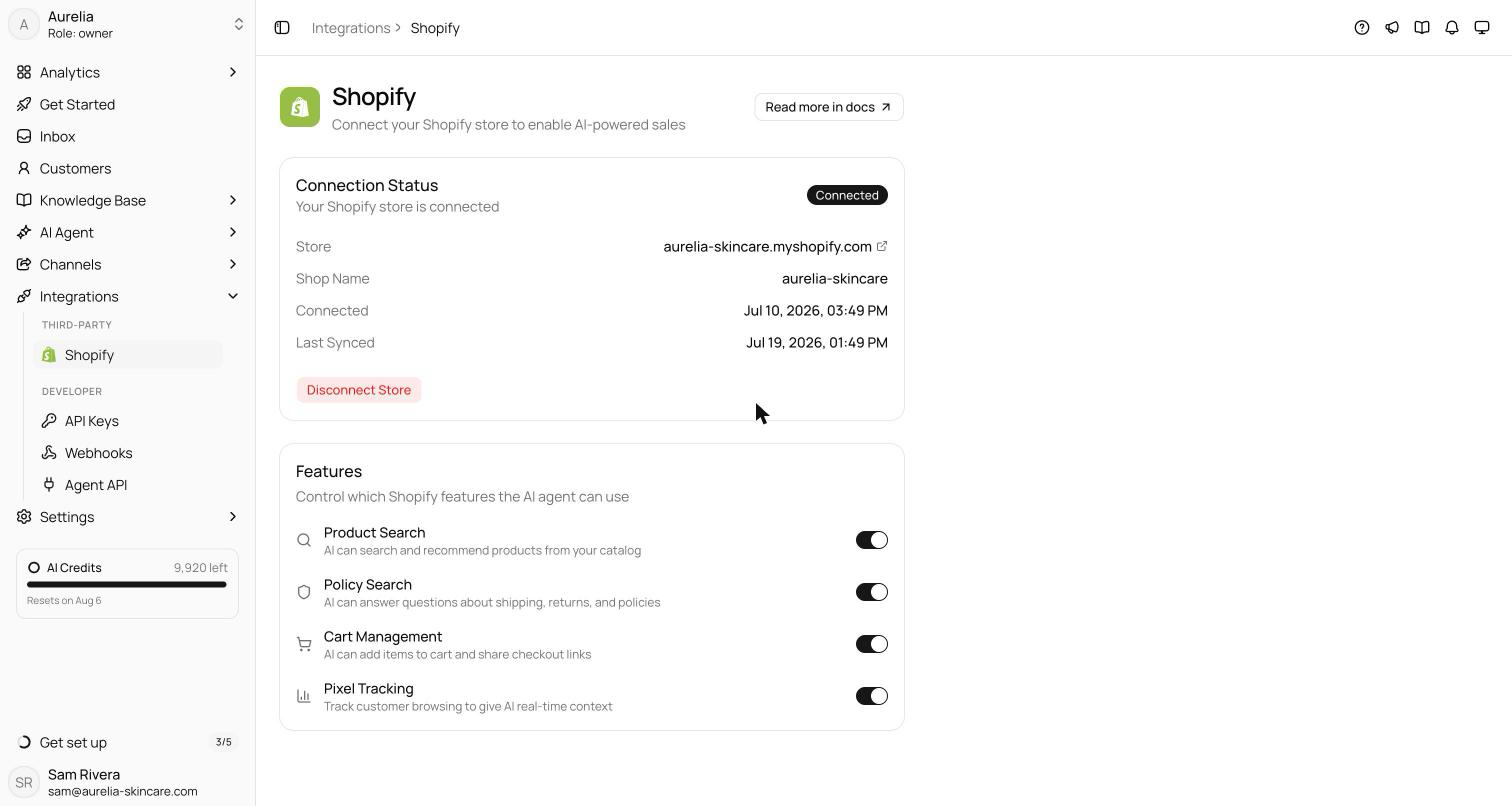
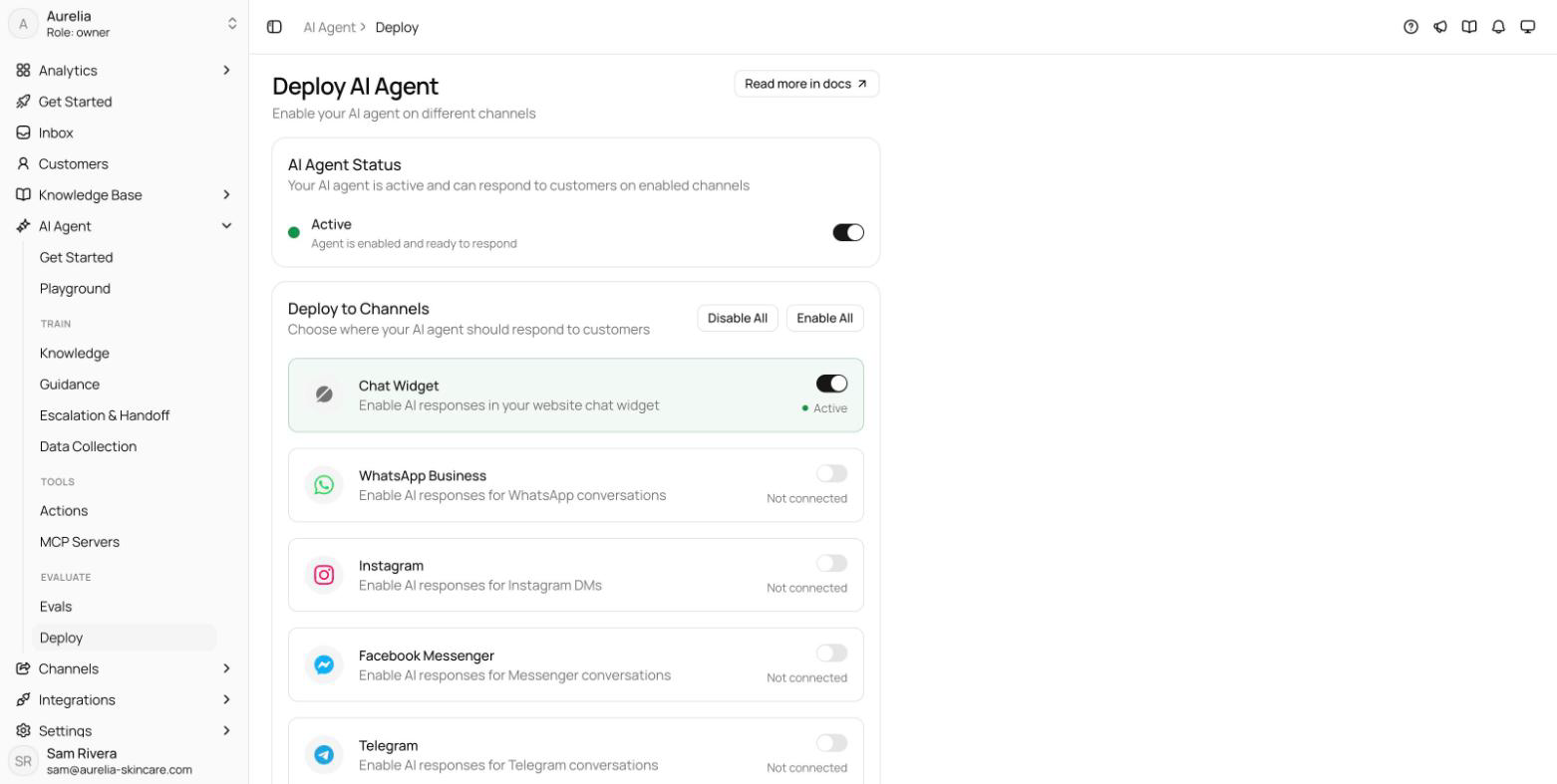
The widget is on your storefront as soon as you save, and a plan turns the agent on for your customers. While the store is connected, your subscription is billed through Shopify; see Plans & billing.
Troubleshooting
The widget doesn't show on my storefront
Check that Asks Widget is switched on under App embeds in the theme that is currently live, not in a draft theme, and that you saved. Then check that the Chat widget reads Live at Channels → Chat widget.
The Deploy tab only shows a Shopify card
That's expected: with a store connected, the storefront is the install target, so the code snippets are hidden.
The chat says "This chat isn't live yet"
Your workspace has no active plan yet. Choose one on the Subscription page and approve the charge in Shopify; see Plans & billing.
Shopify steps checked in November 2026 against Shopify's help article Theme app extensions and app embeds.
Related
- Shopify: order status, product answers, carts, billing, and disconnecting.
- Not on Shopify? WordPress, Wix, or all install guides.
- On asks.app: Asks for Shopify, Asks for ecommerce stores, and the AI chatbot for websites.