HTML
Add Asks to any website with HTML
Paste the Asks embed script right before the closing body tag on every page. It loads the AI chat widget asynchronously on any site you can edit.
Learn more about the Asks AI chatbot for websites →
Updated
To add the Asks AI chat widget to a website you control, paste one <script> tag right before the closing </body> tag on every page, then publish. The script loads asynchronously, so your page never waits for it, and it shows the chat launcher in the corner. On a site builder, follow its own guide instead: WordPress, Wix, Squarespace, Webflow, or Framer.
Add the snippet
Open Channels → Chat widget → Deploy. Under Choose how to install, keep Code snippet and HTML. Under Configure your code snippet, select For website visitors without logins, unless customers sign in to your site (see Logged-in customers). Then select Copy. Your snippet already contains your widget key:
<script
  src="https://cdn.asks.app/embed.js"
  data-widget-key="YOUR_WIDGET_KEY"
  async
></script>
The widget key is public by design: it identifies your widget and grants no access to your account.
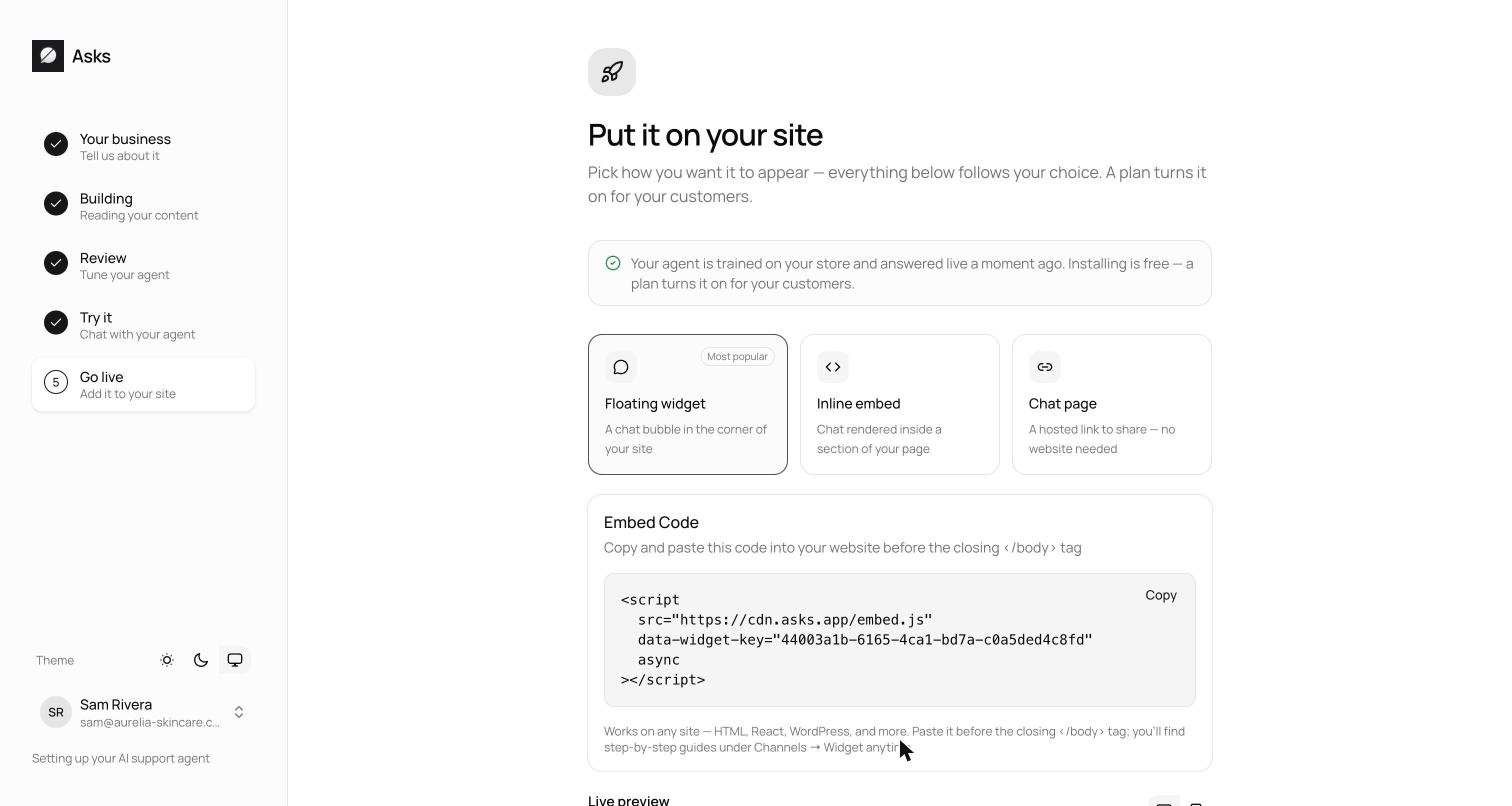
Paste the snippet immediately before </body>. If your site has a shared layout, footer partial, or include file, paste it there once so every page gets it. Otherwise paste it into each HTML file. Keep the async attribute.
Upload or deploy the changed files, then open your site in a new tab. The launcher appears in the bottom corner within a few seconds.
Verify it works
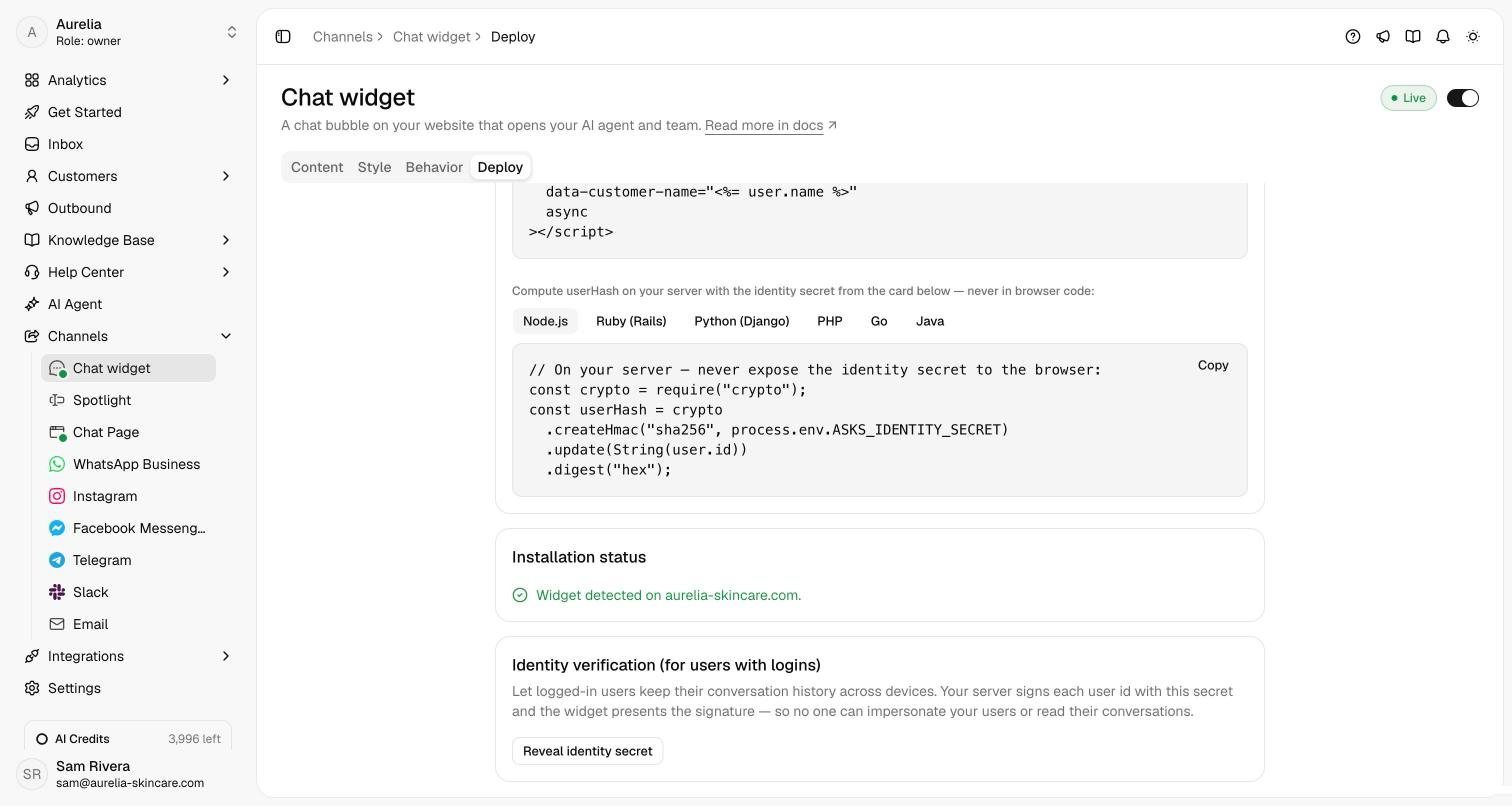
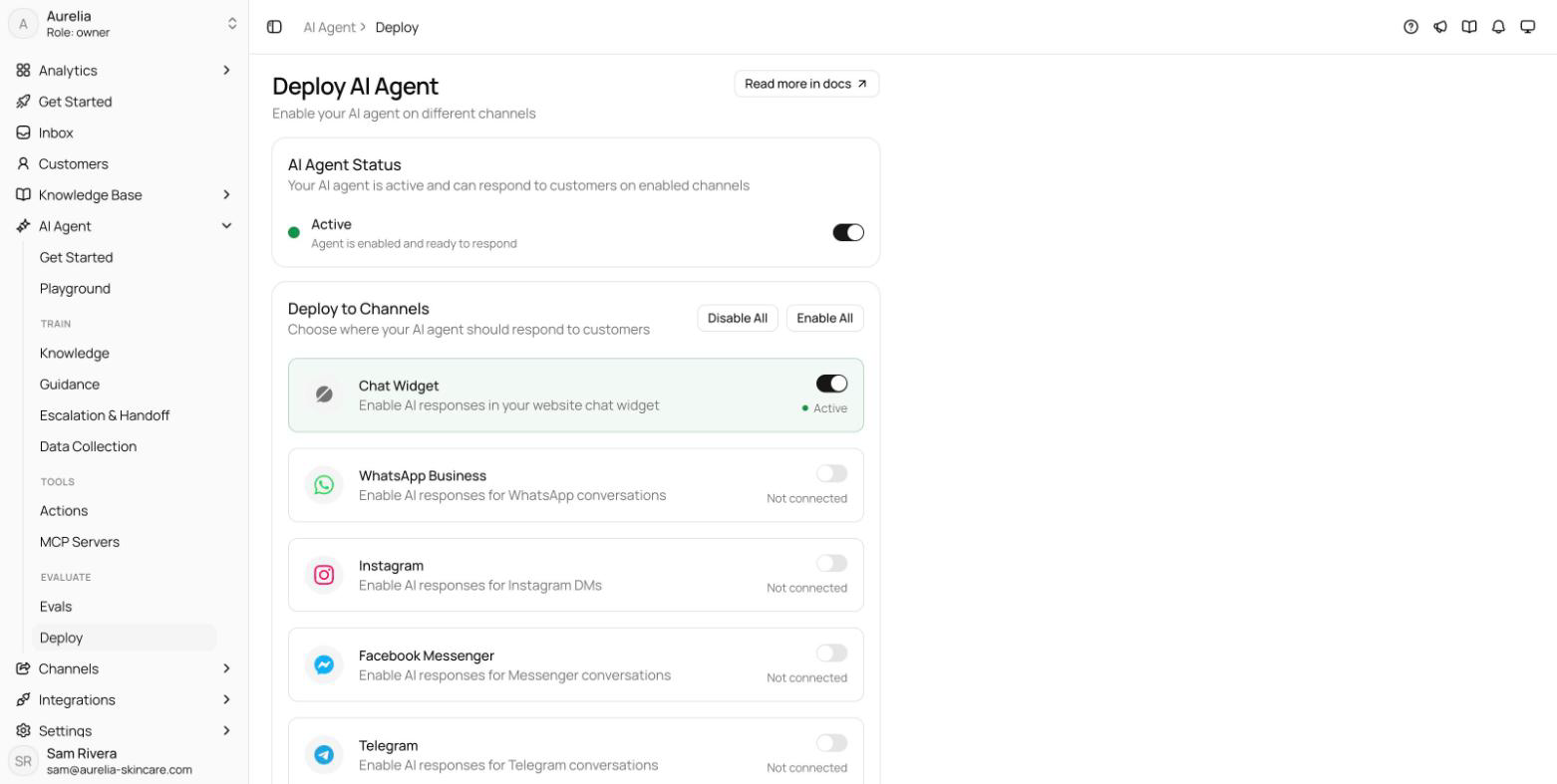
On the Deploy tab, the Installation status card switches from "Watching for your site" to "Widget detected on" followed by your domain on the first page load that runs the snippet. Send a test message from your site: it appears in your Inbox, and the agent replies when it's on for the Chat widget at AI agent → Deploy.
Logged-in customers
If customers sign in to your site, choose For users with logins before you copy. Your server renders the signed-in user's data-user-id and a data-user-hash (an HMAC-SHA256 of the id with your identity secret) on the script tag, and those customers keep their conversation history on every device. The server code for Node.js, Ruby, Python, PHP, Go, and Java is on the Deploy tab; the full setup is in the developer guide under Logged-in users.
More from the same snippet
- Single-page apps — choose Single-page app under Code snippet and load the script once in your app shell. See React & Next.js.
- Inline chat — add
data-container-idto render the chat inside a section of a page, such as a contact page. See Inline embed. - Your own buttons — any element with the
data-asks-openattribute opens the widget when clicked.
Troubleshooting
The launcher doesn't appear
- The snippet is in the head. The widget attaches to the page body, so a script that runs before the body exists logs
[asks-widget] Failed to initialize widgetin the browser console. Move it right before</body>. - The widget isn't live. Check that Channels → Chat widget reads Live, and that Spotlight isn't the live website channel instead.
- A Content-Security-Policy blocks it. Allow the origins listed in the developer guide's Content-Security-Policy table.
- The key is wrong. The widget's config request returns
404 Widget not found. Copy the snippet again from the Deploy tab.
The chat says "This chat isn't live yet"
Your workspace has no active plan or trial, so nobody can answer yet. Start one from Plans & billing.
The widget shows, but nobody replies
Turn on AI Agent Status and the Chat widget switch at AI agent → Deploy. With the agent off, messages still reach your Inbox for your team to answer.
Related
- All install guides, including Google Tag Manager when you can't touch your templates.
- Widget customization to match your brand.
- On asks.app: the AI chatbot for websites and the shared inbox your team answers from.