Automations
Automations
Run steps when something happens in a conversation, to a customer or to an order, while your AI agent keeps answering everything else. For Indonesia.
Updated
Automations Paid plans run steps by themselves when something happens: a customer starts a chat, sends a keyword, taps a button, gets tagged, rates a conversation, or an order is paid. Each automation is a trigger, optional filters, and the steps that follow — send a message, ask a question and branch on the answer, assign the conversation, tag, wait, call another system. Your AI agent keeps answering every message an automation doesn't handle.
Availability — Automations is for workspaces in Indonesia, the same market rule as Commerce: a workspace created from Indonesia, or whose business-hours time zone is WIB, WITA or WIT. It's included in every paid plan and the trial, not the Free plan: up to 5 active automations on Starter, 15 on Business and 50 on Premium (Limits & quotas). Owners and admins build and publish automations; every teammate can see them and their runs, and run the inbox ones on a conversation.
Create an automation
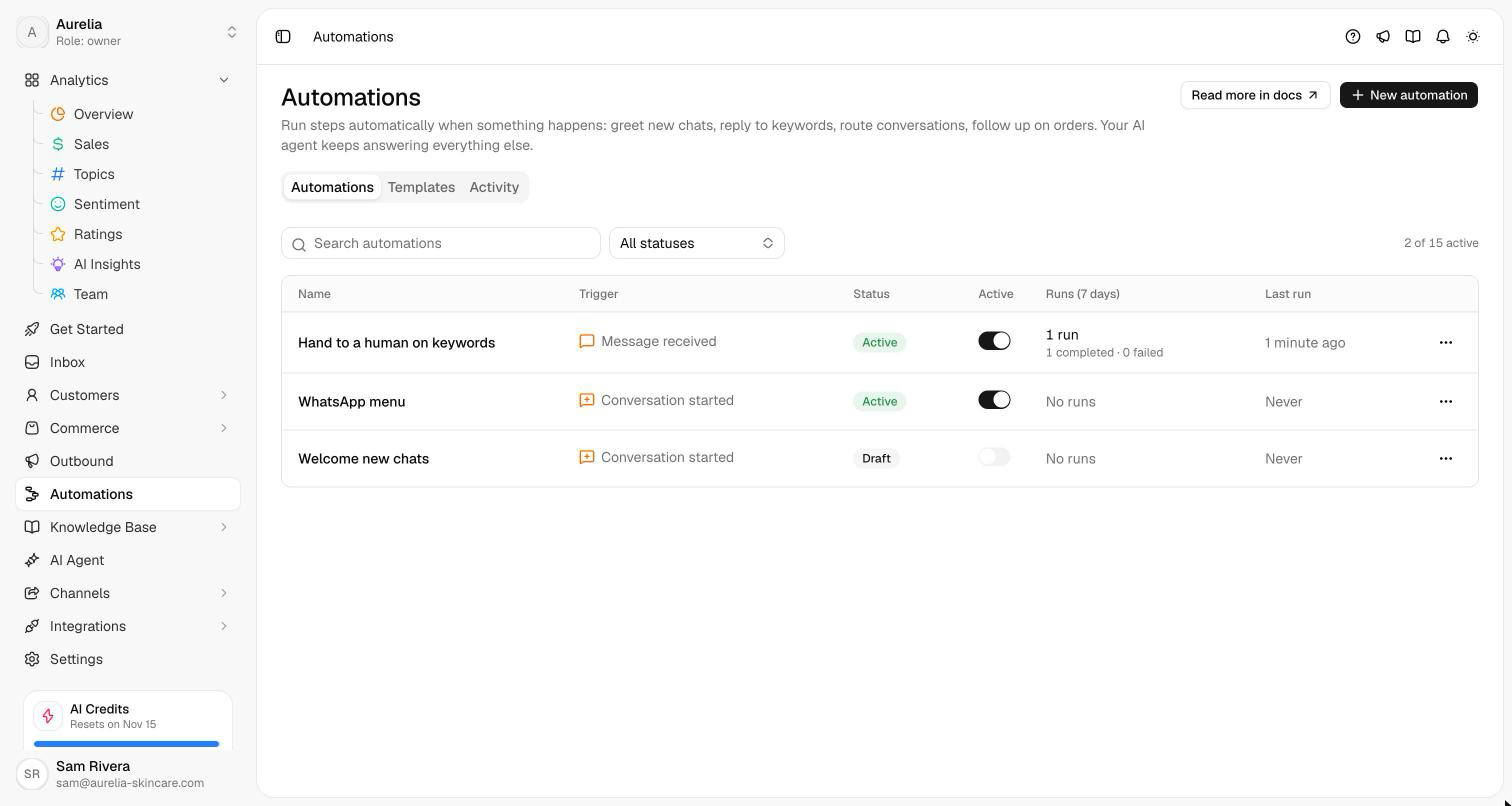
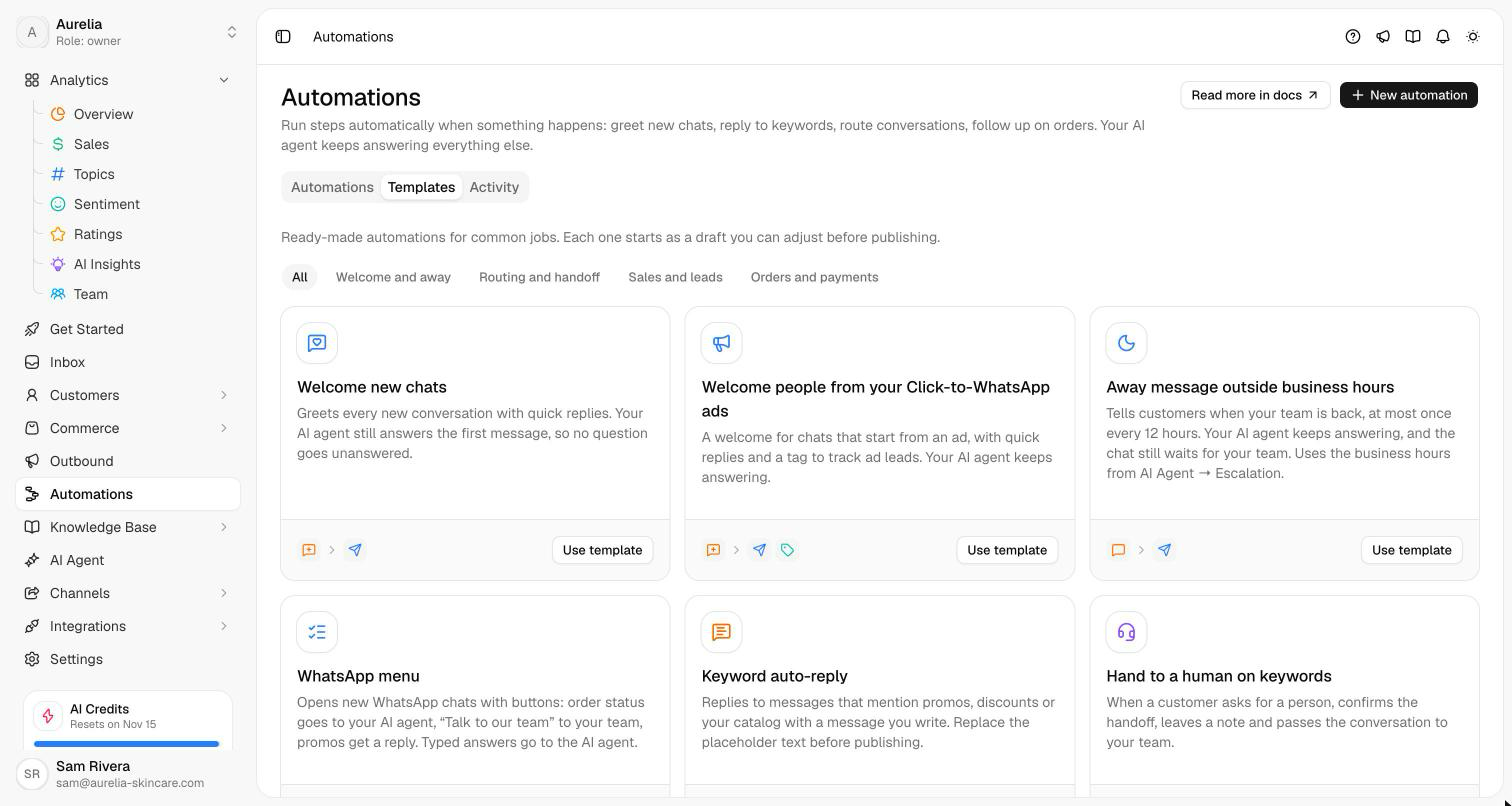
Go to app.asks.app/automations. Templates has ready-made automations — welcome new chats, an away message outside business hours, a WhatsApp menu, keyword replies, a handoff to your team, a low-rating alert, a review request after delivery and more. Click Use template, or New automation → Start from scratch to pick the trigger yourself. Every automation starts as a Draft.
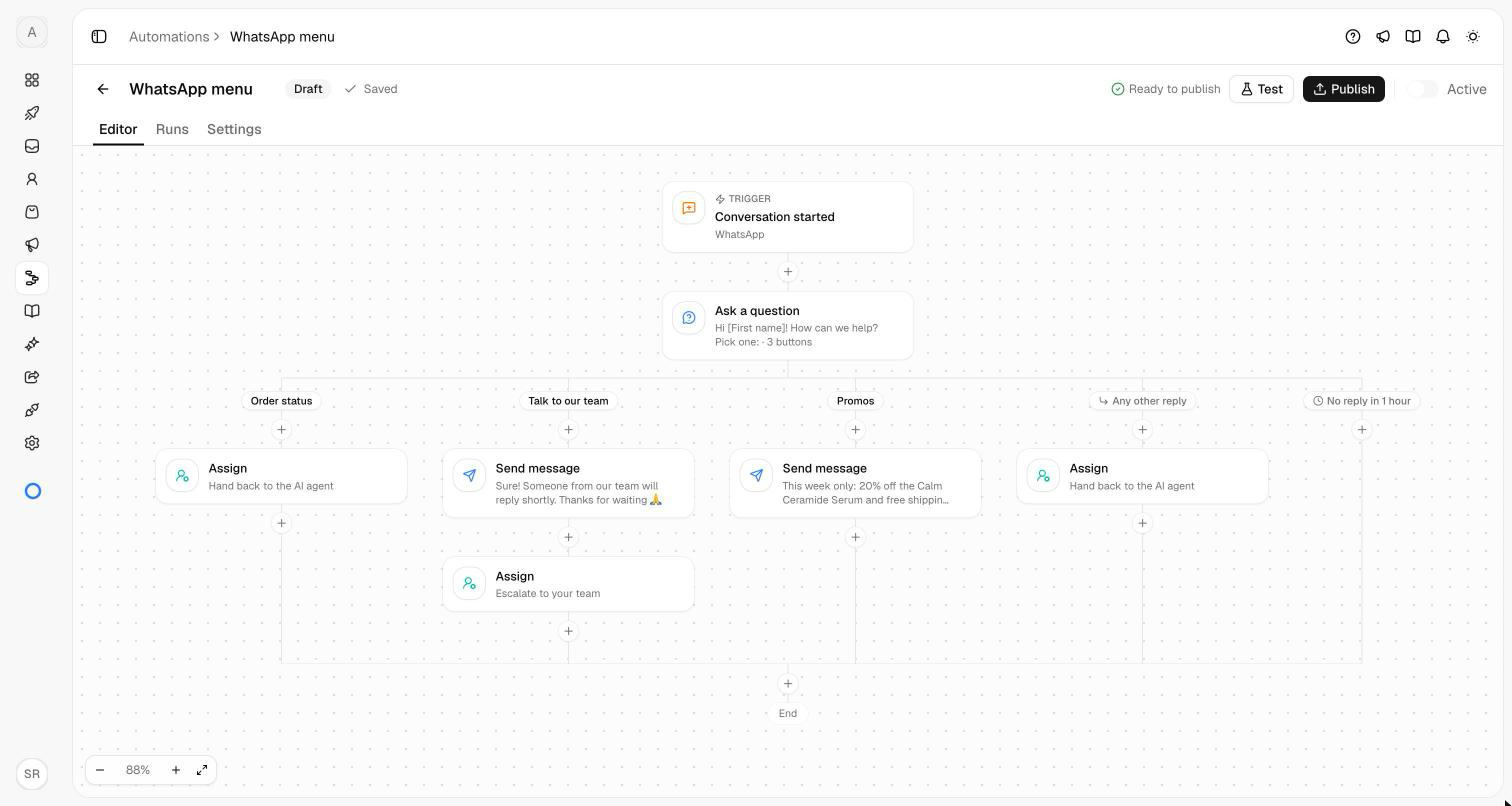
The editor shows the automation top to bottom: the trigger, then each step. Click + between steps to add one, and click a step to edit it in the panel on the right. Branching steps — Ask a question, Condition, AI intent and Split test — show each path side by side; the paths join again under the step, and Stop ends a path early. Messages can include variables such as {{customer.first_name | Kak}}, where the text after | is used when the value is empty.
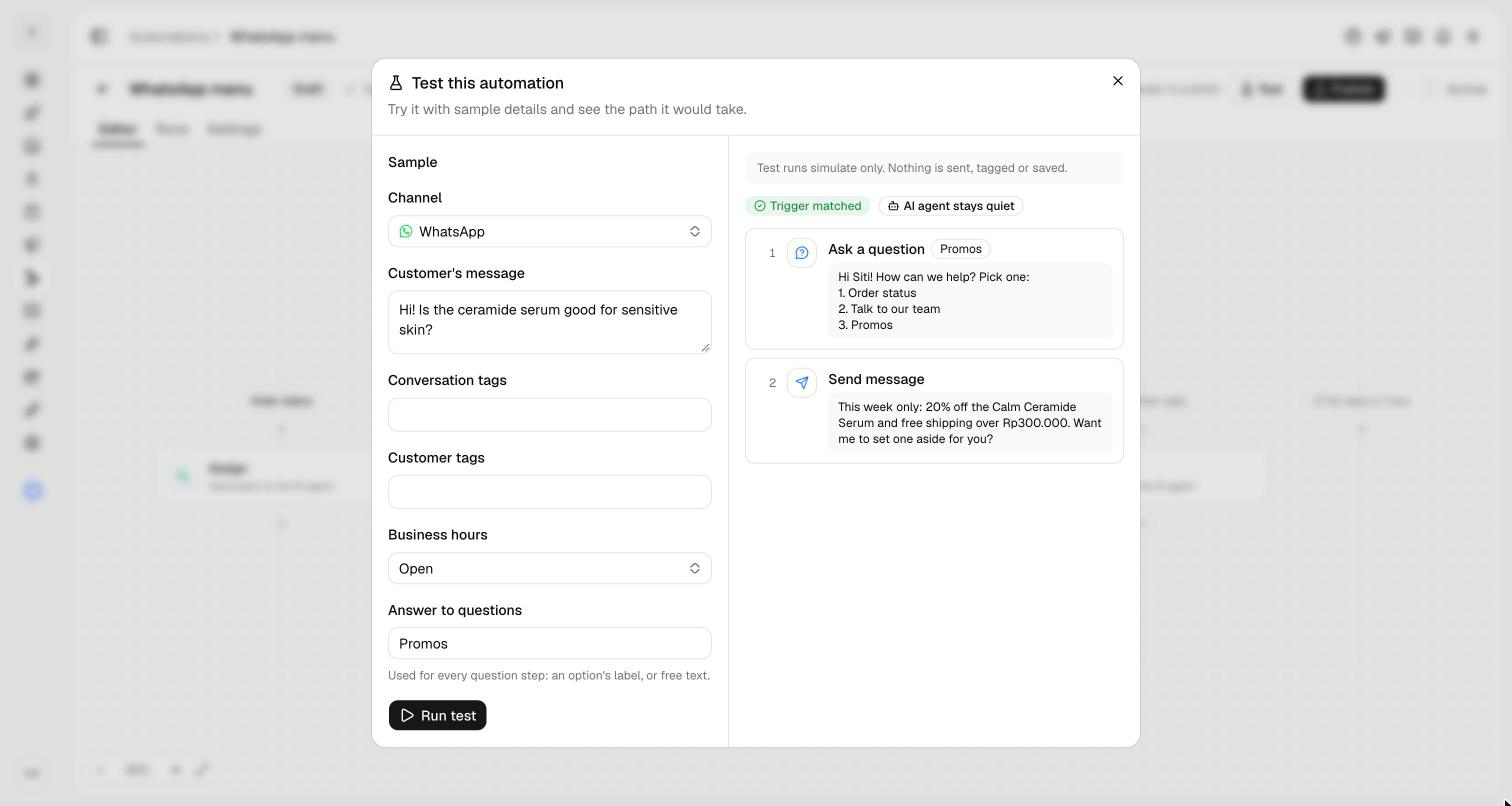
Click Test, fill in a sample — channel, the customer's message, the button they tap, tags, whether business hours are open, an order or a rating — and click Run test. You see whether the trigger matches, every step in the path it takes with the messages filled in, and whether your AI agent stays quiet. Test runs only simulate: nothing is sent, tagged or saved.
Publish stays disabled until everything is filled in; to fix in the header lists what's missing and opens each step. Publishing creates a version and switches the automation on. Later edits are saved as unpublished changes until you publish again or click Discard changes, and runs already in progress keep the version they started on. Use the Active switch to pause and resume.
Triggers
| Group | Triggers |
|---|---|
| Conversations | Conversation started, Message received, Handed to the team, Conversation assigned, Conversation tagged, Conversation closed, Rating submitted |
| Customers | Customer created, Customer tagged, Lead captured |
| Orders (Commerce) | Order created, Order paid, Payment expired, Order status changed, Order cancelled |
| Webhook and manual | Webhook received (another system calls the automation's URL; the customer is found or added by phone and gets messages on the WhatsApp number you choose), Run from the inbox |
Conversation triggers can be limited to channels, and every trigger takes Only when filters: keywords in the message, the button tapped, tags, who handles the conversation, business hours, weekday and hour, a customer detail, whether the chat started from a Click-to-WhatsApp ad, order status and total, or the rating.
Steps
| Group | Steps |
|---|---|
| Messages | Send message (text, up to 3 quick replies, an image), Ask a question (buttons, a list or a free answer, with a path per answer, for anything else, and for no reply in time), Send WhatsApp template |
| Conversation and customer | Assign (to the AI agent, your team or a teammate), Tag, Update customer field, Add internal note, Notify team (email), Close conversation |
| Logic | Condition, Wait (minutes, hours or days, optionally until business hours), Split test, Stop |
| AI and integrations | AI intent (sorts the message into categories you name), HTTP request (HTTPS, response saved for later steps) |
Your AI agent and your team
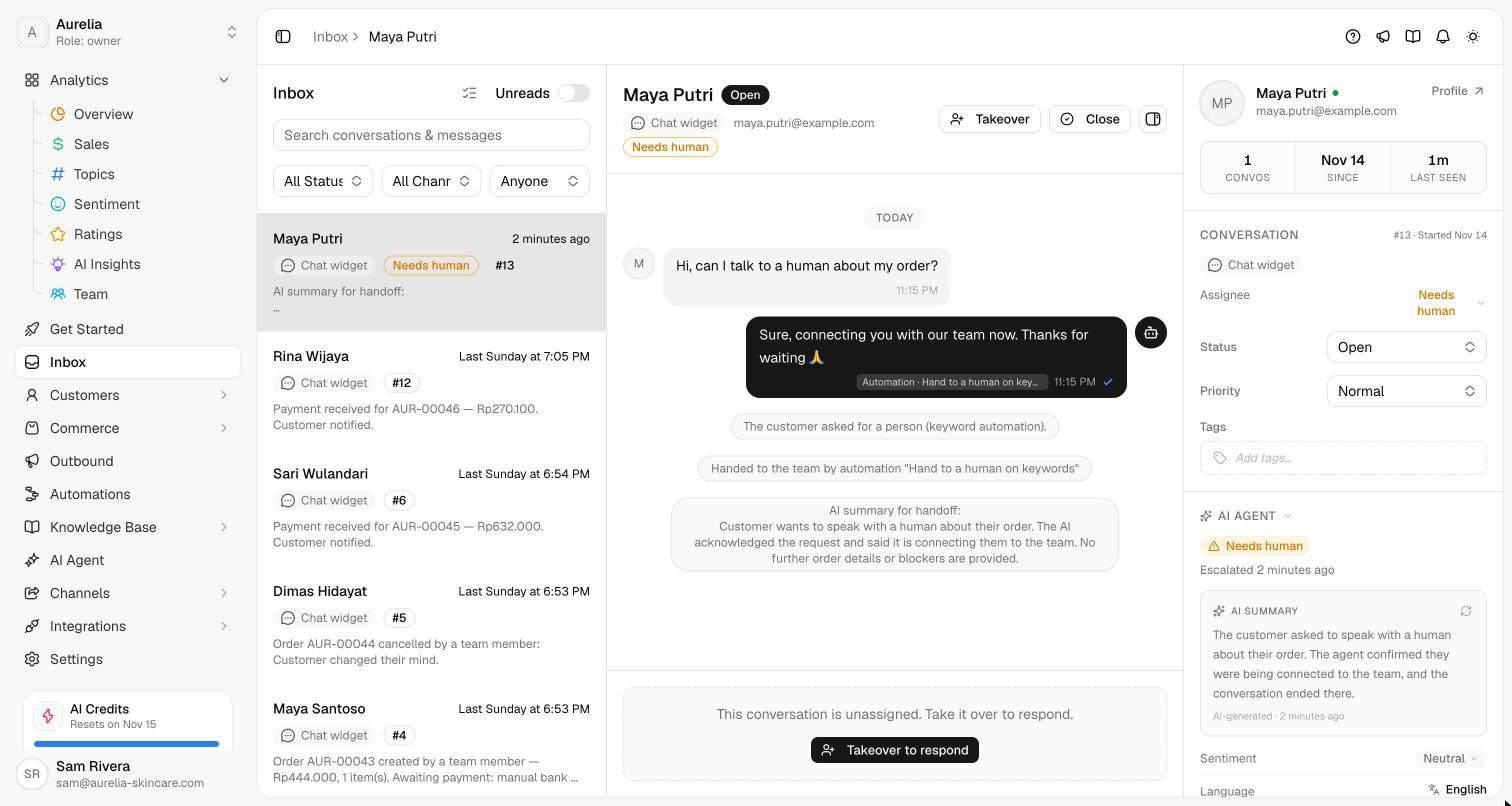
Automations that start on a customer's message run before your AI agent answers it. In Settings, Your AI agent decides what happens next: Automation replies, AI stays quiet (the automation answers that message, the AI answers the next ones) or AI agent also replies (for automations that only tag, route or take notes). While an automation waits for the answer to a question, it owns that answer. Only one automation replies to a message, automations that reply instead of the AI skip conversations a teammate is handling, and Stop when a teammate replies cancels waiting runs as soon as someone from your team answers. Assign to the AI agent hands the conversation back to it, and to your team escalates it with a note in the Inbox, as a handoff from the agent does. Assign to a teammate sends the usual assignment emails, naming the automation instead of a person: "… assigned to you by automation “VIP routing”" to the new assignee, and "Automation “VIP routing” moved ticket #12 … to Ana" to the teammate who had it ("an automation" when it has no name). Automations run as the workspace owner, and the owner gets these emails too.
Run again for the same customer sets how often an automation repeats — every time, once per conversation or once per customer — and Cooldown sets the shortest gap between two runs.
WhatsApp, Instagram and Messenger rules
Free-form messages only reach WhatsApp, Instagram and Messenger customers within 24 hours of their last message. Outside that window, Send message and Ask a question are skipped and the run shows why; use Send WhatsApp template with an approved template instead. Meta bills each template it delivers. Customers who opted out of your campaigns get no messages they didn't ask for: a reply to their own message still goes out, Marketing templates never do.
Close conversation never closes a conversation whose customer is still waiting for an answer. For an away or "we got your message" note, switch on Doesn't answer the customer on the message: the conversation stays waiting, so follow-up and auto-resolve don't treat it as answered.
Runs and activity
Activity lists every run across automations, and each automation's Runs tab lists its own: the customer, the channel, the trigger, the status and how long it took. Open a run to see each step it took, why a step was skipped, and Cancel run for one that is waiting. Messages an automation sends appear in the conversation with an Automation label.
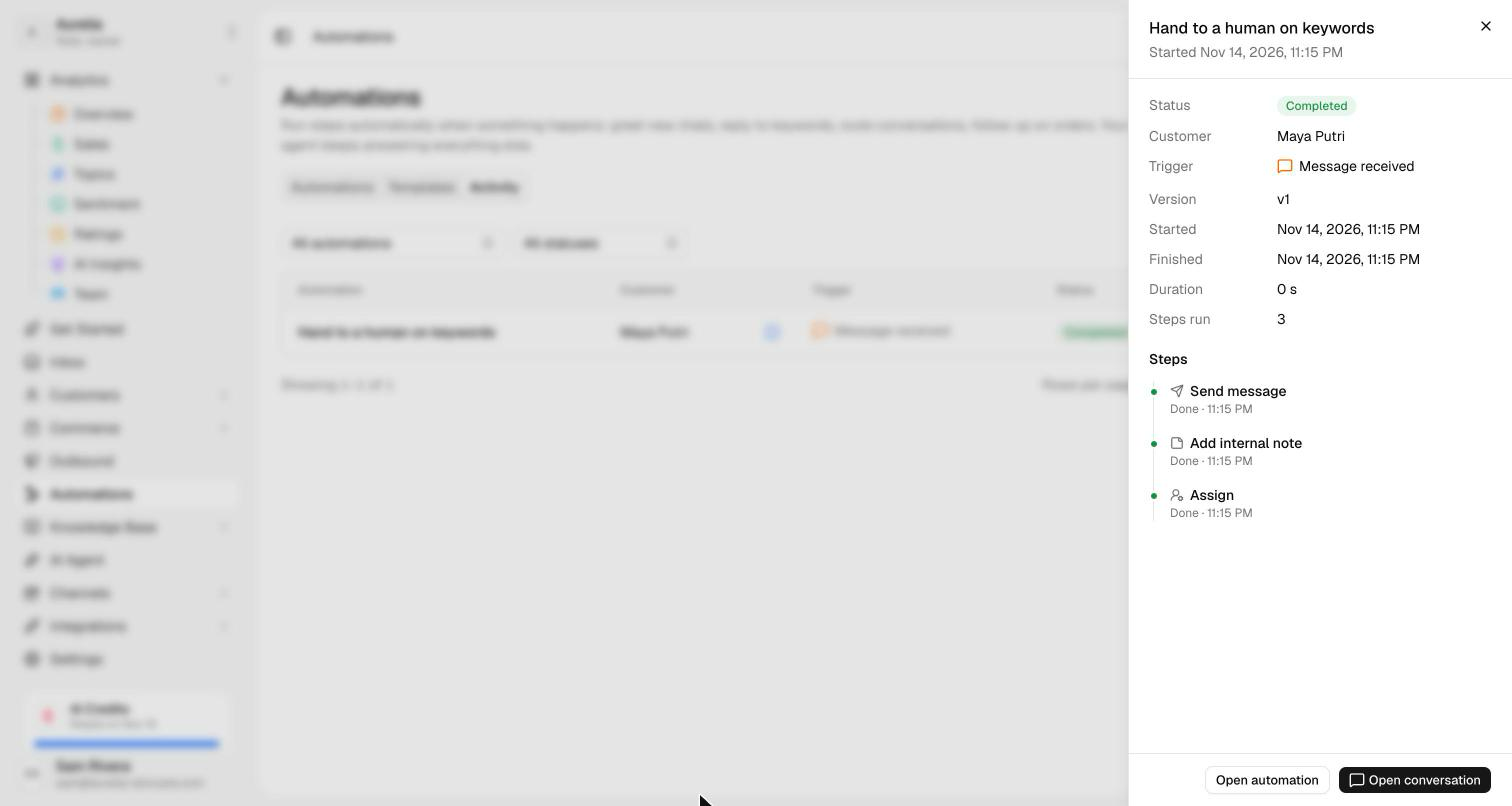
| Status | Meaning |
|---|---|
| Running | Working through its steps now. |
| Waiting | Paused on a Wait step or for the answer to a question. |
| Completed | Reached the end of its path. |
| Skipped | Didn't start, for example because it already ran for this customer or the plan doesn't include Automations. |
| Failed | Stopped on an error; the run shows which step. |
| Cancelled | Stopped by a teammate's reply, by pausing or deleting the automation, or with Cancel run. |
Related
- Commerce — the orders behind the order triggers.
- WhatsApp — templates for messages outside the 24-hour window.
- Escalation & handoff — business hours, follow-up and auto-resolve.
- Limits & quotas — active automations per plan.