WhatsApp forms
Send your Collect Leads and Collect Data forms inside WhatsApp chats from the inbox, automations and templates, and save every answer. For Indonesia.
A WhatsApp form puts your Collect Leads form or a Collect Data action inside WhatsApp, built on Meta's WhatsApp Flows: the customer taps a button in the chat, fills in the fields and sends them without leaving the app, and Asks saves the answers like any other submission. Your AI agent sends a published form when the customer's request calls for it, your team sends forms from the Inbox, automations send them as a step, and a template with a Form button sends one outside the 24-hour window.
Availability — WhatsApp forms are for workspaces in Indonesia, the same market rule as Automations and Commerce: a workspace created from Indonesia, or whose business-hours time zone is WIB, WITA or WIT. Asks switches the feature on; where it's on, Collect Leads and Collect Data show a WhatsApp form card. It has no plan requirement of its own, but the automation step needs Automations (paid plans). You need a connected WhatsApp number, and Meta lets only a verified business whose number has high message quality publish and send forms.
Turn on a form
Open AI Agent → Collect Leads, or a Collect Data action under AI Agent → Collect Data, and switch on the WhatsApp form card. Collect Leads or the action must be switched on, and its Channels must include WhatsApp (or every channel). The lead form asks for name and email only, never the phone number: WhatsApp already shares it, so turn on Name or Email. It works in either collection mode.
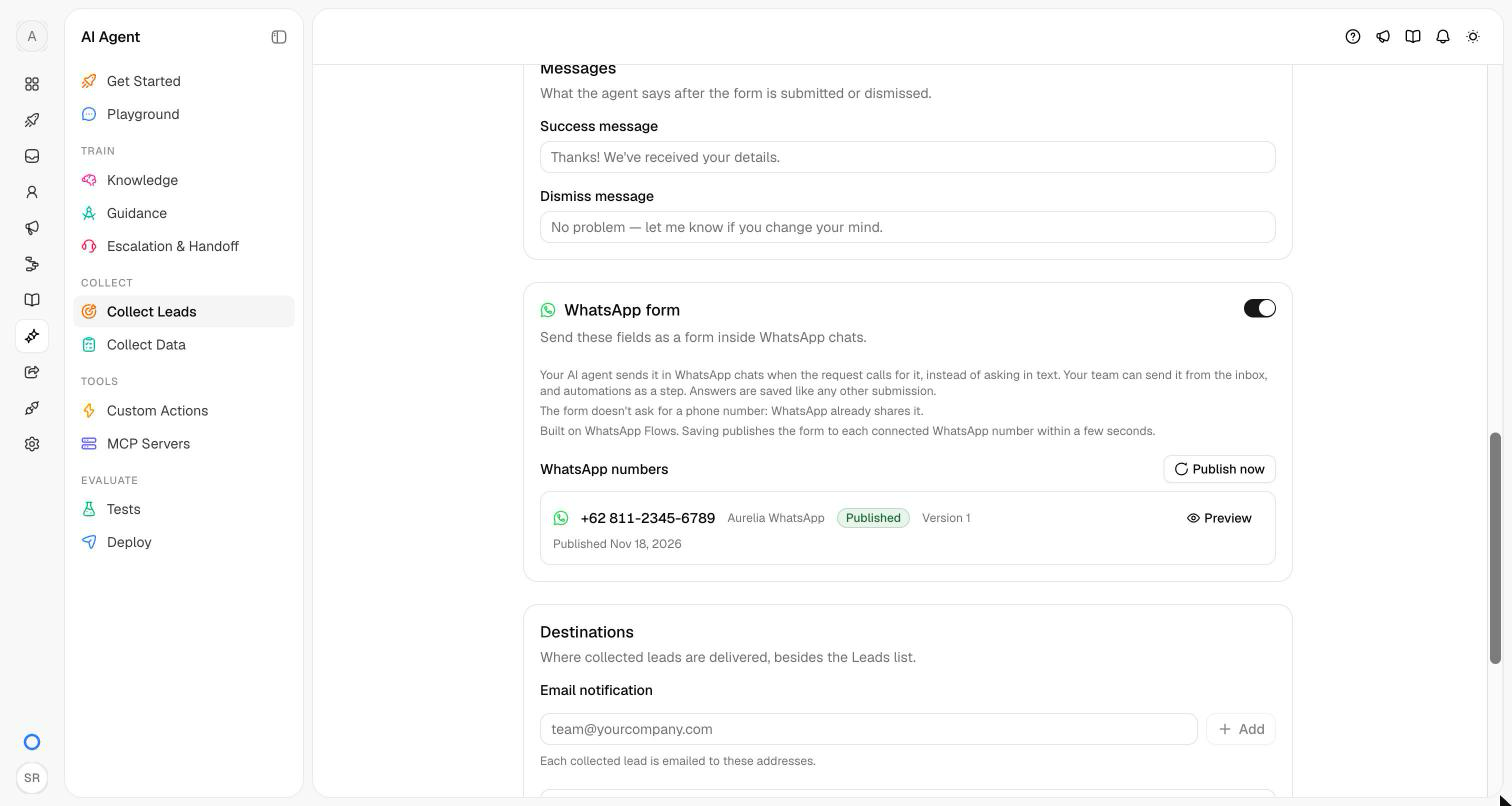
Text, Email and Number fields become text inputs, Yes / No fields show as two options, and Date fields open a date picker. WhatsApp limits label length (20 characters for text inputs, 30 for Yes / No, 40 for dates): a longer label shows in full above its input. The card's How the fields look in WhatsApp lists what applies to yours. Up to five fields fit on one screen, with Next between screens; required fields are required in WhatsApp too, and a field's description shows under its input.
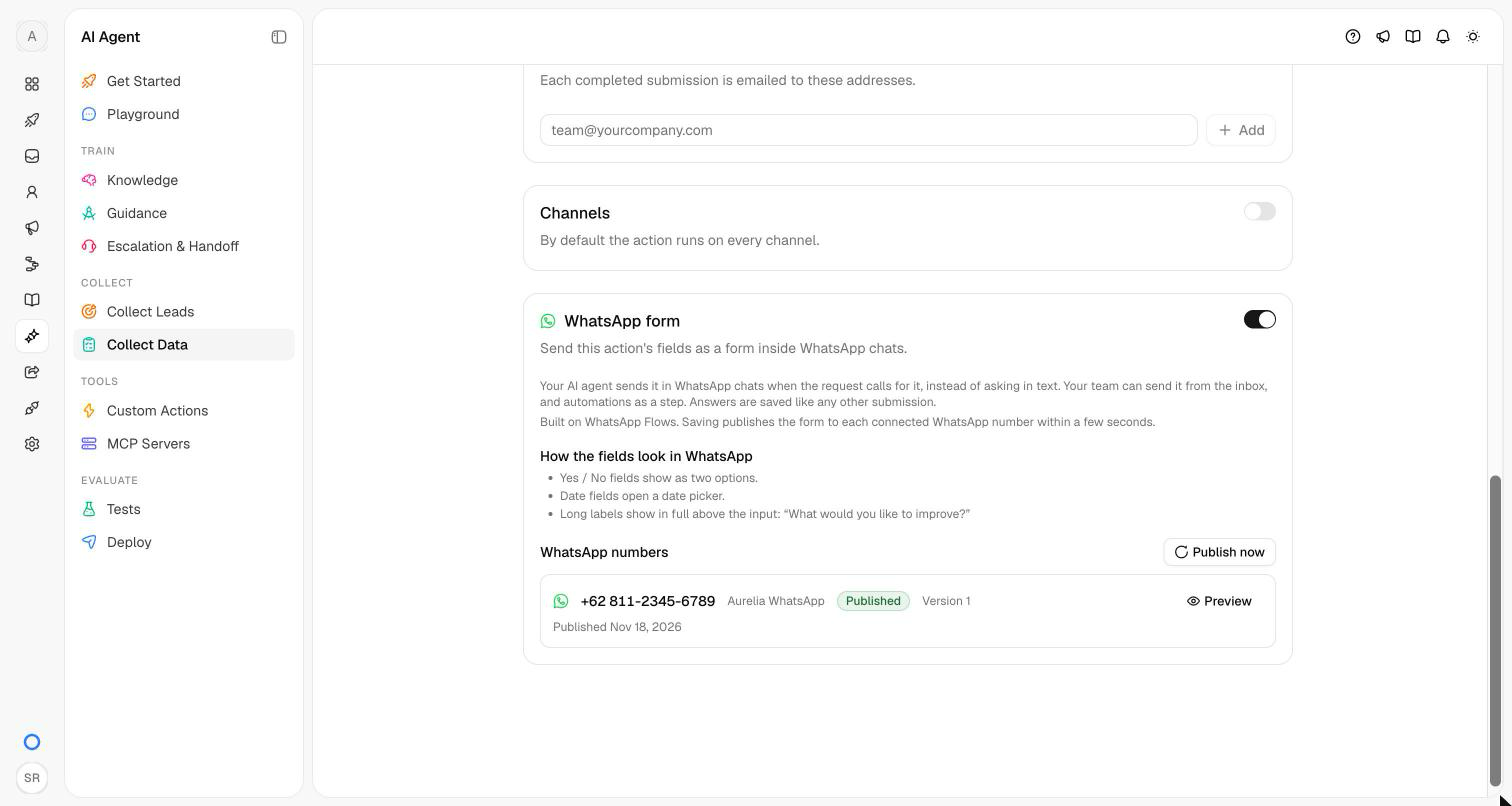
Save the page. Asks publishes the form to every connected WhatsApp number within a few seconds, and WhatsApp numbers shows each one's status. Preview opens Meta's preview of the form; Publish now (owners and admins) publishes it again. When you change the fields and save, Asks publishes a new version; forms already sent keep opening the version they were sent with, and their answers are still saved.
The form's own words — its intro, Next, Send, Yes and No — are in Bahasa Indonesia in Indonesian workspaces (English otherwise). Your field labels and the action's name are used as you typed them; the lead form is titled "Data Anda" ("Your details" in English).
| Status | Meaning |
|---|---|
| Published | Customers can get the form from this number. Version counts the versions Asks has published. |
| Publishing | Asks is publishing it, which takes a few seconds. |
| Not published | Not on this number yet. |
| Error | Meta didn't accept it; the reason shows under the number. |
| Retired | The Collect Data action was deleted. |
Send a form from the inbox
In a WhatsApp conversation, click the form button (Send a WhatsApp form) in the composer, next to the template button. WhatsApp allows forms only within 24 hours of the customer's last message, so the button is disabled once that window closes; use a template with a Form button instead.
Choose Lead form or a Collect Data form; each shows how many fields it has. Add a Message (optional) or leave it empty to send the default message in the customer's language, then click Send form. A form that isn't published on this number yet is published as you send, which can take a few seconds. Any teammate can send forms.
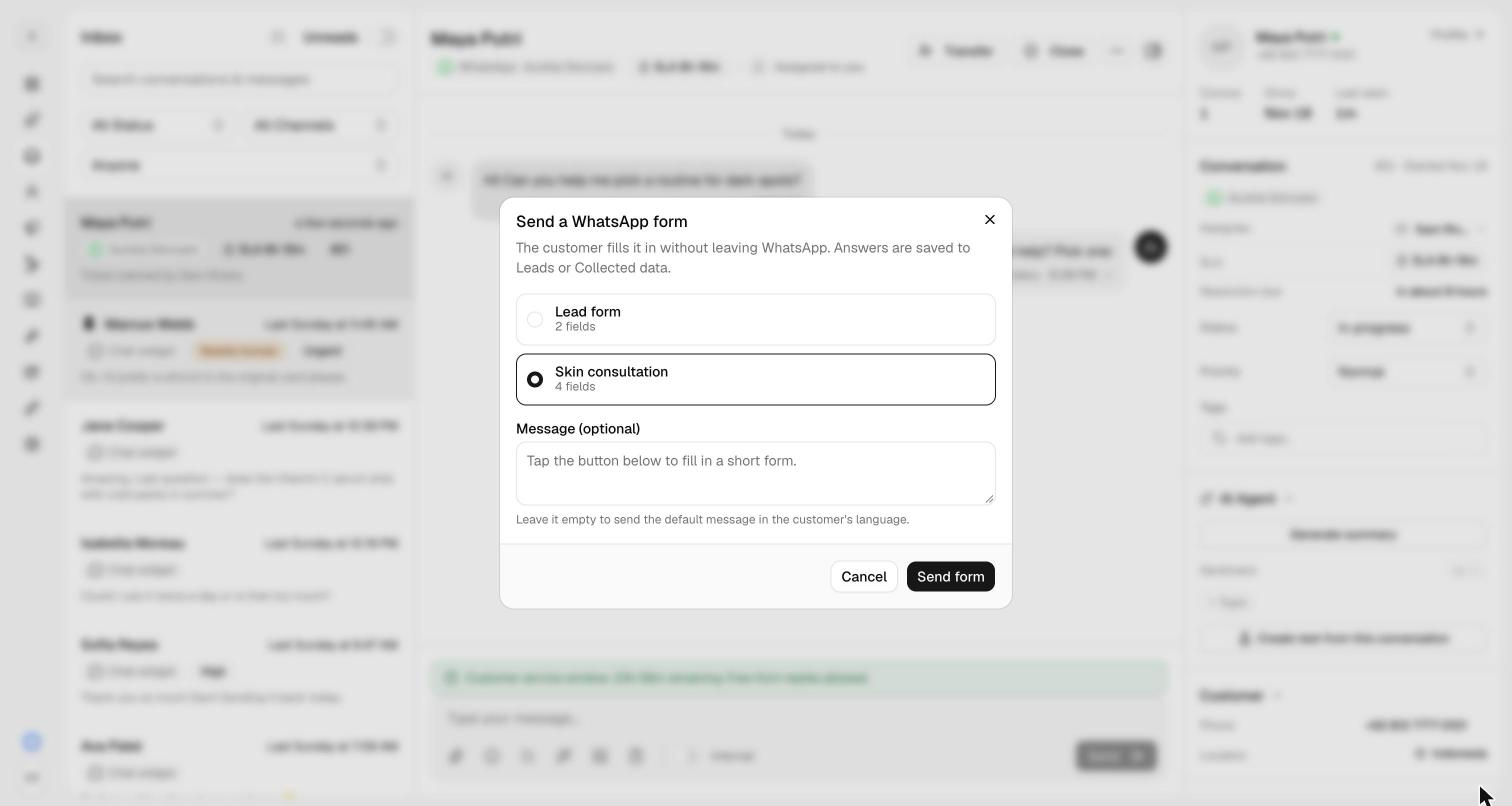
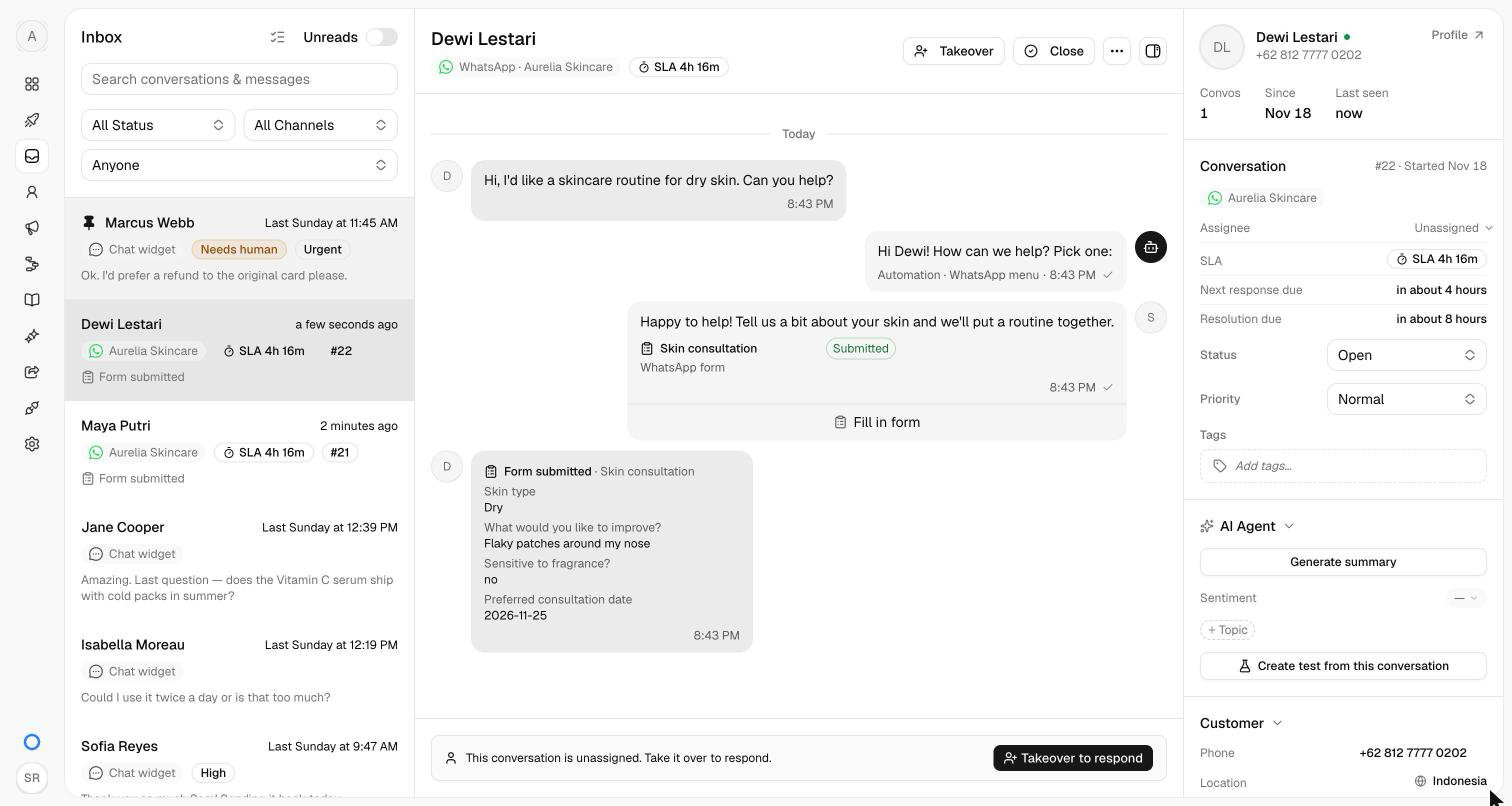
The message shows the form's name with Sent, then Submitted once the customer sends it, and the button the customer taps (Fill in form by default). The answers arrive as a Form submitted card with your field labels.
Send a form from an automation
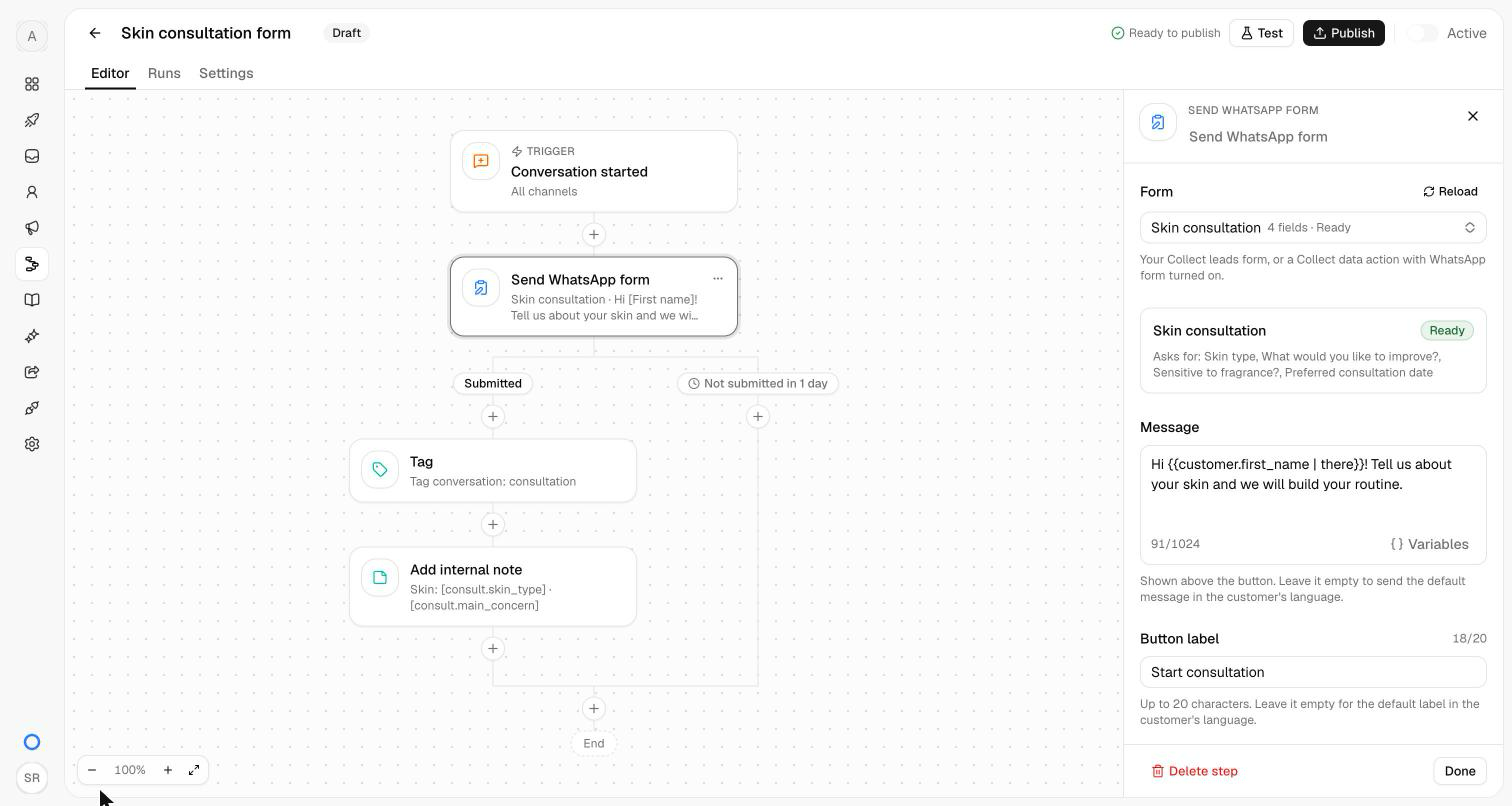
In an automation, add Send WhatsApp form and choose the form. Message (up to 1,024 characters, with variables) and Button label (up to 20 characters) fall back to defaults in the customer's language when empty. Save the answers as names the answers, so later steps can use each one as {{vars.name.field}} in messages, conditions and HTTP requests; the panel lists the variable of every field. Wait for the form up to sets how long the step waits.
The step has two paths, Submitted and Not submitted in the wait time. It sends on WhatsApp only, within 24 hours of the customer's last message; otherwise, or when the form isn't published on that number, the step is skipped and the run continues down Not submitted. Your AI agent keeps answering while the form is open, and the submitted form goes to the automation, so add a thank-you message on the Submitted path. In Test, any Form answer counts as submitted; leave it empty to test Not submitted.
Outside the 24-hour window
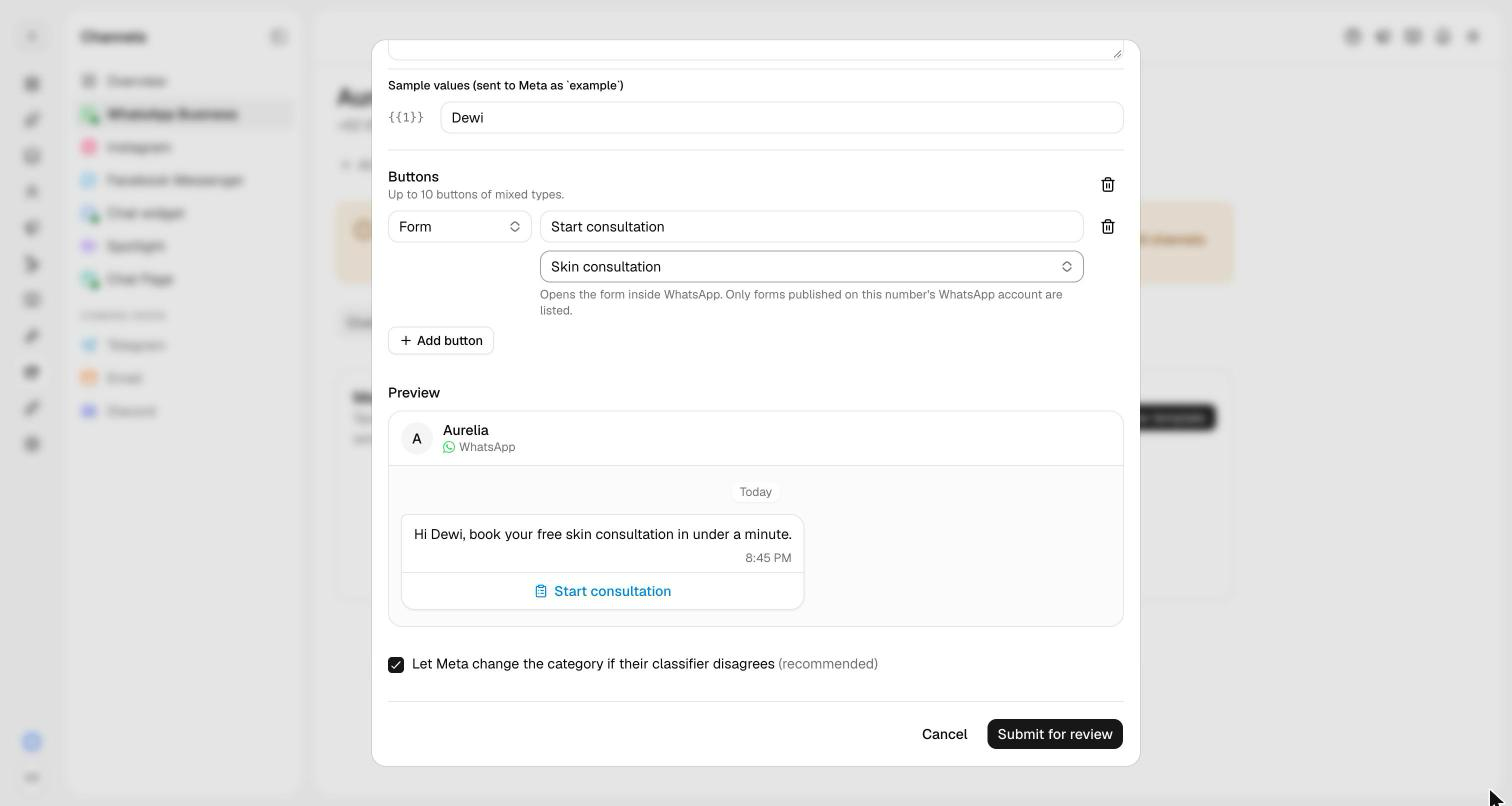
Send a template with a Form button. On the number's Templates tab under Channels → WhatsApp, click New template, add a button of type Form, give it a label and choose the form it opens. Only forms published on that number's WhatsApp account are listed, a template has one Form button at most, and Authentication templates can't have one. Once Meta approves the template, send it from the inbox, with an automation's Send WhatsApp template step, or as a WhatsApp campaign. Each recipient gets their own form, so their answers are saved to them.
How your AI agent uses it
Once a form is published on a number, your AI agent sends it in that number's chats instead of asking for those details in text:
- Lead form — when your Collect Leads When to collect condition is met and the customer's name or email is still missing, whichever collection mode you picked.
- Collect Data form — when the action's When to use condition is met.
The form arrives as its own message right after the agent's reply, which invites the customer to fill it in. The agent sends each form at most once per conversation, and never one your team or an automation already sent there. When the customer submits a form the agent sent, Asks posts your Collect Leads success message (or a standard thank-you line) instead of another AI reply. If the customer types the details in the chat instead, the agent saves them as usual.
Where the answers go
A submitted WhatsApp form is saved like any Collect Leads or Collect Data submission:
- Lead form — Customers → Leads with source Form and channel WhatsApp. The name and email update the customer as other leads do; the phone comes from WhatsApp.
- Collect Data form — Customers → Collected data and the customer's profile.
- Your Destinations emails, the
lead.capturedanddata.collectedwebhooks (sourceform,channelwhatsapp), and automations that start on Lead captured.
Yes / No answers are saved as yes or no, and dates as YYYY-MM-DD. If the customer submits the same form message twice, the second card says Submitted again and nothing is saved twice. Meta bills form messages like other WhatsApp messages: a service message inside the window, a template outside it (pricing).
Troubleshooting
A number shows Error
Read the reason under the number. Meta publishes forms only for a verified business whose number has high message quality: check your business verification in Meta Business Suite and the number's rating on its Quality & Health tab, then click Publish now.
A template's answers aren't saved
Answers to a WhatsApp Flow made outside Asks, such as in WhatsApp Manager, show in the conversation but aren't saved to Leads or Collected data. Use a Form button bound to one of your Asks forms.
Related
- Collect Leads and Collect Data — the forms you send.
- WhatsApp — connect a number and create templates.
- Automations — every step and trigger.
- WhatsApp campaigns — send a template to many customers.